
In this blog, we will learn how to implement Cover page in the canned reporting module of Open Source BI helical Insight. In the future versions of Helical Insight, we are also going to add the options of subreport as well which will make it more simpler.
The cover page serves as the introductory section of the report, providing essential information such as the report title, description, date, author details, and any relevant metadata before the main data section begins
In this setup, all the cover-related information is placed at the top of the report layout.
After the cover page content, we have added a page break from Elements to ensure that the actual data section of the report starts on a new page. After the page break, it contains all the information about the report. Refer the below image
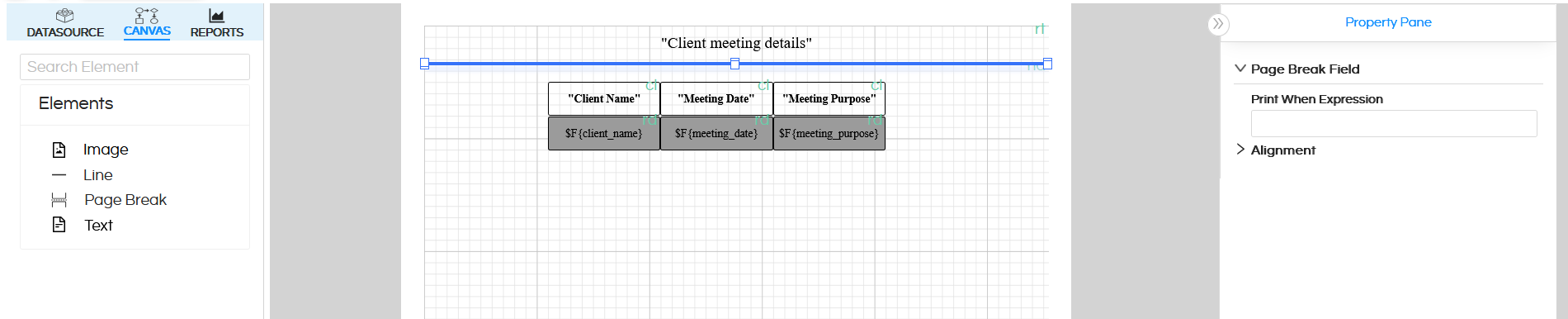
The above created report, when you export, both PDF Excel etc all the exports will have page break. But in many cases what might happen is that we may want page break to only appear in PDF and not in excel. If you have that kind of requirement please read further to understand how to implement the same.
To make the cover page appear only in the appropriate export formats, I created a parameter by clicking the ‘+’ icon.
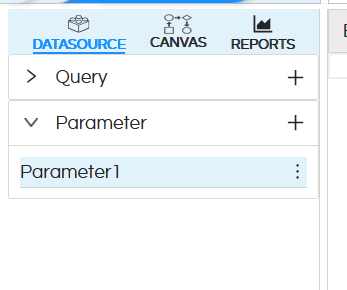
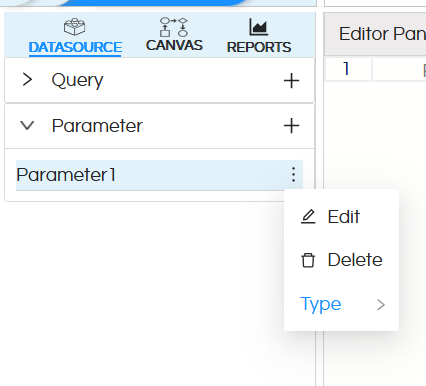
After that, you can edit the parameter name by clicking the three dots — you’ll get an option to edit it.
Here, I’ve named my parameter ExportFormat.
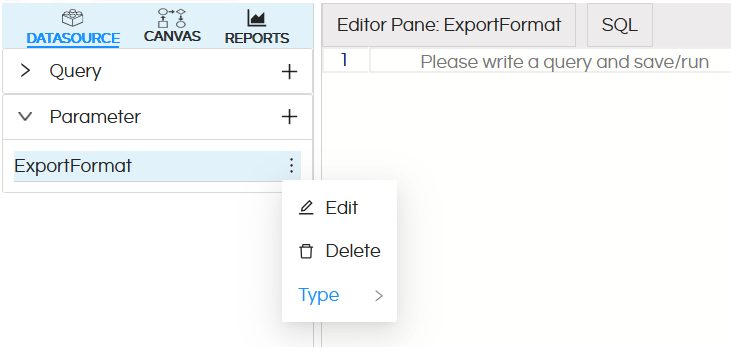
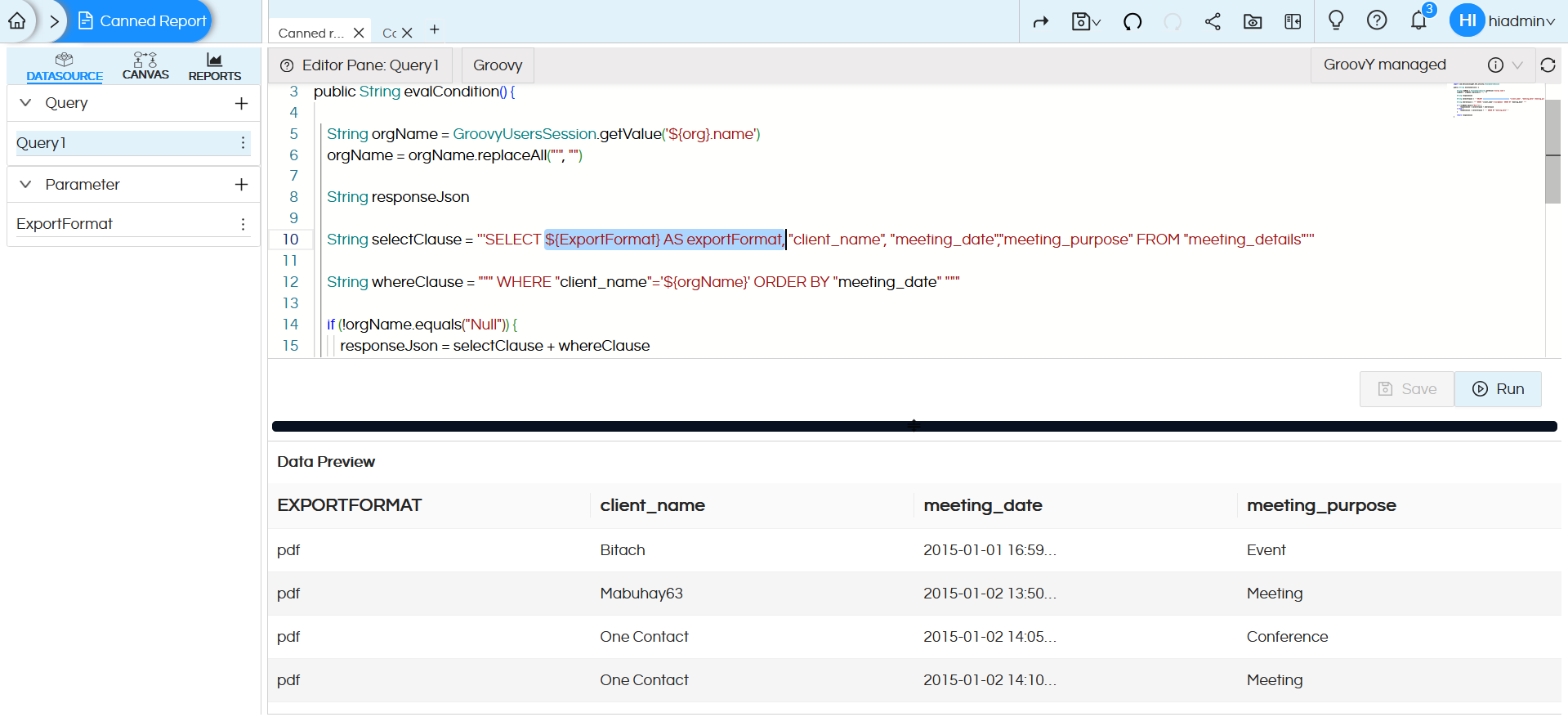
Check the above image — I have added the parameter in the query to make it available in the canvas.
This parameter helps control which parts of the report are displayed, depending on the parameter type.
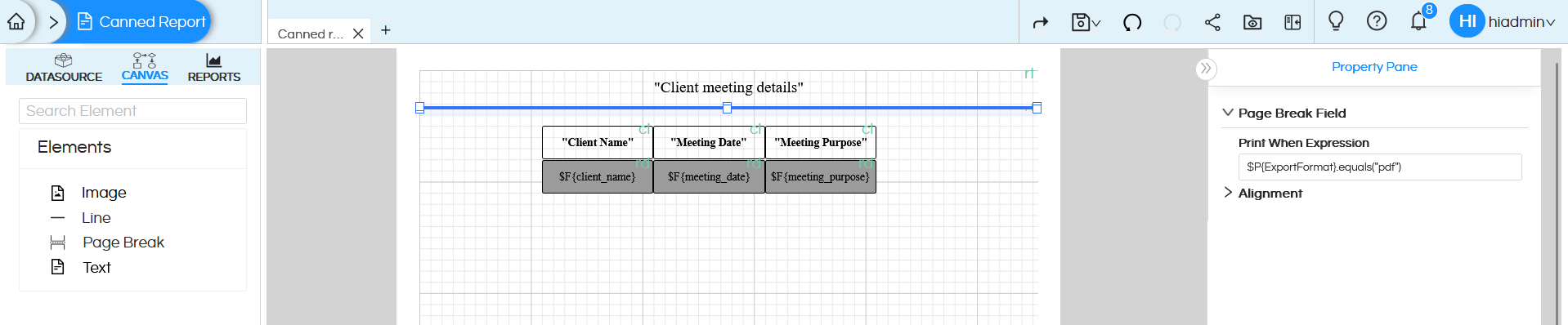
As shown in the image below, I used the condition $P{ExportFormat}.equals("pdf") for the Page Break element and also for the Title. This condition ensures that the cover page — which includes the report title is present when the export happens in PDF format, the cover page is displayed.
When the export format is xlsx, the cover page is hidden, ensuring that Excel outputs contain only the data portion without unnecessary visual elements.
The first page (cover page) displays the report title,
A page break is then applied to separate the content.
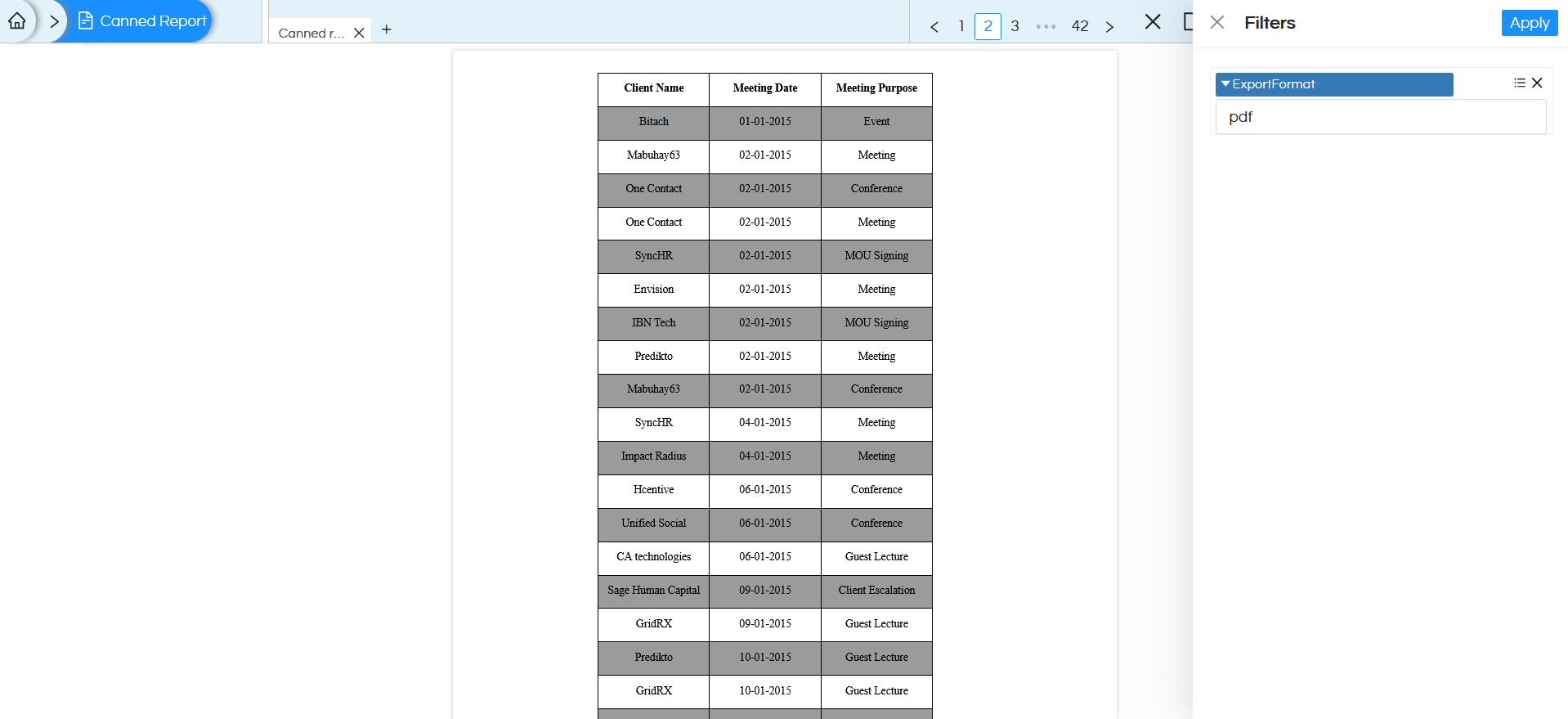
The second page displays the actual report data
After completing the Canvas configuration click on the Preview option to execute and visualize the report.
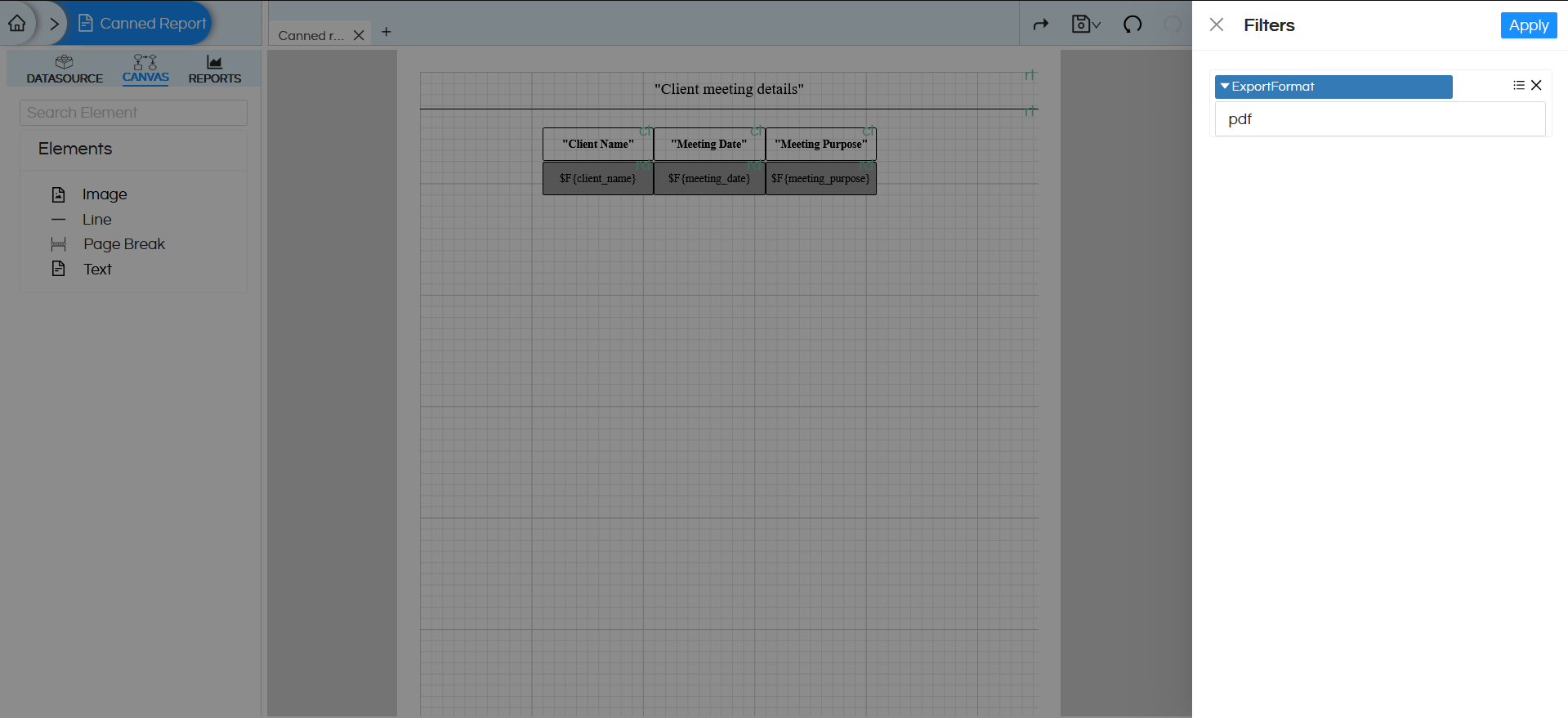
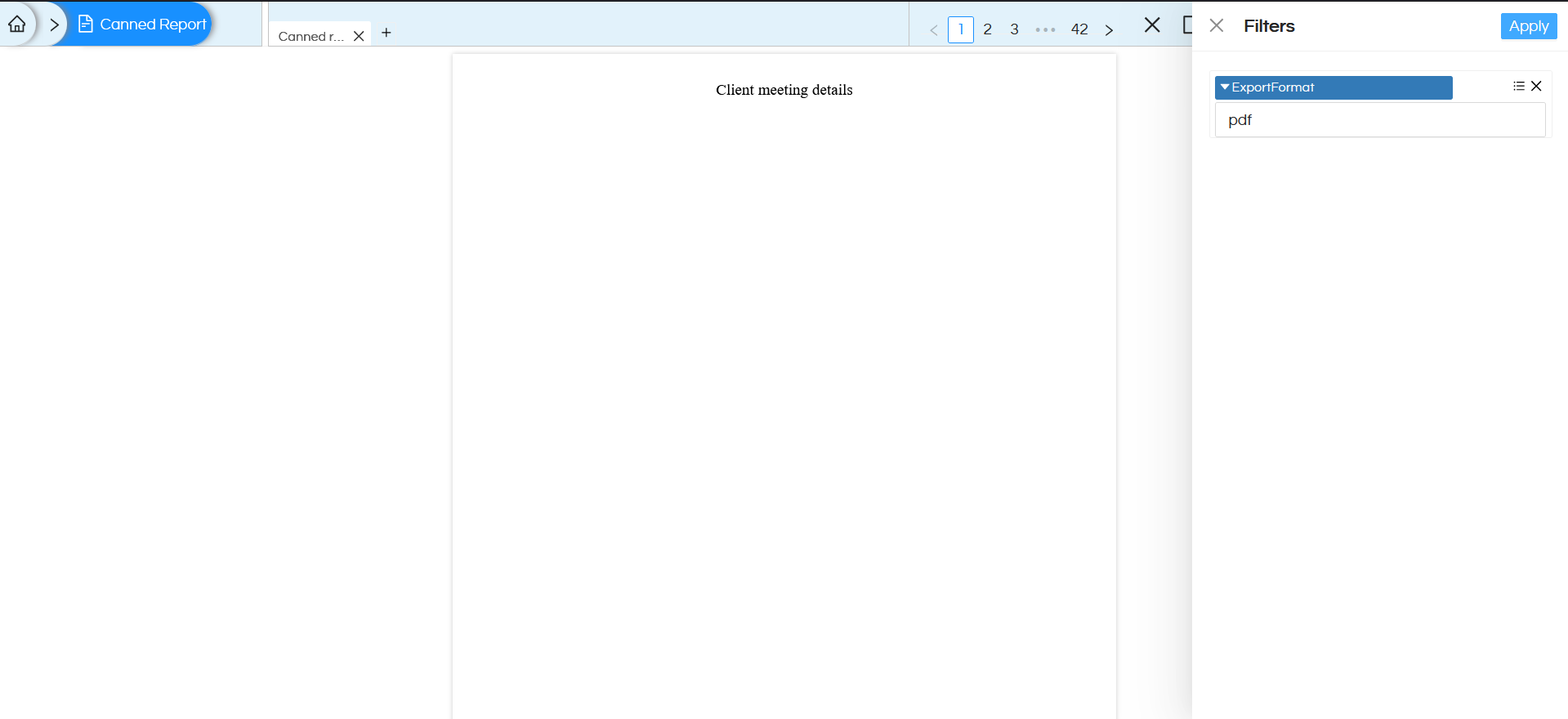
After clicking Preview, the Filter section will appear with the ExportFormat parameter as an input field.
In this step, I entered “pdf” as the export type to verify the Cover Page functionality.
We can also hide the parameter from the user interface by assigning a default value to it.
By setting a default value, the parameter is automatically populated during report execution and does not require manual input from the user.
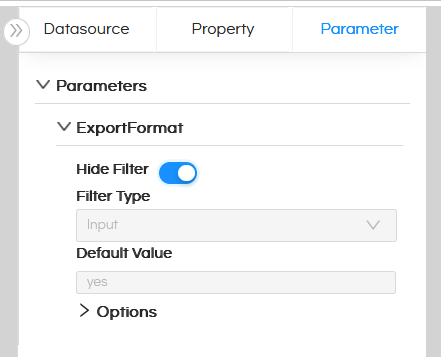
By passing pdf, the report displays the cover page (containing the title information) on the first page, followed by the data section on the next page.
Overall, the cover page adds a structured and polished look to the report.
It is also possible to pass the filtername and filtervalue, rather than from UI, directly into the report URL as well. Hence here we are passing ExportFormat is PDF or XLS from the UI, rather it can be passed from some other 3rd party application as well, This is helpful when we are implementing embedding. Hence imagine that you have embedded the report in your application, and you can have an export to PDF, export to Excel kind of buttons which can trigger such required exports with required page breaks. Refer here to learn more :
https://www.helicalinsight.com/passing-filter-values-in-url-in-helical-insight/
