
In this blog, we are going to cover the points related to the usage of the Page Break component. This blog is relevant to open source BI Helical Insight version 6.0 onwards.
The Page Break element is used to insert a manual page break in the report layout. This ensures that the content following the break starts on a new page when the report is exported (e.g., to PDF or printed formats).
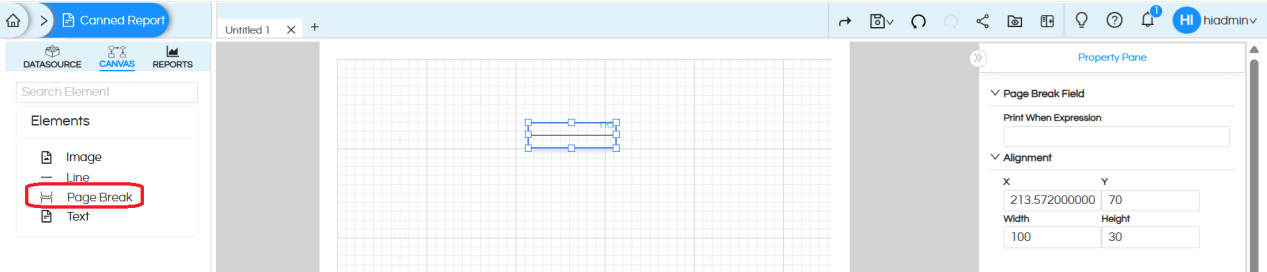
On selecting the Page Break component, the Property Pane on the right shows configuration options:
Print When Expression: The Print When Expression lets you control when a page break should be applied by evaluating a Boolean expression. If the expression returns value as true, the page break is triggered, if it returns false, the page break is skipped.
Leaving this field blank means the page break will always be applied.
Example: Insert a page break only when the logged-in user’s name is “hiuser”. Use the following expression in Print When Expression of the Page Break element:
"hiuser".equals(com.helicalinsight.adhoc.metadata.GroovyUsersSession.getValue("${user}.name").replaceAll("'", ""))
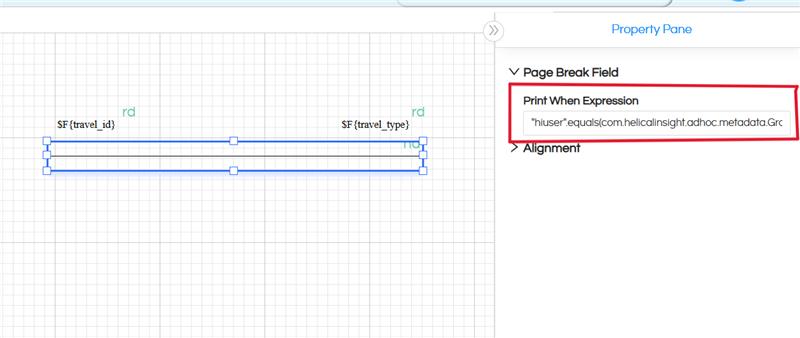
Alignment:
X / Y: Controls the position of the page break component on the canvas.
Width / Height: Adjust the size of the component. This does not impact functionality but can help with layout clarity on the canvas.
To use it, simply drag the Page Break from the Elements panel onto the canvas, and position it as needed.
Repeat By: By right clicking on the page break, you can also specify repeat by options. The repeat by of this page break should happen based on where we want the page break. For example, let’s assume that after every group gets over and before next group starts we want a page break, then repeatby should be by that GroupName etc.
Reach out on support@helicalinsight.com in case of any more questions. Further you can also ask your questions here :
https://forum.helicalinsight.com/
