
HELICAL INSIGHT • INSTANT BI
OpenRouter Configuration Guide
Connect Instant BI to OpenRouter, add models, and switch between them from the UI.
In this blog we are going to learn how to use OpenRouter for the AI module (Instant BI) of open source BI product Helical Insight.
Quick start – the whole process in 6 steps
- Create an API key at openrouter.ai/keys and copy it.
- Add your model ID(s) to
llm_models_catalog.yaml. - Add the openrouter block to
llm_config.yamlwith your key. - Open Management → Instant BI → LLM Providers and refresh.
- Click the Openrouter tile, pick a model, and select Save.
- (Optional) Tick Set as default provider.
In this guide
- What is OpenRouter?
- Before you begin
- Create an OpenRouter API key
- Add models to the model catalogue
- Configure the OpenRouter provider
- Select the provider in the UI
- Set OpenRouter as the default provider
- Switch between models
- Validate your setup
- Troubleshooting
- Security best practices
- Quick reference and links
1. What is OpenRouter?
OpenRouter is a unified API gateway for large language models (LLMs). Instead of integrating each model provider separately, Helical Insight sends requests to OpenRouter using one API key and a model ID. This lets you try several supported models through a single credential and a common endpoint.
| Concept | What it means for you |
|---|---|
| One integration point | One OpenRouter API key covers the models enabled for that key or account. |
| Model choice | You list model IDs in Helical Insight, then pick one in the provider settings. |
| Free variants | Model IDs ending in :free carry no token price while that variant is available. Availability, rate limits, and capacity can change. |
Free is not guaranteed
A single API key does not make every model free. Check each model’s current pricing and terms before use.
2. Before you begin
Make sure you have the following ready:
| Requirement | Details |
|---|---|
| Helical Insight | After 7.0 stable version |
| Server access | Access to the Ubuntu host with permission to edit the Instant BI YAML files. |
| OpenRouter account | An account and a newly generated API key (see Section 3). |
| Model ID(s) | The exact ID of each model to enable, copied from the OpenRouter model catalogue, including the :free suffix where it applies. |
3. Create an OpenRouter API key
- Go to openrouter.ai and sign in or create an account.
- Open the Keys page from the dashboard, or go directly to openrouter.ai/keys.
- Choose Create Key and give it a descriptive name, for example Helical-Insight-Dev.
- If offered, set a spending limit or expiration that matches your organisation’s policy. YOu can also keep it 0 and use the free models.
- Create the key and copy it immediately. OpenRouter shows the full secret only once, so save it in a password manager or secrets vault.
- Review the pricing and usage limits for the model you plan to use.
The OpenRouter dashboard may change over time. If a button label differs slightly, use the closest match. Reference: Authentication docs
4. Configure the OpenRouter provider
Initially, the admin screen does not show OpenRouter option.
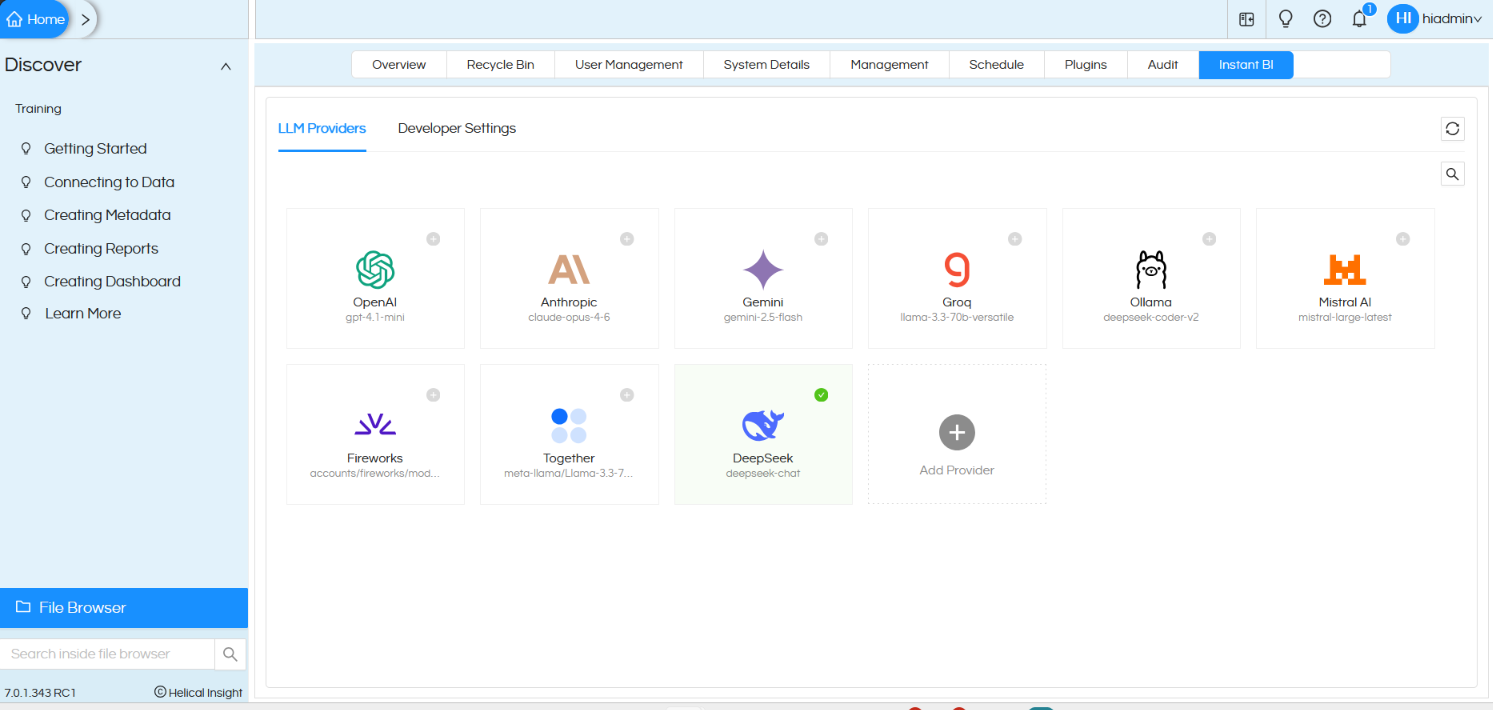
The provider file tells Instant BI how to talk to OpenRouter and which model to use initially.
- In the same folder, open
llm_config.yaml. - Add or update the openrouter block shown below.
- Replace YOUR_OPENROUTER_API_KEY with your real key. Do this on the server only.
- Save and close the file.
NOTE: Right now
llm_config.yaml
openrouter:
  package: langchain-openrouter
  model: nemotron-3.5-super-vl:free
  parameters:
    temperature: 0.1
    max_tokens: 4000
    api_key: YOUR_OPENROUTER_API_KEY
  usage_path: usage_metadata
What each setting does
| Setting | Purpose | Notes |
|---|---|---|
package |
Integration package used for OpenRouter. | Must be exactly langchain-openrouter. |
model |
The model selected initially. | Must match an ID listed in llm_models_catalog.yaml. |
temperature |
Controls randomness. Lower values give more consistent answers. | Example value 0.1; adjust as needed. |
max_tokens |
Maximum length of a model response. | Example value 4000; adjust as needed. |
api_key |
Your OpenRouter secret key. | Keep private; never share this file with a real key. |
usage_path |
Where token usage is read from in the response. | Keep as usage_metadata. |
Using several models?
Keep a valid default model in llm_config.yaml. The catalogue makes models available to choose from; the provider block defines the one configured first.
6. Select the provider in the UI
Sign in with an account that can manage system settings, then go to Management → Instant BI → LLM Providers. Menu wording can differ slightly between builds.
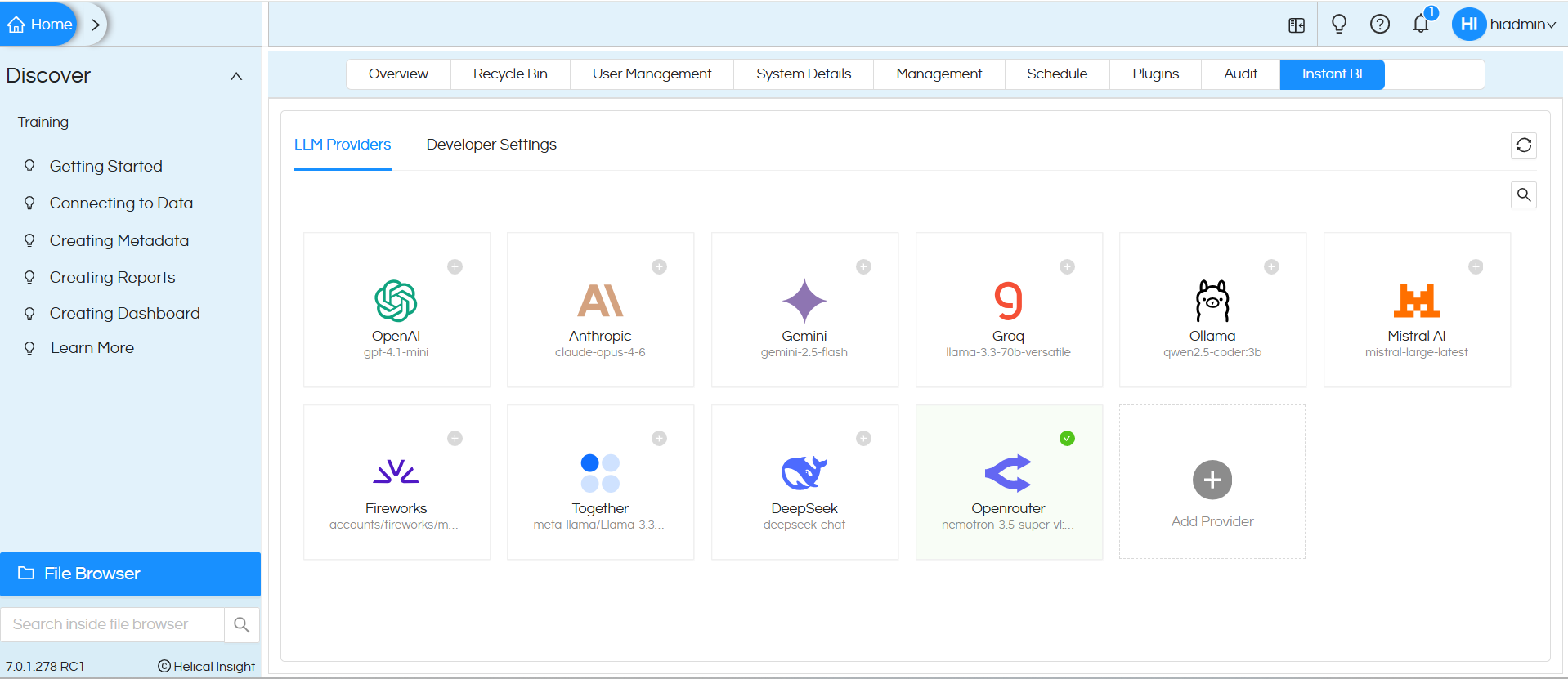
Figure 1. Instant BI → LLM Providers. The green tick marks the default provider.
- Click the refresh icon if you just edited the YAML files.
- Find the Openrouter tile. If it is missing, see Troubleshooting (Section 10).
- Click the + / edit control on the tile to open its settings.
- Pick the desired model from the Model dropdown.
- Enter or verify the API key. Keep it private and keep it out of screenshots.
- Review Temperature, Max Tokens, and Usage path.
- Click Save.
Add models to the model catalogue in Helical Insight
Right now on the UI, even though “Open Router” icon is appearing, but it does not the models. Below steps explain how to configure the model names which will appear to be selected in the Open Router UI in Helical Insight.
The model catalogue file controls which models option appear in the UI.
- On the Ubuntu server, open a terminal and go to the Instant BI configuration folder.
- Open
llm_models_catalog.yamlin a text editor. - Add
langchain-openrouterentry and then add each model ID as a list item under it. - Save and close the file.
Terminal
cd ~/helical/helicalinsight-ee-7.0.1.278RC1/hi/hi-repository/System/InstantBI

nano llm_models_catalog.yaml
Example: one model
#llm_models_catalog.yaml

langchain-openrouter:
  - nemotron-3.5-super-vl:free
Example: multiple models
Put each model ID on its own line so every one appears in the UI.
#llm_models_catalog.yaml

langchain-openrouter:
  - nemotron-3.5-super-vl:free
  - another-model-id:free
  - third-model-id:free
Tips for a clean file
- Use spaces, not tabs, and keep the indentation consistent (two spaces before each -).
- Replace the example IDs with the exact IDs shown on OpenRouter. Do not assume a model stays available or free.
7. Set OpenRouter as the default provider
In the Edit Provider dialog, tick Set as default provider and click Save. A green tick on the provider tile confirms it is now the default.
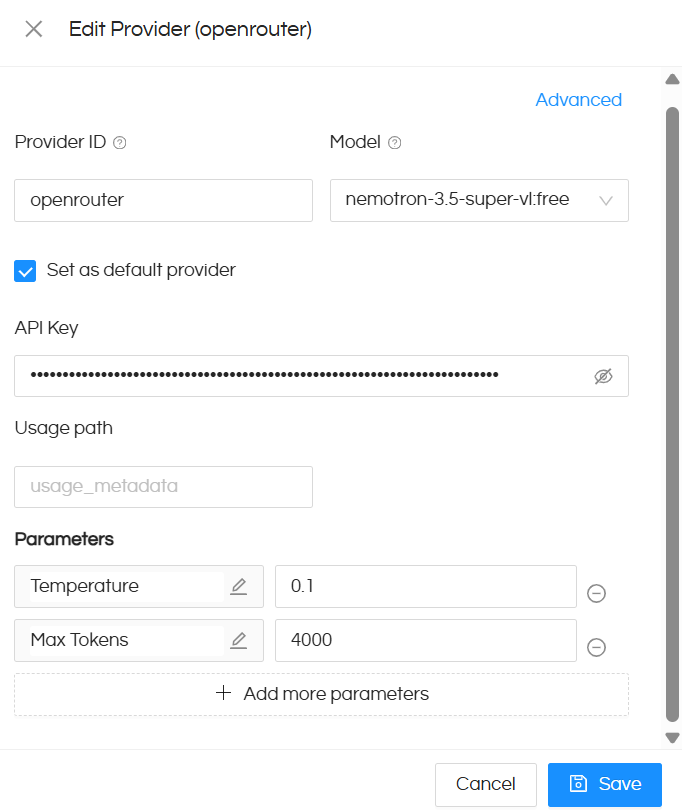
Figure 2. Edit Provider (openrouter): model, default checkbox, API key, and parameters.
Just testing?
Leave Set as default provider unchecked to try OpenRouter without changing your current default. This works if your deployment supports it.
8. Switch between models
- Confirm the model ID is listed under
langchain-openrouterinllm_models_catalog.yaml. - Open the OpenRouter tile’s Edit Provider dialog.
- Choose the required model from the Model dropdown.
- Click Save, then confirm the selected model before you run a test.
Check model compatibility
Models differ. Some are text-only or may not support every capability an Instant BI workflow needs. Choose a model whose input/output types and context window fit your task.
Changes not showing?
Follow your deployment’s normal application reload or restart procedure, then check the Helical Insight logs for configuration or authentication errors.
9. Troubleshooting
| Symptom | What to check |
|---|---|
| OpenRouter tile is missing | Check syntax, indentation, provider name, package name, and exact model ID in both YAML files. Refresh the page and read the application logs. |
| Authentication or unauthorized error | Generate a new key if needed, confirm it was copied correctly and has not been revoked. Never paste the key into logs or tickets. |
| Model not found or unavailable | Copy the current ID from OpenRouter and confirm the variant still exists. Check the :free suffix and the model page. |
| Rate limit or no free capacity | Review OpenRouter’s current limits. Try again later or choose another available model. |
| Dropdown does not show new models | Confirm the model is under langchain-openrouter, save the file, refresh the UI, and follow your normal reload/restart procedure. |
| Provider saves but responses fail | Check model compatibility, request limits, the selected default provider, network access to OpenRouter, and the application logs. |
10. Security best practices
- Treat OpenRouter API keys like passwords. Store them securely and restrict access to the config files.
- Never commit
llm_config.yamlwith a real key to source control or attach it to bug reports. - If a key is exposed, revoke it and create a replacement.
- Recheck the live OpenRouter model page before deployment: free-model names, limits, and policies can change.
- Review the model and provider terms and data-handling policies before sending client or confidential data.
11. Quick reference and links
Key values
| Item | Value |
|---|---|
| Config folder | ~/helical/helicalinsight-ee-7.0.1.278RC1/hi/hi-repository/System/InstantBI |
| Model catalogue file | llm_models_catalog.yaml (list models under langchain-openrouter) |
| Provider file | llm_config.yaml (block named openrouter) |
| UI path | Management → Instant BI → LLM Providers |
Official OpenRouter links
| Resource | Link |
|---|---|
| Homepage | https://openrouter.ai/ |
| API keys dashboard | https://openrouter.ai/keys |
| Authentication docs | https://openrouter.ai/docs/api-reference/authentication |
| Free models collection | https://openrouter.ai/collections/free-models |
| Free model filter | https://openrouter.ai/models?pricing=free |
| Pricing | https://openrouter.ai/pricing |
Need help with Helical Insight?
In case of any questions regarding the usage please post your questions on https://forum.helicalinsight.com/ or reach out to support@helicalinsight.com.
How to use Instant BI AI module: Usage of Instant BI in Helical Insight – Helical Insight
Getting started with Helical Insight: Getting Started with Helical Insight – Helical Insight
