By default, when performing Import/Export, the Datasources and Recycle Bin options in the Import/Export popup are enforced (frozen) and cannot be changed by the user.
To make these options selectable, you need to update the Import/Export settings in the setting.xml file.
Follow these steps:
-
Navigate to the following directory:
.../<helicalinsightversion>/hi/hi-repository/System/Admin/
- Open the setting.xml file.
-
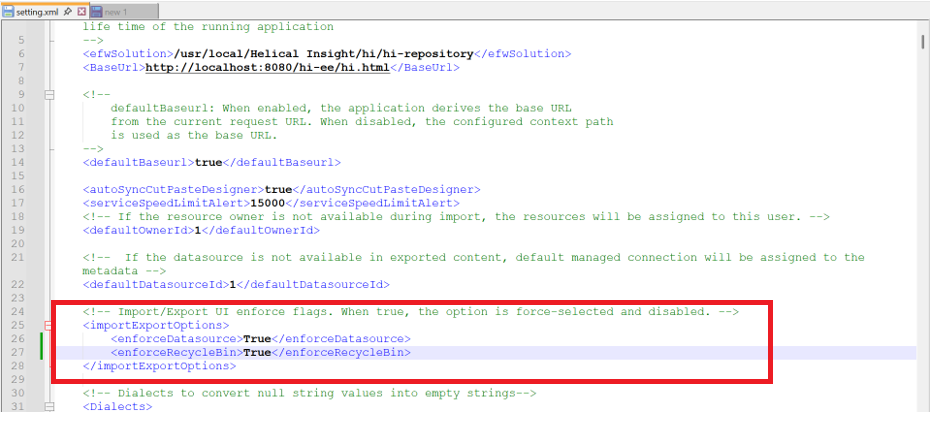
Find the following configuration:
<importExportOptions> <enforceDatasource>True</enforceDatasource> <enforceRecycleBin>True</enforceRecycleBin> </importExportOptions> -
Change both values from True to false as shown below:
<importExportOptions> <enforceDatasource>false</enforceDatasource> <enforceRecycleBin>false</enforceRecycleBin> </importExportOptions> - Save the setting.xml file and hard-refresh the Helical Insight application in your browser. It is recommended to open the application in a different private/incognito browser window.
Note: No application restart is required.
Now, the Datasources and Recycle Bin options will also be selectable in the Import/Export popup.
Note: The enforceDatasource and enforceRecycleBin flags control whether the respective options are enforced. Set them to false to allow users to select or clear those options.
Example: setting.xml configuration