
With version 7.1.0.366 RC1 of Open Source BI product Helical Insight, Instant BI introduces three new modes to handle user questions: Auto, Fast, and Think.
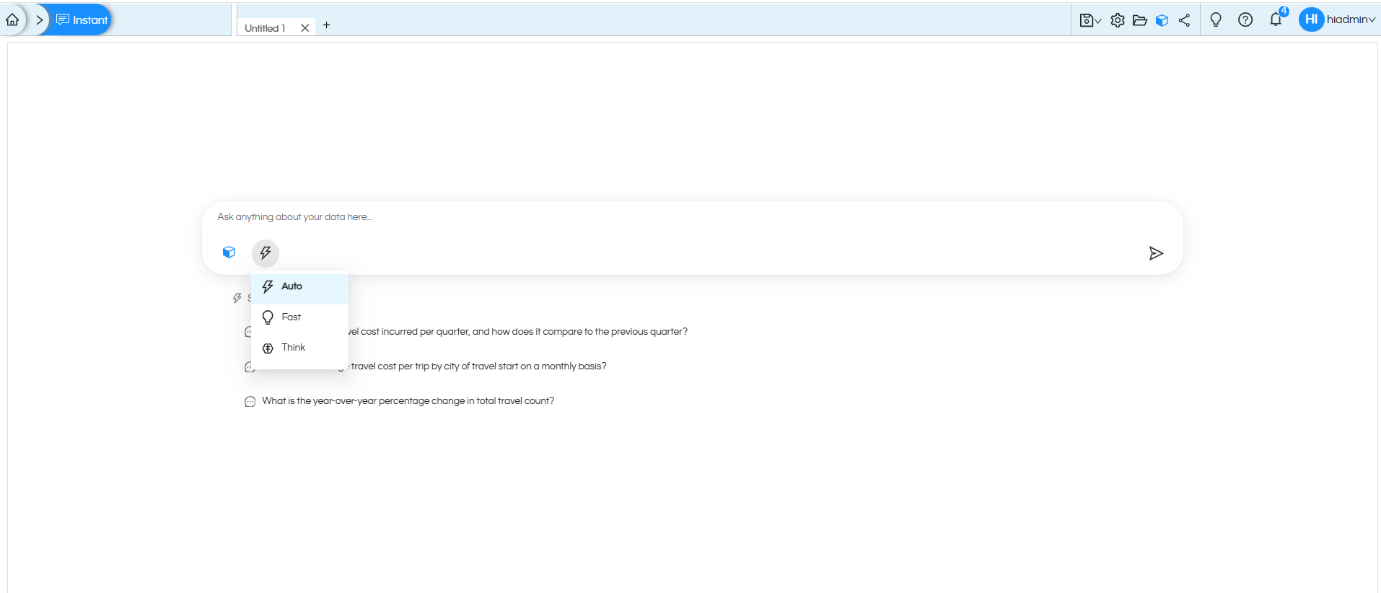
1. Auto Mode
Auto Mode automatically identifies the complexity of a user’s question and selects the appropriate approach.
- For simple questions, it provides a direct answer using fast mode.
- For complex questions, it uses Think Mode for deeper analysis.
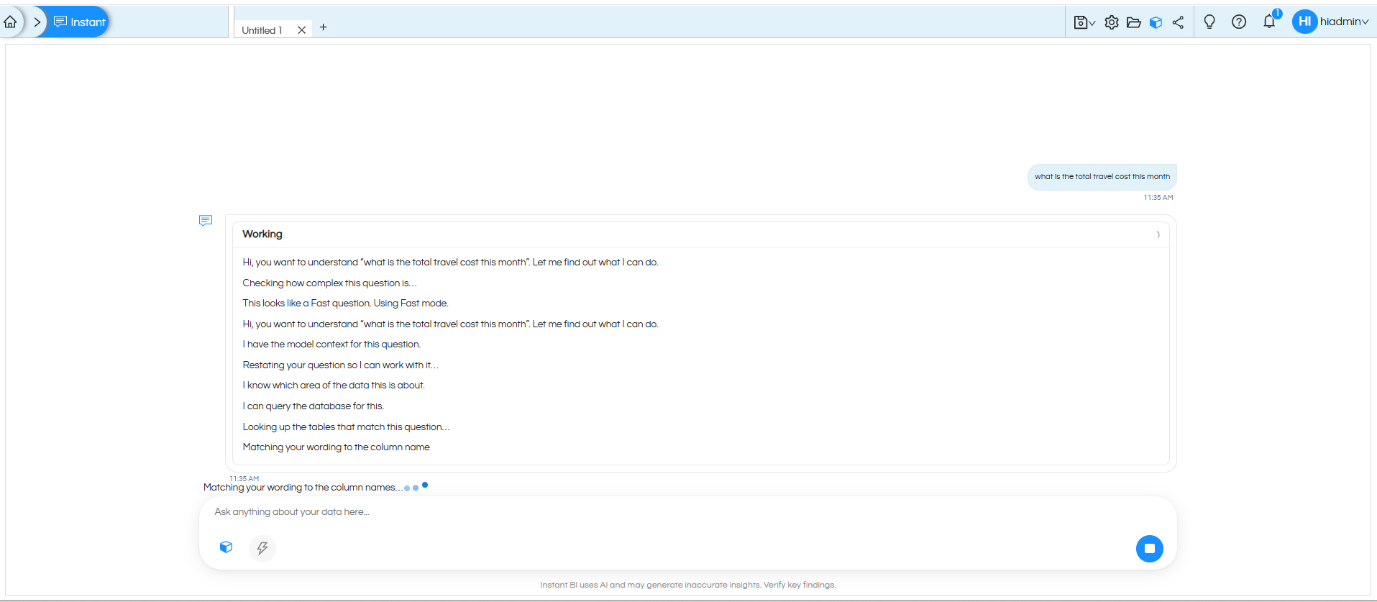
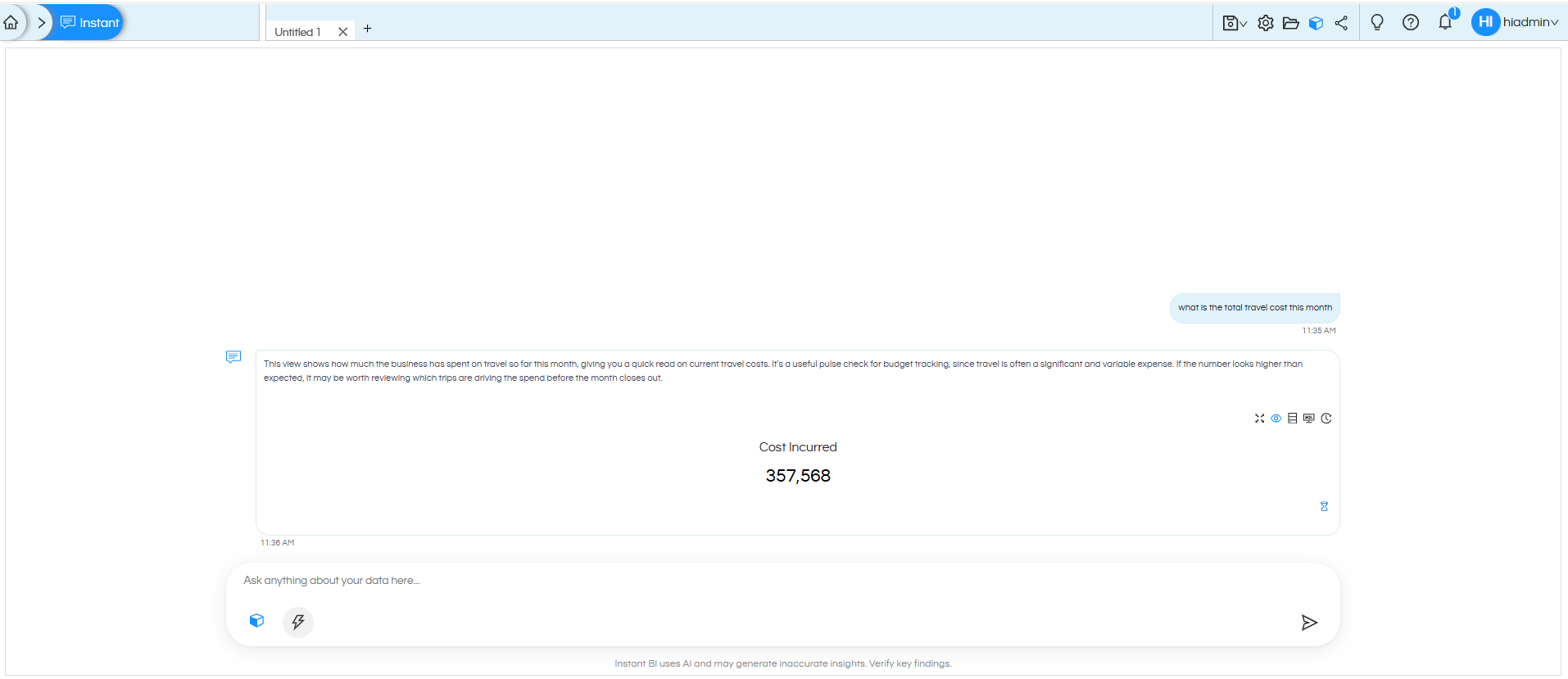
2. Fast Mode
Fast Mode is designed to provide quick answers to straightforward questions using a direct question-and-answer approach.
Example:
3. Think Mode
In Think Mode, the LLM breaks a complex business question into smaller supporting questions (also called sub-questions) and analyzes them before preparing the final response. These supporting questions are displayed in the response along with the analysis.
Think mode can be used to ask advanced questions like:
Forecasting Kind of Questions
- Based on historical trends, what are the expected travel costs and travel volumes for the next year?
- Which travel types and travel mediums are expected to have the highest usage in the next year?
Decision Kind of Questions (for Strategy & Action)
- What areas should be considered to reduce meeting cancellations and their associated travel expenses?
- What areas should management focus on to reduce travel expenses while maintaining travel volume and positive meeting outcomes?
Root Cause Analysis Kind of Questions
- Why do some clients have higher meeting cancellation levels and different meeting impacts than others?
- What factors contribute to higher travel expenses across different travel mediums and booking platforms?
History & Pattern
- How have travel costs and meeting volumes changed over the years?
- How have meeting cancellations varied by client and cancellation reason over the years?
Example: Think Mode Analysis
Example: “Which booking platforms and payment modes should be investigated for travel cost optimization?”
When a complex question like this is asked, Instant BI model automatically switches to auto mode. Then the application thinks and figures out the list of all the sub-questions which might be required to answer this complex question. Then the AI of Helical Insight application gets the answers of all of these questions. We can see the list of all the questions and their respective answers also in the response.
After getting all the responses, it co-relates all the responses and then gives a single answer to the asked question.
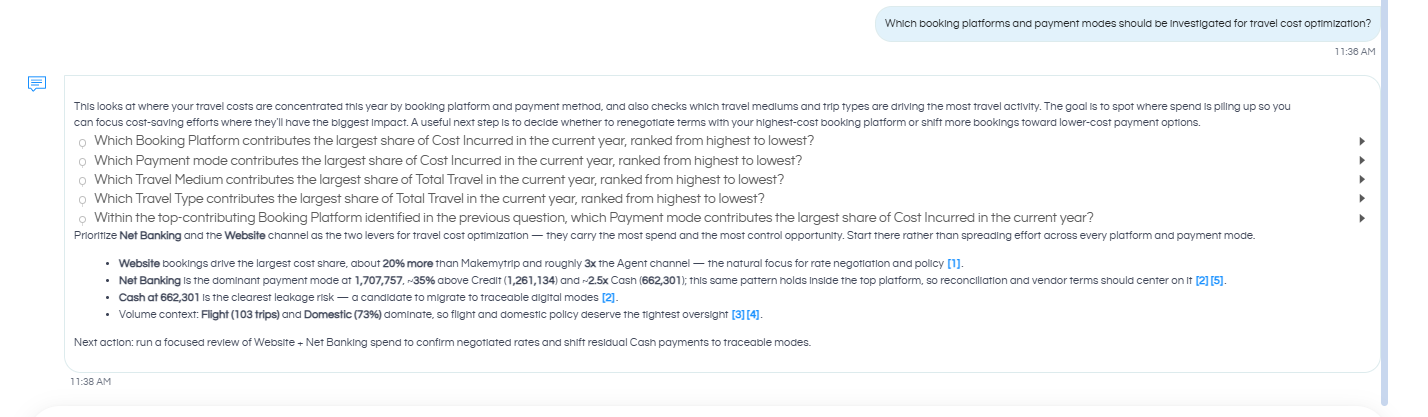
At the answer, we can also see that there are attributions present, such as [1] and [2], clicking on which it opens the corresponding supporting questions from which this information is received.
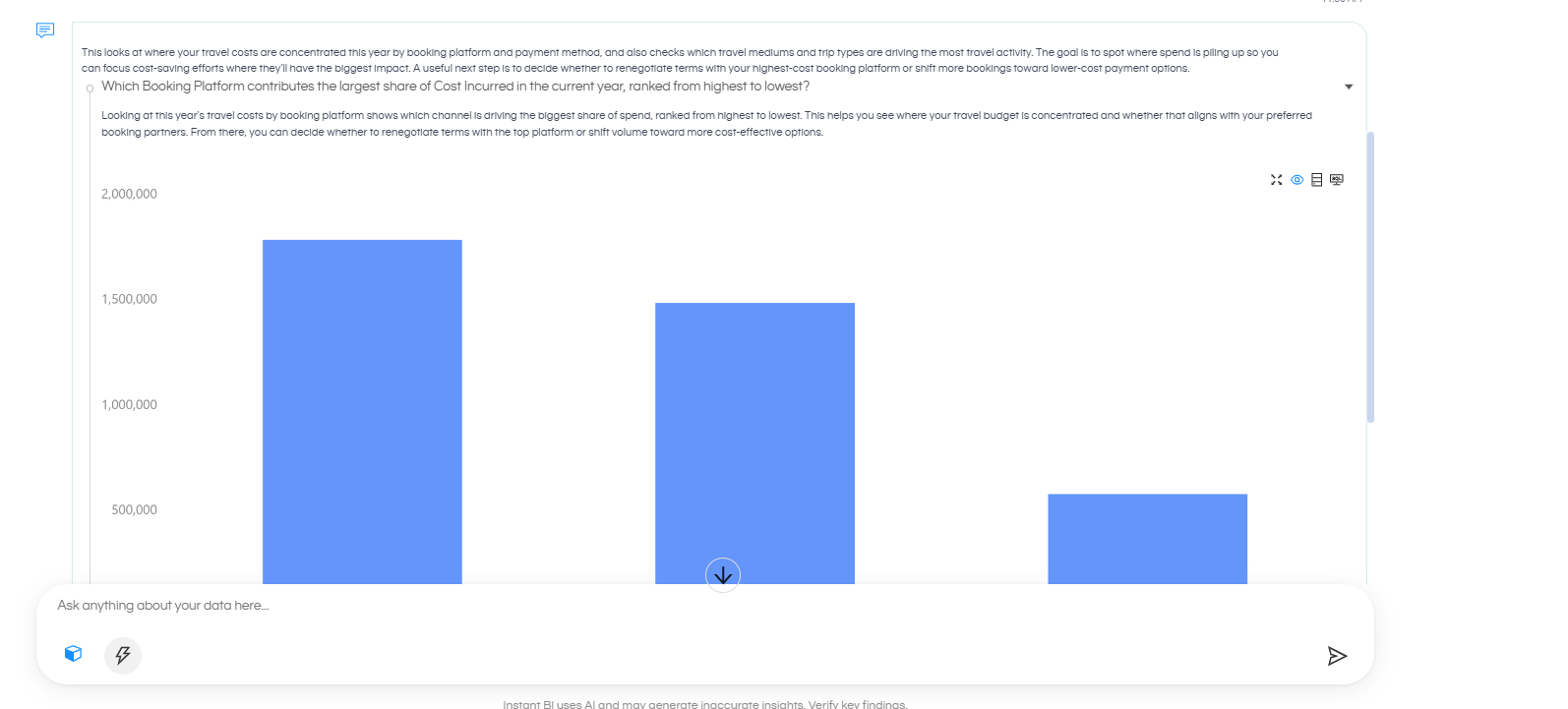
Users can also click the arrow at the right end of a supporting question to expand it and view the answer or analysis generated for that question.
Summary
- Auto: Automatically selects the appropriate mode.
- Fast: Provides quick answers to simple questions.
- Think: Performs deeper, multi-step analysis for complex questions.
Exploring Instant BI Response Actions
In Instant BI, users can inspect how the LLM processes a question and work with the visualizations generated in response. The available actions help users understand the analysis, adjust filters, change the chart type, and continue editing in Helical Insight Report Designer.
1. Understanding LLM Processing
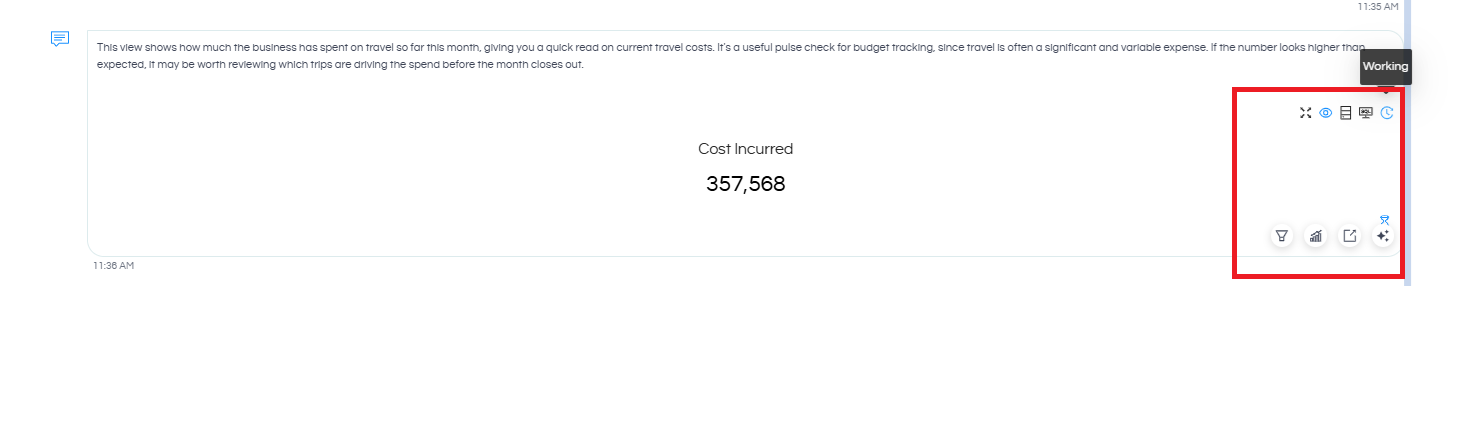
The response section provides options to understand how the LLM analyzed the question and generated the answer. Hover over the available icons to view the name of each function, such as “Working”.
These details help users inspect how a question was handled in Fast or Think Mode, including the supporting questions, analysis steps, and perspectives considered by the LLM.
2. Available Visualization Actions
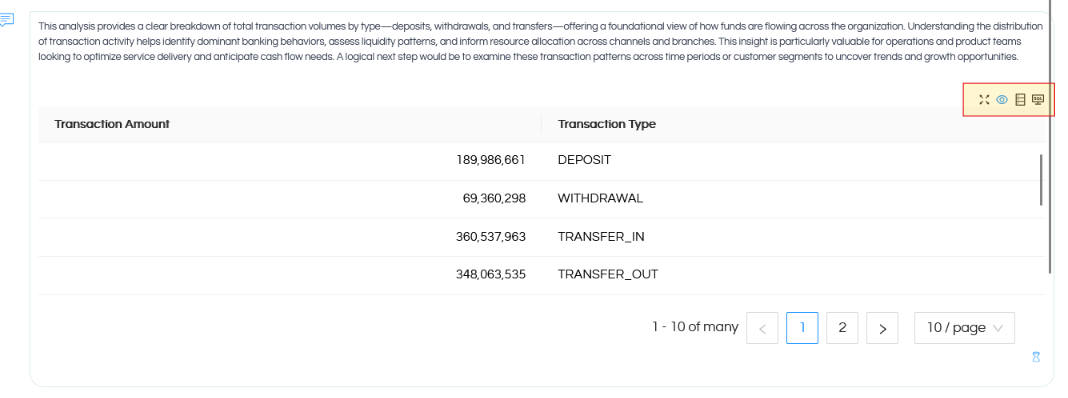
At the top we are having the below kind of options on a created analysis.
| Option | Description |
|---|---|
| Maximize | First option is maximize, allowing you to maximize this chat and see it in a full screen. Once maximized, at the top right you have the option to close the full screen mode. |
| Preview | By default the AI assisted analytics opens in preview mode. |
| Semantic | Fourth option is semantic option. This option opens up information of various things like which all tables and columns, dimensions etc were used to create this analysis. We can also see the number of tokens (input and output token) were used to create this analysis, model used etc. |
| SQL | This option allows you to see the SQL which got generated and verify it. This option is more useful for technical users. |
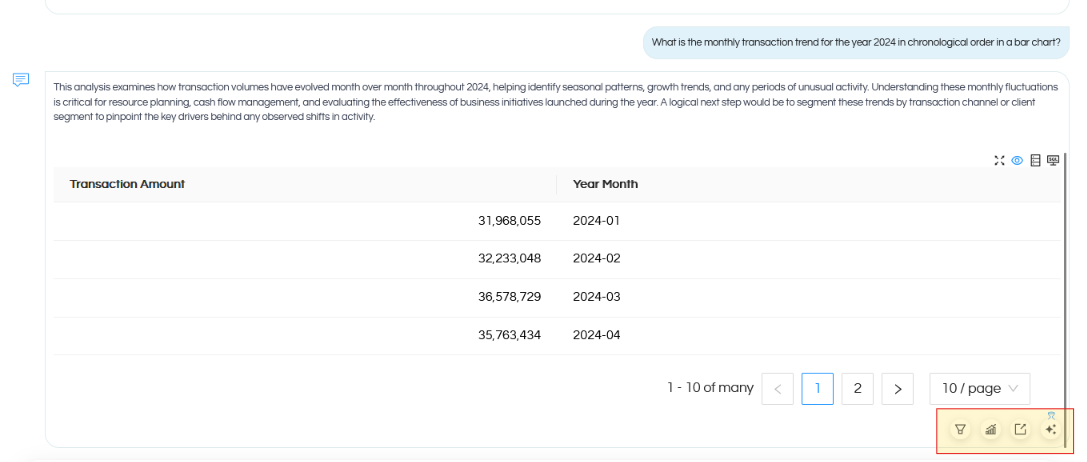
And at the bottom of the created AI analysis, we have the below set of options.
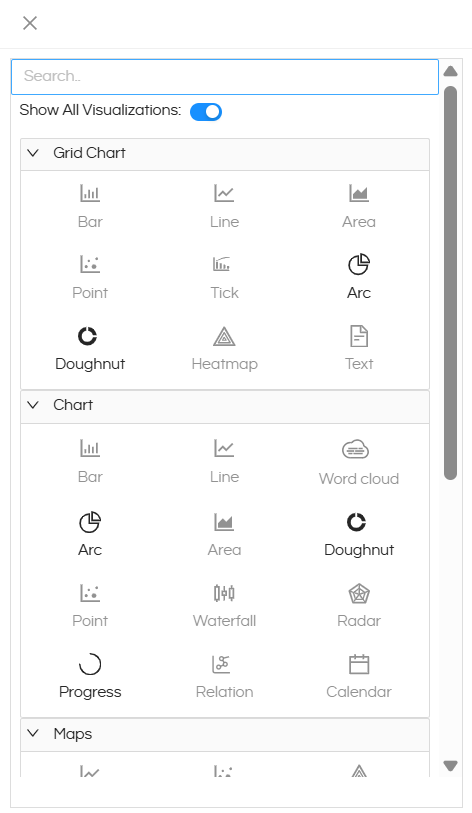
2.1. Change Visualization
Allows users to change the visualization type without consuming additional LLM tokens. Users can select from the available chart types, such as Bar, Line, Area, Point, Doughnut, Heatmap, and others. Please note that based on the number of dimensions and measures which are present in the response, certain set of visualization only might be relevant.
Note that it is even possible to ask for changing the visualization even from the LLM chat as well.
2.2 Open Filters
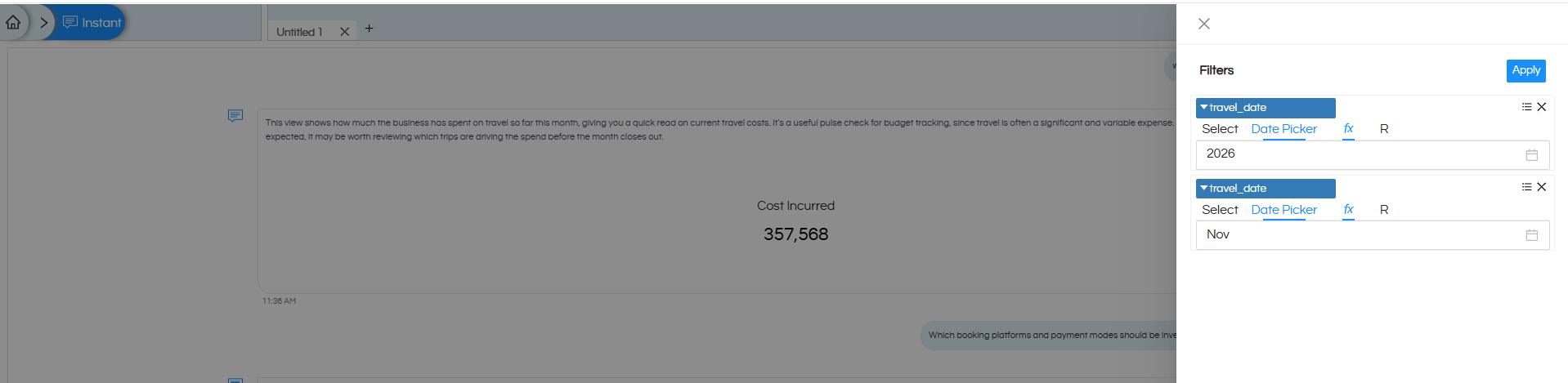
If the created reports has any filters, when this option is clicked it opens the filter panel, allowing users to modify the available filters and apply different conditions to the generated visualization.
2.3. Explore This Chart
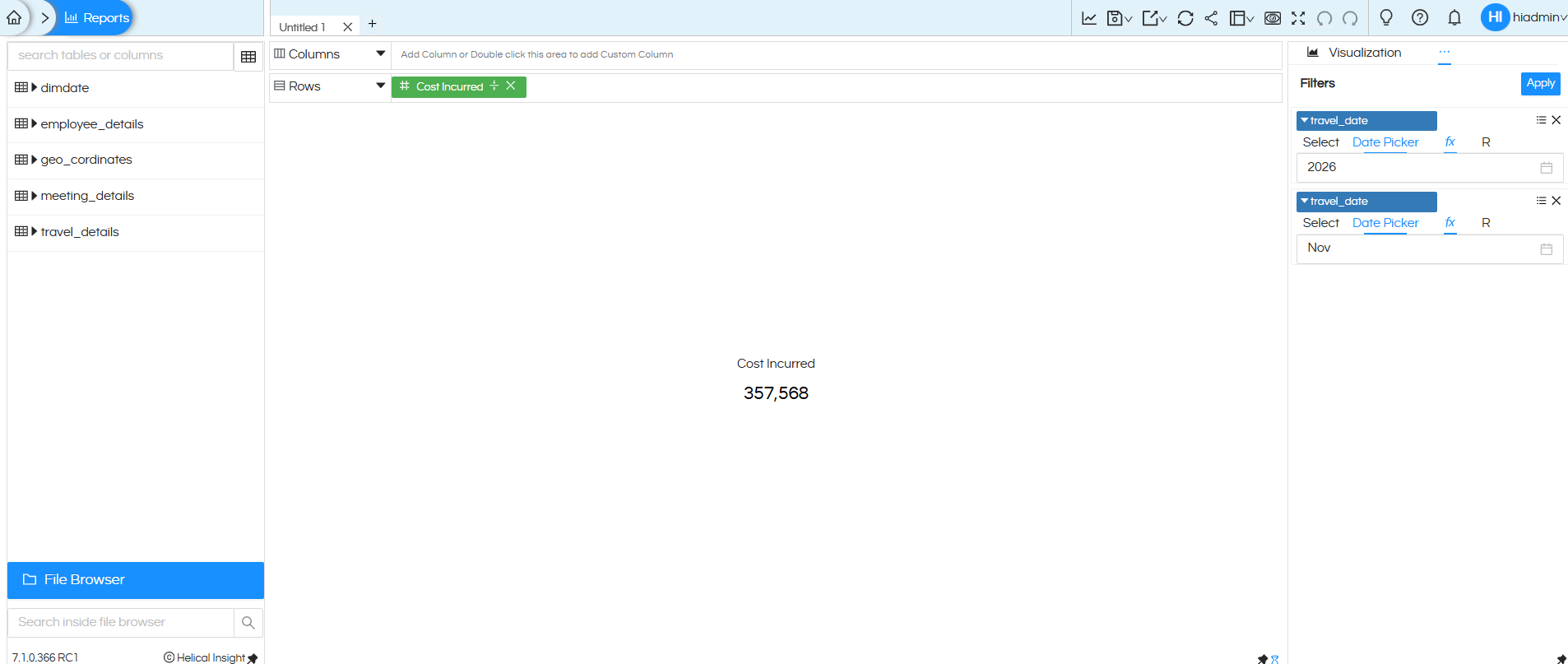
When this option is clicked, the created AI analysis gets redirected and opened in the Helical Insight Report Designer with the generated visualization. Users can make further changed like customize the report, modify fields, apply filters, and make other required changes.
These options provide users with greater control and transparency over Instant BI responses. Users can inspect the LLM’s analysis, change visualizations, apply filters, and further customize generated charts using the Report Designer.
2.4 Explain This Chart
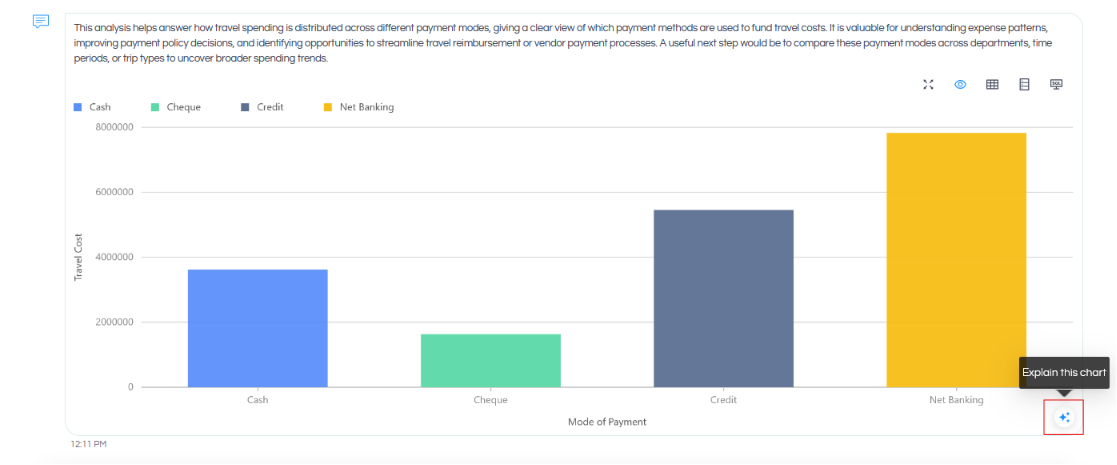
When you hover over the created analysis, at the bottom you can also see “Explain this chart”. When we click on this, the data of this SQLQuery response got to LLM and it explains the chart. By default we do not include such information in the response because it helps us to reduce the tokens usage.

Usage of Instant BI in Helical Insight
Before using Instant BI AI module of Helical Insight, it is important to configure the LLM API key and then create the semantic model. There are also options to self host LLM and use it via Ollama (especially useful for sectors like banking, healthcare, pharma etc).
Need Help with Helical Insight?
In case of any other questions, please reach out on support@helicalinsight.com or you can post your questions on https://forum.helicalinsight.com/.
