
Helical Insight supports a variety of databases, it also gives you the flexibility of adding all together a new DB even if it is not present in the list. If your database is not found in the list that comes out-of-the-box, you can add the driver in 2 ways:
- From the front-end
- From the back-end
Adding a new database driver from the Front end:
In order to add the database driver from the frontend, follow the steps below:
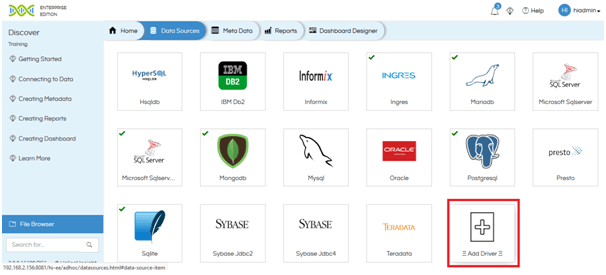
- Click on “Add Driver” icon present at the bottom of the data sources list.
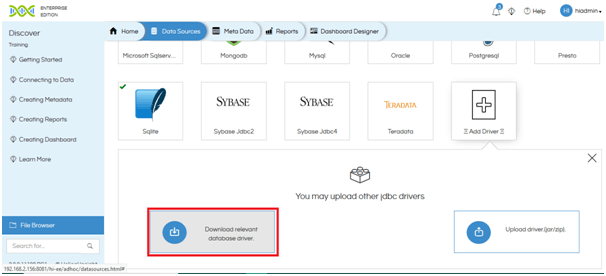
- Click on “Download the relevant database driver” in order to download the driver for the database that you want to connect to.
- Download the database jdbc driver in .jar/.zip format.
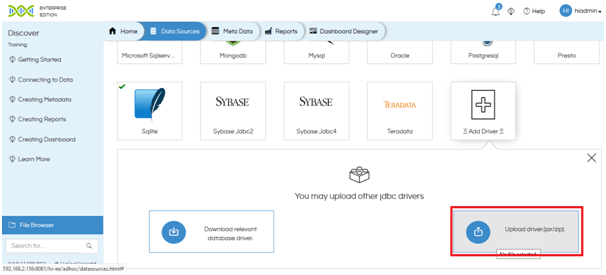
- Click on “Upload driver”. You will be taken to the file browser. Select the driver that you have downloaded. Your driver will be uploaded.
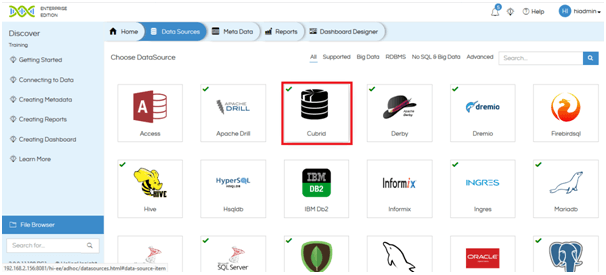
- A new database icon will be generated with the name of the database. You can now create your data source connection for the newly added data source.
Adding a new database driver from the back-end
This method requires access to the server backend with administrative permissions. Follow the steps given below:
- Download the JDBC driver for the database you want to add.
- Copy the driver and paste it in ..\hi\hi-repository\System\Drivers folder.
- Refresh the data sources page in the browser.
A new database icon will appear for this database. Establish the connection to this database from the frontend.
Resumable File Upload (Introduced from Version 7.1)
While uploading files to Helical Insight (such as JDBC driver JAR files, CSV files, Excel files, images, or other supported file types), there may be instances where the upload process gets interrupted due to network connectivity issues or any other unexpected reasons. In such cases, users traditionally had to restart the entire upload process from the beginning.
To address this, Helical Insight version 7.1.0.375 RC2 introduces Resumable Upload functionality.
With this functionality enabled, if an upload is interrupted due to a network disconnection or any other temporary issue, the upload can resume from where it was interrupted once the connection is restored, instead of requiring the user to upload the entire file again.
Steps to Enable Resumable Upload
To enable this functionality, follow the steps below:
- Navigate to the following location in your Helical Insight Docker deployment:
…\hi\hi-repository\System\Admin - Open the setting.xml file.
- Search for the resumableUpload property.
- Change its value from false to true as shown below:
<resumableUpload>true</resumableUpload> - Save the setting.xml file.
- Perform a hard refresh of the Helical Insight application in your browser to apply the setting.

Once enabled, resumable uploads will be available for supported file upload operations in Helical Insight, helping prevent the need to restart uploads from scratch whenever an interruption occurs.
For further assistance, kindly contact us on support@helicalinsight.com or post your queries at forum.helicalinsight.com
