
Introduction
This guide explains how to deploy the Open Source BI Platform – Helical Insight using Docker. Starting with Helical Insight 6.0, Docker deployment is officially supported, providing a simple, repeatable, and platform-independent installation experience.Start the Docker Deploymen
The deployment process described in this guide is applicable to Windows, Linux, and macOS.
Prerequisites
Before starting the installation, ensure the following prerequisites are met.
- Obtain the Helical Insight Docker deployment package (helicalinsight-ee-<version>-docker.zip)from the download link provided in your registration email or from the Helical Insight Customer Portal(https://www.helicalinsight.com/register/).
- Docker is installed and running.
Windows & macOS (Docker Desktop): https://docs.docker.com/desktop/
Linux (Docker Engine): https://docs.docker.com/engine/install/
- Docker Compose is available (docker compose).
- Docker Compose is included with modern versions of Docker Desktop and Docker Engine.
Documentation: https://docs.docker.com/compose/
For Windows users:
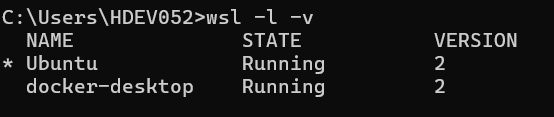
Complete the separate Preparing Windows (WSL2) for Helical Insight Docker Deployment guide first, then return to this guide and execute all commands from the Ubuntu (WSL2) terminal.
Note:
Docker Compose V2 is included with current Docker installations. No separate installation of Docker Compose is required.
Verify the Docker Installation
Open a terminal.
Windows
- Ubuntu (WSL2) Terminal
- PowerShell
- Command Prompt
Linux/macOS
- Terminal
Verify your installation using:
Important: Both commands should execute successfully before proceeding.
Step 1 – Prepare the Deployment Environment
Unzip the Helical Insight Docker deployment ZIP and navigate to the extracted Helical Insight Docker package.
Before starting the deployment:
- Review the README.md.
- Complete any required configuration changes.
- Verify ports, IP addresses, and environment variables.
Update the .env File
Open the .env file located alongside the docker-compose.yml file.
Update the following values as required:
- HOST_IP
- Hostname
- Ports
- Any other environment variables documented in the README.
To determine your machine’s IP address:
By default, HOST_IP contains a placeholder IP. Replace it with your current server IP or hostname. Use ipconfig /all (Windows) or ifconfig (Linux/Mac) to find your IP.

Step 2 – Start the Docker Deployment
After completing the required configuration changes in the .env file and reviewing the README.md, navigate to the directory containing the docker-compose.yml file.
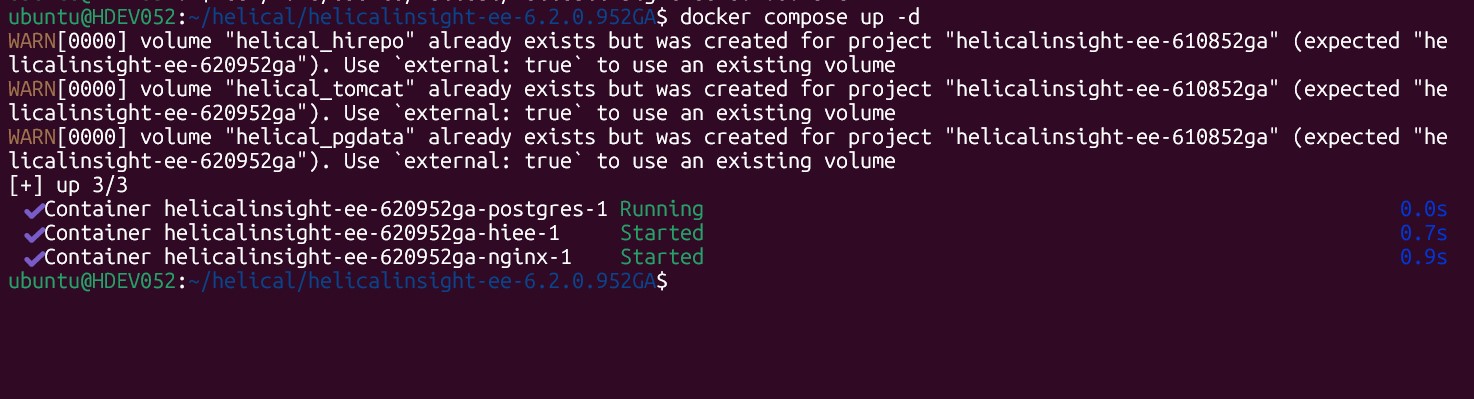
Run the following command to start the Helical Insight deployment:
The -d option starts all containers in detached mode, allowing them to run in the background while returning control to the terminal.
During the first deployment, Docker downloads all required images before starting the containers. Depending on your internet connection and system performance, this process may take several minutes.
Step 3 – Verify the Deployment
Once the deployment command has completed, do not immediately open the application in your browser.
Instead, verify that all required containers have started successfully.
Run:
Alternatively, you can verify the status of the containers belonging to the current Docker Compose project by running:
Status Check
Wait until the containers reports a status of Healthy before proceeding.
The initial startup may take several minutes while Docker initializes the database, application services, and supporting components. Wait until all required containers are running successfully before accessing Helical Insight.
Step 4 – Access Helical Insight
After confirming that all required containers are running, open a web browser and access Helical Insight using the configured HOST_IP.
For example, if HOST_IP=localhost, the application can be accessed at:
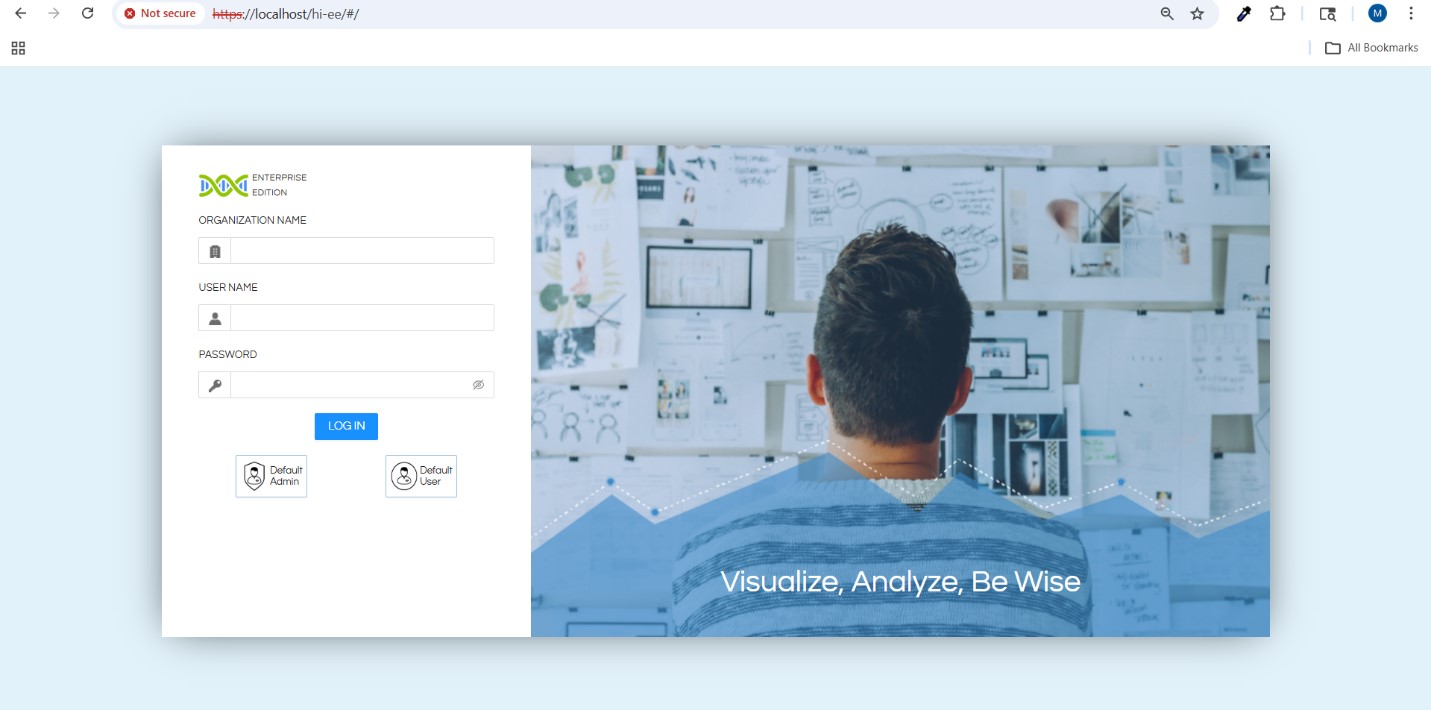
If a different hostname or IP address has been configured in the .env file, replace localhost accordingly.
Example:
Success
Once the login page appears, the deployment has completed successfully.
Common Docker Compose Commands
| Purpose | Command |
|---|---|
| Start deployment | docker compose up -d |
| Stop deployment | docker compose down |
| Restart services | docker compose restart |
| View running containers | docker ps |
| View project containers | docker compose ps |
| View logs | docker compose logs -f |
Conclusion
Helical Insight provides an easy and consistent deployment experience using Docker across Windows, Linux, and macOS.
For Windows users, deploying from the Ubuntu WSL2 filesystem is strongly recommended because it delivers performance comparable to native Linux environments.
After completing the required configuration:
Start the deployment using:
Verify that all required containers are running:
- Wait until the required containers report an Healthy status.
- Access Helical Insight using the configured HOST_IP.
Final Note
Following these steps provides a reliable and repeatable deployment process while making it easier to verify the health of the environment before accessing the application.
