1. Overview
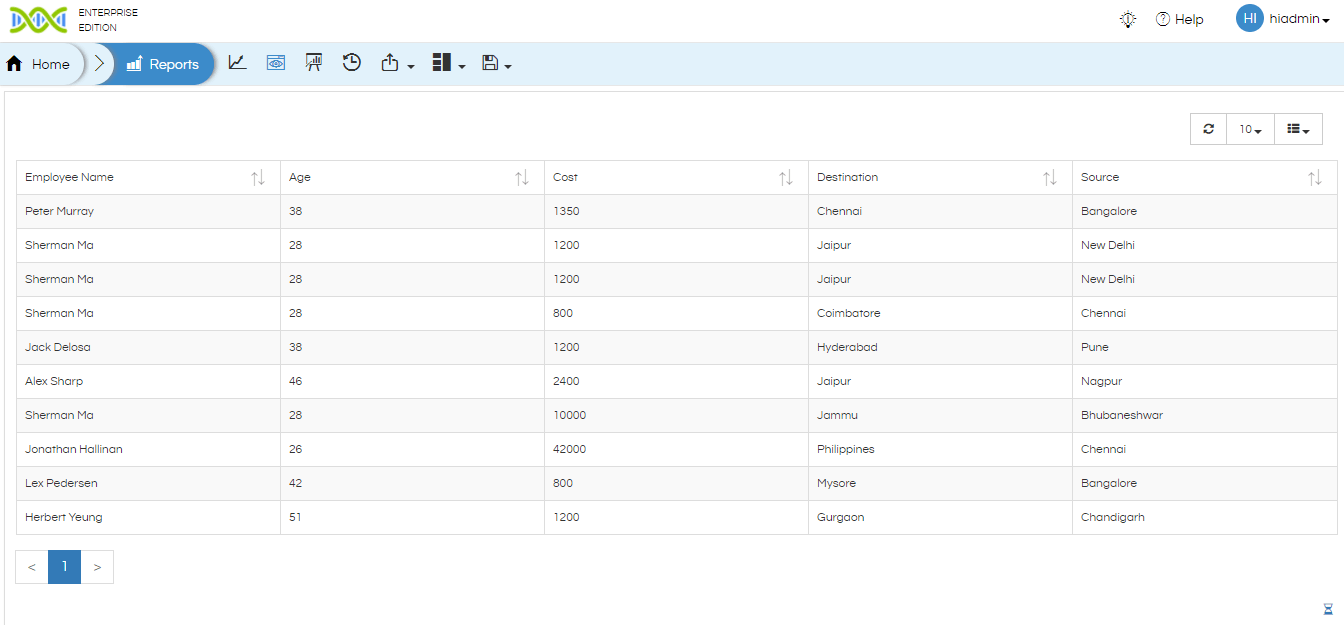
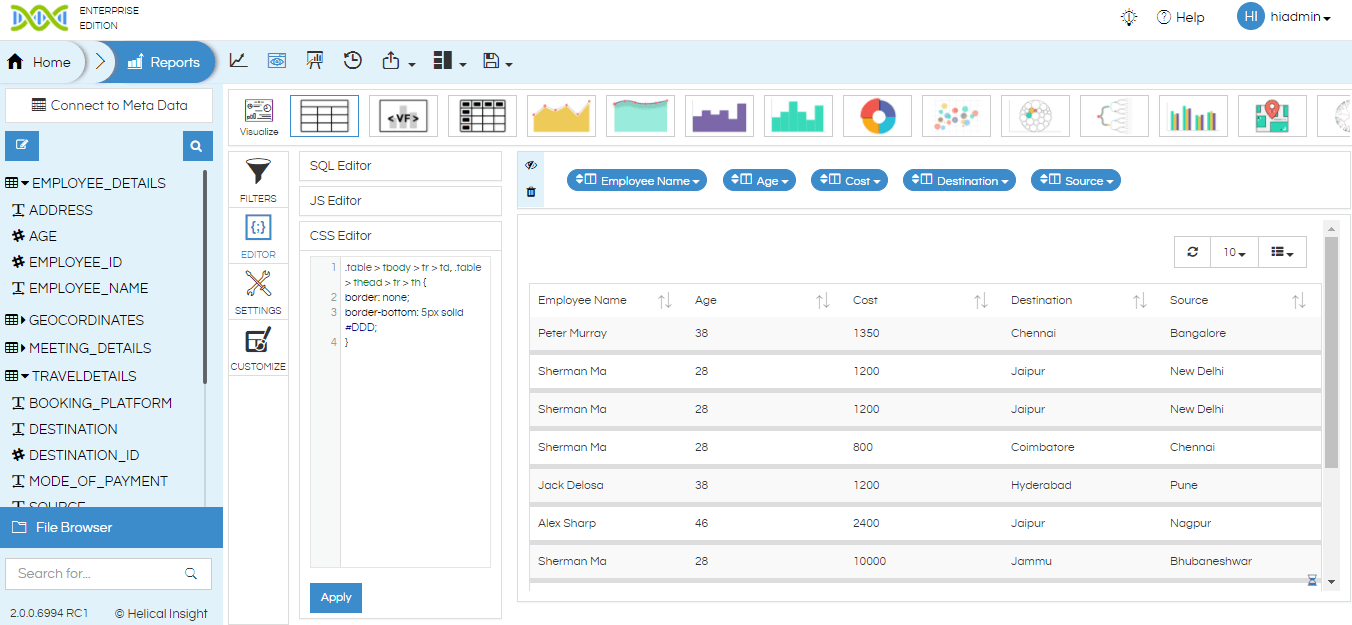
Helical Insight Reports allow custom CSS to be applied to a Table visualization. A border can be added to the table header and data cells by targeting the Ant Design table cell class used by the report component.
In the example shown in this document, the table contains Customer Name, Current GM($), GM Opportunity($), and New Revenue($) columns.
2. Open the Table Report
Open the required report in Create/Edit mode and make sure the Table visualization is displayed.

3. Open the Visualization Properties
To access the CSS configuration for the table:
- Click/Hover on the three-dot beside the Visualization panel.
- Select Operations

4. Open the CSS Option
Inside Visualization Properties, open the CSS tab. The CSS editor is displayed along with the component ID.
- Select the CSS tab.
- Enter the CSS selector and border property in the editor.
- Use the Inject option to apply the CSS to the visualization.

5. CSS to Apply a Border
Use the following CSS to apply a border to all table header and data cells:
#hi-report-p0p6ilj8 .ant-table-cell {
border: 1px solid #000 !important;
}
The component ID in the selector is specific to the report visualization shown in the example. When applying the CSS to another report, use the component ID displayed in that report’s CSS section.
6. How the CSS Works
| CSS Part | Purpose |
|---|---|
#hi-report-p0p6ilj8 |
Targets the specific Helical Insight report component shown in the example. |
.ant-table-cell |
Targets the table header and data cells generated by the table component. |
border: 1px solid #000 |
Creates a 1-pixel solid black border. |
!important |
Ensures the custom border takes precedence over conflicting table styles. |
7. Verify the Result
After applying the CSS, the table displays borders around the header and data cells, creating a visible grid structure.

8. Border Style Variations
The border appearance can be changed by modifying the CSS.
Light gray border:
.ant-table-cell {
border: 1px solid #d9d9d9 !important;
}
Horizontal row separators only:
.ant-table-cell {
border-bottom: 1px solid #d9d9d9 !important;
}
Thicker border:
.ant-table-cell {
border: 2px solid #000 !important;
}
9. Important Notes
- Apply the CSS from the visualization’s CSS configuration so that the styling is associated with the table component.
- The selector should target the table component’s
.ant-table-cellelements. - The report component ID can differ between visualizations. Check the Component ID shown in the CSS panel before using an ID-specific selector.
- If the border is not visible, verify that the CSS was injected/applied and inspect the table element in the browser developer tools.
The examples in this document are based on the table structure and CSS configuration shown in the provided Helical Insight screenshots.
Note: Applying Table Borders Using Browser Inspect
The table border CSS can also be tested and identified using the Inspect option available in the browser’s Developer Tools.
Open the report in the browser and right-click on the table cell or element where the border needs to be applied.
Select Inspect to open the browser Developer Tools.
Identify the appropriate table element, such as the <td>, <th>, or .ant-table-cell element.
Test the required CSS, for example:
border: 1px solid #000 !important;
Once the required element and CSS are identified, apply the CSS in the CSS section of the report’s Properties.
Important:
When adding custom CSS, it is recommended to include the report/component ID in the CSS selector. This scopes the styling to the specific report component.
For example:
#hi-report-p0p6ilj8 .ant-table-cell {
border: 1px solid #000 !important;
}
Here, #hi-report-p0p6ilj8 represents the component/report ID.
Adding the component ID is recommended because using a generic selector such as:
.ant-table-cell {
border: 1px solid #000 !important;
}
may affect other table elements in the same page. This can become particularly important when the report is added to a dashboard containing multiple reports, as the CSS could otherwise be applied to tables in other report components as well.
Recommendation:
Always inspect the required table element using the browser’s Inspect option, identify the appropriate CSS class, and prepend the specific report/component ID to the selector before adding the CSS to the report. This helps ensure that the border styling is restricted to the intended report and does not unintentionally affect other reports or elements.