Starting from Open Source BI Helical Insight 6.1.0.826 GA onwards, the Chart component in the Canned Report module allows users to visualize query data using Bar and Arc charts, we are in the process of adding more charting options as we progress further. This component enables report designers to use fields and visualize in the canned reporting along with specifying configurations as well. Users can configure chart properties such as labels, themes, colors, and render type to present data in a clear and meaningful visual format within reports.

Steps to create a Chart visualization in Canned Reporting:

  1. Create a data source connection

    Refer the following documentation for this step https://www.helicalinsight.com/data-sources-page-overview-in-canned-reporting/

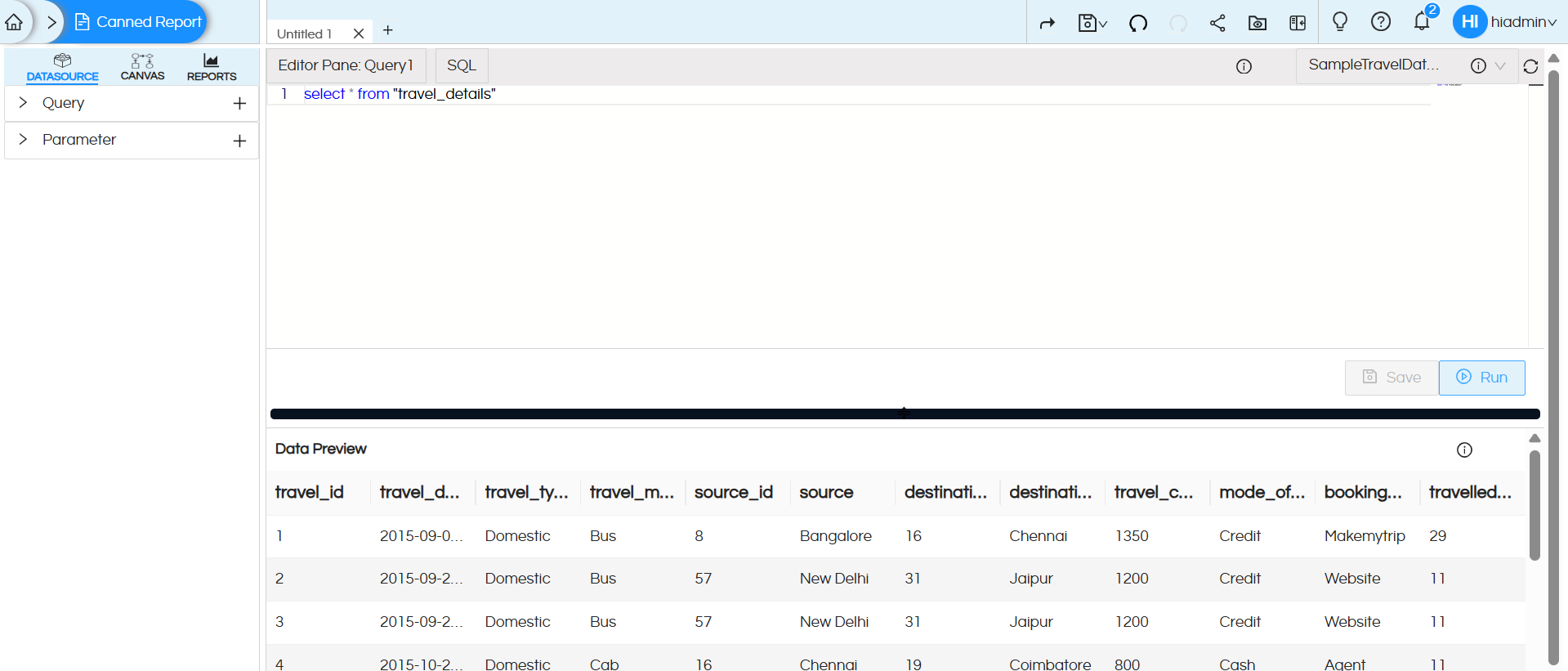
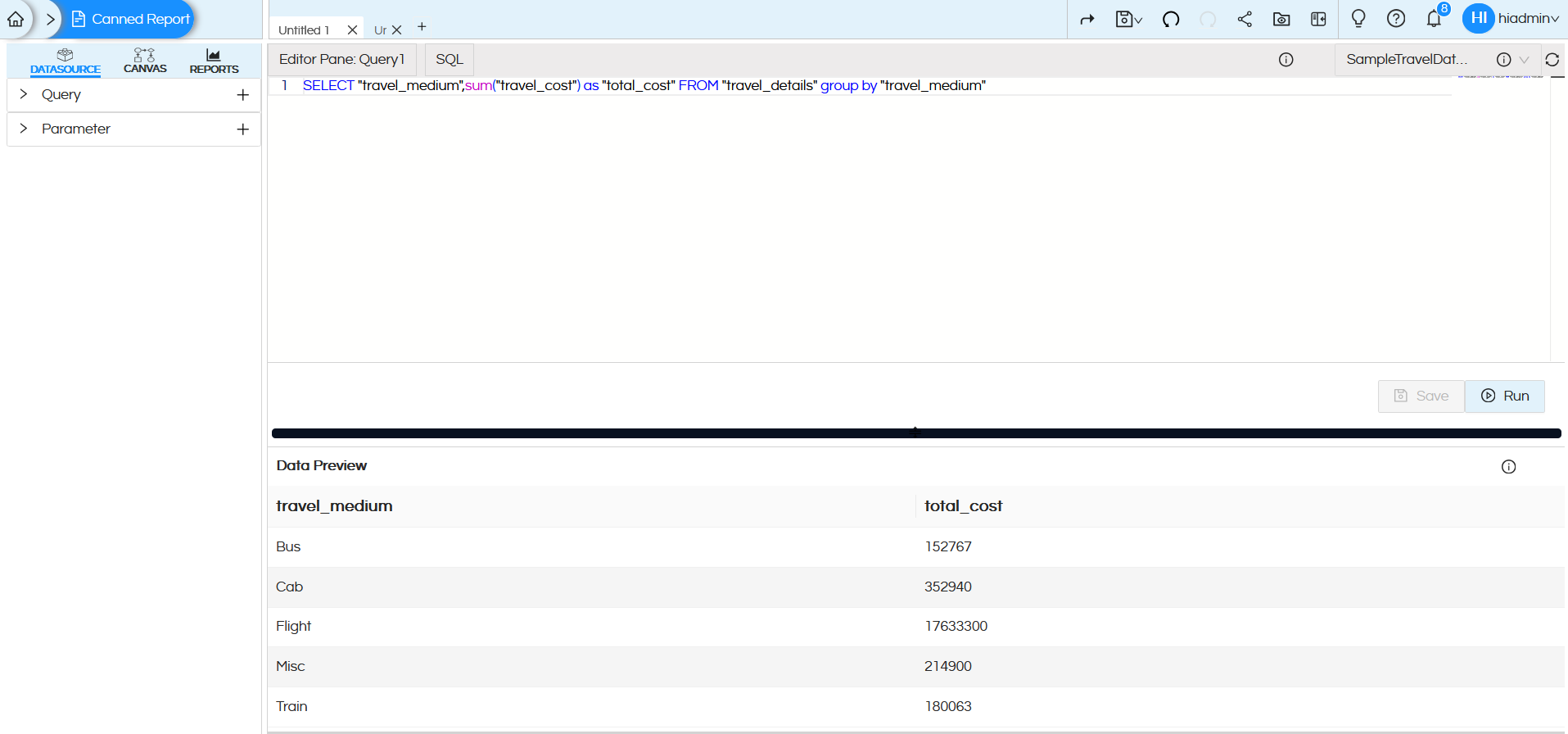
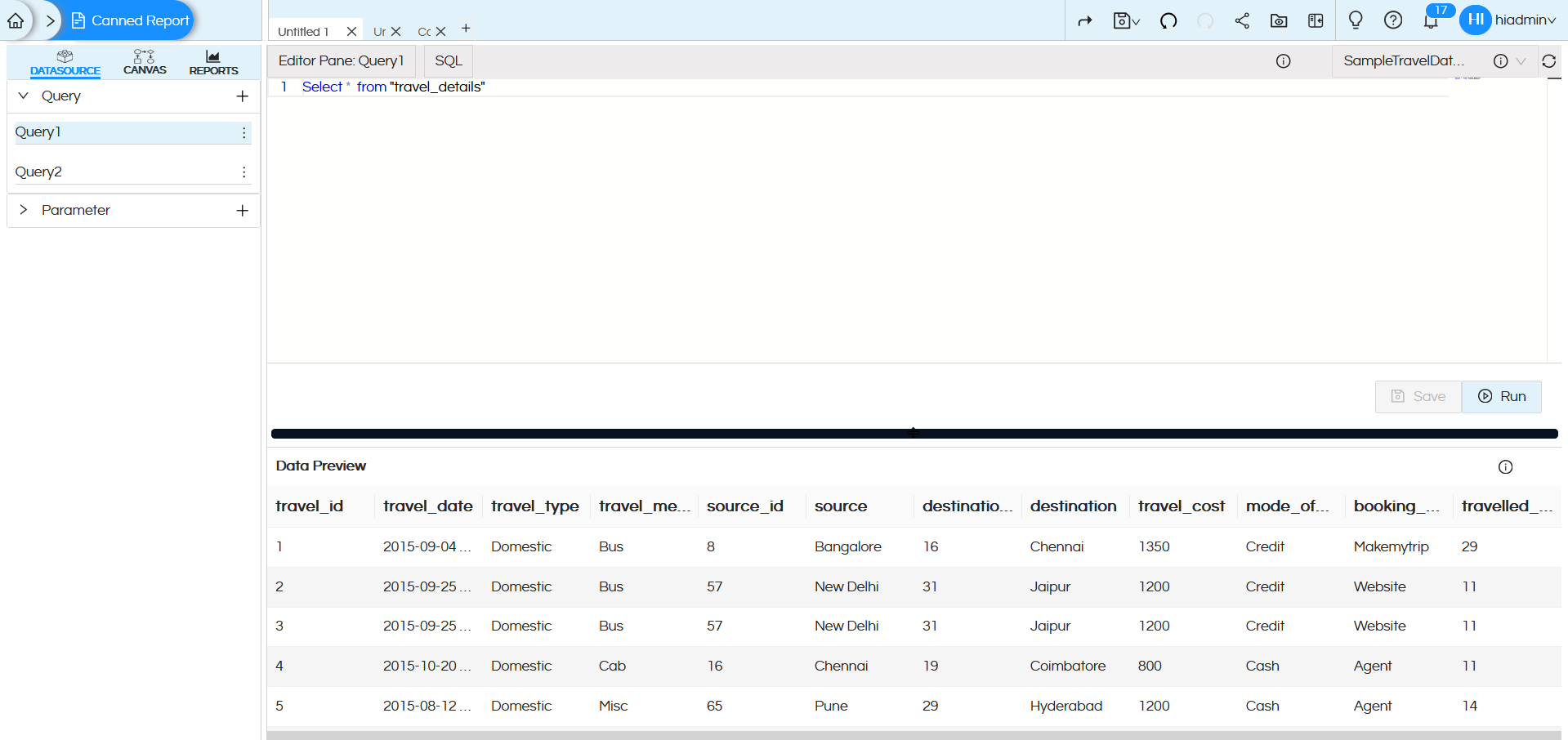
  2. Once the datasource connection is created, select the connection and write the SQL query. Click on Save and Run to execute the query

    The first 10 records of the result set will be displayed in the Data Preview section, this is helpful to understand whether the data being fetched from the SQL is correct or not.

  3. Usage of Crosstab Component in canned Reporting

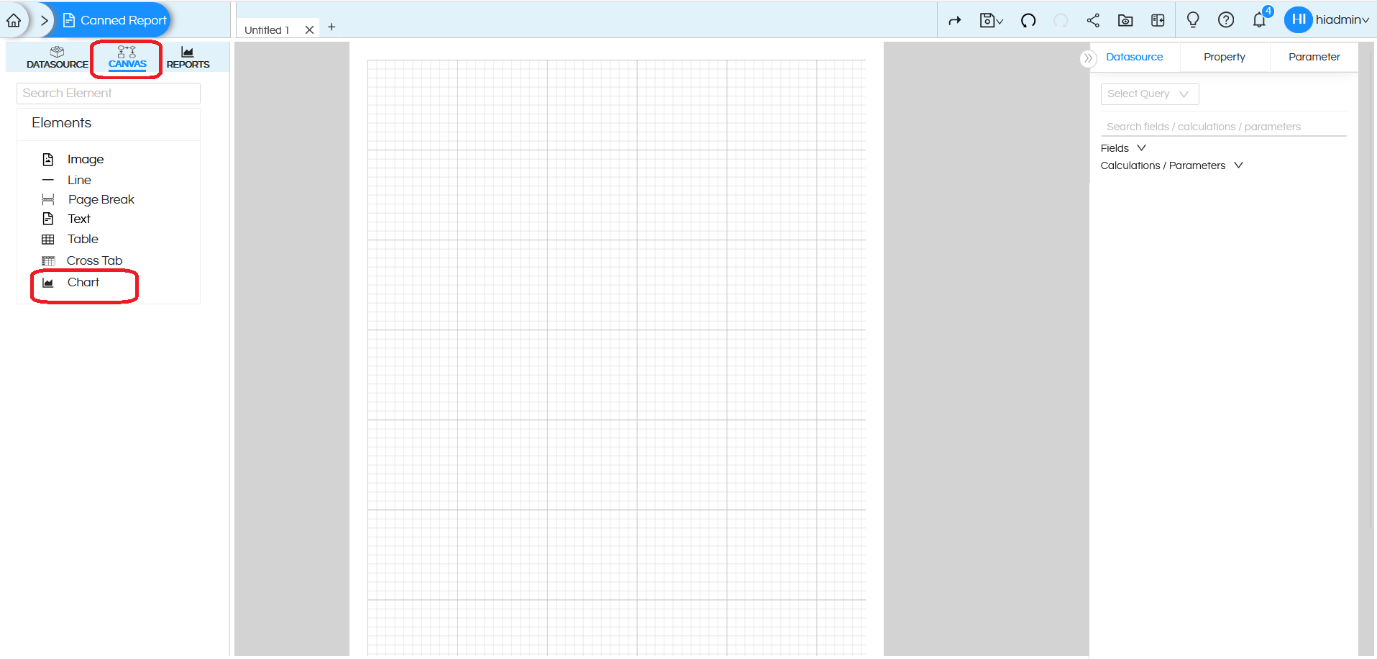
  4. In the CANVAS tab, you will find the Chart component under the Elements list
  5. Usage of Crosstab Component in canned Reporting

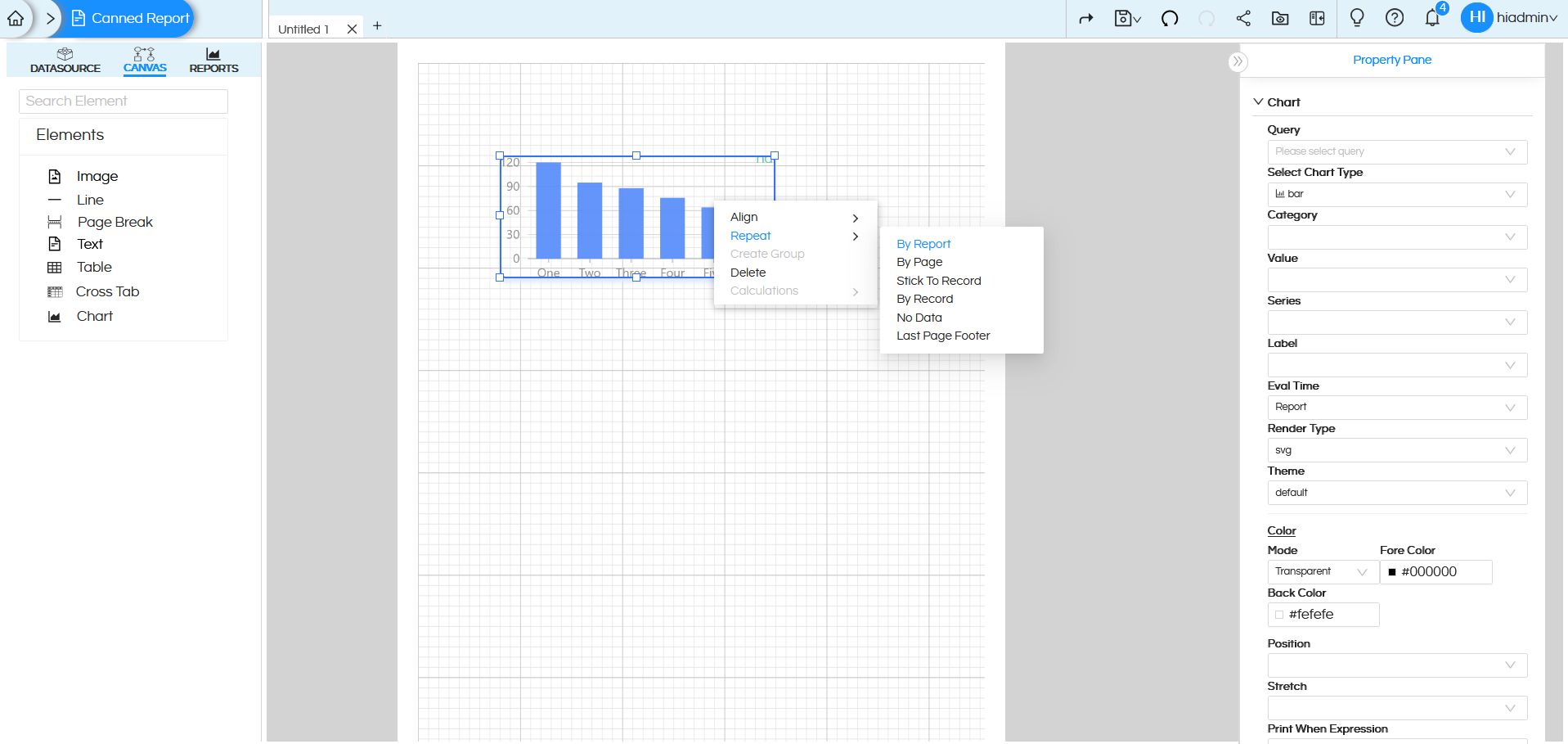
  6. Drag the Chart component onto the canvas, then right-click on it and select the ‘Repeat‘ option. In most of the cases, it will be ‘By Report
  7. Usage of Crosstab Component in canned Reporting

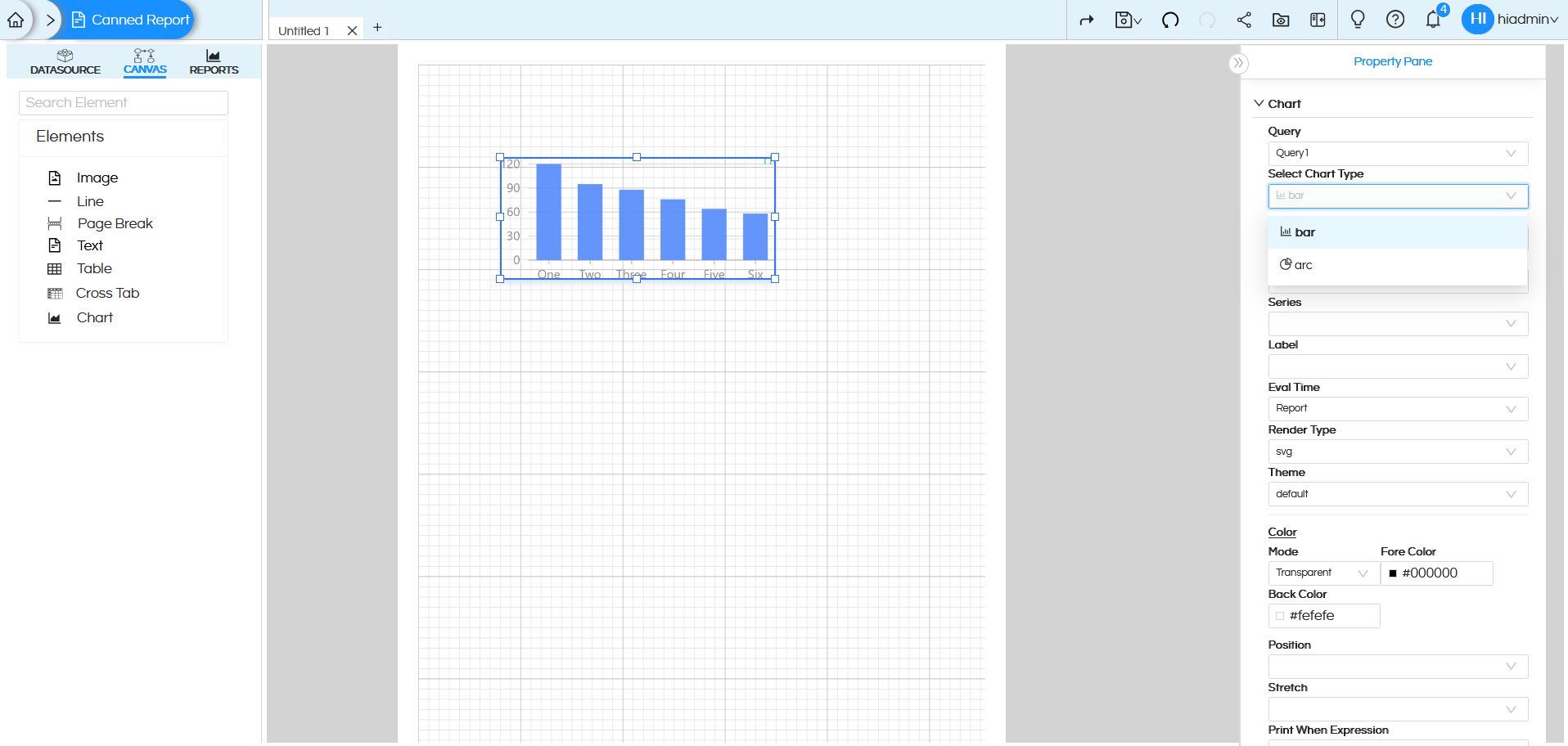
  8. Click on the Chart component. On the right side, you will see the Chart configuration options/Properties.
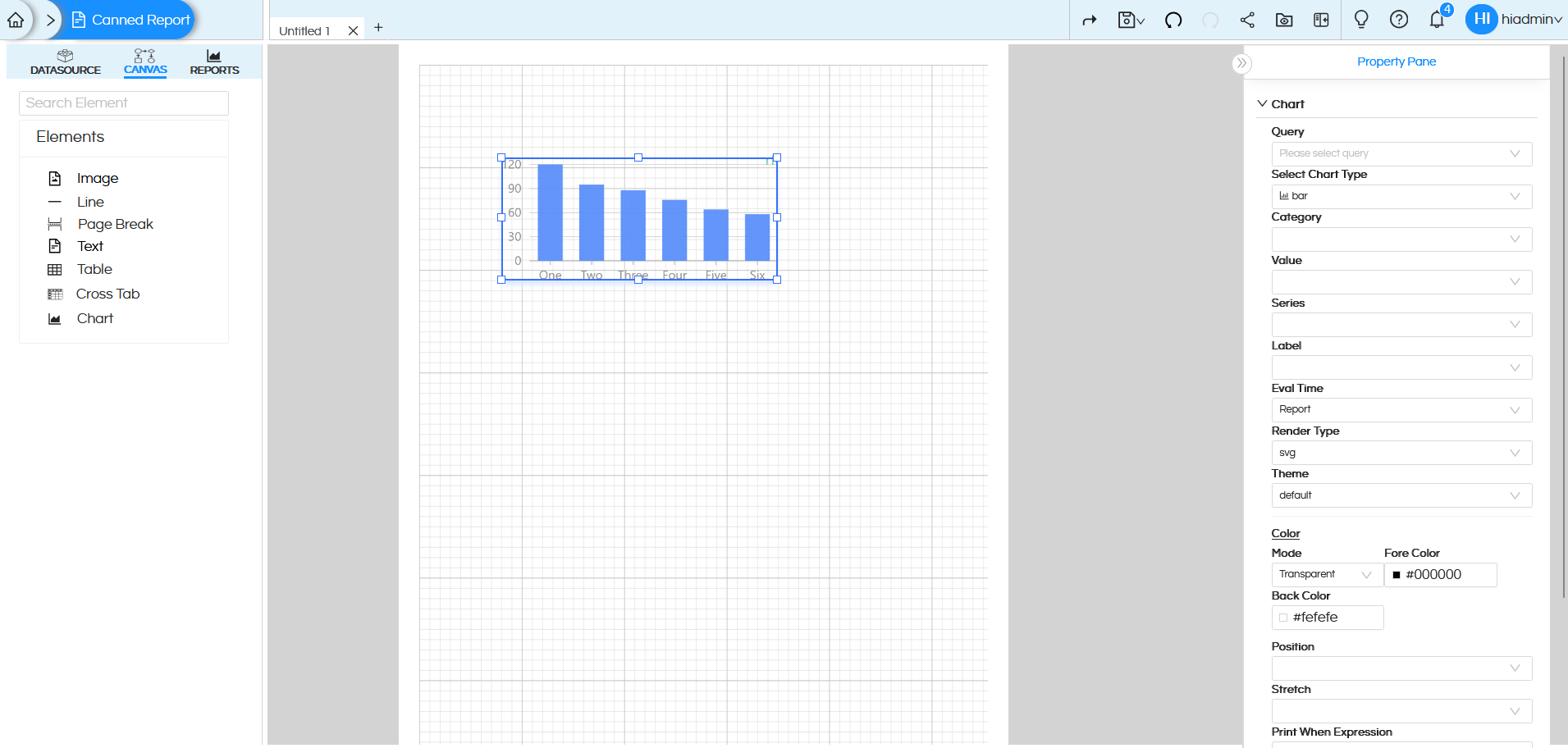
    Usage of Crosstab Component in canned Reporting

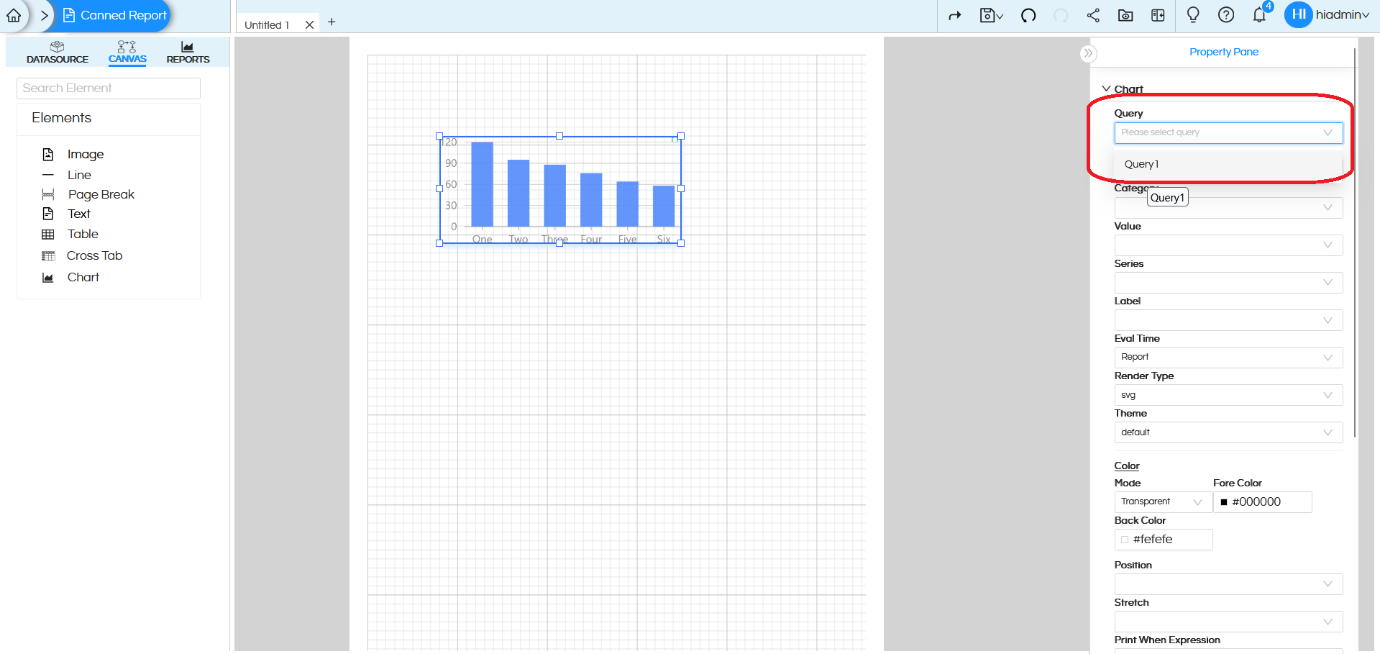
    1. Query

      Purpose: Specifies the data source for the Chart.
      How it works: You can select a query (like Query1) which will provide the data for the Chart.

    2. Usage of Crosstab Component in canned Reporting

    3. Select Chart Type

      Specifies the kind of visualization used to render the data.
      We have two types of charts as of now i.e: bar, arc.
      Let us select bar and examine the configurations available under it in detail

      Bar Chart:

      Usage of Crosstab Component in canned Reporting

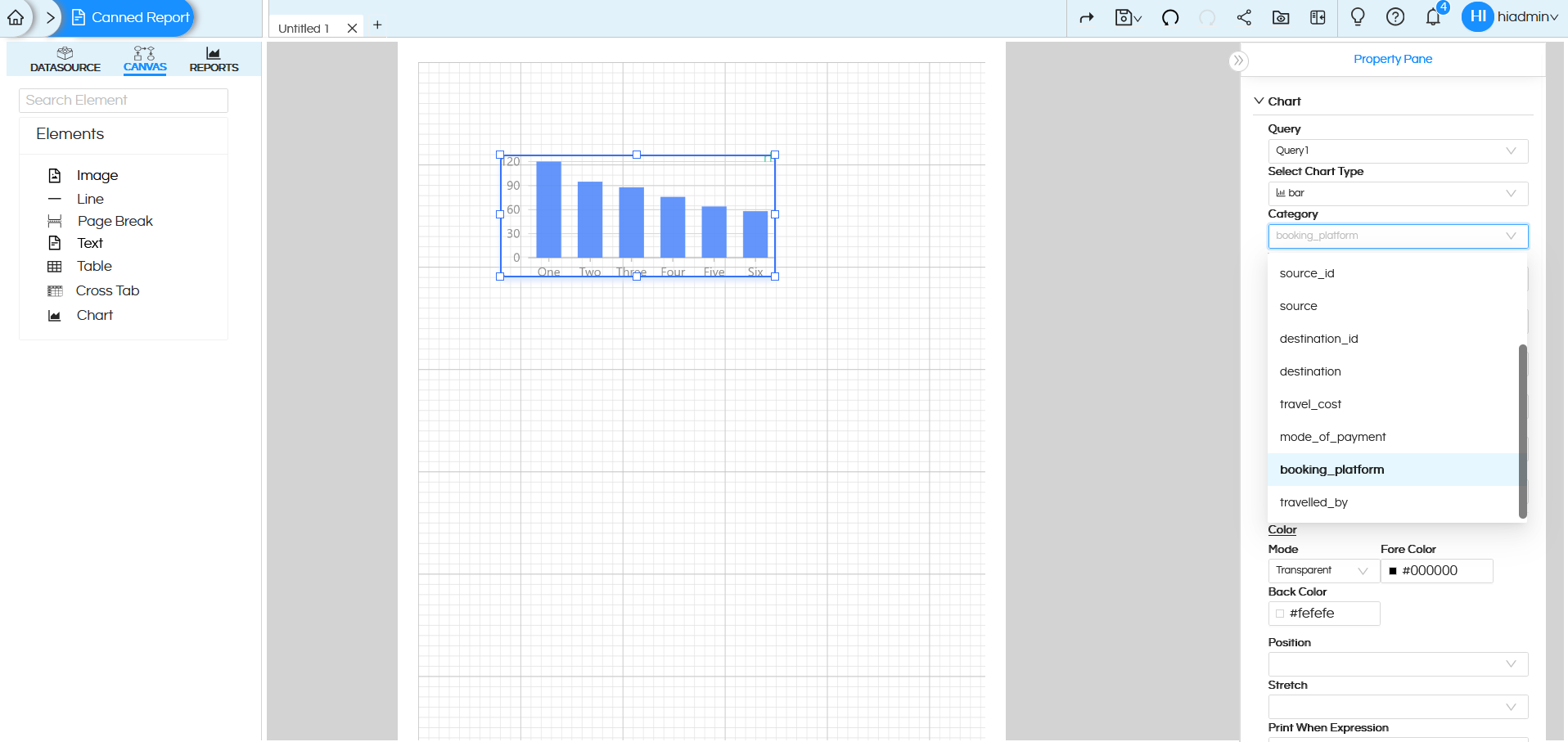
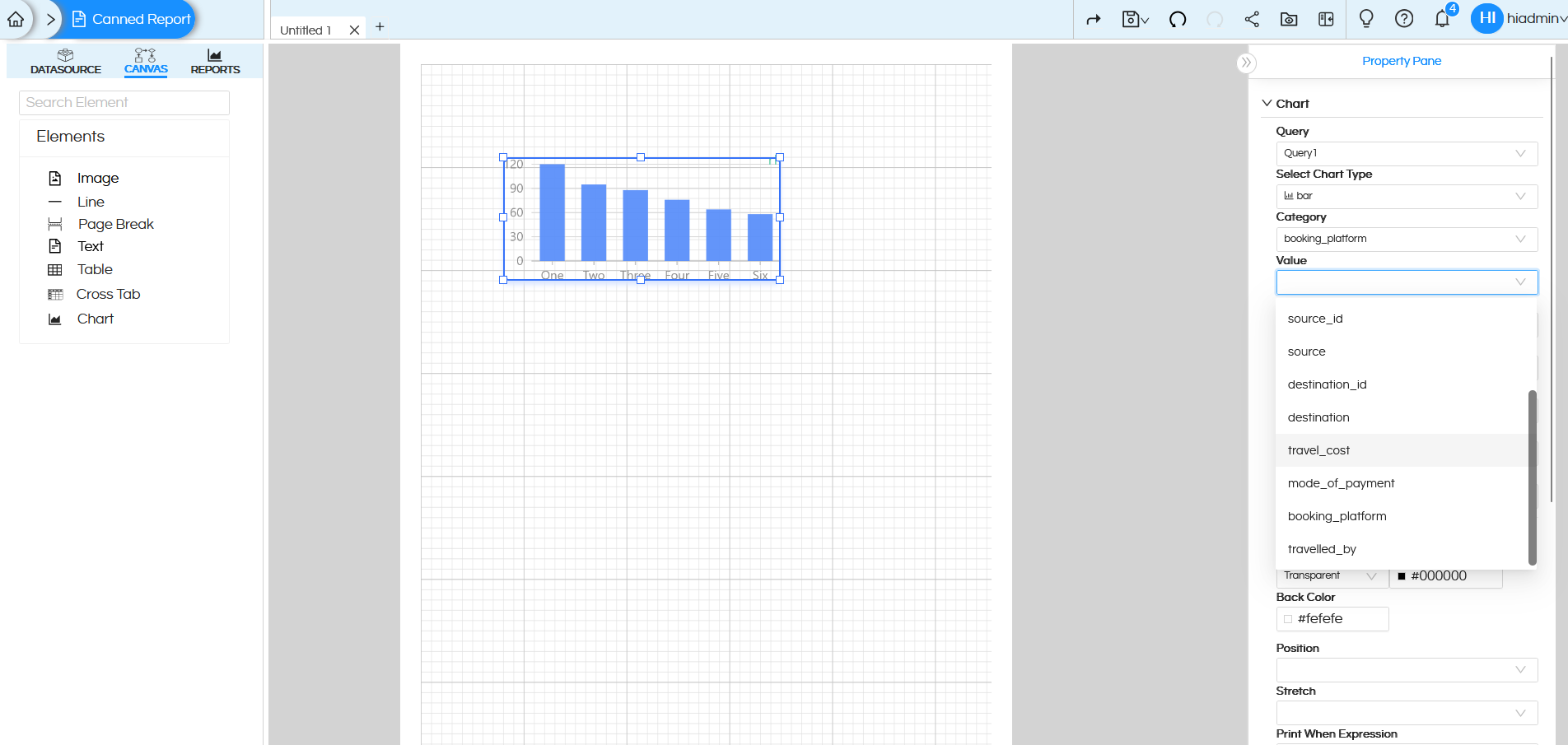
      1. Category

        Specifies the field used for the horizontal (category) axis of the chart. This field typically contains dimension or categorical data, such as names, labels, or groups, which are displayed along the X-axis.
        Let us select booking_platform as Category

      2. Usage of Crosstab Component in canned Reporting

      3. Value

        Specifies the field used for the vertical (value) axis of the chart. This field usually contains measure or numeric data, which determines the height of the bars in the chart.
        Let us take travel_cost as Value

      4. Usage of Crosstab Component in canned Reporting

      5. Series

        Specifies the field used to assign colors dynamically to the chart elements based on data values or categories. This helps visually distinguish between different groups or highlight variations within the data.
        Select travel_medium from the dropdown
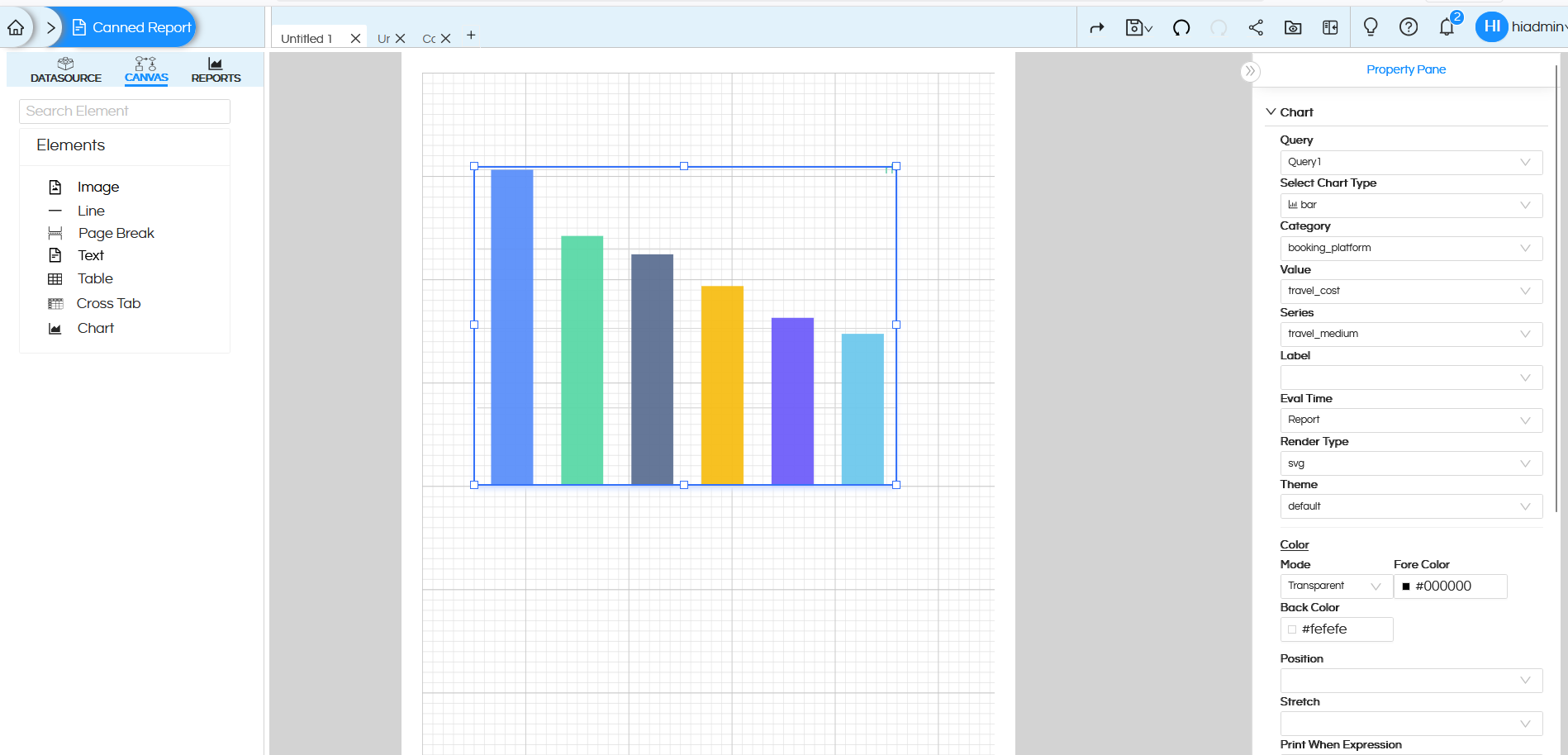
        Usage of Crosstab Component in canned Reporting

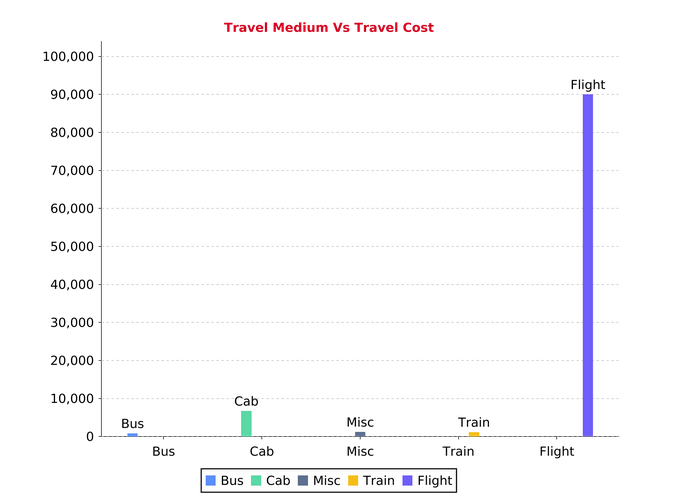
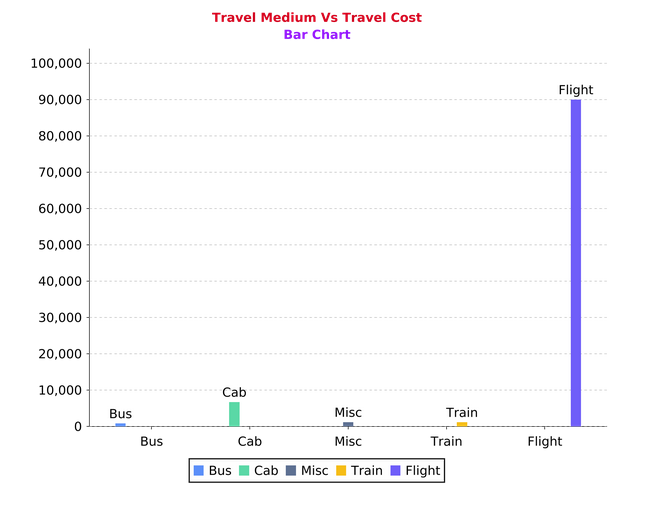
        When we preview, we get the result as shown in the below:
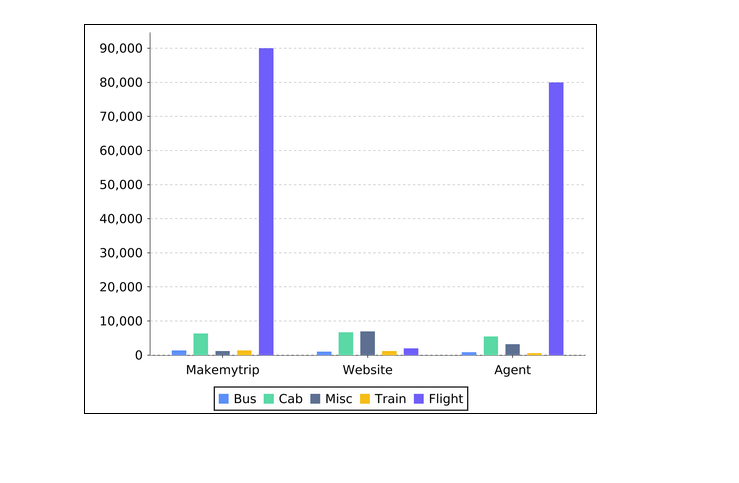
        Usage of Crosstab Component in canned Reporting

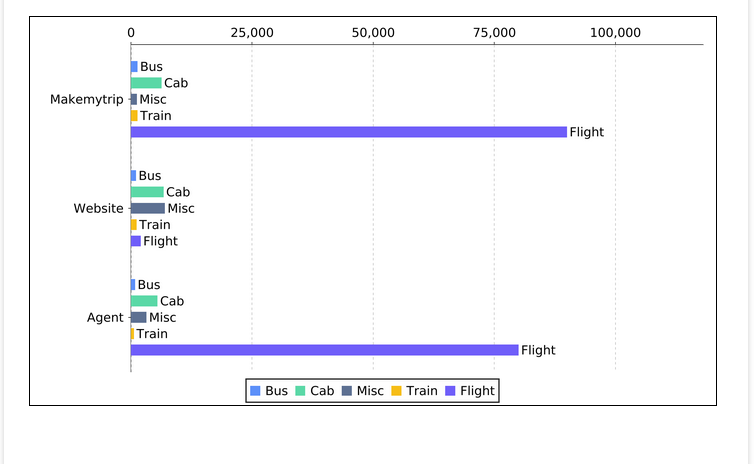
        We can see that different colors are applied to the bars based on the field “travel_medium”. It has created sort of Grouped Bar Chart. We can even put the same field “booking_platform”.

      6. Label

        Specifies the field used to display labels on the chart, such as category names or data values. Labels provide direct context on the chart elements, making the visualization easier to understand without relying solely on axes or legends.
        Select mode_of_payment under Legend, then we will get the result like this when we preview:
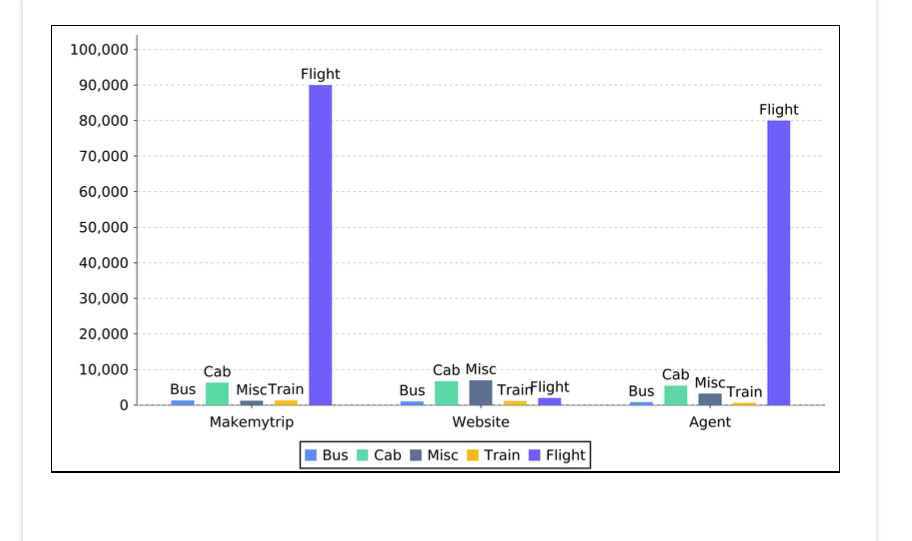
        Usage of Crosstab Component in canned Reporting

        We can see the legends on the top of every bar.

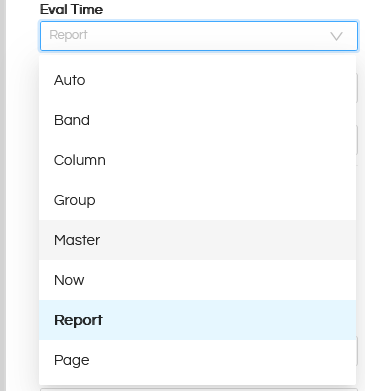
      7. Eval Time

        Specifies when the expression associated with this element is evaluated during report generation.
        This is useful when the displayed value depends on data that is available only at a specific stage of report processing.
        Usage of Crosstab Component in canned Reporting

        • Auto
          Automatically determines the evaluation time based on the element’s context and usage.
          Recommended when no specific evaluation timing is required.
        • Now
          Evaluates the expression immediately when the element is processed.
          Suitable for values that do not depend on future data.
        • Band
          Evaluates the expression when the current band is processed.
          Useful when the value depends on data within the same band.
        • Column
          Evaluates the expression at the end of the current column.
          Commonly used in multi-column reports.
        • Page
          Evaluates the expression at the end of the current page.
          Useful for page-level totals or summaries.
        • Group
          Evaluates the expression when the associated group ends.
          Ideal for displaying group totals or aggregated values.
        • Report
          Evaluates the expression after the entire report is generated.
          Useful for values that require processing all data rows, such as grand totals shown on the first or last page.
        • Master
          Evaluates the expression after the master report is fully processed.
          Typically used in reports containing sub reports.
      8. Render Type

        Specifies how the chart is rendered in the report output. This option controls the rendering format of the chart, such as whether it is drawn as a graphic or rendered as an image or SVG.

      9. Theme

        Applies a visual theme that controls the chart’s overall style and appearance.

      10. Color

        Use this to apply color to the component.
        In color we have sub categories:

        • Mode: Specifies whether the background of an object is transparent or opaque
        • Usage of Crosstab Component in canned Reporting

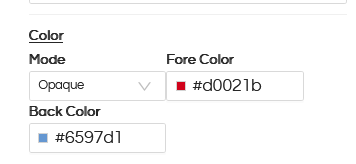
        • Fore Color: The foreground color of the object, such as font line etc.
        • Back Color: The backgournd color of the object
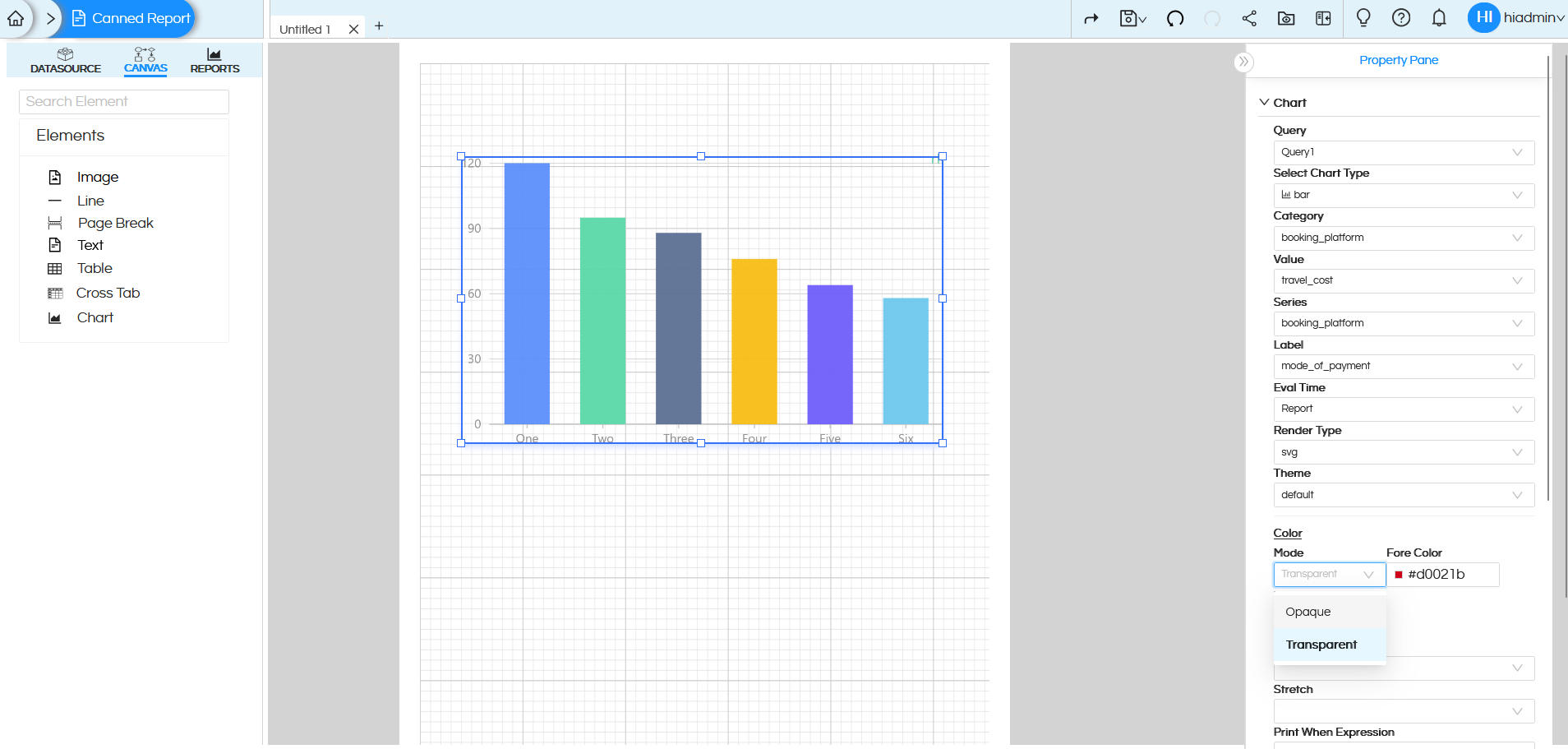
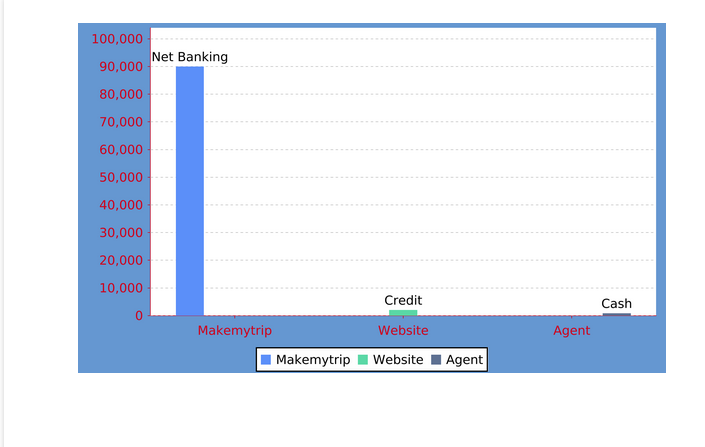
        Let us take an example. Select Mode as Opaque, Add any color in Fore Color and Back Color section.
        Usage of Crosstab Component in canned Reporting

        Usage of Crosstab Component in canned Reporting

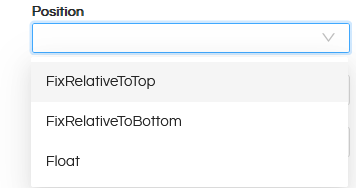
      11. Position

        • FixRelativeToTop: Chart stays fixed relative to the top.
        • FixRelativeToBottom: Chart stays fixed relative to the bottom.
        • Float: Chart moves freely and can be placed anywhere.
        • Usage of Crosstab Component in canned Reporting

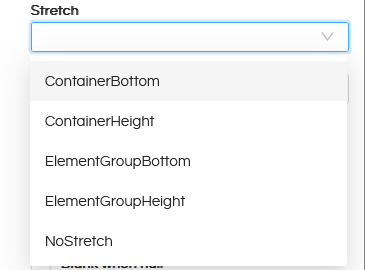
      12. Stretch

        Purpose: Specifies the graphic element stretch behaviour when the report section is affected by stretch.

        1. ContainerBottom: Stretches the element vertically so that its bottom aligns with the bottom of the container.
        2. ContainerHeight: Stretches the element to match the full height of the container.
        3. ElementGroupBottom: Stretches the element so that its bottom aligns with the bottom of its element group.
        4. ElementGroupHeight: Stretches the element to match the full height of its element group.
        5. NoStretch: The element does not stretch at all.
        6. Usage of Crosstab Component in canned Reporting

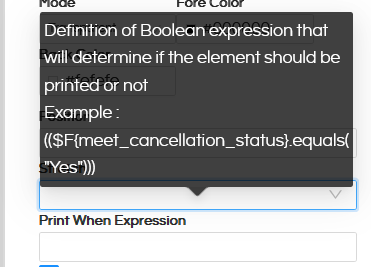
      13. Print When Expression

        Specifies a Boolean condition that determines if the element appears in the report.

      14. Usage of Crosstab Component in canned Reporting

      15. Print Repeated Values

        Purpose: Allows suppressing the repeating values for the dynamic elements such as text field and image fields and to fully customize the behaviour of the static elements like line and static texts.

      16. Remove Line When Blank

        Purpose: Removes the Chart if there is no data.

      17. Print in First Whole Section

        Purpose: Prints the Chart only at the start of a section (useful in multi-section reports).

      18. Print When Record Overflows

        Purpose: The element will be printed when the record overflows to a new page or a new column

      19. Stretch with Overflow

        Purpose: Allows the text field to stretch downwards in order to display all its text when it doesn’t fit in the defined text field height

      20. Blank When Null

        Purpose: If a field is NULL, it shows as blank instead of printing NULL.

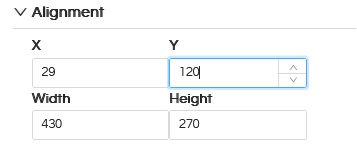
      21. Alignment

        Purpose: Controls the Chart alignment

        • X-position: Distance from the left side in pixel
        • Y-position: Distance from the top in pixel
        • Width: Width of the Chart component in pixel
        • Height: Height of the Chart component in pixel
      22. Usage of Crosstab Component in canned Reporting

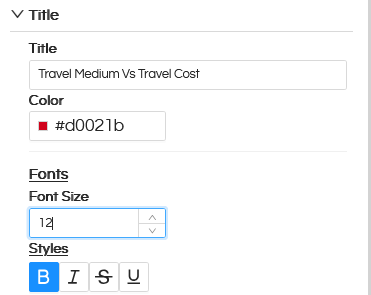
      23. Title

        The main heading displayed at the top of the chart that describes what the chart represents. You can customize its Color, Font size, and font style.

      24. Usage of Crosstab Component in canned Reporting

        Usage of Crosstab Component in canned Reporting

      25. Sub Title

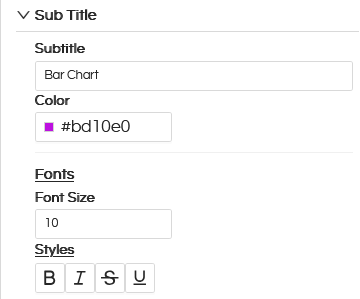
        Purpose: Secondary text displayed below the title that provides additional context or further explains the data. You can customize its color, font size, and font style.

      26. Usage of Crosstab Component in canned Reporting

        Usage of Crosstab Component in canned Reporting

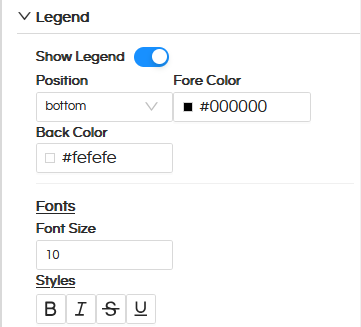
      27. Legend

        Usage of Crosstab Component in canned Reporting

        Show Legend
        Toggles the visibility of the legend in the chart.

        Position
        Specifies the location of the legend within the chart area (for example, top, bottom, left, or right).

        Fore Color
        Defines the foreground color of the legend, including text, symbols, and other visible elements.

        Back Color
        Specifies the background color of the legend area behind the text and symbols.

        We can even customize its font size and font style using Font Size and Styles option.

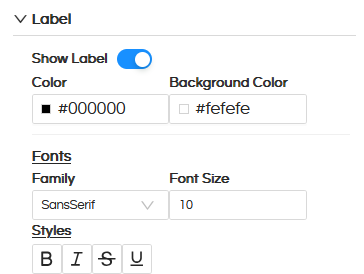
      28. Label

        Usage of Crosstab Component in canned Reporting

        Show Label
        Toggles the visibility of the label in the report output.

        Color
        Specifies the color used to render the label text.

        Background Color
        Defines the background color behind the text.

        Font
        Specifies the font settings used to render the label text, including font family, font size, and font styles (Bold, Italic, Strikethrough, and Underline).

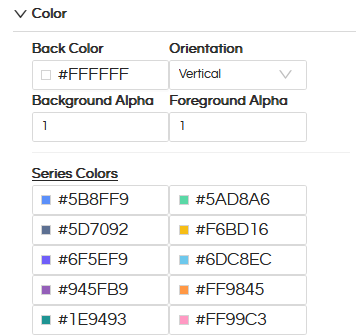
      29. Color

        Usage of Crosstab Component in canned Reporting

        Back Color
        Defines the background color behind the chart area.

        Orientation
        Defines how colors are oriented or applied within the visual element (for example, vertical or horizontal).

        If we change the orientation, instead of a horizontal bar chart we can create a vertical bar chart.
        Usage of Crosstab Component in canned Reporting

        Background Alpha
        Controls the transparency level (alpha) of the background color.

        Foreground Alpha
        Controls the transparency level (alpha) of the foreground color.

        Series Colors
        Defines the colors used for each data series in the chart. Colors are applied in order to visually distinguish multiple series.

      30. Borders

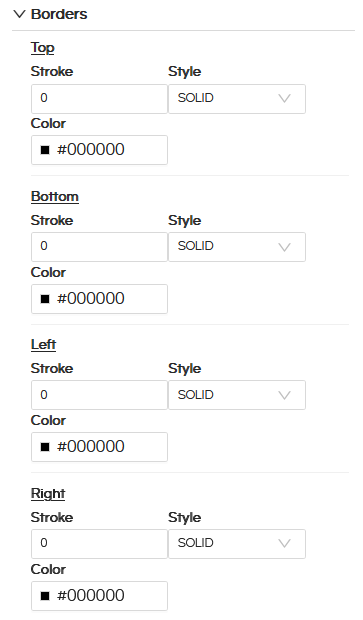
        Purpose: Configure various border for the Chart like border style, border color.

      31. Usage of Crosstab Component in canned Reporting

      32. Padding

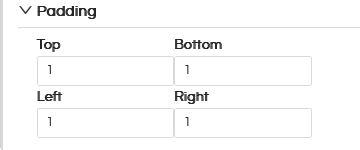
        Purpose: We can configure padding for the Chart and hence the chart will render leaving that much padding within that frame.
      33. Usage of Crosstab Component in canned Reporting

      Arc Chart

      In the below part of the blog we have covered how to create a pie/arc chart.
      Usage of Crosstab Component in canned Reporting

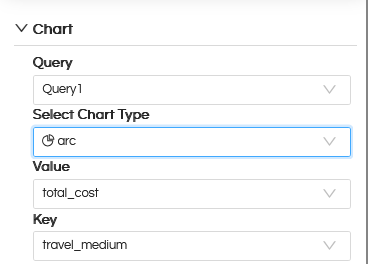
      In Select Chart Type, the arc option provides configuration settings similar to the bar chart.
      Usage of Crosstab Component in canned Reporting

      Value
      Select a numeric field whose values are used to calculate and render the size of each arc (slice) in the chart.

      Key
      Select a field used to categorize the data and assign colors dynamically to each arc, helping distinguish different data values or categories.
      Usage of Crosstab Component in canned Reporting

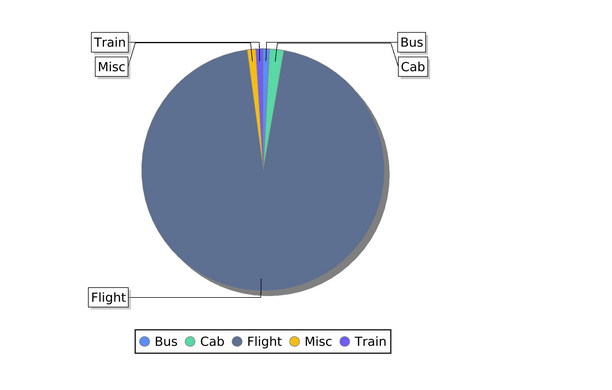
      Here we have taken Value as travel_cost and Key as travel_medium. The result is as shown as above.

      Note
      The Arc chart supports the same configuration options as the Bar chart, including styling, colors, labels, legend, and interaction settings.

Adding Multiple Charts in the report:

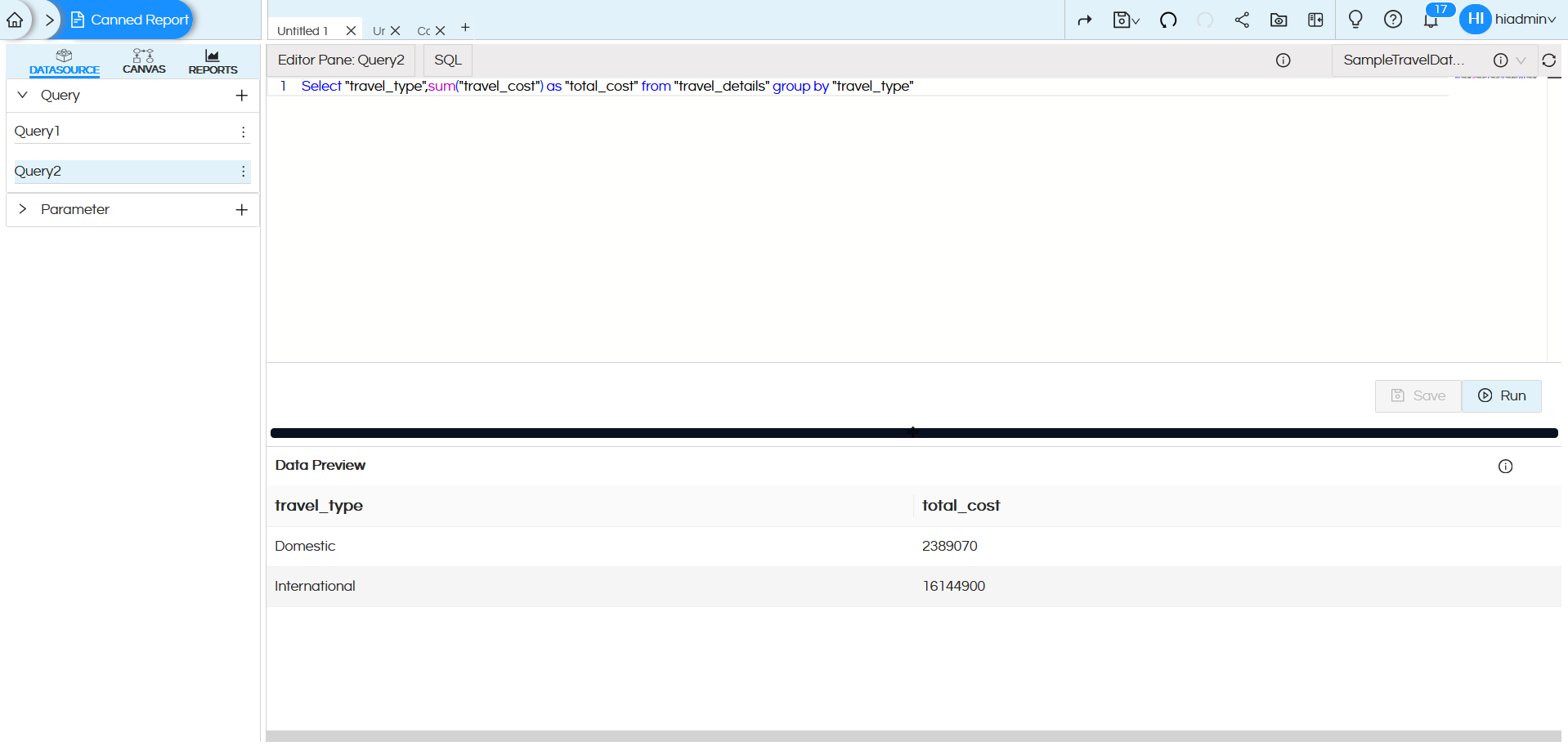
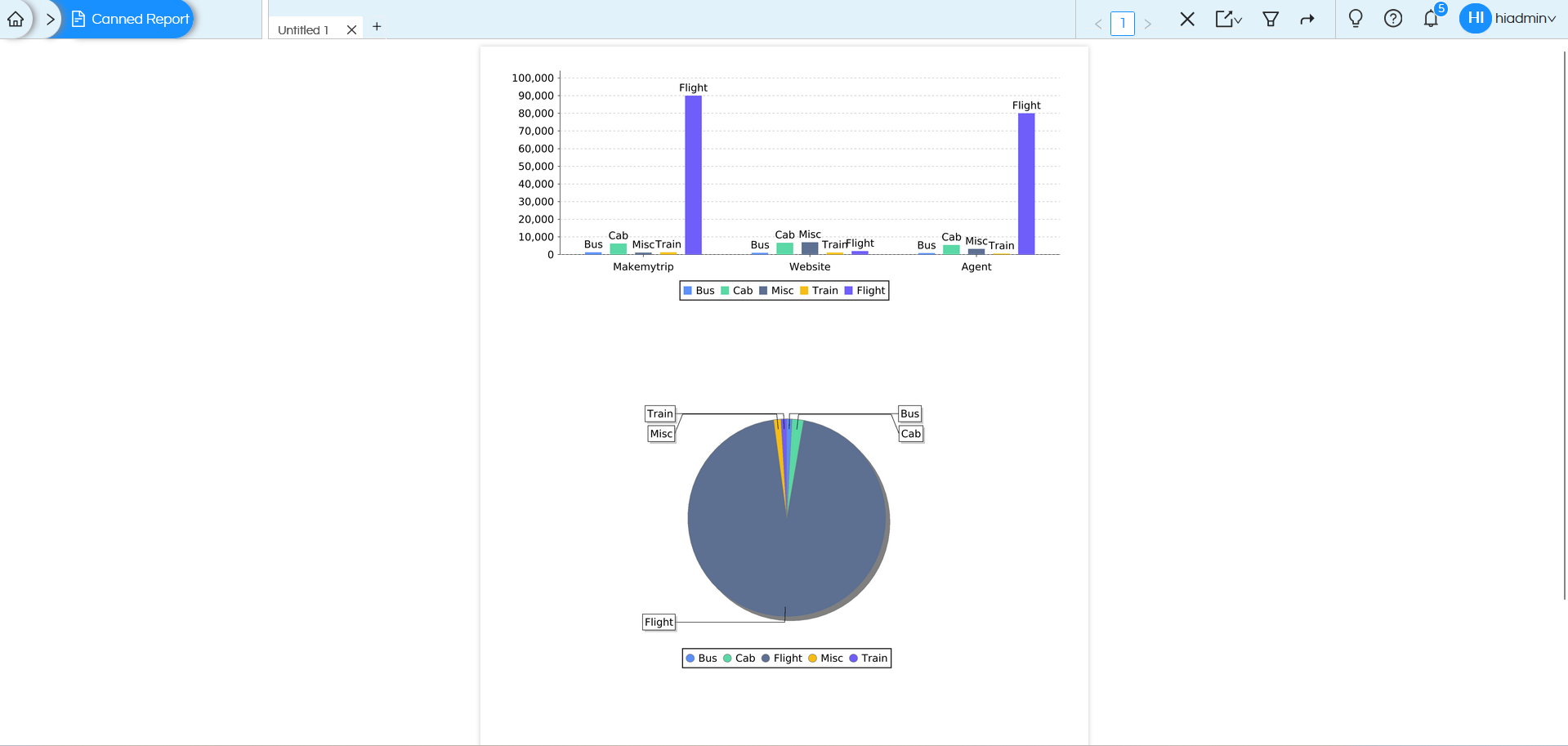
Each Chart component requires a dedicated query. A single query can be bound to only one chart; therefore, a separate SQL query must be created for every additional chart used in the report. In this report we created two Charts (bar and arc).
Usage of Crosstab Component in canned Reporting

Usage of Crosstab Component in canned Reporting

Using Query2, create an arc chart (as explained in the creation process above). When we preview the report, we get the result shown below.
Usage of Crosstab Component in canned Reporting

Reach out on support@helicalinsight.com in case of any more questions.

Leave a Reply

Helical Insight’s self-service capabilities is one to reckon with. It allows you to simply drag and drop columns, add filters, apply aggregate functions if required, and create reports and dashboards on the fly. For advanced users, the self-service component has ability to add javascript, HTML, HTML5, CSS, CSS3 and AJAX. These customizations allow you to create dynamic reports and dashboards. You can also add new charts inside the self-service component, add new kind of aggregate functions and customize it using our APIs.
Helical Insight, via simple browser based interface of Canned Reporting module, also allows to create pixel perfect printer friendly document kind of reports also like Invoice, P&L Statement, Balance sheet etc.
If you have a product, built on any platform like Dot Net or Java or PHP or Ruby, you can easily embed Helical Insight within it using iFrames or webservices, for quick value add through instant visualization of data.
Being a 100% browser-based BI tool, you can connect with your database and analyse across any location and device. There is no need to download or install heavy memory-consuming developer tools – All you need is a Browser application! We are battle-tested on most of the commonly used browsers.
We have organization level security where the Superadmin can create, delete and modify roles. Dashboards and reports can be added to that organization. This ensures multitenancy.
A first-of-its-kind Open-Source BI framework, Helical Insight is completely API-driven. This allows you to add functionalities, including but not limited to adding a new exporting type, new datasource type, core functionality expansion, new charting in adhoc etc., at any place whenever you wish, using your own in-house developers.
It handles huge volumes of data effectively. Caching, Pagination, Load-Balancing and In-Memory not only provides you with amazing experience, but also and does not burden the database server more than required. Further effective use of computing power gives best performance and complex calculations even on the big data even with smaller machines for your personal use. Filtering, Sorting, Cube Analysis, Inter Panel Communication on the dashboards all at lightning speed. Thereby, making best open-source Business Intelligence solution in the market.
With advance NLP algorithm, business users simply ask questions like, “show me sales of last quarter”, “average monthly sales of my products”. Let the application give the power to users without knowledge of query language or underlying data architecture
Our application is compatible with almost all databases, be it RDBMS, or columnar database, or even flat files like spreadsheets or csv files. You can even connect to your own custom database via JDBC connection. Further, our database connection can be switched dynamically based on logged in users or its organization or other parameters. So, all your clients can use the same reports and dashboards without worrying about any data security breech.
Our application can be installed on an in-house server where you have full control of your data and its security. Or on cloud where it is accessible to larger audience without overheads and maintenance of the servers. One solution that works for all.
Different companies have different business processes that the existing BI tools do not encompass. Helical Insight permits you to design your own workflows and specify what functional module of BI gets triggered