In Open source BI Helical Insight versin 6.1.0.826, the Crosstab component has been introduced in the Canned Report module to display summarized data in a matrix/pivot format. This component allows report designers to organize query results into row and column groups, apply aggregate functions on measures, and generate comparative and analytical views, making it easier to analyze data across multiple dimensions within report.

Steps to create a cross tab visualization in Canned Reporting :

  1. Create a data source connection

    Refer the following documentation for this step https://www.helicalinsight.com/data-sources-page-overview-in-canned-reporting/

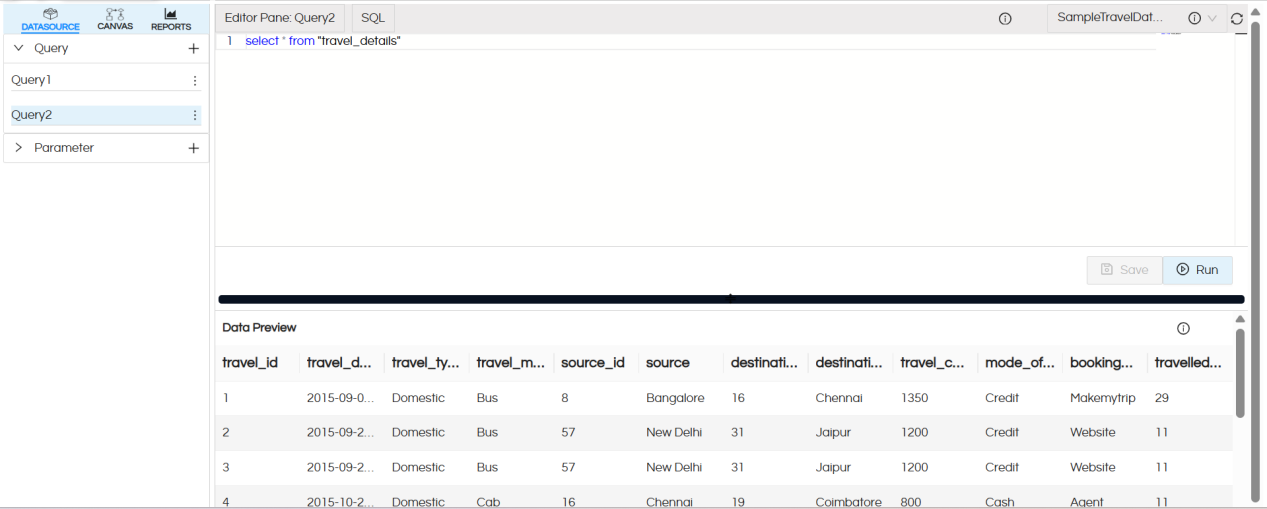
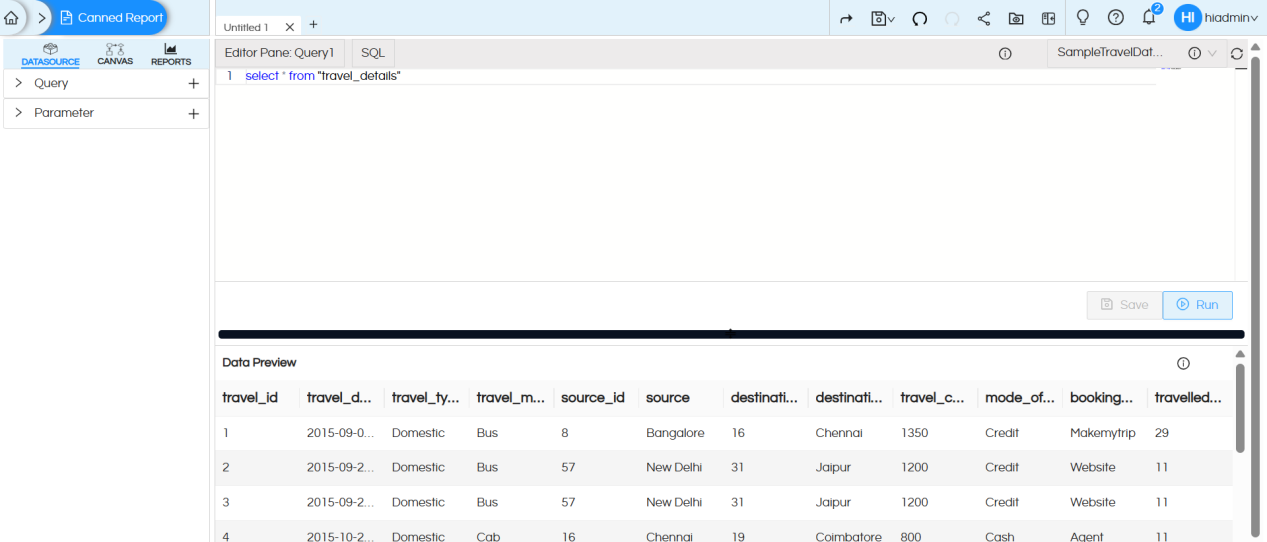
  2. Once the datasource connection is created, select the connection and write the SQL query. Click on Save and Run to execute the query

    The first 10 records of the result set will be displayed in the Data Preview section, this is helpful to understand whether the data being fetched from the SQL is correct or not.
    Usage of Crosstab Component in canned Reporting

  3. Query and Parameter Mapping Across Multiple Components

    When working with reports containing multiple components, such as Crosstabs, Tables, or Charts, a dataset query can accept and execute with multiple parameters simultaneously.

    You can map these parameters across different components by selecting the required dataset query under the component settings and mapping each created parameter to its corresponding field, parameter, or variable expression.

    This ensures that all components within the report correctly filter and evaluate dynamic inputs passed at runtime.

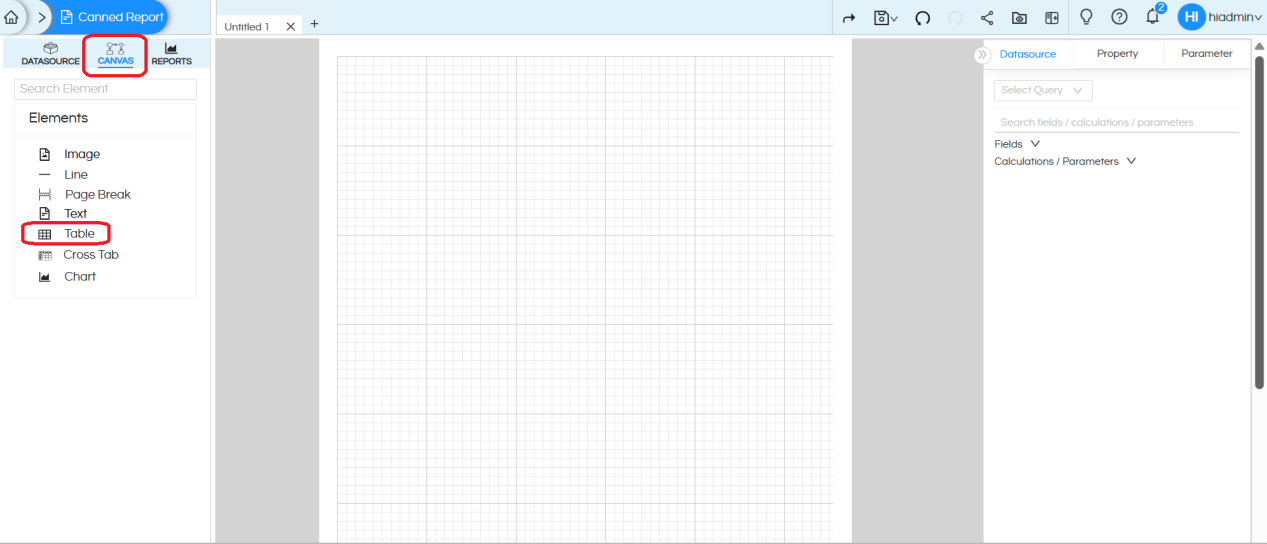
  4. In the CANVAS tab, you will find the Cross Tab component under the Elements list
    Usage of Crosstab Component in canned Reporting

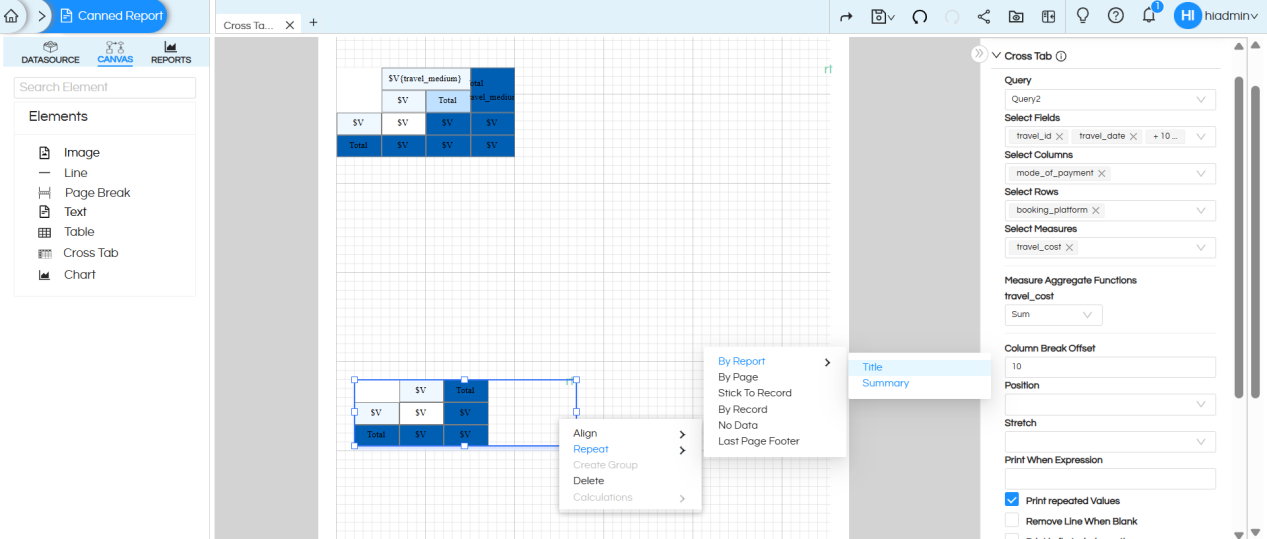
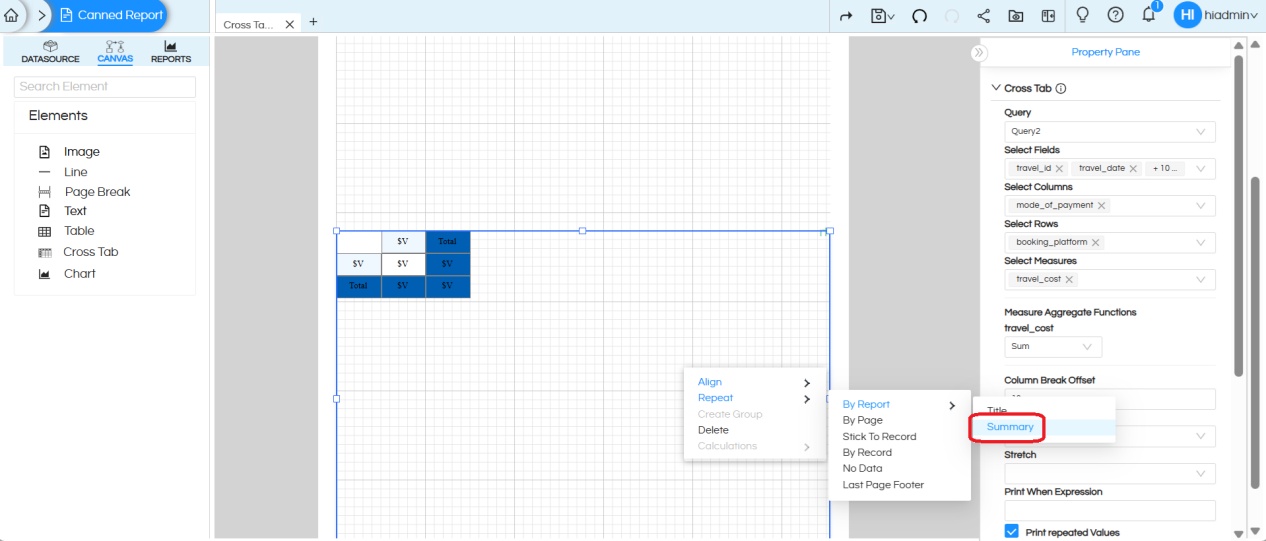
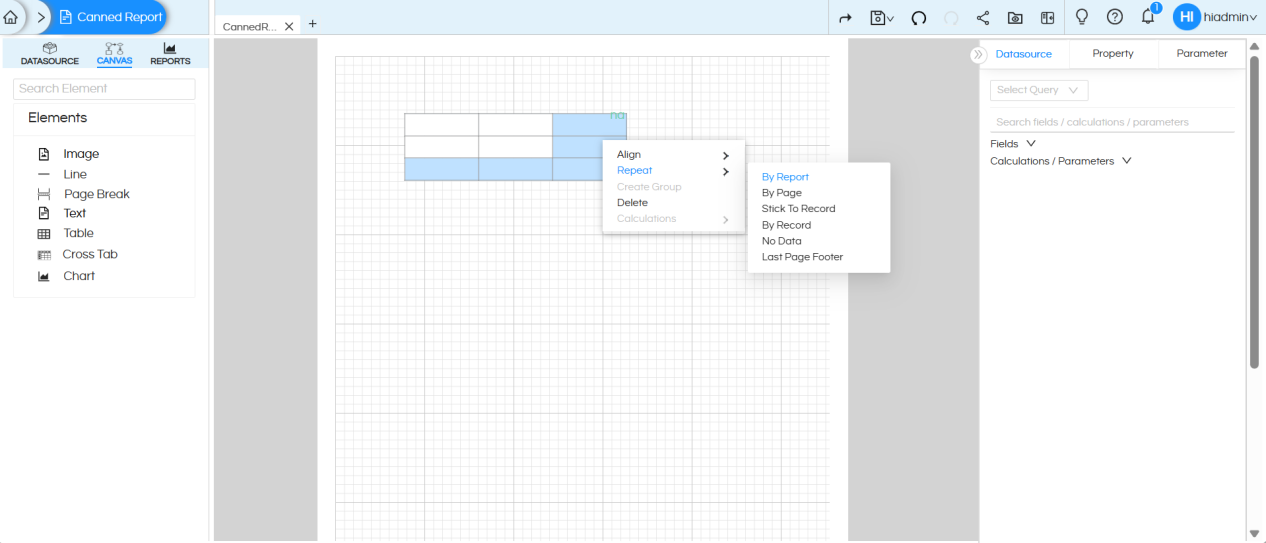
  5. Drag the Cross Tab component onto the canvas, then right-click on it and select the ‘Repeat‘ option as neccesary.

    Mostly ‘By Report‘ will be used.
    Usage of Crosstab Component in canned Reporting

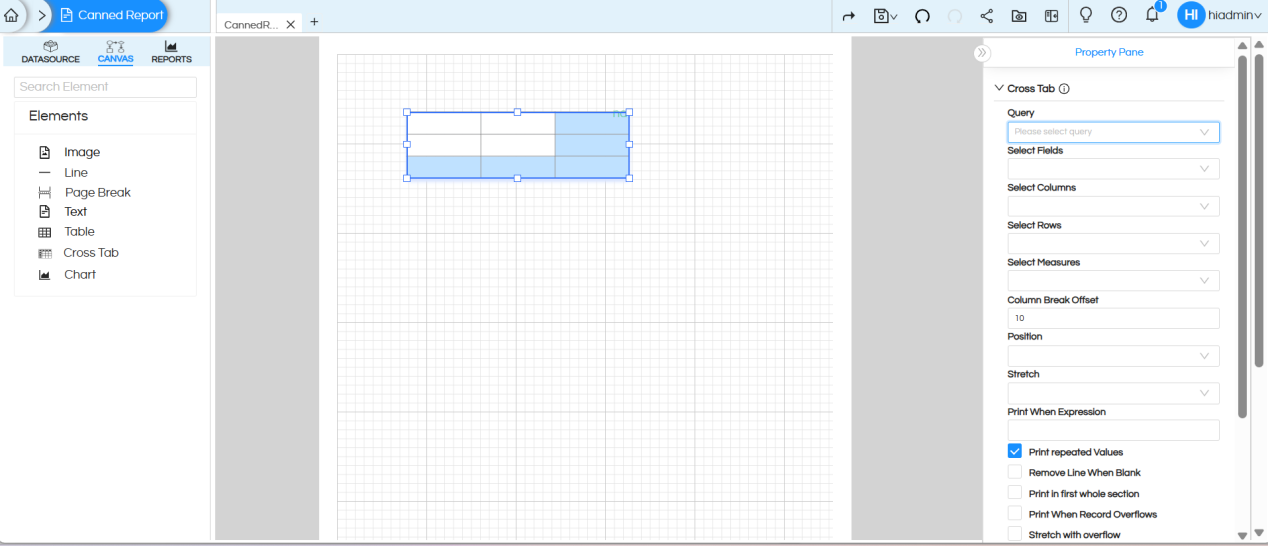
  6. Click on the Cross Tab component.

    On the right side, you will see the Cross Tab configuration options/Properties
    Usage of Crosstab Component in canned Reporting

    1. Query

      • Purpose: Specifies the data source for the cross.
      • How it works: While making the datasource connection, we have written query. We can write multiple queries also there. You can select a query (like Query1) which will be used for the table.
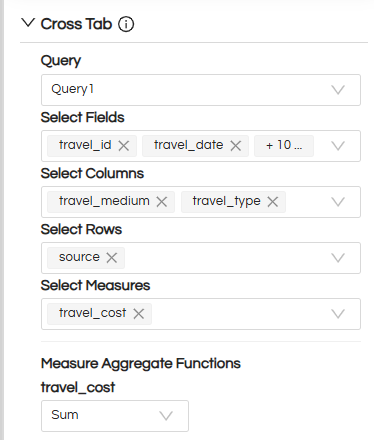
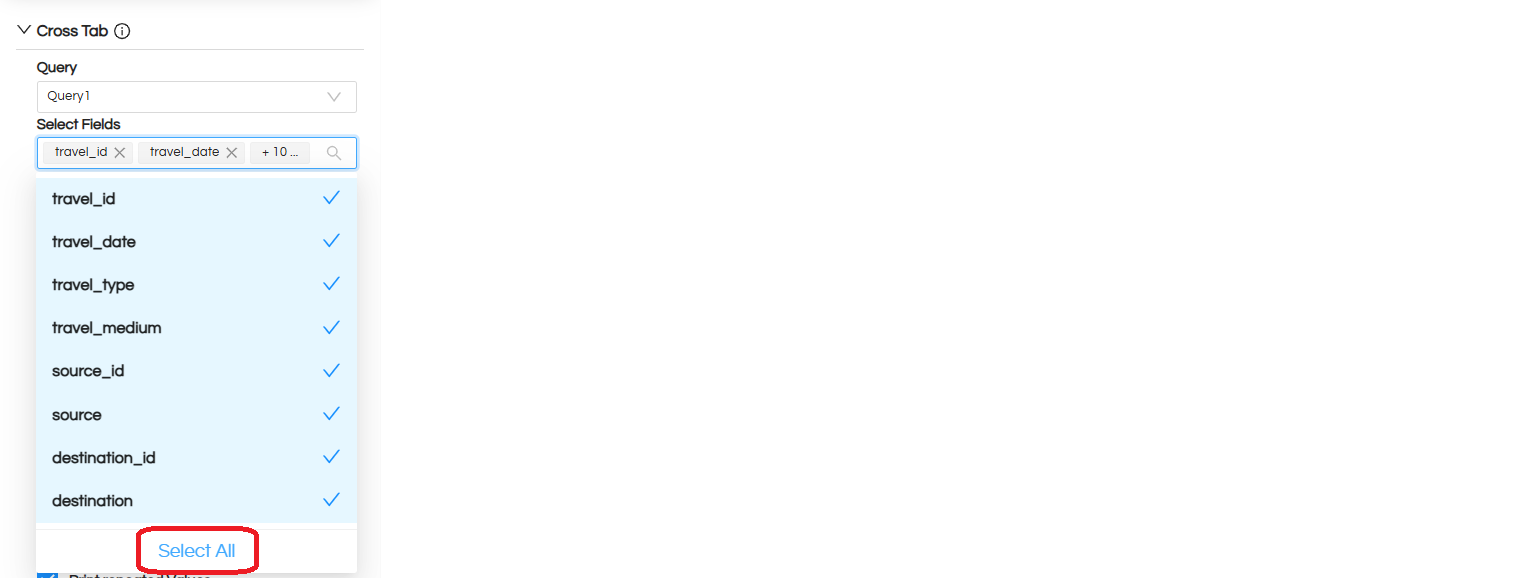
    2. Select Fields

      Please select the columns from the query that you want to display in the crosstab.

    3. Usage of Crosstab Component in canned Reporting

    4. Select Columns

      Select the fields to be used as crosstab columns

    5. Select Rows

      Select the fields to be used as crosstab rows

    6. Select Measures

      Specifies the numeric fields and aggregation functions (such as sum or count) used to calculate values in the crosstab cells.

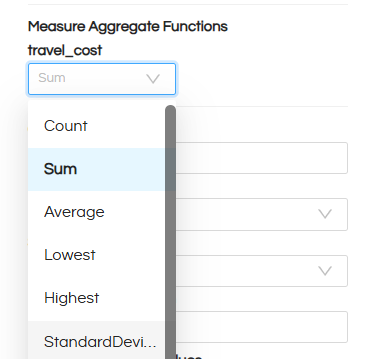
    7. Measure Aggregate Functions

      Defines how measure values are aggregated across records, such as sum, average, count, minimum, or maximum.

      Select the Aggregate to be used for the selected measure/measures.
      Usage of Crosstab Component in canned Reporting

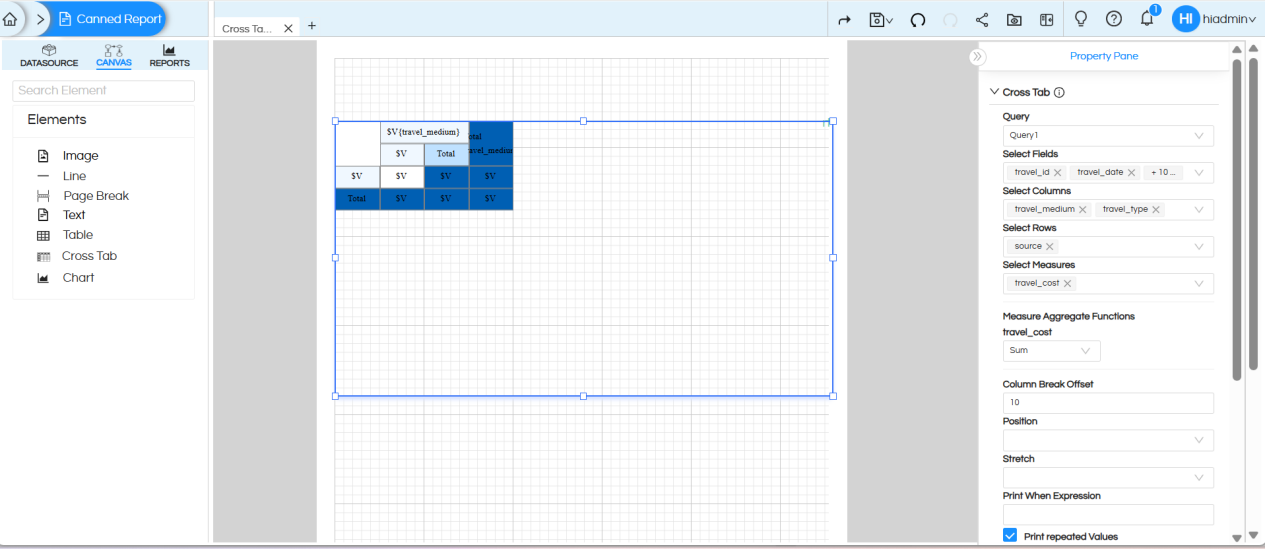
      We have selected the following fields to generate the crosstab :
      Usage of Crosstab Component in canned Reporting

      • Column Break Offset

        Defines the space (in pixels) between column groups when the crosstab continues into multiple columns.

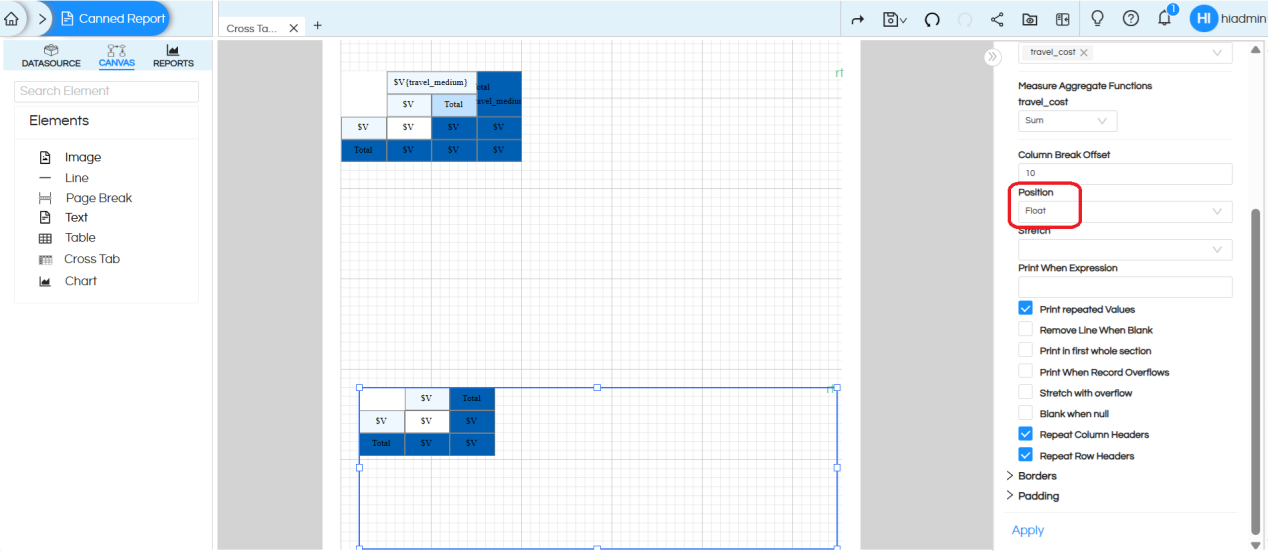
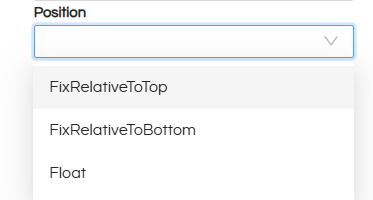
      • Position :

        Specifies the object position when the report section is affected by stretch.

        • FixRelativeToTop: Crosstab stays fixed relative to the top of the report.
        • FixRelativeToBottom: Crosstab stays fixed relative to the bottom.
        • Float: Crosstab moves freely and can be placed anywhere.
        • Usage of Crosstab Component in canned Reporting

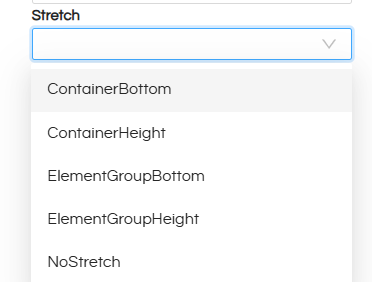
    8. Stretch

      • ContainerBottom

        The crosstab expands downward until it touches the bottom of its container (such as a frame or band).

        Useful when you want the text to fill all available vertical space inside its container.

      • ContainerHeight

        The crosstab always matches the full height of its container.

        The height stays the same even if the text content is small or large.

      • ElementGroupBottom

        When the crosstab is inside a group, it stretches until the bottom of the entire group.

        Useful when grouped elements need to align at the bottom.

      • ElementGroupHeight

        The crosstab stretches to match the total height of its group.

        Helps keep all grouped elements the same height and maintain a consistent layout.

        This is usually the most commonly used option.

      • NoStretch

        This is the default behavior.

        The crosstab does not stretch, even if the content is larger than the available space.
      • Usage of Crosstab Component in canned Reporting

    9. Print When Expression

      This property is used to display a specific crosstab only when a given condition is true.

      If the condition evaluates to false, the crosstab will not be printed in the report.

      Example

      (($F{meet_cancellation_status}.equals(“Yes”)))

      In this example, the crosstab cell will be printed only when the meet_cancellation_status field value is “Yes”.
      If the value is anything else, the cell will be hidden.

    10. Print Repeated Values – Controls whether repeated values are printed or left blank.
    11. Remove Line When Blank – Removes the crosstab row if there is no data for that row.
    12. Print in First Whole Section – Prints the crosstab only at the start of a section (useful in multi-section reports).
    13. Print When Record Overflows – Controls printing when the crosstab spans multiple pages or sections.
    14. Stretch with Overflow – Lets the crosstab grow if the content is larger than its allocated area.
    15. Blank When Null – If a field is NULL, it shows as blank instead of printing NULL.
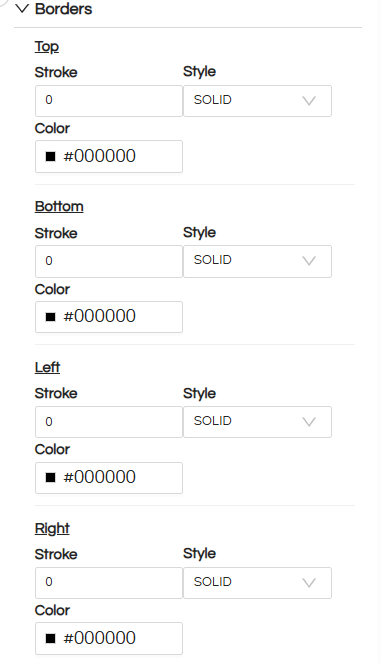
    16. Borders – Configure various properties of the border, like border style, width and color.
    17. Usage of Crosstab Component in canned Reporting

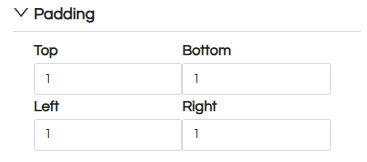
    18. Padding – We can provide the padding values, thus the data within the cells will appear leaving that much space (padding) on side.
    19. Usage of Crosstab Component in canned Reporting

  7. Select required fields from dataset to crosstab and ajust the cross tab position by giving proper width and height
  8. Usage of Crosstab Component in canned Reporting

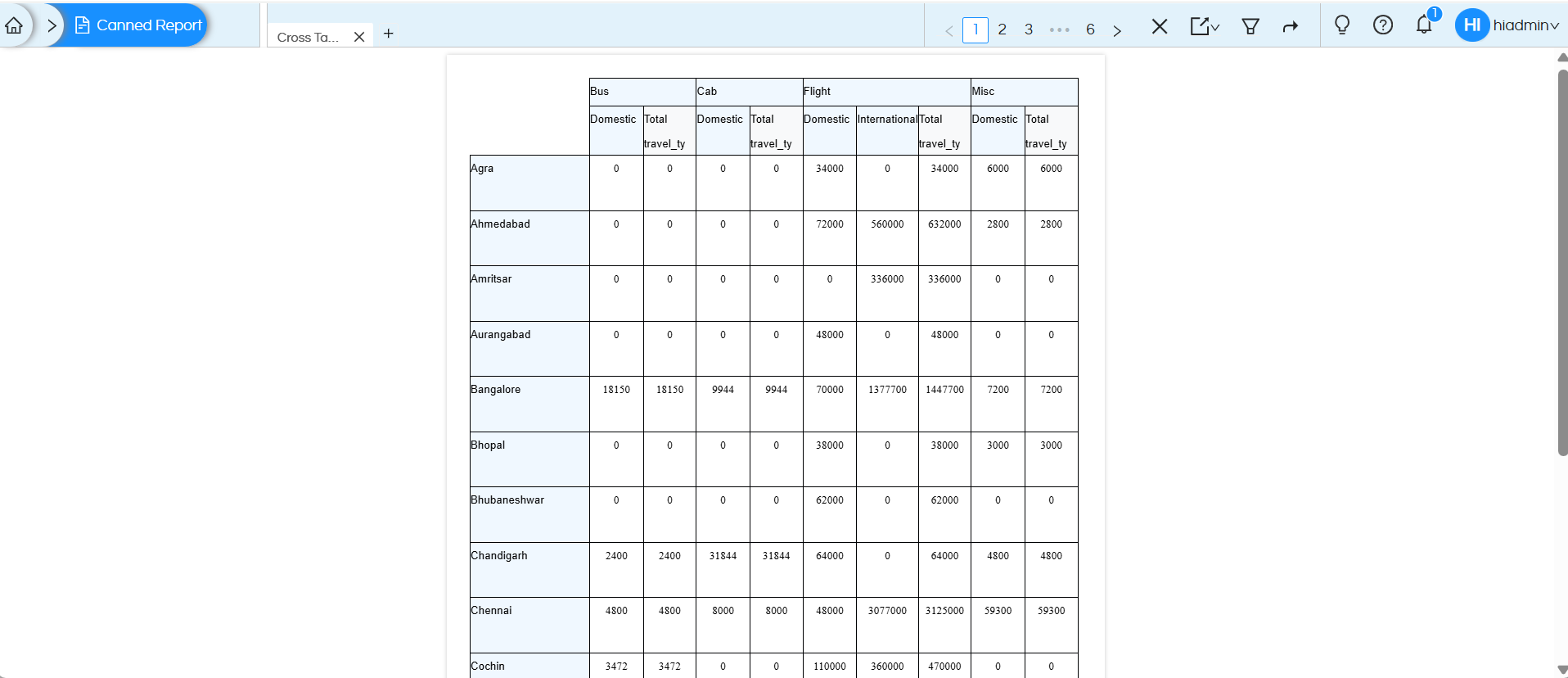
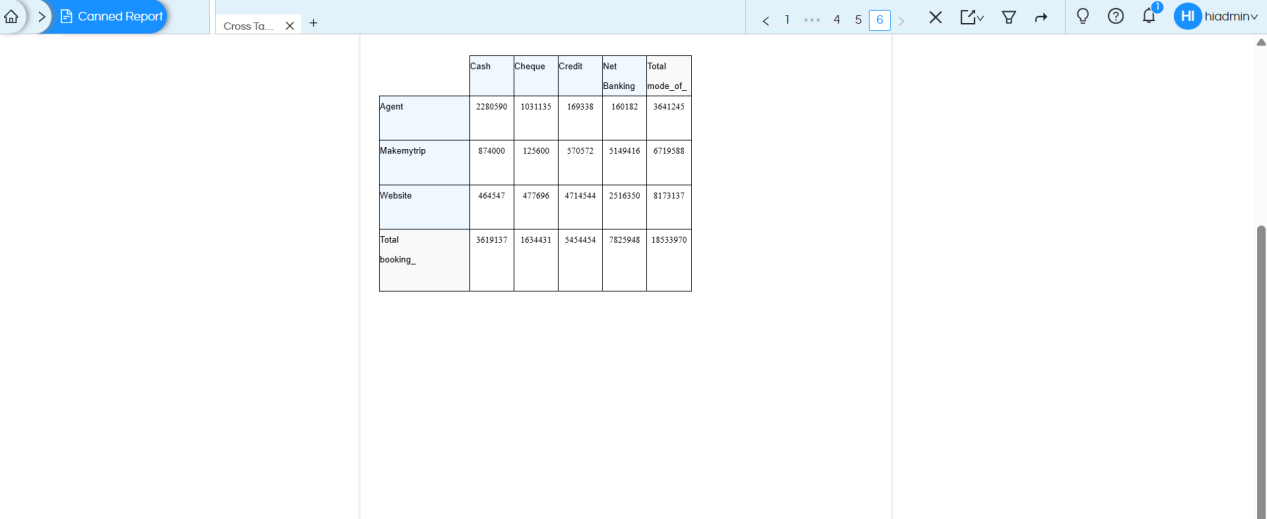
    Preview the report (preview option is present at the top blue band).

    Usage of Crosstab Component in canned Reporting

  9. We can rename cross tab static field names and apply field level properties.
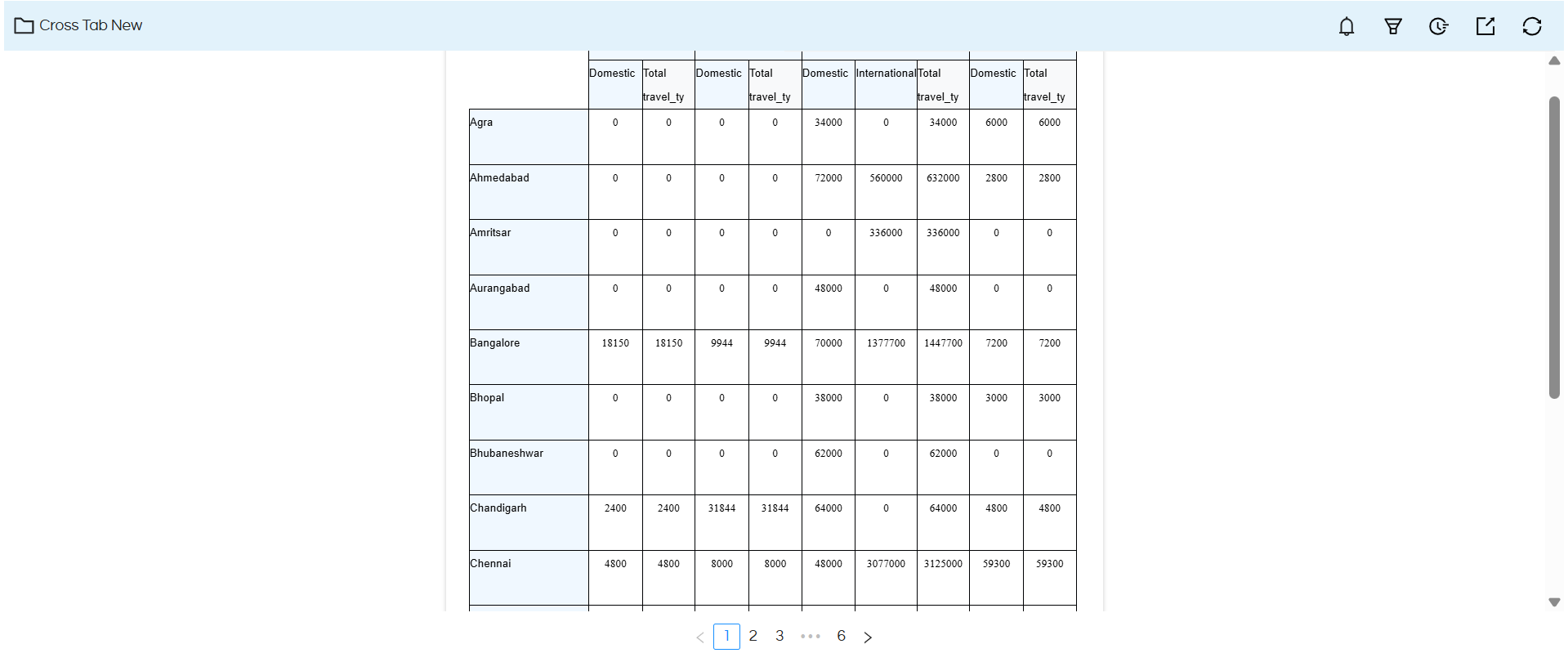
  10. Save the report and open in new window
  11. Usage of Crosstab Component in canned Reporting

  12. Once a crosstab is created, we may want to specify the individual cell level properties like thousand separator, alignment, bold, font size etc.

    For doing that, you can click on that individual cell only and then apply the respective properties. We can rename table header field names and apply field level properties. Click here to read more.
Usage of Crosstab Outline Panel

With the release of Helical Insight 6.0.1.1001, the Crosstab Component in Canned Report has been enhanced with additional Crosstab Outline Panel capabilities that provide a more structured and user-friendly report designing experience. The upgraded interface simplifies report creation using drag-and-drop functionality and offers better control over datasets, fields, calculations, grouping, variables, and Crosstab structure management.

When we have clicked on Crosstab Component, there are other configuration options which are explained below for doing things like adding fields, parameters, deleting fields, formatting, grouping etc.

Usage of Crosstab Component in canned Reporting

Crosstab Outline Panel

1. Dataset

The newly introduced Crosstab Outline Panel appears on the left side of the report designer. This Contains:

Usage of Crosstab Component in canned Reporting

Parameters

Parameters (also called as filters) are used to create dynamic and interactive reports. They mainly act as filters and allow users to pass values during report execution.

Creating and Configuring Parameters

Usage of Crosstab Component in canned Reporting

To create a new parameter specific to this Crosstab component, expand the Dataset in the Crosstab Outline panel, right-click on Parameters, and select Create Parameter.

Once the parameter is created, a configuration panel will appear on the right side of the screen. The following properties can be configured:

  • Name: Specifies the name of the parameter. This name is used in the WHERE clause of the Crosstab query.
  • Class Name: Specifies the data type of the parameter. You can select the required type, such as String, Integer, Float, Double, Long, Short, or Big Decimal.
  • Value: Specifies the default value that should be passed to the parameter when the report renders by default. The value must be placed in ‘’ (or it could also be specific to the SQL syntax requirement of the DB you are connecting to i.e. how it accepts data for filters).

After entering the required details, click Save to create the parameter.

Usage of Crosstab Component in canned Reporting

Usage of Crosstab Component in canned Reporting

After creating a parameter, it becomes available within the selected dataset and is displayed in the Query panel as shown in above image.

To use this parameter in the CrossTab query, add it to the query by referencing the same parameter name that was specified during parameter creation.

Usage of Crosstab Component in canned Reporting

Parameters are typically used in the WHERE clause to filter the dataset dynamically at runtime.

Usage of Crosstab Component in canned Reporting

For example, if a parameter named Travel_Type has been created, it can be referenced in the query as follows:

SELECT * 
FROM "travel_details" 
WHERE "travel_type" = ${Travel_Type}

In this example, Travel_Type is used to filter records based on the value passed to the parameter. During report execution, the parameter value is evaluated and substituted into the query, and only the matching records are returned.

Configuring Query and Parameter Mapping for a Crosstab Component

After creating a Crosstab level parameter, select the Crosstab option from the Crosstab Outline panel on the left side. The Crosstab configuration panel will then be displayed on the right side of the screen.

Usage of Crosstab Component in canned Reporting

Query Selection

The Query option allows you to select the dataset that will be used by the Crosstab component. If multiple datasets are available in the report, you can choose the required dataset from the drop-down list.

This option is useful when applying filters using parameters from a different dataset that is being used within the components.

Parameter Mapping

The Parameter Mapping section is used to pass values to the parameters created in the dataset.

The following options are available:

  • Parameters: Select the parameter that you want to configure from the drop-down list. The list displays all parameters created for the selected dataset.
  • Expression: Maps a value from the current report context to the selected parameter. The mapped value is evaluated at runtime and overrides the parameter’s default value.

The Expression field allows you to map values from:

  • Fields: Dataset fields that are available in the current report.
  • Variables: Variables created within the report.

Usage of Crosstab Component in canned Reporting

After configuring the parameter mapping, click Save to apply the changes. This ensures that the selected parameter receives the appropriate value when the report is executed.

Fields

Fields represent the columns returned from the dataset or SQL query. All query output columns automatically appear under the Fields section in the Crosstab Outline.

Using drag-and-drop functionality, fields can be directly placed into the any of the components of Crosstab and accordingly the Crosstab report gets created:

Usage of Crosstab Component in canned Reporting

Below is the definition of various components of a Crosstab

Users can also right-click on fields/calculations to create fields directly from the Crosstab Outline

Note: Fields can only be created from the fields available in the selected query. This option is useful when a field was missed while designing the canvas, allowing it to be created later and added directly to the Crosstab.

Variables

The upgraded Crosstab Component also provides access to variables that can be directly used inside reports. These variables can also be dragged into any component of Crosstab like header, footer etc.

To know more about the variables refer the below blog: https://www.helicalinsight.com/quick-functions-in-canned-reports/

Below is the definition of various components of a Crosstab

Calculations

The new Crosstab Outline also includes a dedicated Calculations section.

This section allows users to create custom calculated fields dynamically without modifying the original dataset.

Calculated fields can then be dragged and used anywhere inside the report component.

Users can also right-click on calculations to create groups directly from calculated fields for easier summarization and grouping.

Usage of Crosstab Component in canned Reporting

For detailed information on usage of custom calculations refer here:

https://www.helicalinsight.com/adding-custom-calculations-in-helical-canned-report

Groups

Within Crosstab, we can have groups allowing to show data further categorized. Like in the below image shown.

Usage of Crosstab Component in canned Reporting

In order to create Group, Open the Outline Panel.

Locate the required Group Component.

Right click on it and select “Create Group”

Usage of Crosstab Component in canned Reporting

It will show group created with default name as “Group 1” etc.

After clicking on Group 1, a UI like below will appear with further customization options.

Usage of Crosstab Component in canned Reporting

After creating the group we will get new options under Crosstab

Right click on them and you can create/delete a row/column etc along with their position in the respective created Group/header/footer/data.

Current Limitation

Currently, groups created directly from the Crosstab Outline are automatically named as: Group 1, Group 2, Group 3…etc

These group names cannot be renamed at the moment.

However, if groups are created directly from the canvas area, the group name is automatically displayed based on the selected field name.

Crosstab Sections

Usage of Crosstab Component in canned Reporting

Crosstab Component

The Crosstab Component organizes report data into rows and columns, making it easier to analyze and compare summarized information. It divides the data into different sections such as Row Groups, Column Groups, Total Rows, Total Columns, and Detail Cells, as shown in the above image.

These sections can be configured individually to control the layout, position of totals, and formatting of the Crosstab.

Crosstab Configuration Options

The Crosstab Component provides additional configuration options to control the position of totals, layout of the Crosstab, and formatting of individual Crosstab elements.

Total Position

The Total Position option allows users to control where the total row or total column is displayed within a Crosstab.

By default, the Crosstab displays totals in the standard position defined by the component. Using the Total Position option, users can move the total to the Top, Bottom, or keep it in the Default position based on their reporting requirements.

This option is available when a Row Group or Column Group is selected from the Crosstab Outline.

Group Configuration

When a Crosstab group is selected, its configuration properties are displayed in the right-side configuration panel.

For example, if the Row Group travel_Type is selected, the following properties are available:

  • Name – Specifies the name of the Crosstab group.
  • Expression – Specifies the field or expression used to create the group.
  • Value Class Name – Specifies the Java data type of the group value.
  • Total Position – Specifies where the total for the selected group should be displayed.

For example:

Property Value
Name travel_Type
Expression $F{travel_type}
Value Class Name java.lang.String
Total Position Top / Bottom / Default

Total Position Options

The Total Position property provides the following options:

  • Top – Displays the total before the grouped data.
  • Bottom – Displays the total after the grouped data.
  • Default – Displays the total in the default position provided by the Crosstab component.

For example, if the travel_Type group contains Business, Economy, and First Class, selecting Top places the total before these groups, while selecting Bottom places the total after them.

How to Configure Total Position

Follow these steps to configure the position of a Crosstab total:

  1. Open the Crosstab Outline Panel.
  2. Select the required Row Group or Column Group.
  3. The configuration properties for the selected group will be displayed in the right-side panel.
  4. Locate the Total Position property.
  5. Select one of the available options:

Top

Bottom

Default

Click Save to apply the changes.

The Crosstab will display the total in the selected position.

Usage of Crosstab Component in canned Reporting

Crosstab Layout

The Crosstab component provides different layout options to control how Crosstab elements are arranged within the report.

The following layout options are available:

  • Free Layout
  • Horizontal Layout
  • Vertical Layout
  • Grid Layout
  • Spreadsheet Layout

Usage of Crosstab Component in canned Reporting

Adjusting Crosstab Width

When you hover over the inner borders of a Crosstab, the cursor changes to a resize cursor. You can then click and drag the border to adjust the width of the corresponding column.

Crosstab Styles

Styles allow you to control the formatting and appearance of the different elements within a Crosstab. The Styles section in the Crosstab Outline Panel lists the available style categories:

  1. CROSSTAB_CH – Defines the style applied to Crosstab header cells.
  2. CROSSTAB_CG – Defines the style applied to Crosstab group cells.
  3. CROSSTAB_CT – Defines the style applied to Crosstab total cells.
  4. CROSSTAB_CD – Defines the style applied to Crosstab detail cells.

Usage of Crosstab Component in canned Reporting

Configuring Individual Crosstab Cells

Once a Crosstab is created, individual Crosstab cells and groups can be selected from the Crosstab Outline Panel and configured using the properties available in the property panel.

The Crosstab Outline contains options such as:

  • Row Groups
  • Column Groups
  • Measures
  • Detail/Detail

Refer to the documentation below for detailed steps on adding and configuring parameters.
https://www.helicalinsight.com/input-parameters-filter-types-canned-report/

Reach out on support@helicalinsight.com

Leave a Reply

Helical Insight’s self-service capabilities is one to reckon with. It allows you to simply drag and drop columns, add filters, apply aggregate functions if required, and create reports and dashboards on the fly. For advanced users, the self-service component has ability to add javascript, HTML, HTML5, CSS, CSS3 and AJAX. These customizations allow you to create dynamic reports and dashboards. You can also add new charts inside the self-service component, add new kind of aggregate functions and customize it using our APIs.
Helical Insight, via simple browser based interface of Canned Reporting module, also allows to create pixel perfect printer friendly document kind of reports also like Invoice, P&L Statement, Balance sheet etc.
If you have a product, built on any platform like Dot Net or Java or PHP or Ruby, you can easily embed Helical Insight within it using iFrames or webservices, for quick value add through instant visualization of data.
Being a 100% browser-based BI tool, you can connect with your database and analyse across any location and device. There is no need to download or install heavy memory-consuming developer tools – All you need is a Browser application! We are battle-tested on most of the commonly used browsers.
We have organization level security where the Superadmin can create, delete and modify roles. Dashboards and reports can be added to that organization. This ensures multitenancy.
A first-of-its-kind Open-Source BI framework, Helical Insight is completely API-driven. This allows you to add functionalities, including but not limited to adding a new exporting type, new datasource type, core functionality expansion, new charting in adhoc etc., at any place whenever you wish, using your own in-house developers.
It handles huge volumes of data effectively. Caching, Pagination, Load-Balancing and In-Memory not only provides you with amazing experience, but also and does not burden the database server more than required. Further effective use of computing power gives best performance and complex calculations even on the big data even with smaller machines for your personal use. Filtering, Sorting, Cube Analysis, Inter Panel Communication on the dashboards all at lightning speed. Thereby, making best open-source Business Intelligence solution in the market.
With advance NLP algorithm, business users simply ask questions like, “show me sales of last quarter”, “average monthly sales of my products”. Let the application give the power to users without knowledge of query language or underlying data architecture
Our application is compatible with almost all databases, be it RDBMS, or columnar database, or even flat files like spreadsheets or csv files. You can even connect to your own custom database via JDBC connection. Further, our database connection can be switched dynamically based on logged in users or its organization or other parameters. So, all your clients can use the same reports and dashboards without worrying about any data security breech.
Our application can be installed on an in-house server where you have full control of your data and its security. Or on cloud where it is accessible to larger audience without overheads and maintenance of the servers. One solution that works for all.
Different companies have different business processes that the existing BI tools do not encompass. Helical Insight permits you to design your own workflows and specify what functional module of BI gets triggered