
Starting from open source BI Helical Insight 6.1.0.826 GA, the Table component has been introduced in the Canned Report module to enable users to display structured, row-wise data in a tabular format. This component allows report designers to bind query results to columns, repeat rows dynamically for each record, and apply formatting and aggregations to present detailed and organized data within reports.
In earlier versions, tabular layouts had to be built manually by arranging individual fields and configuring repeat-by options. With the introduction of the Table component, users can now create tabular visualizations in a faster and more effective way within the Canned Report module.
Steps to create a tabular visualization in Canned Reporting :
-
Create a data source connection
Refer the following documentation for this step https://www.helicalinsight.com/data-sources-page-overview-in-canned-reporting
-
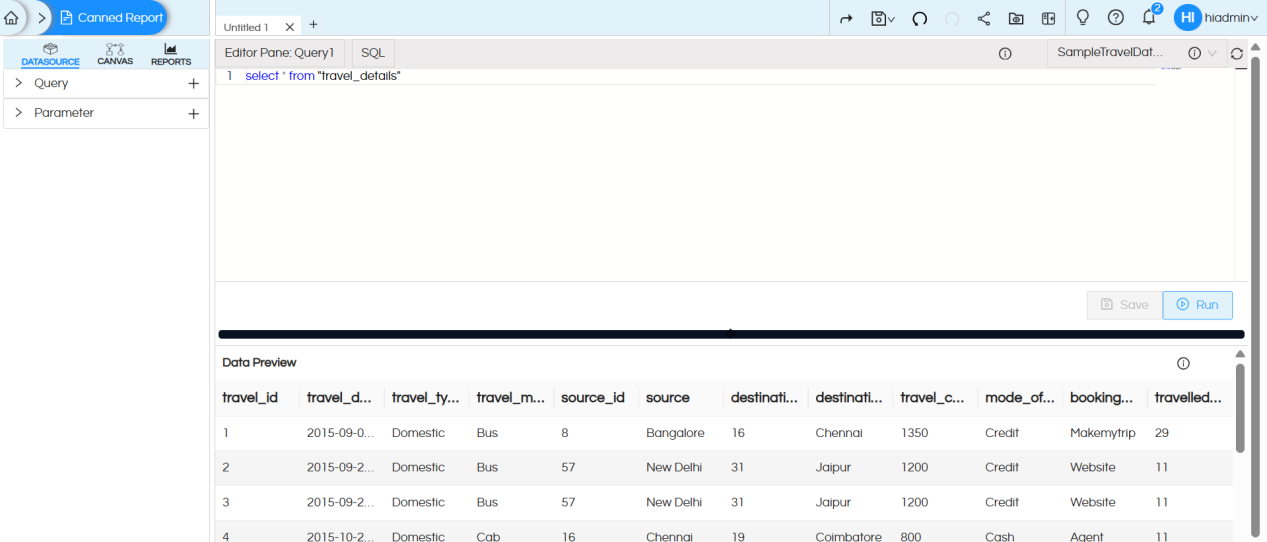
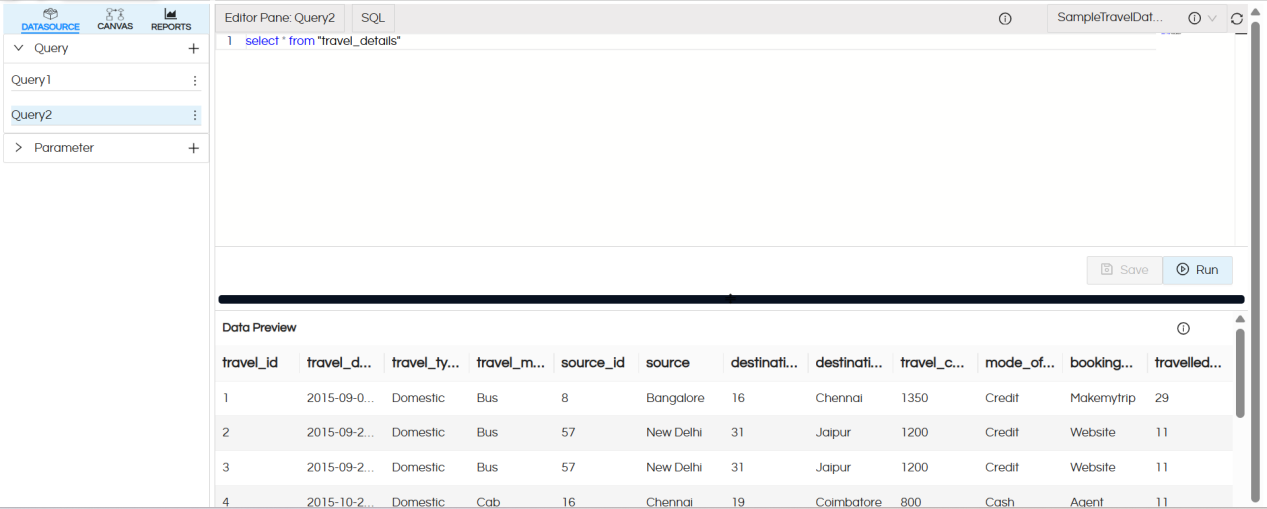
Once the datasource connection is created, select the connection and write the SQL query. Click on Save and Run to execute the query
The first 10 records of the result set will be displayed in the Data Preview section, this is helpful to understand whether the data being fetched from the SQL is correct or not.
-
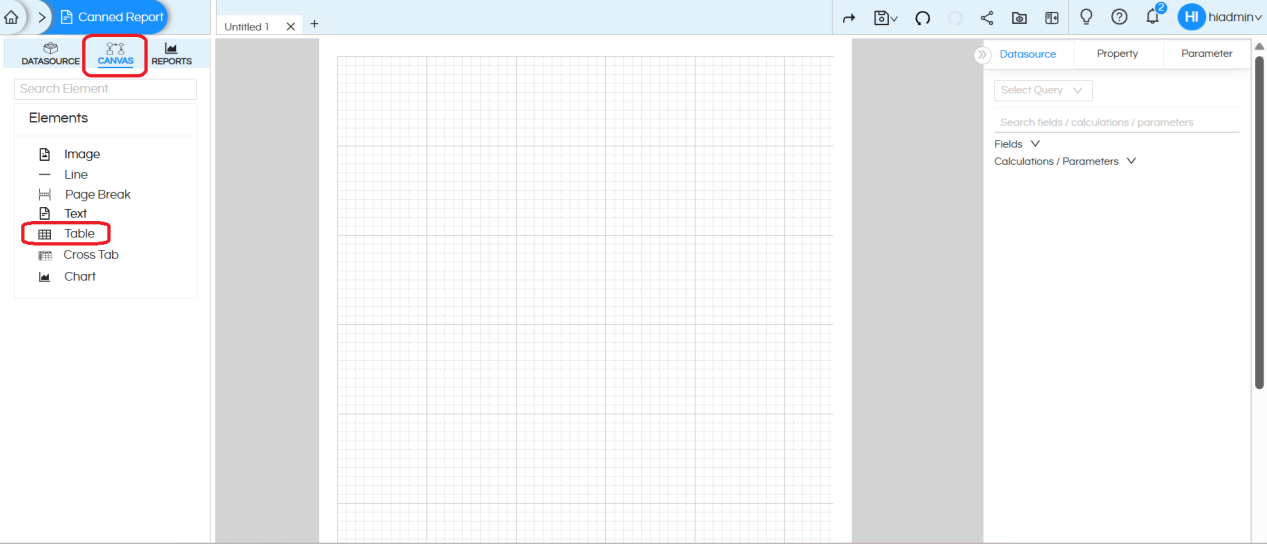
In the CANVAS tab, you will find the Table component under the Elements list
-
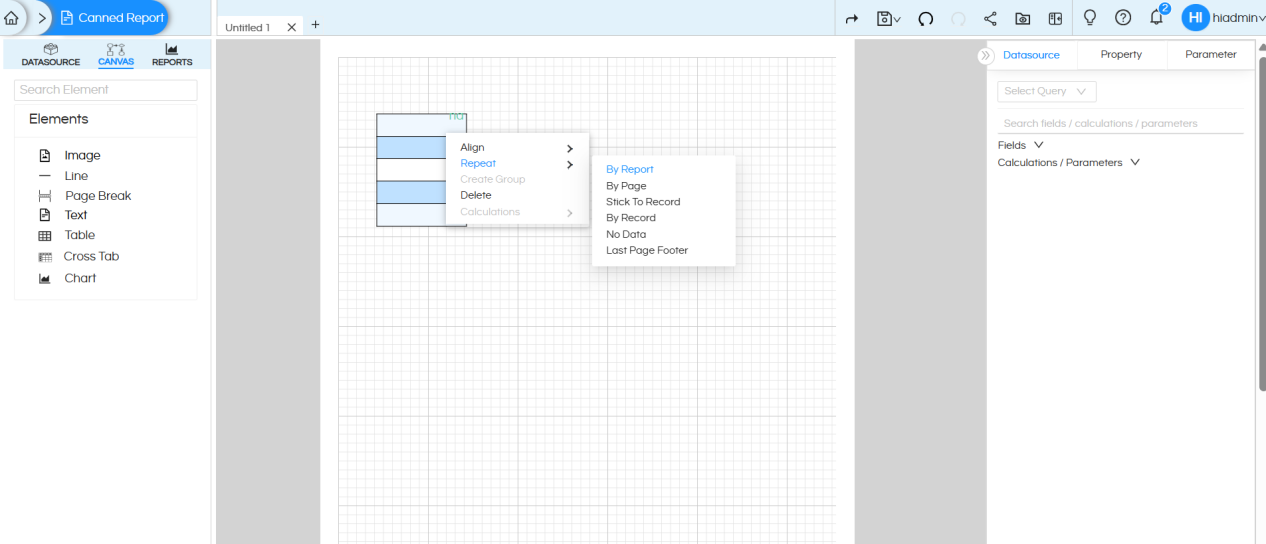
Drag the Table component onto the canvas, then right-click on it and select the ‘Repeat‘ option. In most use cases it will be ‘By Report‘
-
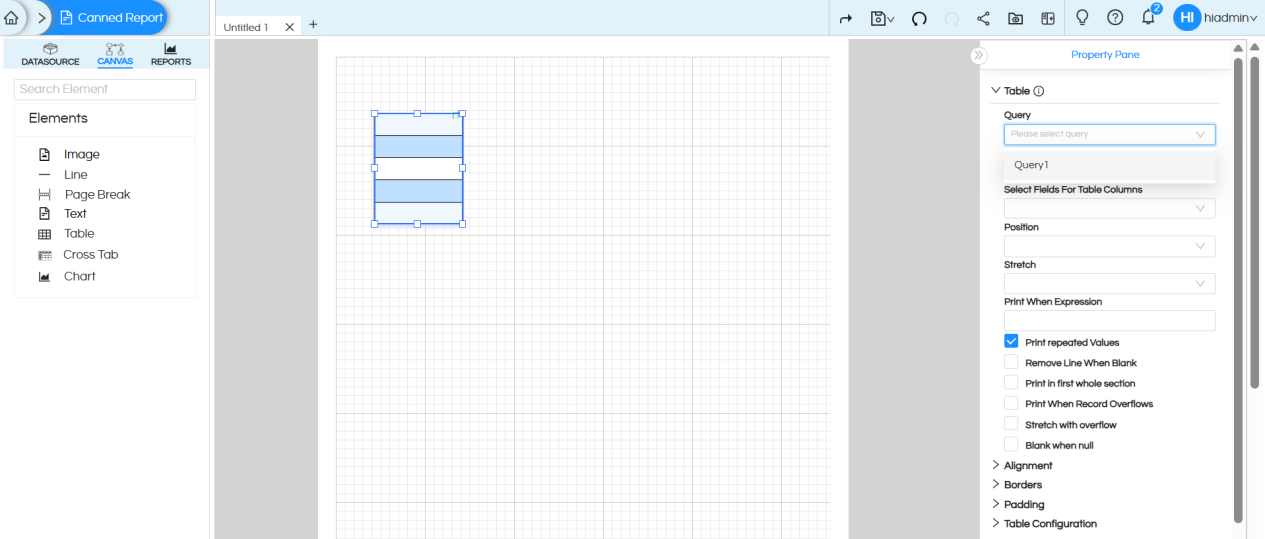
Click on the Table component. On the right side, you will see the Table configuration options/Properties. Below we have explained each and every component in detail
-
Query
Purpose: Specifies the data source for the table.
How it works: While making the datasource connection, we have written query. We can write multiple queries also there. You can select a query (like Query1) which will be used for the table.
-
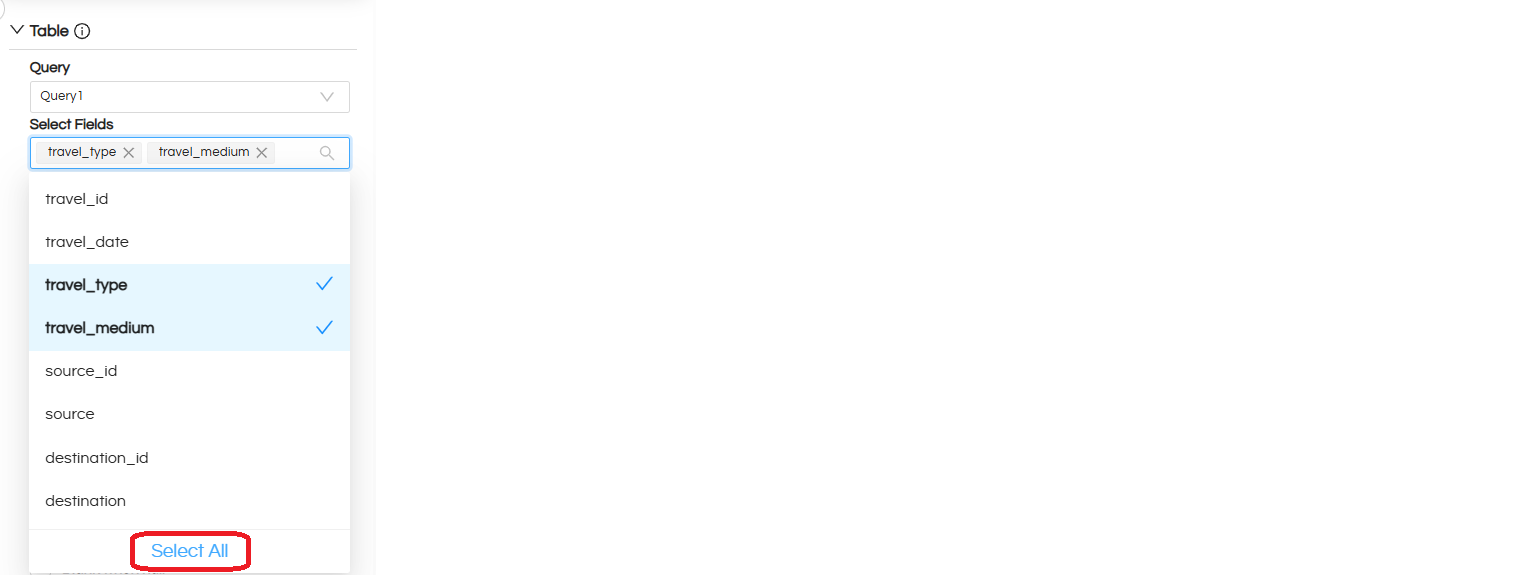
Select Fields:
Please select the all the columns from the query that you want to display in the table.
-
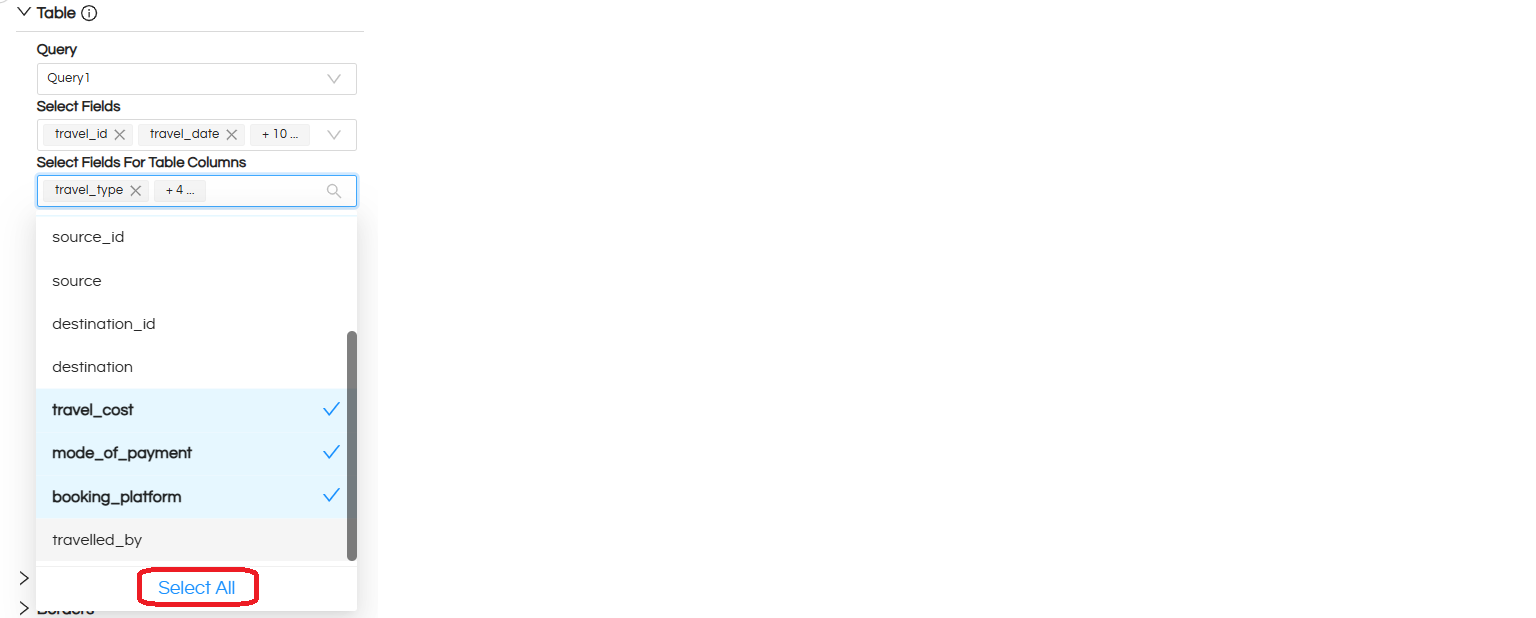
Select Fields For Table Columns:
From the fields selected in step 2 at “Select Fields”, now you can choose the fields from that list which will be used to produce the table columns.
-
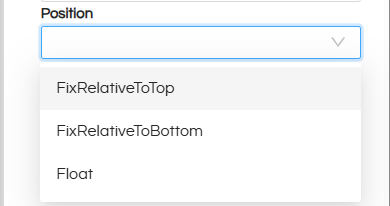
Position
Determines how the table is positioned in the report. Options:
- FixRelativeToTop: Table stays fixed relative to the top.
- FixRelativeToBottom: Table stays fixed relative to the bottom.
- Float: Table moves freely and can be placed anywhere. If multiple tables are being used, then this option is better choice.
-
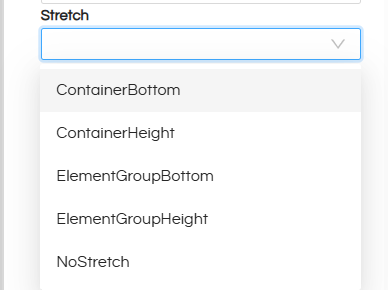
Stretch
Purpose: Specifies the graphic element stretch behavior when the report section is affected by stretch.
-
ContainerBottom
The table expands downward until it touches the bottom of its container (such as a frame or band).
Useful when you want the text to fill all available vertical space inside its container. -
ContainerHeight
The table always matches the full height of its container.
The height stays the same even if the text content is small or large. -
ElementGroupBottom
When the table is inside a group, it stretches until the bottom of the entire group.
Useful when grouped elements need to align at the bottom. -
ElementGroupHeight
The table stretches to match the total height of its group.
Helps keep all grouped elements the same height and maintain a consistent layout.
This is usually the most commonly used option. -
NoStretch
This is the default behavior.
The table does not stretch, even if the content is larger than the available space.
-
ContainerBottom
-
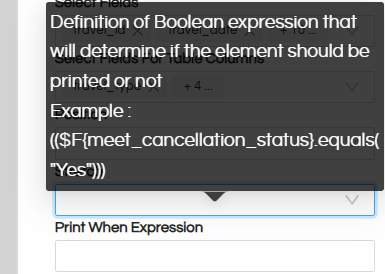
Print When Expression
Purpose: Conditional printing of the table. We can put an expression here and based on that this column will be printed or not printed.
-
Print Repeated Values
Purpose: Controls whether repeated values in rows are printed or left blank.
-
Remove Line When Blank
Purpose: Removes the table row if all columns in that row are blank.
Use Case: Avoids empty rows appearing in reports.
-
Print in First Whole Section
Purpose: Prints the table only at the start of a section (useful in multi-section reports).
-
Print When Record Overflows
Purpose: Controls printing when the table spans multiple pages or sections.
Use Case: Ensures content is not skipped if it overflows the current page.
Stretch with Overflow
Purpose: Lets the table grow if the content is larger than its allocated area.
-
-
Blank When Null
Purpose: If a field is NULL, it shows as blank instead of printing NULL.
-
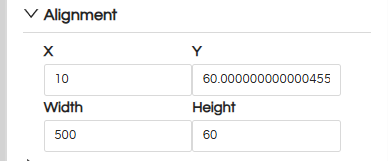
Alignment
Purpose: Controls the table alignment
- X-position: Distance from the left side in pixels
- Y-position: Distance from the top in pixels
- Width: Width of the table component in pixels
- Height: Height of the table component in pixels
-
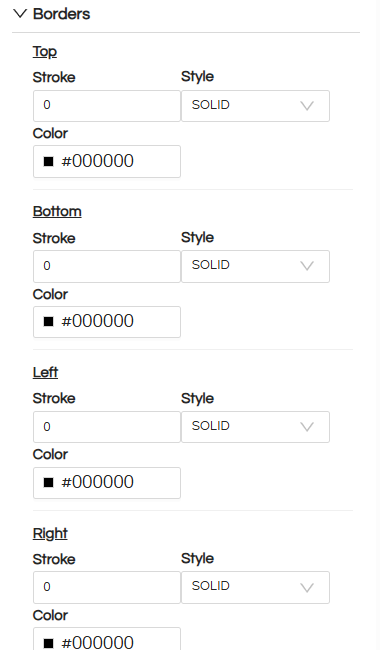
Borders
Purpose: Configure various properties of the border, like border style, width and color.
-
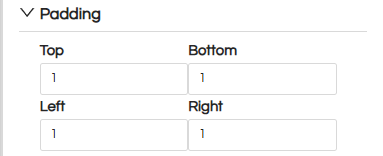
Padding
Purpose: We can configure padding for table. Data will appear in the cell after applying that much padding.
-
Table Configuration
Purpose: Advanced table settings.
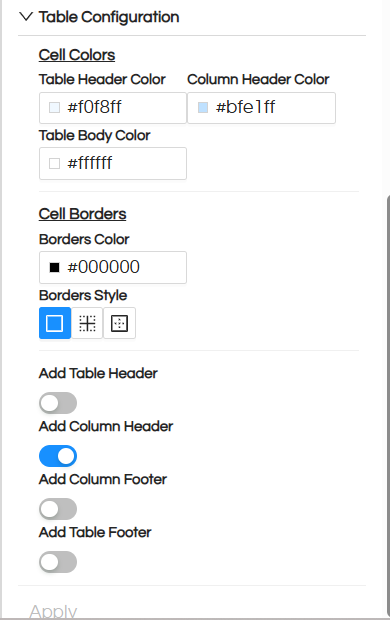
Cell Colors
- Table Header Color controls the color of the top header row
- Column Header Color controls the color of column names
- Table Body Color controls the color of data cells
Cell Borders
- Borders Color controls the color of table lines
- Borders Style controls where borders appear such as all cells rows only or columns only
Headers and Footers
- Add Table Header shows or hides the table header row
- Add Column Header shows or hides column names
- Add Column Footer shows or hides the totals row
- Add Table Footer shows or hides the bottom footer
Now you can decide which all columns will appear in the table.
For doing that use “Select required fields for Table Columns” and via drop down you can select the fields. The sequence in which we click, it will appear in that sequence.
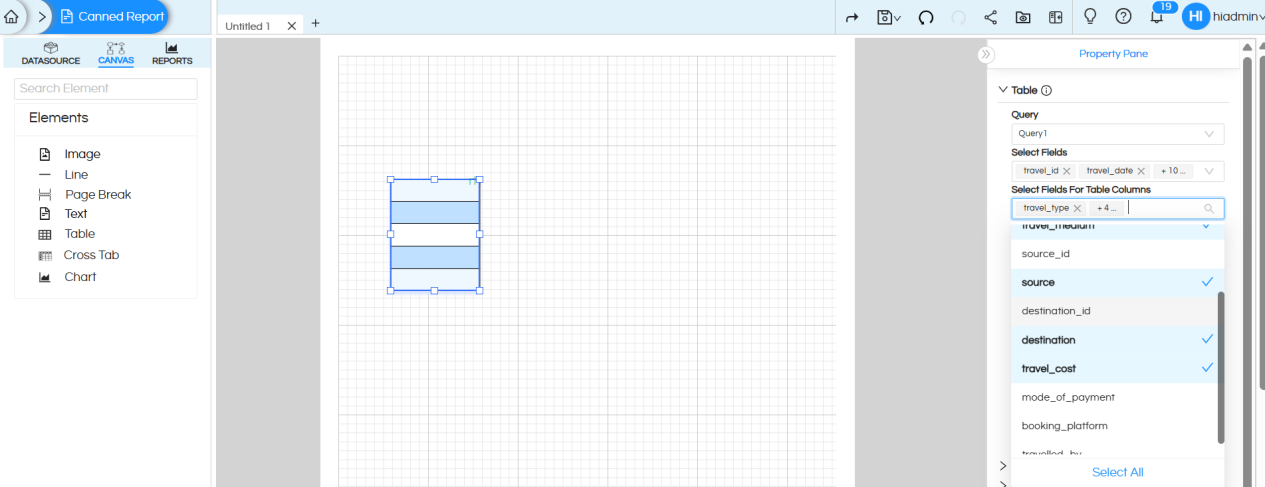
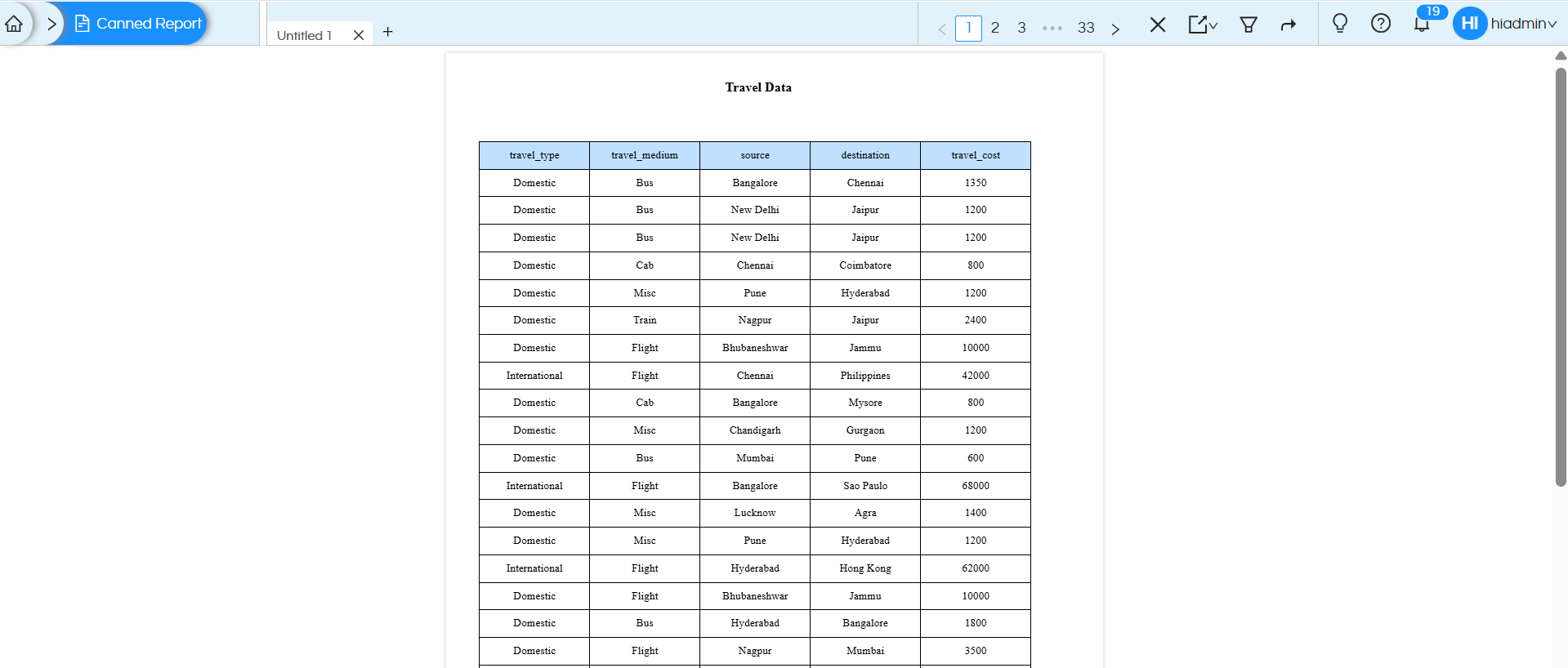
After selecting the fields, the table will appear like this.
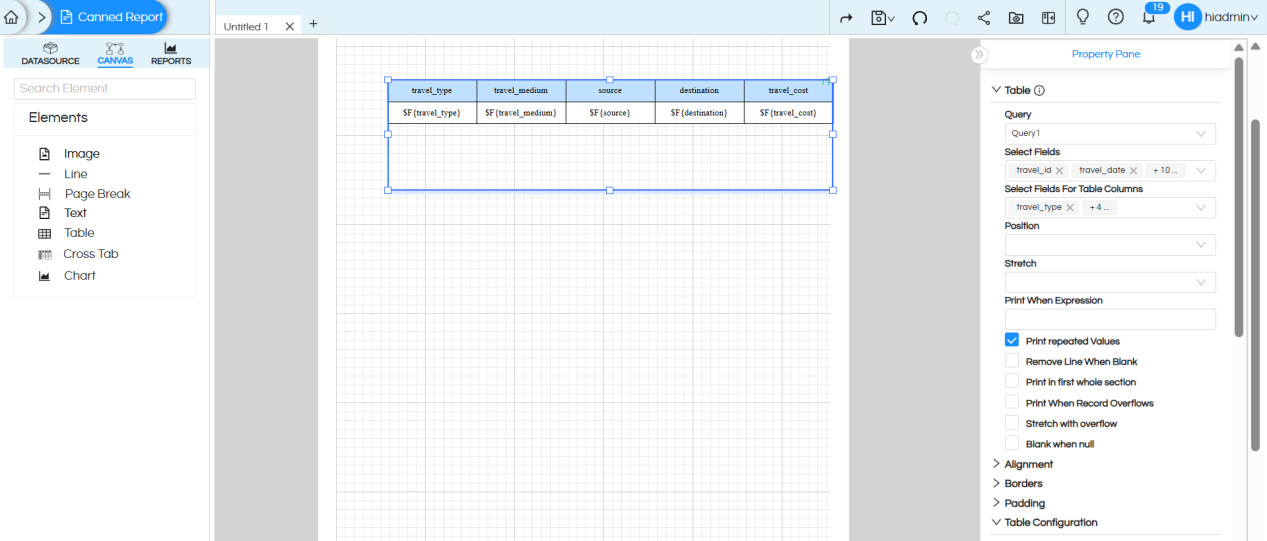
Other components like header, footer, border etc can be enabled. disabled and used as per your design requirement. In this current blog example we have disabled Table header, Column header, Table footer from Table Configuration. Then click on Apply
Adjust the table in the canvas properly
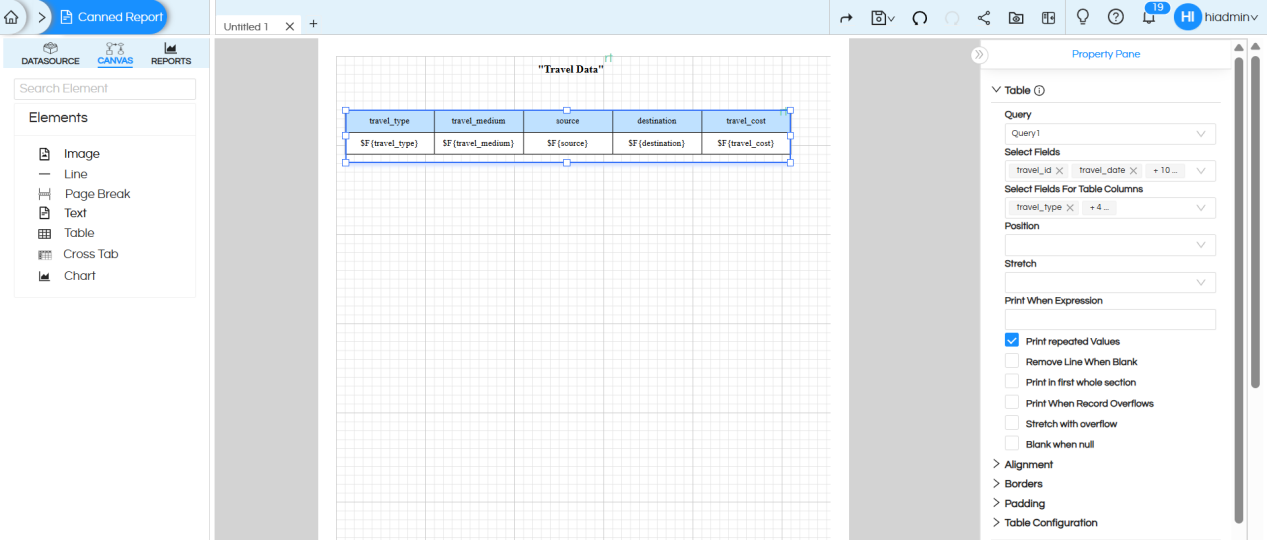
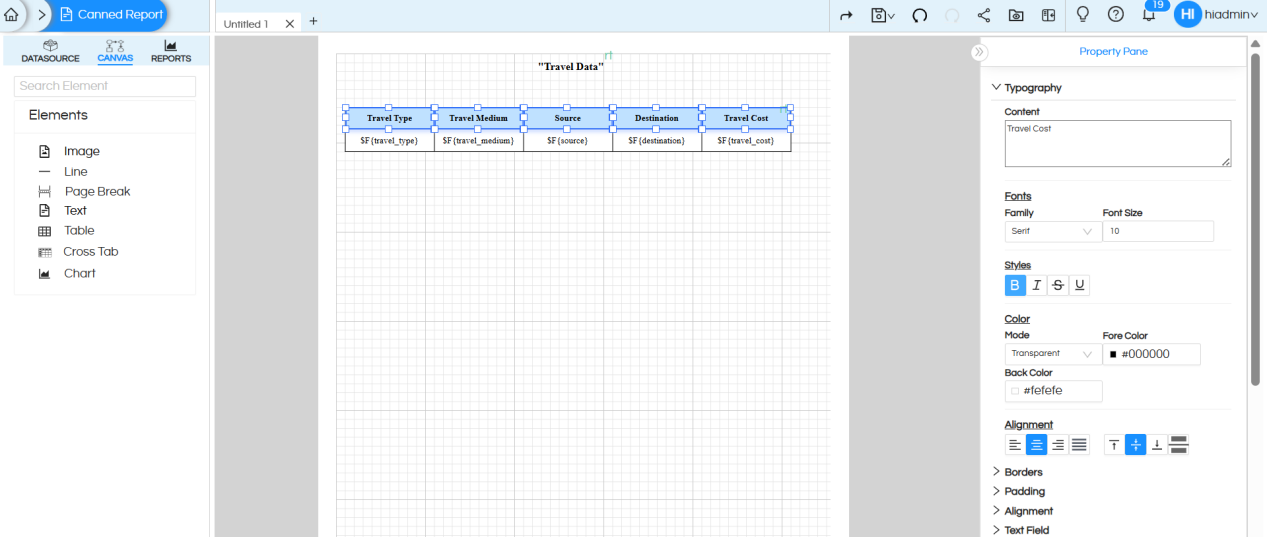
Individual cell level properties
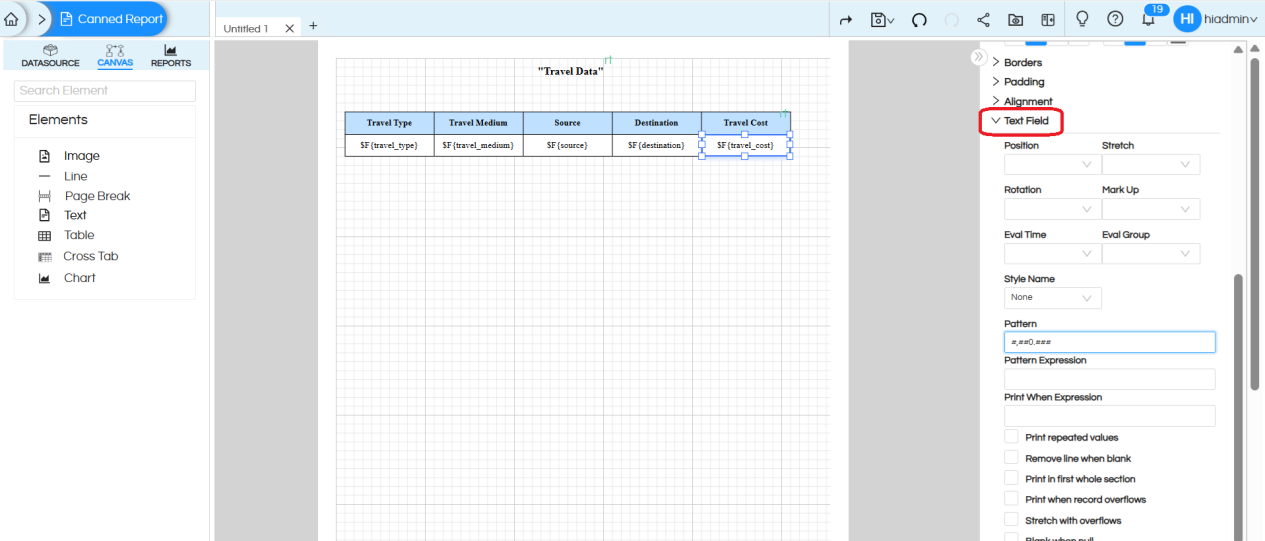
Once a table is created, we may want to specify the individual cell level properties like thousand sepeator in some cell, alignment, bold, font size etc. For doing that, you can click on that individual cell only and then apply the respective properties. We can rename table header field names and apply field level properties. Click here to read more.
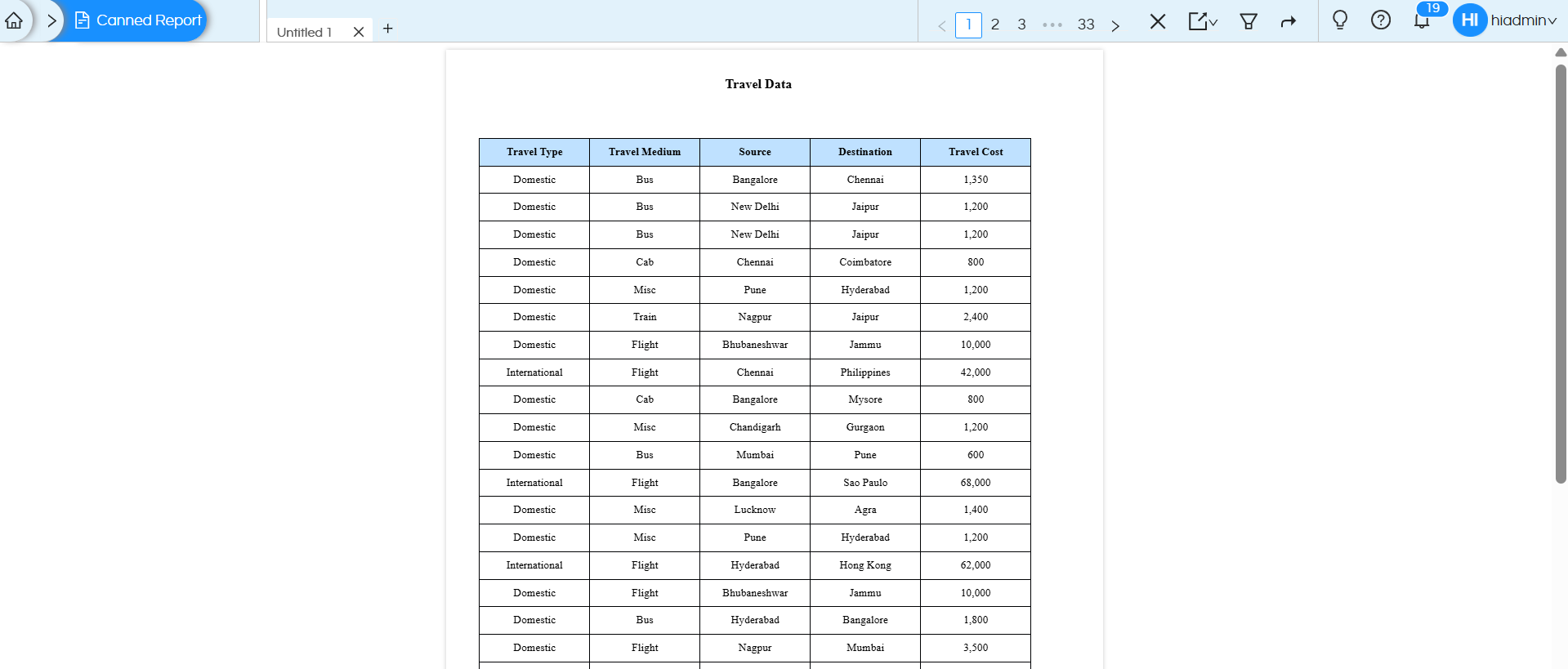
Save the report and open in new window
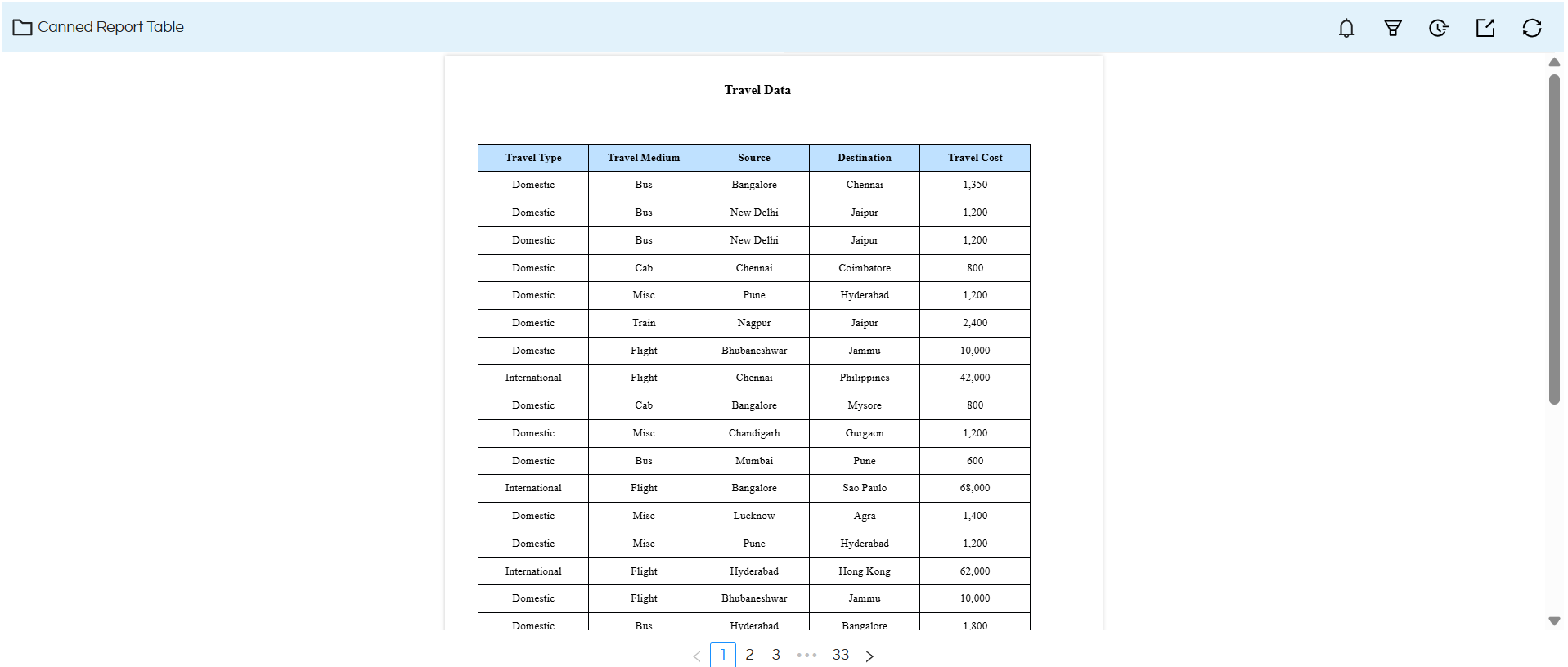
Adding Multiple tables in the report :
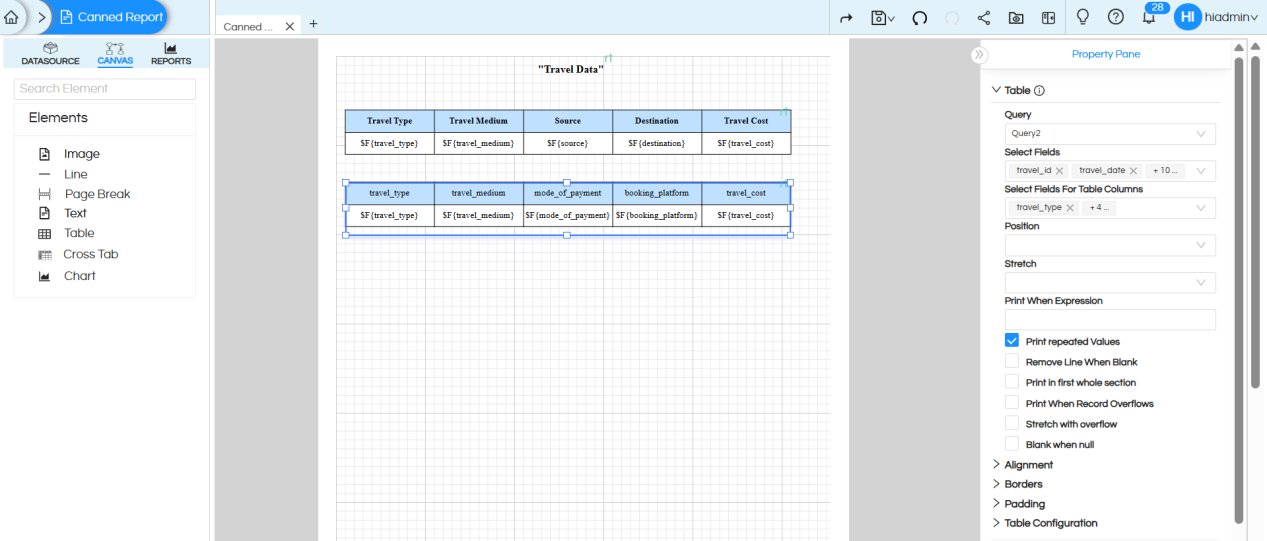
Each Table component requires a dedicated query. A single query can be bound to only one table, therefore, a separate SQL query must be created for every additional table used in the report.
Just as we create Table 1, we can create Table 2 in the same way and align it properly on the canvas.
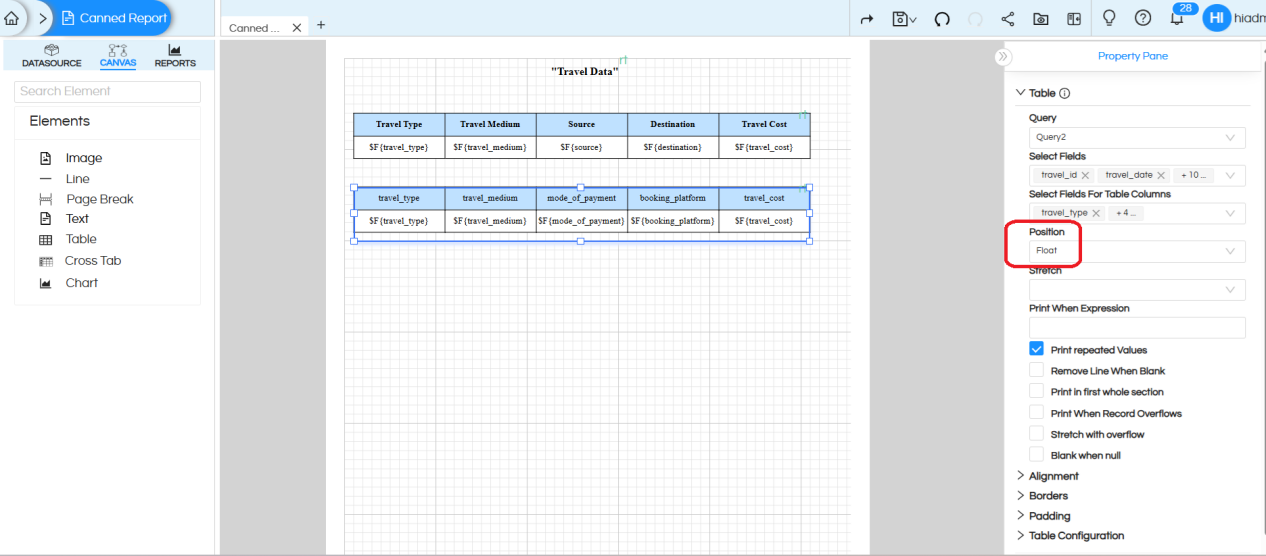
Important table properties that should be applied to avoid overlap issues:
We should apply Position > Float for table 2
We can see 2nd page has stared at page 33.
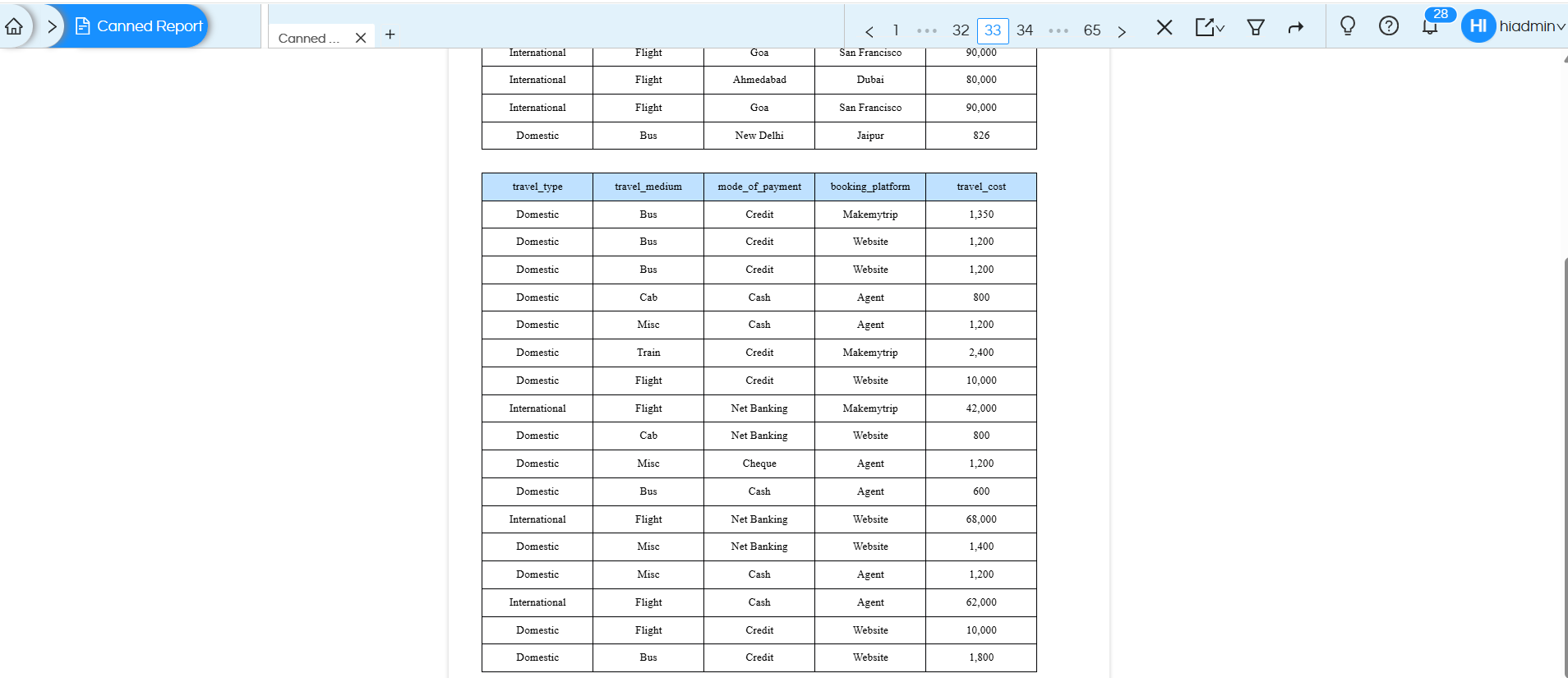
Note : When working with multiple tables, apply the Position Float property starting from the second table onward so that when the first table ends then this table will start that’s why position is floating. If any text fields are placed between tables, the Position Float property should also be applied to those text fields.
If table overlap issues still persist, enable the Repeat by Summary option to ensure proper rendering.
NOTE2 : In case if you put many columns in your table, the width of the page might not be sufficient and hence even if it might appear in the browser when exported in PDF format it will not appear. Hence, please select the page size accordingly. Read here.
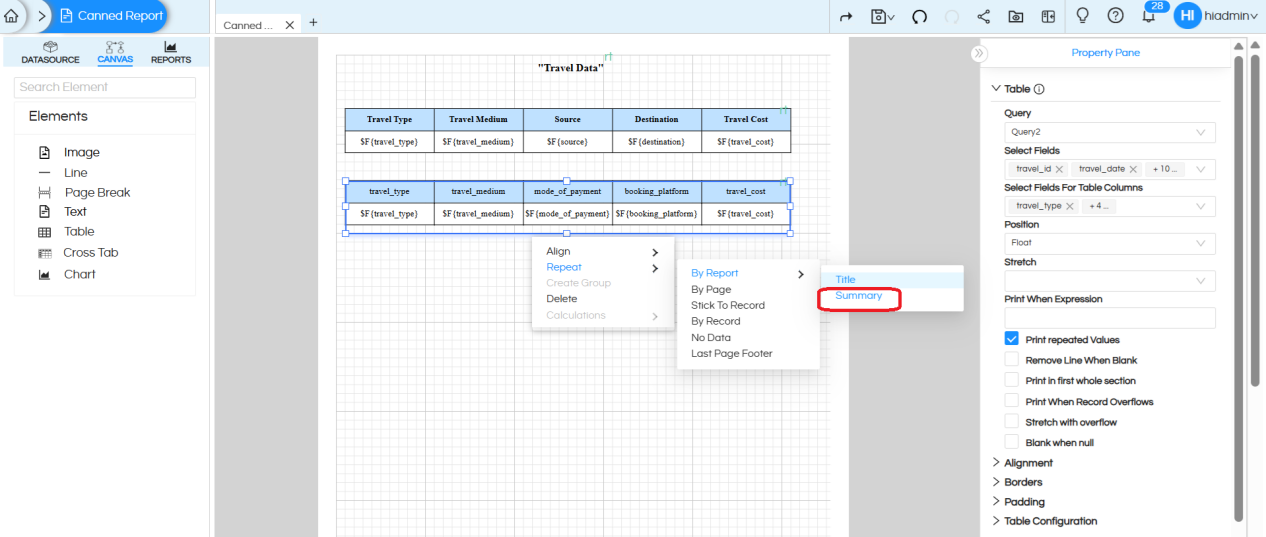
Table with Parameters :
There is no separate or additional process required to add parameters for an individual table or for multiple tables.
Parameters are created once and can be mapped to multiple queries, allowing the selected parameter values to be applied to their respective tables.
Refer to the documentation below for detailed steps on adding and configuring parameters. https://www.helicalinsight.com/input-parameters-filter-types-canned-report/
Reach out on support@helicalinsight.com in case of any more questions.
