
In this guide, we walk through how to install the open-source BI product Helical Insight using Docker — including a Windows-specific performance optimization using WSL (Windows Subsystem for Linux). Version 6.0 onward officially supports Docker deployment.
Note for Windows Users: If you are on Ubuntu, Linux, or another Unix OS, skip the Windows WSL section below and jump directly to Step 1. The WSL setup is only needed for Windows users.
Docker Deployment on Windows – Performance Optimization via WSL
Why Use the WSL Filesystem?
During Docker deployments on Windows, the WSL layer used by Docker Desktop performs significantly slower when files live on the Windows filesystem (/mnt/c/…). This can cause deployments to take 25–35 minutes to reach healthy status. Placing files inside the WSL Linux filesystem cuts that time to speeds comparable to native Ubuntu.
Prerequisites
If WSL is not yet installed on your machine, open PowerShell as Administrator and run the following command:
This installs WSL 2 along with Ubuntu by default. Restart your machine when prompted, then continue with the phases below.
ℹ WSL Install Info
The wsl.exe –install ubuntu command sets up WSL 2 and installs Ubuntu automatically. If you already have WSL installed, run: wsl –update to ensure you are on the latest version.
- WSL 2 installed and enabled on your system
- Ubuntu distribution installed in WSL
- Docker Desktop installed and running
- Docker Desktop integrated with the WSL Ubuntu distribution
Phase 1 – Verify WSL2 Installation
Open PowerShell and run the following command to check installed WSL distributions:
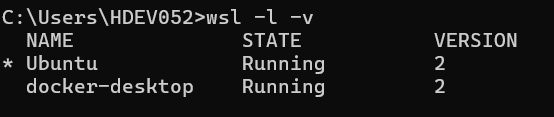
Ensure the installed distribution is running with Version 2 (WSL2).
Phase 2 – Install Ubuntu Distribution
Install Ubuntu from the Microsoft Store if it is not already installed, then launch it after installation.
Phase 3 – Create a User in Ubuntu
During the first launch, Ubuntu will prompt you to create a username and password. Use these credentials to access the Ubuntu terminal.
Phase 4 – Create Deployment Directory
Inside the Ubuntu terminal, create a directory for deployment:

Phase 5 – Copy and UNZIP Application Files via Windows File Explorer
Open Windows File Explorer and navigate to the WSL Ubuntu path below. Copy the downloaded Helical Insight ZIP into this folder, then unzip it here inside the Ubuntu filesystem:
Replace <User> with your User

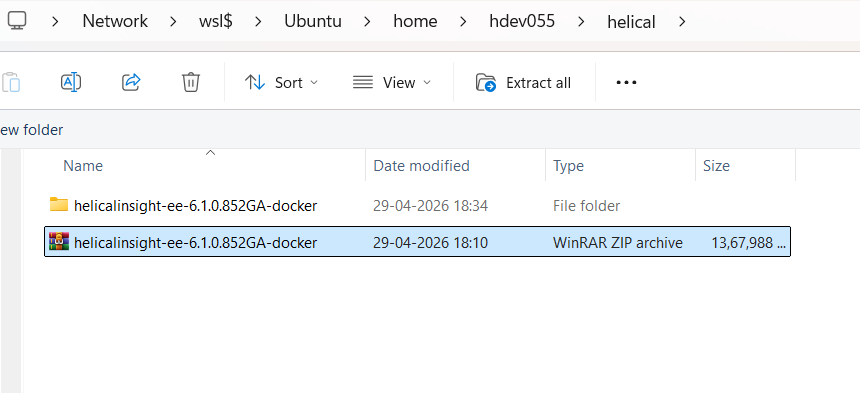
Phase 6 – Enable WSL Integration in Docker Desktop
Open Docker Desktop and navigate to Settings → Resources → WSL Integration. Enable the toggle for Ubuntu so Docker can access the WSL Linux filesystem.
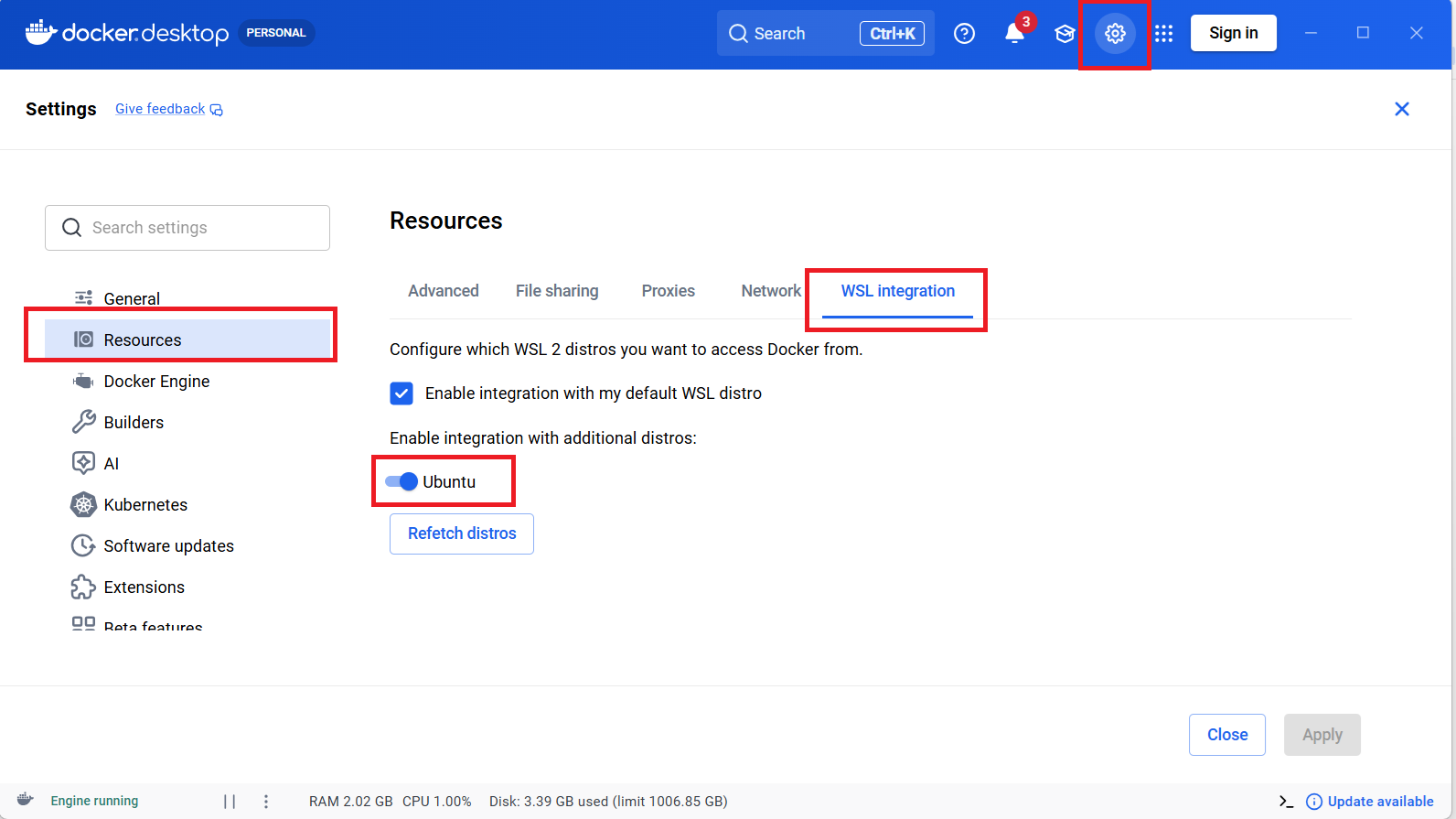
Phase 7 – Verify Configuration in README
Before starting the deployment, open README.md inside the unzipped folder and complete all required configuration changes (IP, ports, environment variables, etc.).
Update the .env File
Open the hidden .env file located in the Docker directory alongside docker-compose.yml. Example path:
By default, HOST_IP contains a placeholder IP. Replace it with your current server IP or hostname. Use ipconfig /all (Windows) or ifconfig (Linux/Mac) to find your IP.

Phase 8 – Start Docker Deployment from Ubuntu Terminal
Open the Ubuntu terminal (from the Start Menu or by typing ubuntu in PowerShell). Navigate to the unzipped Helical Insight application folder and run:

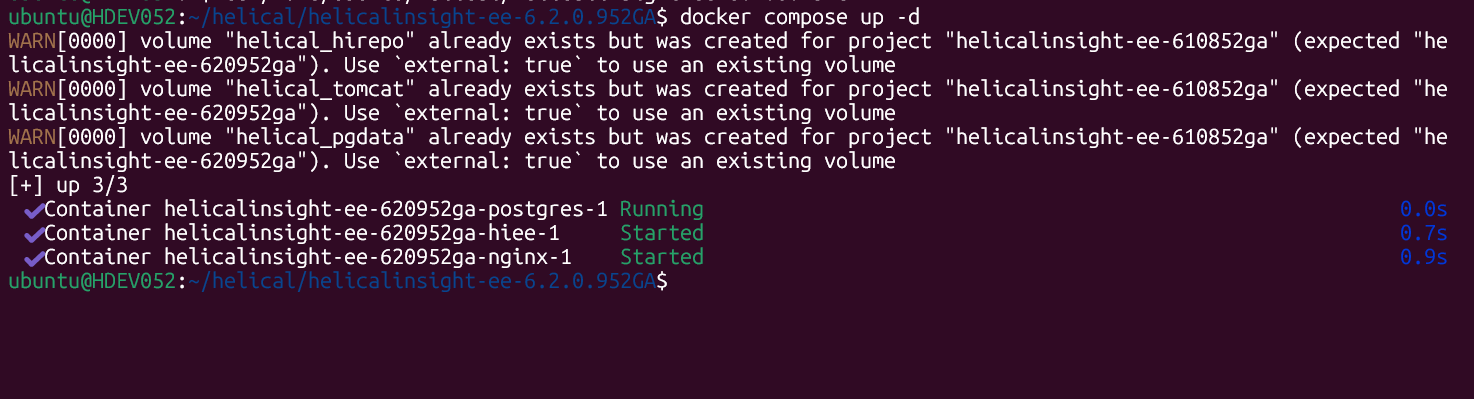
To start the Helical Insight application, run:
The -d flag runs containers in detached (background) mode. Once running, access Helical Insight at:

ip in .env file)
Expected Result
Docker deployment on Windows will now be significantly faster — comparable to native Linux environments. All containers should reach Healthy status much quicker than running from the Windows filesystem.
Step 1 – Helical Insight Docker Guide
This section applies to all operating systems. Ensure you have the following installed:
- Docker — https://docs.docker.com/get-docker/
- Docker Compose — https://docs.docker.com/compose/install/
We provide a docker-compose.yml file within the shipped ZIP package. Extract the ZIP file and navigate to the directory containing docker-compose.yml.
Managing the Helical Insight Container
Stop the Container
Restart the Container
Conclusion
By leveraging the WSL Ubuntu filesystem instead of the Windows filesystem, Docker deployments become significantly faster on Windows — matching native Linux performance. The key steps are:
- Enable WSL Integration for Ubuntu in Docker Desktop (Settings → Resources → WSL Integration)
- Navigate to
\\wsl$\Ubuntu\home\<User>\helicalin File Explorer and unzip the package there - Open the
.envfile and update HOST_IP with your server’s IP - Open the Ubuntu terminal, navigate to the application folder, and run
docker-compose up -d
For further customisation and troubleshooting, refer to the Helical Insight documentation at helicalinsight.com or reach out to support@helicalinsight.com.
