
In the previous blog (Properties of Canned Reports) we have learn about the newly added properties options from version 6.2 of open source BI product Helical Insight. These properties are of 2 types i.e. Default/System defined and User Defined.
In this blog we will learn about various by default system defined properties which are present, their usage and how they can be tweaked. These properties can be used to configure various behaviour, export, bands and other functionalities of canned reports.
We have some built-in properties available, we can change the Property Value based on the requirement.
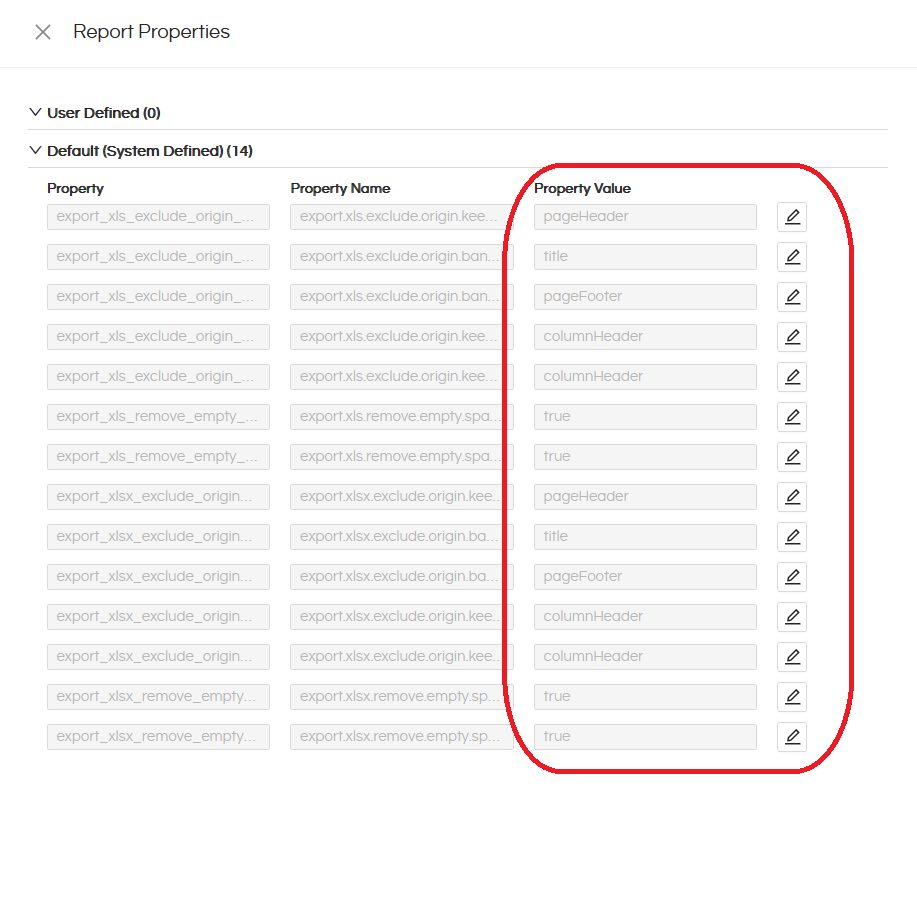
Explanation of each property:
2.1. Property: export.xls.exclude.origin.keep.first.band.1
This property controls which report band should be kept first when a report is exported to Excel (XLS) and the original report layout is excluded.
The .1 is an index used for configuration consistency. It simply identifies the single band that should be kept first. Even though the property uses an index, only one band can logically be the first, so this property does not support multiple indexes (such as .2, .3).
Value:
The value must be a valid report band name defined in the report, such as : pageHeader, columnHeader, title, etc.
2.2. Property: export.xls.exclude.origin.band.1
This property excludes the specified band from the XLS export when the original report layout is excluded.
Value:
The value must be a valid report band name defined in the report, such as pageHeader, columnHeader, title, etc.
Note: Multiple bands can be excluded using .2, .3, and so on.
Example:
The following example demonstrates how to exclude multiple bands such as Title, Page Header, and Summary from the XLSX export:
Property: export.xlsx.exclude.origin.band.1      Value: title
Property: export.xlsx.exclude.origin.band.2       Value: pageHeader
Property: export.xlsx.exclude.origin.band.3        Value: summary
2.3. Property: export.xls.remove.empty.space.between.rows
This parameter controls whether blank or empty rows are removed when a report is exported to Excel (XLS).
Value:
true or false
2.4. Property: export.xls.remove.empty.space.between.columns
This parameter controls whether empty or unused columns are removed when a report is exported to Excel (XLS).
Value:
true or false
2.5. Property: export.xlsx.exclude.origin.keep.first.band.1
This property controls which report band should be kept first when a report is exported to Excel (XLSX) and the original report layout is excluded.
Value:
The value must be a valid band name present in the report, such as pageHeader, columnHeader, title, etc.
Note:
The .1 at the end of the property name is an index used for configuration consistency. Although the property format supports indexing, only the first entry (.1) is actually read and applied by the export engine. Additional indexed properties such as .2 or .3 are not processed. Therefore, it is recommended to always define and use only .1 for this property.
2.6. Property: export.xlsx.exclude.origin.band.1
This property excludes the specified band from the XLSX export when the original report layout is excluded.
Value:
The value must be a valid band name present in the report, such as pageHeader, columnHeader, title, etc.
Note:
This is an indexed property, and multiple bands can be excluded by defining additional indexes such as .1, .2, .3, and so on. Each index represents a band that will be excluded from the XLSX export when the original report layout is excluded.
2.7. Property: export.xlsx.remove.empty.space.between.rows
This parameter controls whether blank or empty rows are removed when a report is exported to Excel (XLSX).
Value:
true or false
2.8. Property: export.xlsx.remove.empty.space.between.columns
This parameter controls whether empty or unused columns are removed when a report is exported to Excel (XLSX).
Value:
true or false
In this way, we can add and manage various report properties using report parameters to control
report behaviour and improve the accuracy and usability of the exported output.
