
Overview
Open Source BI Helical Insight has completely revamped its user interface from version 5.0 onwards. As part of this updated HReport interface, you can control the number of records displayed in a report using the Sample and Full options.
By default, Helical Insight applies a record limit of 1,000 records. You can change this limit to a smaller number when you want to display only a specific number of records, or you can select Full when you want to display all available records. In certain cases wherein we are trying to show top or bottom 10 kind of reports, then we can limit the number of records as well as apply sorting.
In this blog, we will learn how to apply limit.
Step 1: Open the HReport options
While creating or editing an HReport, click the three-dot (…) menu to open the available options.
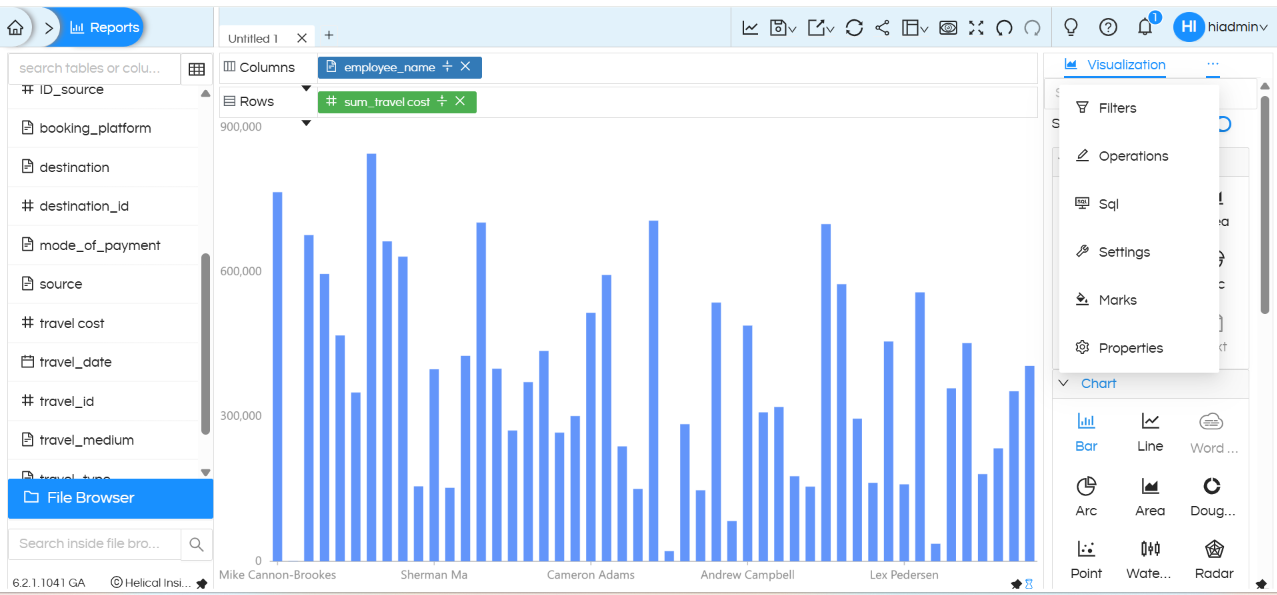
Screenshot showing the three-dot menu in the HReport interface.
Step 2: Select Settings
From the list of available options, click Settings.
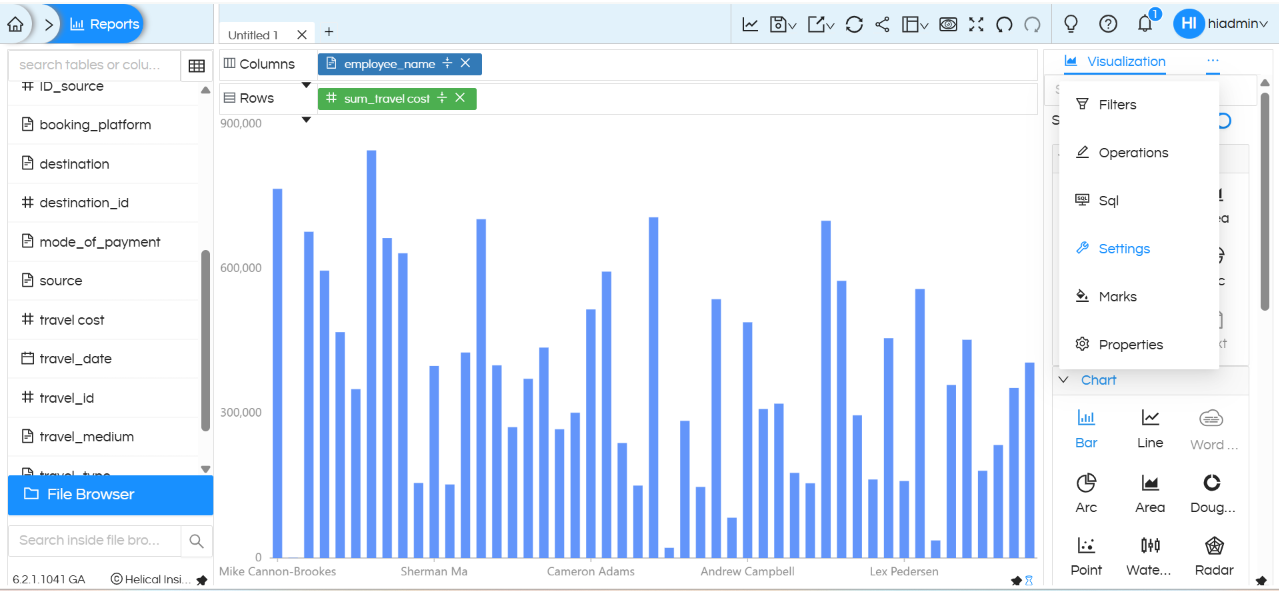
Screenshot showing the Settings option in the HReport menu.
Step 3: Configure Prepend Table Names
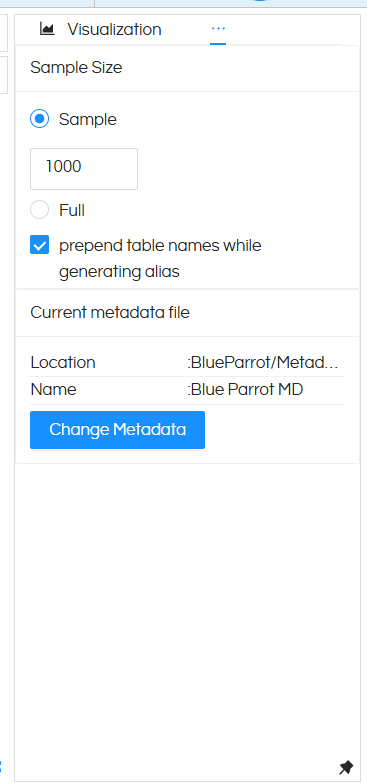
In the Settings tab, you can control whether the table name is displayed along with the column name in the column selection area.
By default, the Prepend Table Names option can be used to display the table name along with the selected column name.
For example, when the option is enabled, a column may be displayed as:
customer.customer_name
When the option is disabled, only the column name is displayed:
customer_name
To display only the column names, unselect the Prepend Table Names option.
Note: If you want to disable Prepend Table Names, make sure to unselect the option before selecting any columns in the selection area.
Step 4: Set the record limit using Sample
Once you click Settings, you will see the Sample option. By default, its value is set to 1000.
This means that, by default, Helical Insight applies a limit of 1,000 records and displays up to a maximum of 1,000 records in the HReport.
You can change this value to any number according to your requirement. For example, you can set it to 5, 10, 50, 100, or any other appropriate value.
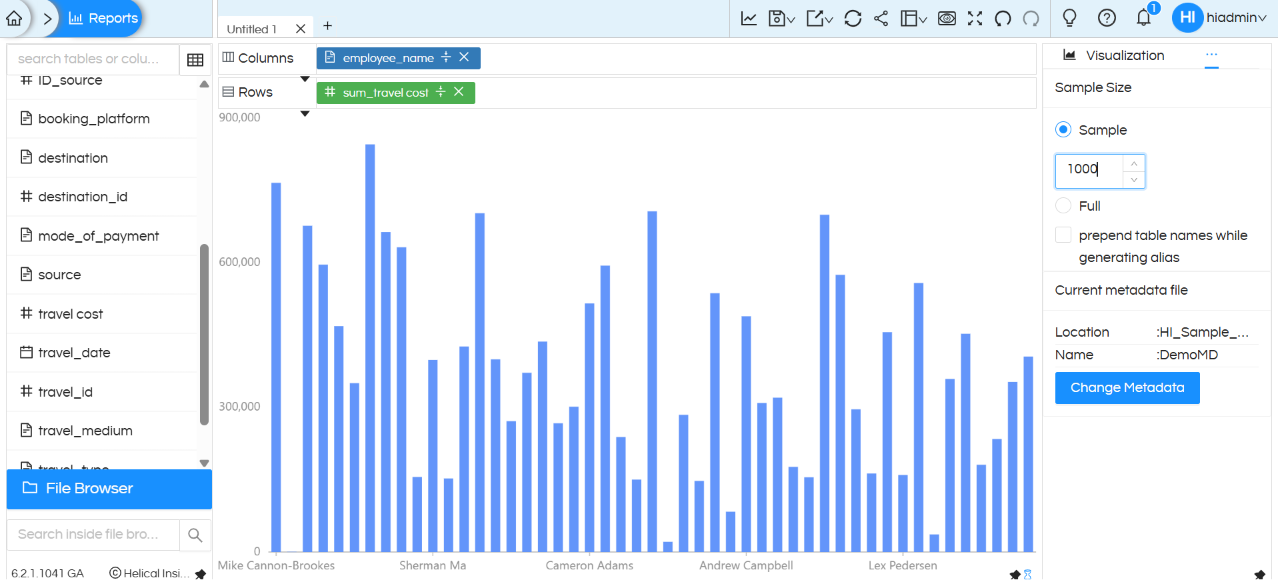
Screenshot showing the Sample option and its default value of 1000.
Step 5: Display all records using Full
If you do not want to apply a record limit and want to display the complete available data in the HReport, select Full.
Selecting Full removes the Sample limit and allows the HReport to display all available records from the underlying result set.
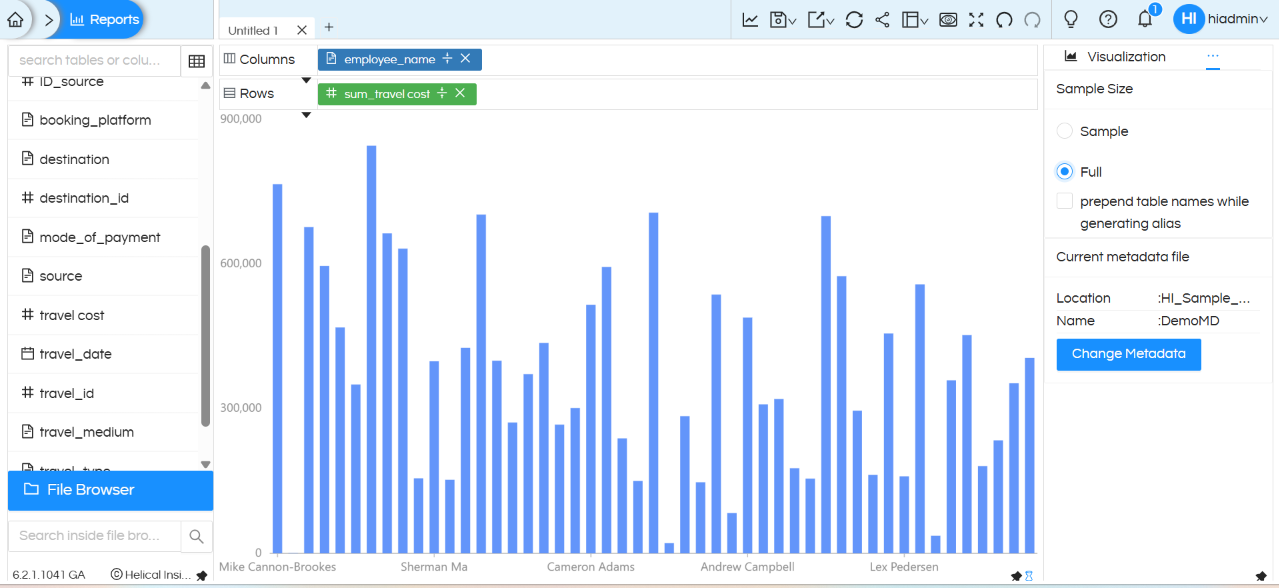
Screenshot showing the Full option for displaying all available records.
Example
Suppose an HReport returns 10,000 records. If Sample is set to 1000, the HReport will display up to 1,000 records. If you change Sample to 10, only up to 10 records will be displayed. If you select Full, the record limit is removed and the available data can be displayed.
Works independently of the visualization
The Sample/Full setting is independent of the visualization used in the HReport. It is not specific to a particular chart type or visualization.
Therefore, the record limit can be applied regardless of the type of visualization being used in the HReport. This makes the setting useful for controlling the amount of data displayed across different kinds of HReport visualizations.
In case of any other questions, please reach out on support@helicalinsight.com or raise ask your questions on forum.helicalinsight.com
