
For data security and other concerns, in many cases companie’s would like to host the LLM and AI on their own servers and not use the AI provided by BI provider. Most of the other BI products, open soruce and proprietary, bind and force you to use their LLM only.
Not Helical Insight. We even give you an option to self host the LLM (GenAI) locally also, and then connect to it via Ollama. You have full control and ownership of the data and applications. Not even a single bit of data will go outside. In this blog we are going to cover how to do the same.
Note: This guide uses example values (container names, paths, the qwen2.5-coder:3b model, and UI labels). Replace them with the values from your own installation. Menus, configuration files, and YAML structure can differ between Helical Insight versions, so always compare against the files shipped with your version.
How it fits together
Instant BI sends your question to the LLM provider you configure. In this guide, that provider is an Ollama container running on the same machine.
Instant BI
Helical Insight (app or container)
Ollama API
http://host.docker.internal:11434
Local model
e.g. qwen2.5-coder:3b
Setup roadmap
| Step | What you do | Where |
|---|---|---|
| 1 | Start Ollama in Docker | Command Prompt / PowerShell |
| 2 | Download a model | Command Prompt / PowerShell |
| 3 | Verify Ollama on the host | Command Prompt / PowerShell |
| 4 | Verify Helical Insight can reach Ollama | Command Prompt / PowerShell |
| 5 | Register the model in the catalog file | Helical Insight server |
| 6 | Configure the Ollama provider | Helical Insight web UI |
| 7 | Confirm Instant BI is ready | Helical Insight web UI |
Before you begin
Prerequisites
- A running instance of Helical Insight is there. (Installation via Docker of Open Source BI Helical Insight – Helical Insight)
- Ollama installed and configured, via docker. (https://dev.to/ajitkumar/the-complete-guide-to-ollama-run-large-language-models-locally-2mge)
- Memory and disk: enough RAM and free disk space for your chosen model. On machines with limited memory, start with a small model (about 3 billion parameters).
- Server file access: permission to edit files on the Helical Insight server (needed in Step 5).
Two separate downloads
People often mix these up. You will download two different things:
| Download | Command | What it gets you |
|---|---|---|
| Ollama image | docker pull ollama/ollama |
The Ollama application (the container image) |
| Model | ollama pull <model-tag> |
The LLM itself (the brain Ollama runs) |
Step 1 | Start Ollama in Docker
Open Command Prompt or PowerShell and run the following two commands.
1. Download the Ollama image
docker pull ollama/ollama2. Start the container
docker run -d --name ollama -v ollama:/root/.ollama -p 11434:11434 ollama/ollamaWhat the options mean:
| Option | Purpose |
|---|---|
-d |
Runs the container in the background. |
--name ollama |
Names the container so later commands can refer to it. |
-v ollama:/root/.ollama |
Stores models in a named Docker volume so they survive restarts and re-creation. |
-p 11434:11434 |
Publishes the Ollama API on port 11434 of your machine. |
Important: If you see an error that the name “ollama” is already in use, the container already exists. Do not run docker run again. Check it with docker ps -a, and if it is stopped, start it with docker start ollama.
Optional: Have an NVIDIA GPU? Adding --gpus=all to the docker run command can speed up responses significantly. This requires GPU support to be set up in Docker first. CPU-only works fine for small models.
Step 2 | Download a model
Pick a model that fits your available memory. This guide uses qwen2.5-coder:3b, a small coding-oriented model that suits generating SQL and runs on modest hardware. Download it into the running container:
docker exec -it ollama ollama pull qwen2.5-coder:3bWhen the download finishes, list the installed models:
docker exec ollama ollama listImportant:
We should ONLY use a model which is chat based.
Note the exact model name shown, including any suffix such as :3b or :latest. The name you enter in Helical Insight later must match it character for character.
Step 3 | Verify Ollama on the host
Confirm the container is running, then test the API from Windows.
Check the container is running
docker psList models through the API
curl.exe http://127.0.0.1:11434/api/tagsExpected result: HTTP 200 and a JSON response containing a models array that includes your model.
Now test that the model can actually generate text. Use the version for your shell:
Command Prompt
curl.exe http://127.0.0.1:11434/api/generate -H "Content-Type: application/json" -d "{\"model\":\"qwen2.5-coder:3b\",\"prompt\":\"Write SELECT * FROM employees;\",\"stream\":false}"PowerShell
Invoke-RestMethod -Uri http://127.0.0.1:11434/api/generate -Method Post `

  -ContentType "application/json" `

  -Body '{"model":"qwen2.5-coder:3b","prompt":"Write SELECT * FROM employees;","stream":false}'
Note: The first request can take noticeably longer because the model has to load into memory. Later requests are faster. If you installed a different model, change the model name in the command.
Step 4 | Verify Helical Insight can reach Ollama
Helical Insight must be able to reach Ollama from its own runtime, which is not always the same as your browser or Windows. If Helical Insight runs in Docker and Ollama’s port is published on the Windows host, use the special hostname host.docker.internal.
First, find the name of your Helical Insight application container:
docker psThen test the connection from inside that container:
docker exec <HELICAL_APPLICATION_CONTAINER> curl -sS http://host.docker.internal:11434/api/tagsExpected result: A JSON response listing your model confirms that Helical Insight can reach Ollama.
The Base URL to use for this arrangement (Docker Desktop on Windows) is:
http://host.docker.internal:11434Troubleshooting: If host.docker.internal does not resolve (common on Linux Docker Engine), start the Helical Insight container with --add-host=host.docker.internal:host-gateway, or use an address that is reachable from that container.
If curl is not installed in the Helical Insight container, run the same test from another container or from the server where Helical Insight runs.
Step 5 | Register the model in the catalog file
The list of models shown in Instant BI comes from a server-side catalog file, not only from the web interface. To make a new Ollama model appear, add its exact tag to this file.
1. Open the Instant BI configuration folder on the Helical Insight server (path shown is an example and may differ in your version):
cd <HELICAL_INSTALL_DIR>/hi/hi-repository/System/InstantBI

ls

nano llm_models_catalog.yaml
2. Find the langchain-ollama section and add your model on a new line, matching the indentation and format of the entries around it. For example:
Example (your list may differ)
langchain-ollama:

  - deepseek-coder-v2

  - llama3.2

  - llama3.1

  - mistral

  - qwen2.5-coder:3b      # <- your model, exact tag from 'ollama list'

  - codellama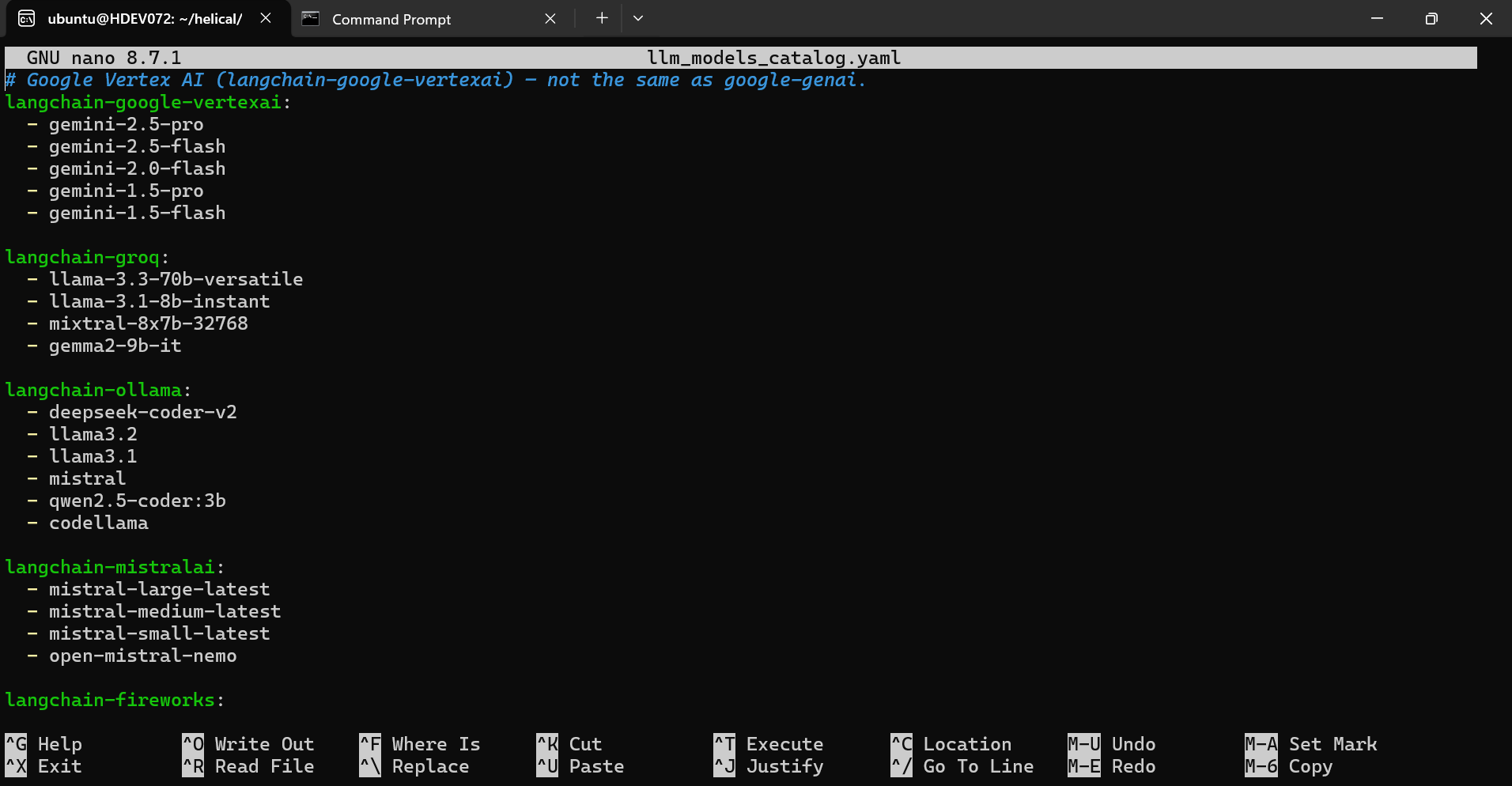
Figure 1. The catalog file in the nano editor. The langchain-ollama section lists the available Ollama models, including qwen2.5-coder:3b.
3. Save and exit. In nano: press Ctrl+O, then Enter to save, then Ctrl+X to exit.
4. Reload if required. If the model list does not refresh on its own, follow the restart or reload procedure approved for your Helical Insight deployment.
Important: Edit only the langchain-ollama list. Do not change other provider sections or replace the whole file with a sample.
YAML is sensitive to indentation. Use spaces, not tabs, and copy the pattern of the existing entries. Entry structure can vary by version, so follow an existing entry from your own file.
Step 6 | Configure the Ollama provider in the web UI
Open the provider settings
- Sign in to Helical Insight as an administrator.
- Open the Instant BI tab in the administration area.
- Select LLM Providers.
- Click the Ollama provider card to edit it.
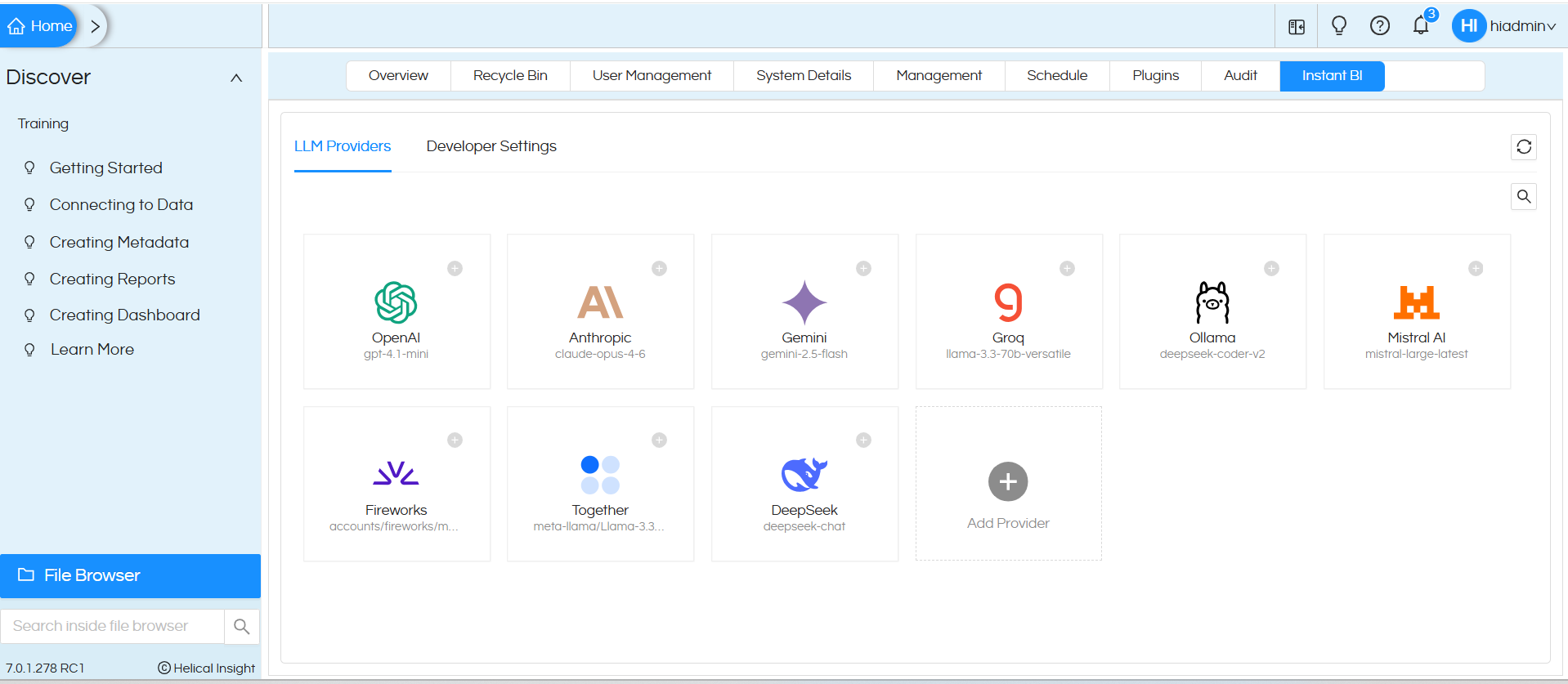
Figure 2. LLM Providers page. Provider types and labels vary by version and configuration. Click the Ollama card to configure it.
Fill in the provider fields
In the Edit Provider (ollama) dialog, set the following:
| Field | What to enter |
|---|---|
| Provider ID | ollama. Keep the existing value unless your deployment requires otherwise. |
| Model | Select your model, e.g. qwen2.5-coder:3b. It must match the catalog entry and the tag in ollama list. |
| Set as default provider | Tick only if Instant BI should use this model by default. |
| API Key | Leave blank for a local Ollama unless your environment requires a key. |
| Temperature | 0.1 is a good starting point. Lower values give more consistent, predictable answers, which suits data queries. |
| Base URL | The address Helical Insight uses to reach Ollama. See the table below. |
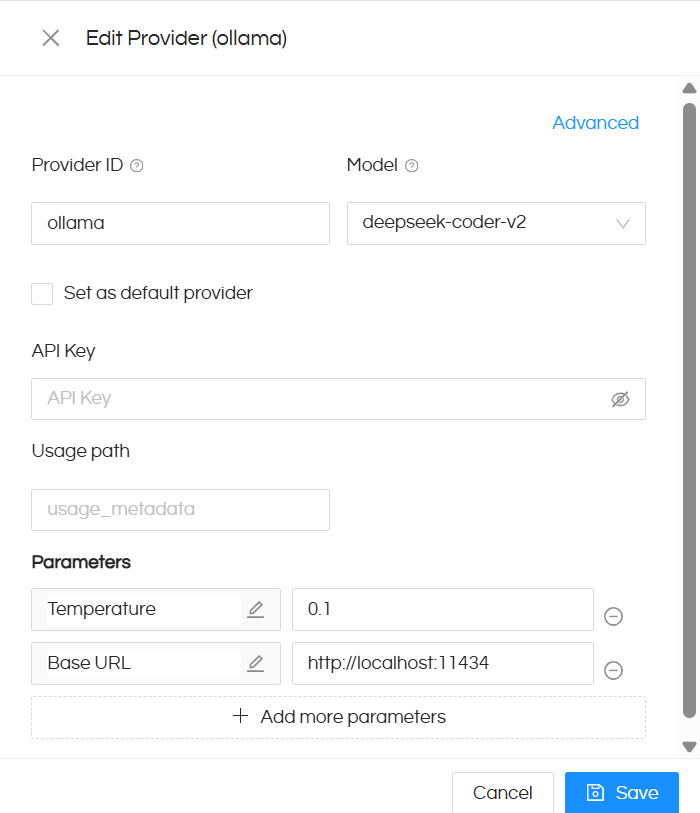
Figure 3. The Edit Provider (ollama) dialog. The Base URL shown (localhost) is only an example; use the one that works for your setup.
Choose the right Base URL
The correct Base URL depends on where Helical Insight and Ollama each run. Pick the row that matches your setup:
| Your setup | Base URL |
|---|---|
| Helical Insight in Docker, Ollama in Docker with port published on a Windows host | http://host.docker.internal:11434 |
| Helical Insight and Ollama both run directly on the same machine (no containers) | http://localhost:11434 |
| Both in containers on the same user-defined Docker network (e.g. Docker Compose) | http://ollama:11434 (use the container or service name) |
| Ollama on a different machine | http://<server-ip-or-hostname>:11434 |
Important: localhost inside a container points to that container itself, not to your PC. Whatever Base URL you choose, always test /api/tags from the Helical Insight runtime (Step 4) before saving.
Click Save when done.
Step 7 | Confirm Instant BI is ready
- Open Instant BI from the Helical Insight home page.
- Make sure a semantic model is selected or connected (the cube icon in the prompt box). Click the link to learn how to create semantic model.
- Ask a question about your data, or click one of the suggested questions.
- Check that Instant BI returns an answer using your Ollama model.
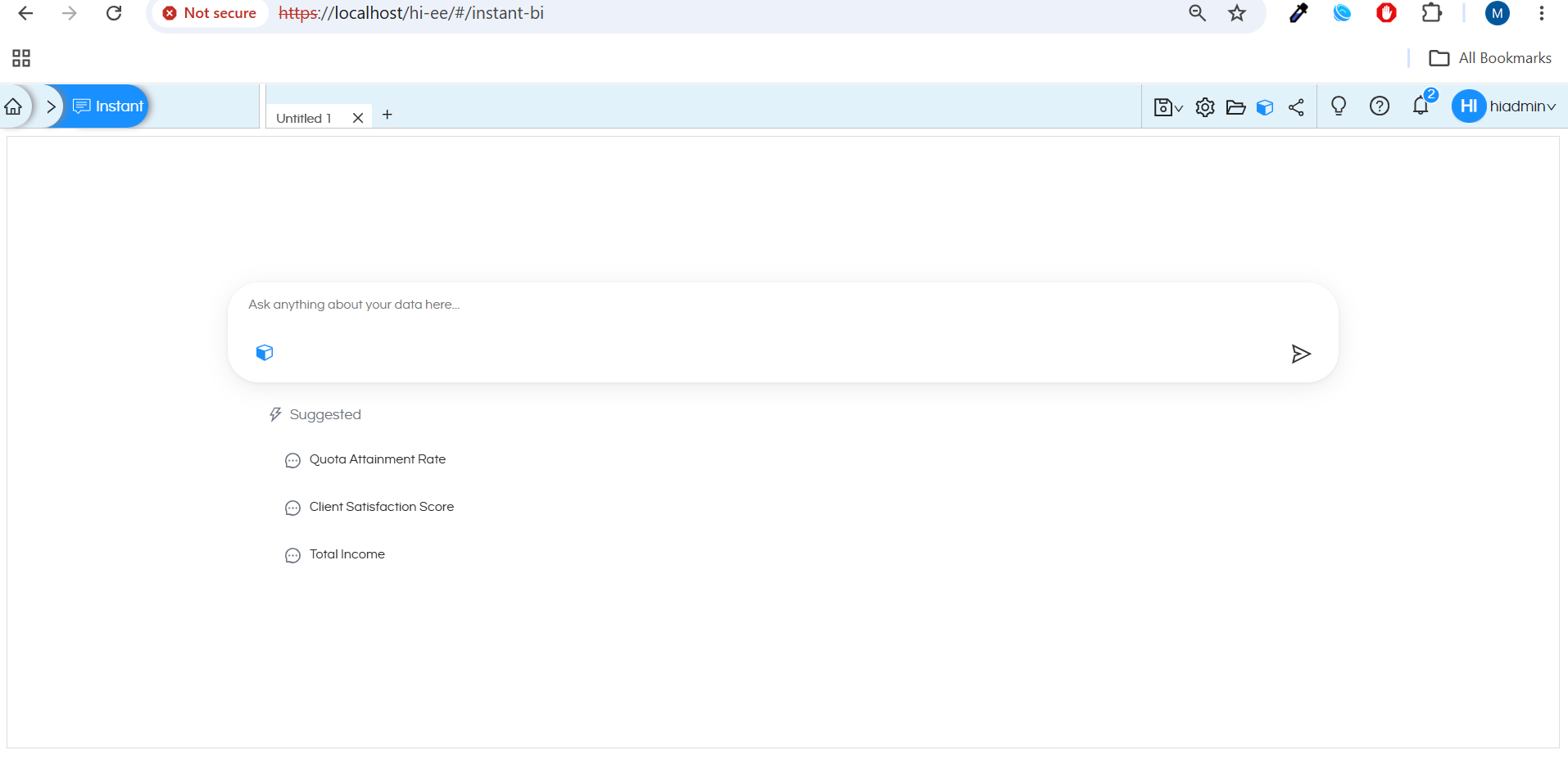
Figure 4. Instant BI ready for use. Suggested questions depend on the connected semantic model and its metadata, and the interface may vary by version.
Tip: Before rolling this out to other users, run a short test prompt. A model can install successfully but still fail at answer time if there is not enough RAM available.
Troubleshooting
| Symptom | Likely cause | What to do |
|---|---|---|
| Model not found (HTTP 404) | Model name differs from the installed tag. | Run docker exec ollama ollama list. Use that exact tag in the catalog and in Instant BI, e.g. qwen2.5-coder:3b, not qwen2.5-coder. |
| Connection refused or reset | Container stopped, port not published, or wrong URL. | Run docker ps -a and docker logs --tail 100 ollama. Check the port with docker port ollama. Test http://127.0.0.1:11434/api/tags on Windows, then http://host.docker.internal:11434/api/tags from the Helical container. |
| Container name already in use | An “ollama” container already exists. | Run docker ps -a, then docker start ollama. Do not re-run docker run. |
| Model killed or fails to load | Not enough memory. | Check docker stats ollama --no-stream and the Docker Desktop resource limits. Use a smaller model. Remember that the memory needed to run a model is more than its download size. |
| First answer is very slow | Model is loading into memory. | Wait for the first request to finish. Later requests are faster. A smaller model or a GPU also helps. |
| Model works in the API but not in the UI | Not registered, catalog not reloaded, or wrong name or URL. | Check llm_models_catalog.yaml against your version’s existing entries, apply the required reload, and verify the model name and Base URL in the provider dialog. |
Keep your models: Do not delete the Docker volume (ollama) if you want to keep your downloaded models. Removing the container is safe as long as the volume stays.
Quick reference
| Item | Example value |
|---|---|
| Ollama container name | ollama |
| Published API port | 11434 |
| Windows test URL | http://127.0.0.1:11434/api/tags |
| Helical Insight to Ollama URL | http://host.docker.internal:11434 |
| Example model tag | qwen2.5-coder:3b |
| Catalog file | hi/hi-repository/System/InstantBI/llm_models_catalog.yaml |
| Docker volume (models) | ollama:/root/.ollama |
Key points to remember
- The model name in Helical Insight must match the Ollama tag exactly, including suffixes like :3b or :latest.
- localhost does not work across containers. Always test from the Helical Insight runtime.
- Keep the ollama Docker volume so downloaded models survive container re-creation.
- Add catalog entries by following the existing YAML structure. Never replace the whole file.
- Before production use, review your organization’s security policies, resource allocation, model licensing, and data-handling requirements.
In case if you have any questions, please raise the questions on forum.helicalinsight.com.
