
Open source BI Helical Insight, has a dashboard designer module. There are various right click operations, one of the operations allows to specify the background color of entire dashboard/any component. Or even an image can be setup as a background of entire dashboard/any component of the dashboard.
In this blog, we are going to cover how to use the same property.
Background
The background option allows you to give a background to a component or to the entire dashboard. The background can be either a color or an image also. You can give color to the background by clicking on color and specifying the required color (while selecting the color you can use hex code or RGB A).
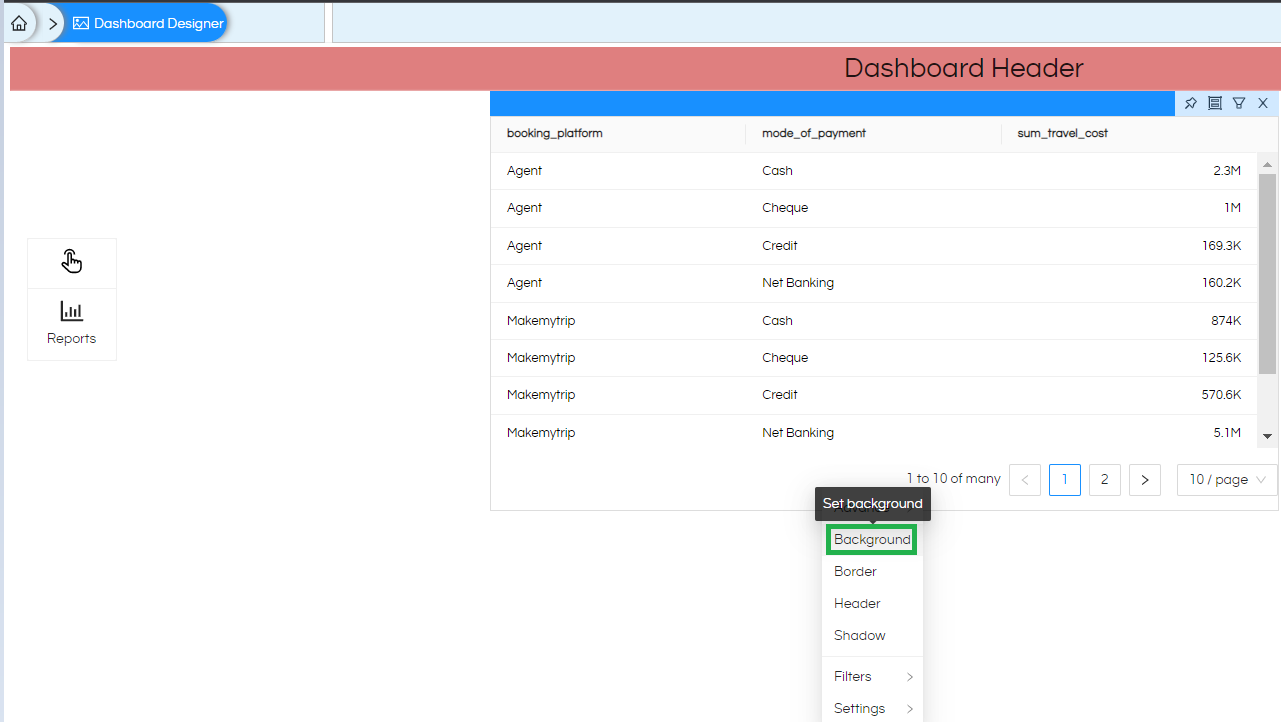
Right-Click Operations In Dashboard Designer
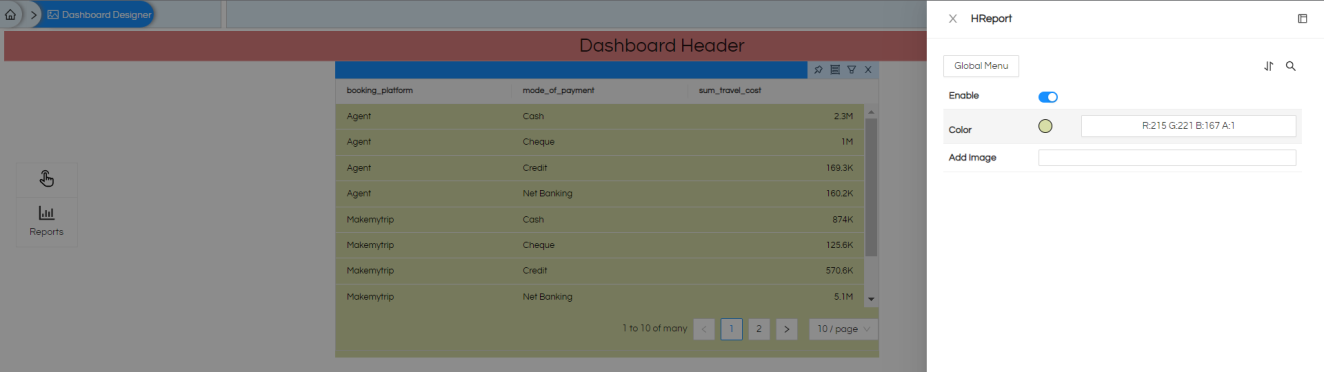
You can also give an image as a background. Provide the complete URL of the image (from the local server or internet) in the “Add Image” section
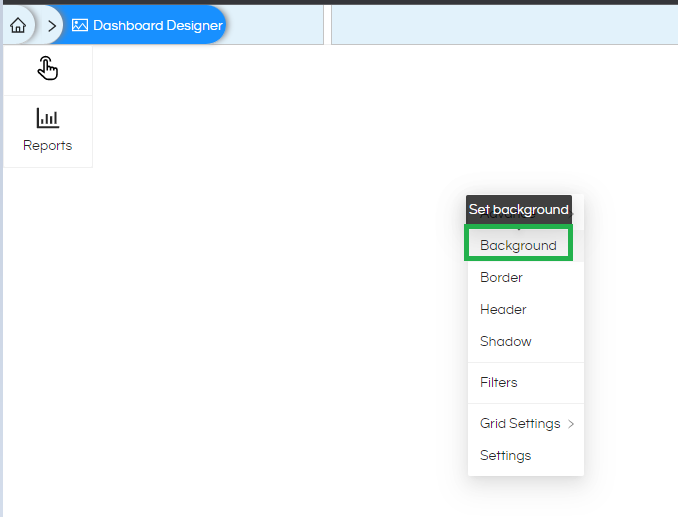
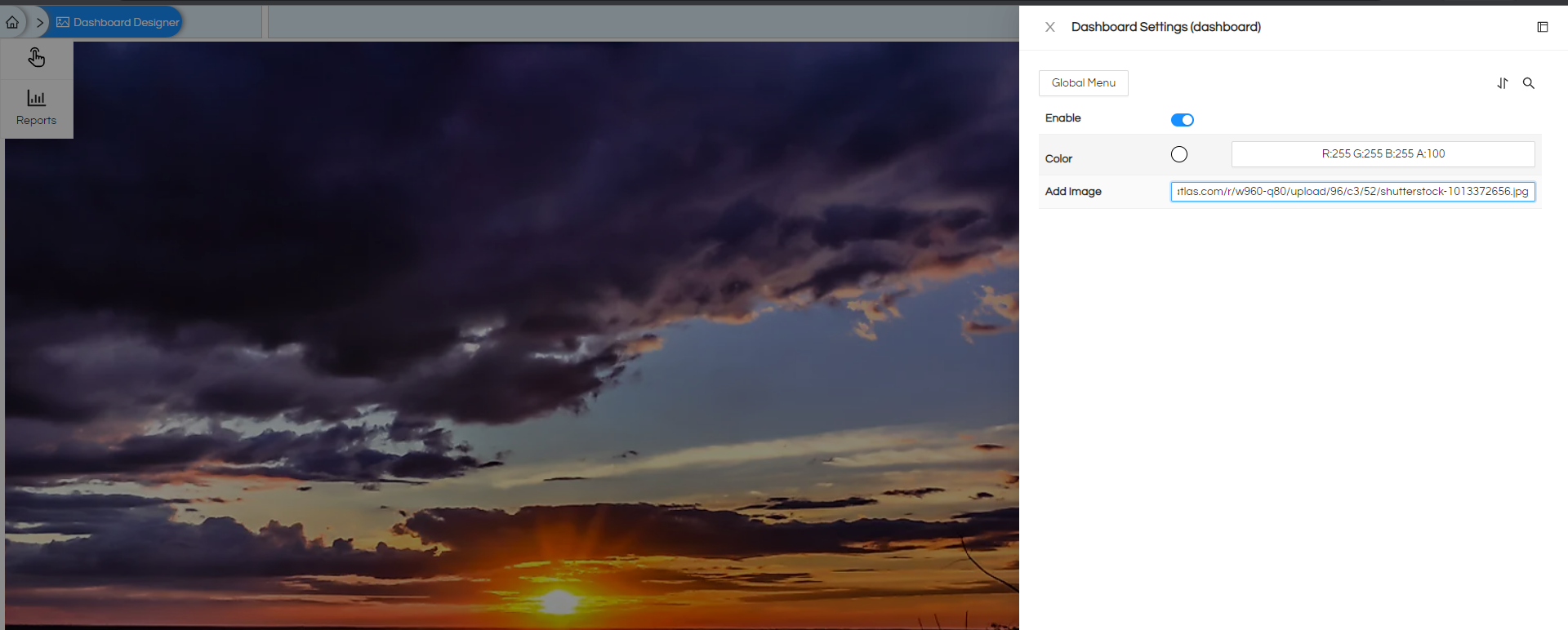
This right click functionality is relevant to whichever component we right click on i.e. right clicking on dashboard, or right clicking on any specific component (like dragged report/text/group) and thus the applied background properties will get applied respectively.
In case of any other questions, please reach out on support@helicalinsight.com or raise ask your questions on forum.helicalinsight.com
