
In this blog we are going to learn how to create an Donut chart inside Open Source BI product Helical Insight.
To create a DoughNut chart (DoughNut chart) in Helical Insight, follow these steps:
- Drag a measure (for example, travel_cost) from the table on the left panel.
- Drop the measure into Rows or Columns.
- Click on Generate to render the charts
- In the Visualization panel on the right side, scroll to the Chart section.
Select the DoughNut chart option.
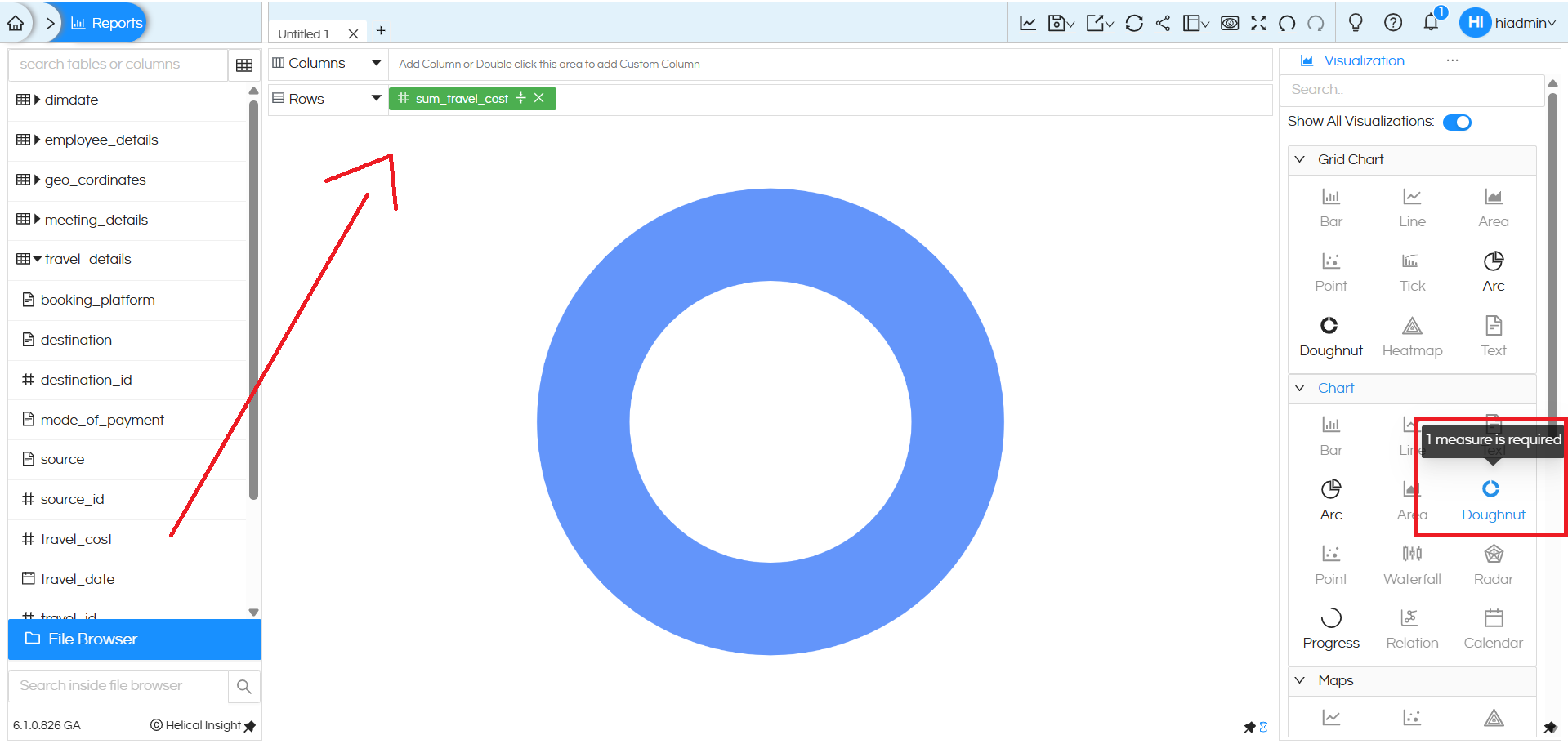
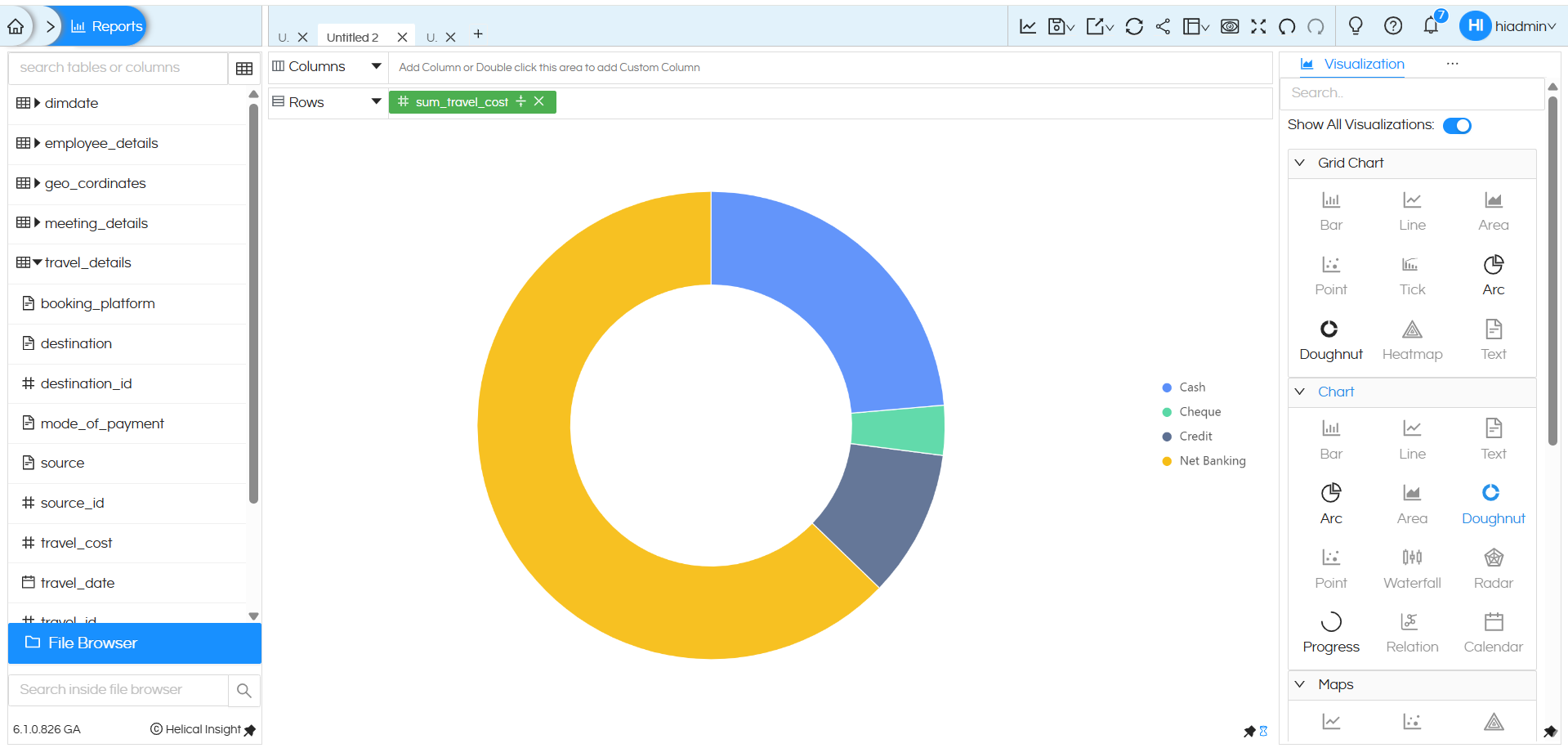
Initially, when only the measure sum_travel_cost is added, the chart appears as a single doughnut representing the overall travel expense. To break this into meaningful segments, the mode_of_payment dimension is added to the Color option in the Marks section.
In this below Doughnut chart, the total travel cost is visualized and automatically segregated based on the mode of payment.
By adding a dimension in Columns, the Doughnut chart automatically changes from a single aggregated donut chart view to a segregated comparison view. When booking_platform is added to the Columns section, the chart splits into multiple doughnut charts—one for each booking platform (Agent, Makemytrip, Website). At the same time, adding mode_of_payment to the Color option in the Marks section further divides each doughnut into colored segments, showing how the travel cost is distributed across payment modes within each platform. This makes it easy for users to compare patterns at a glance and gain deeper insights from the same data.
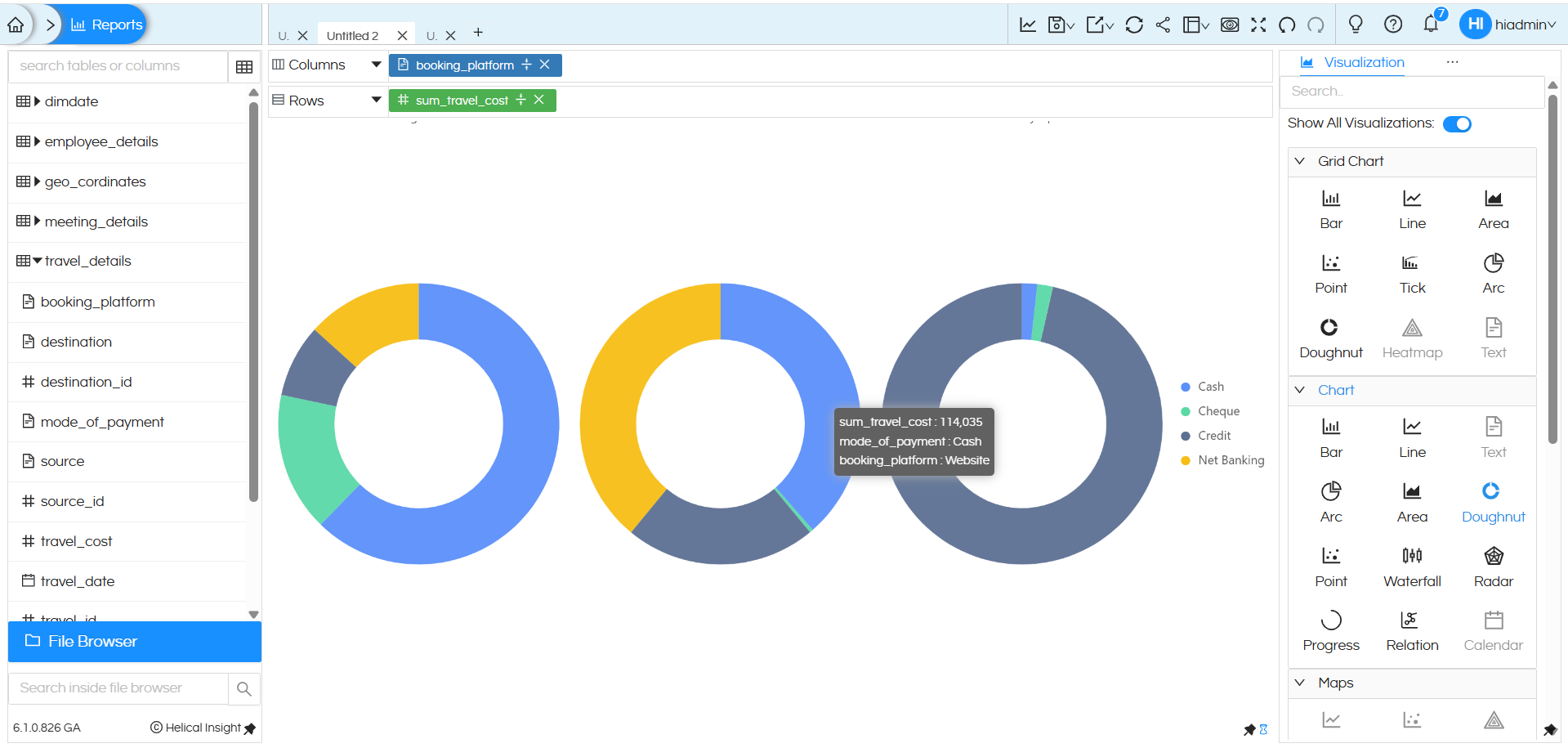
Doughnut Chart created using “Chart” category
A Doughnut chart created using the Chart category can have one dimension in the Columns, one measure, and one dimension in the Colors section. However, it does not support multiple dimensions in both Rows and Columns simultaneously, which limits its flexibility for complex comparisons.
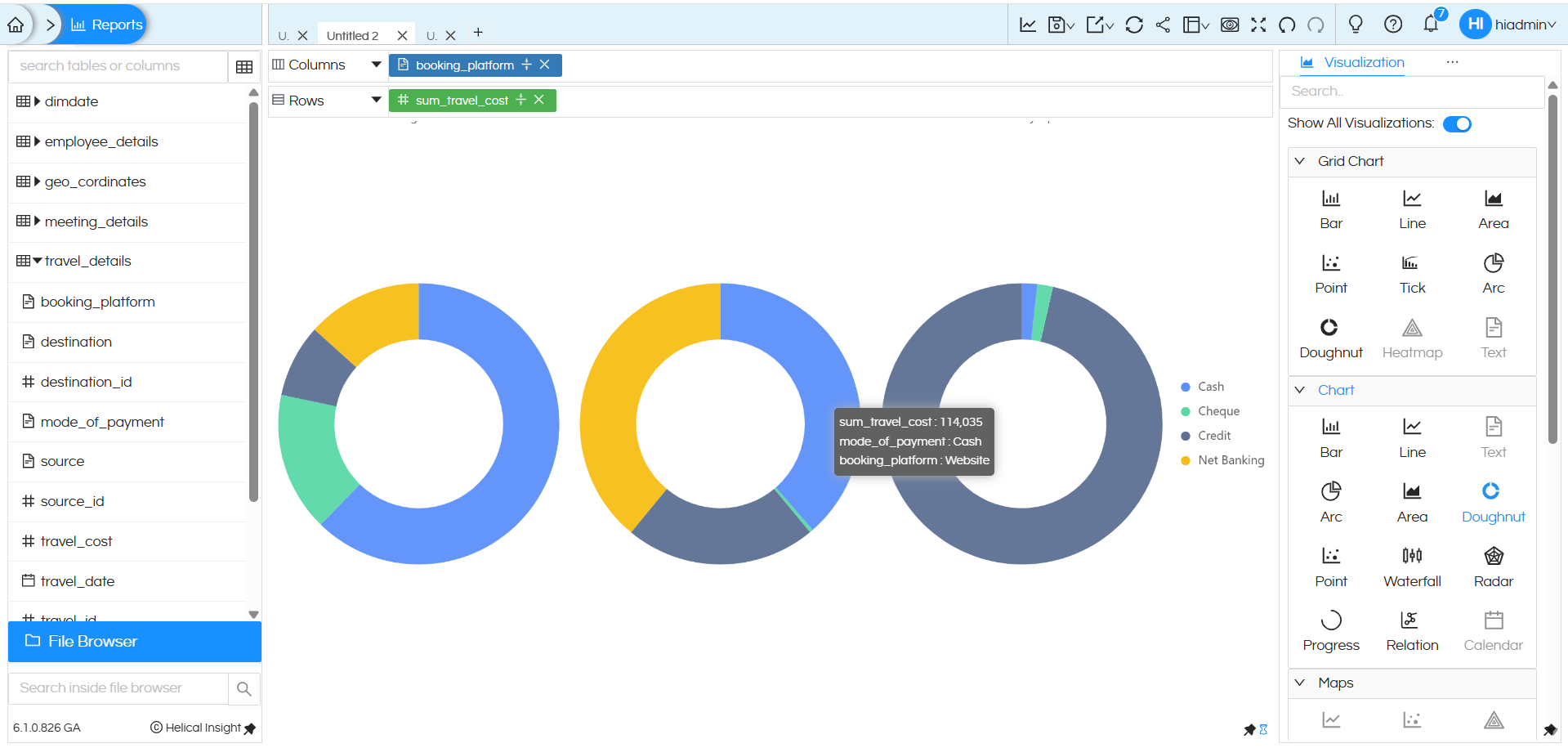
Doughnut Chart created using “Grid” chart category
A Doughnut chart created using the Grid chart category is highly flexible. It allows users to drag multiple dimensions into both Rows and Columns, automatically creating a matrix layout in which each cell contains a separate Doughnut chart. This makes it much more powerful for multi-dimensional analysis
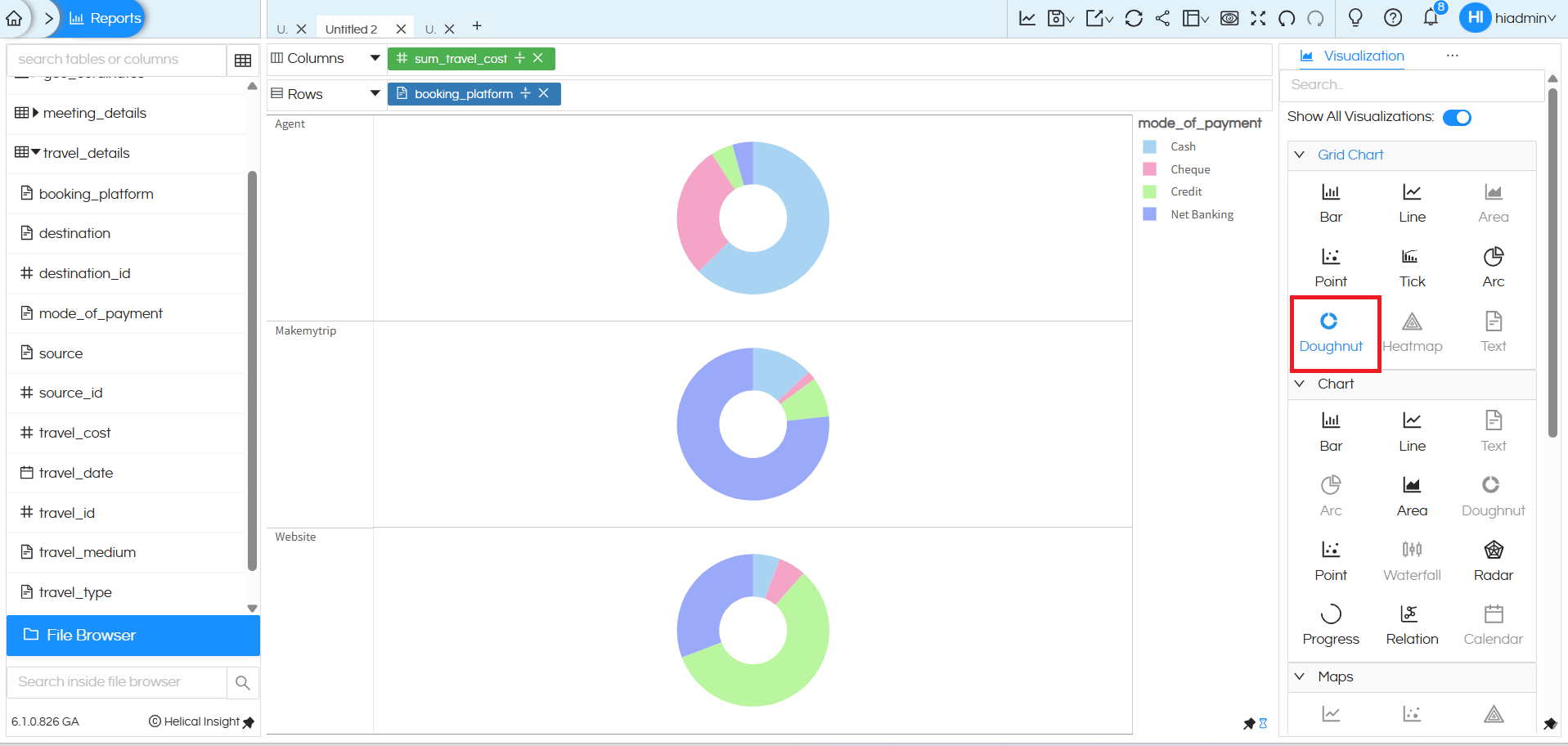
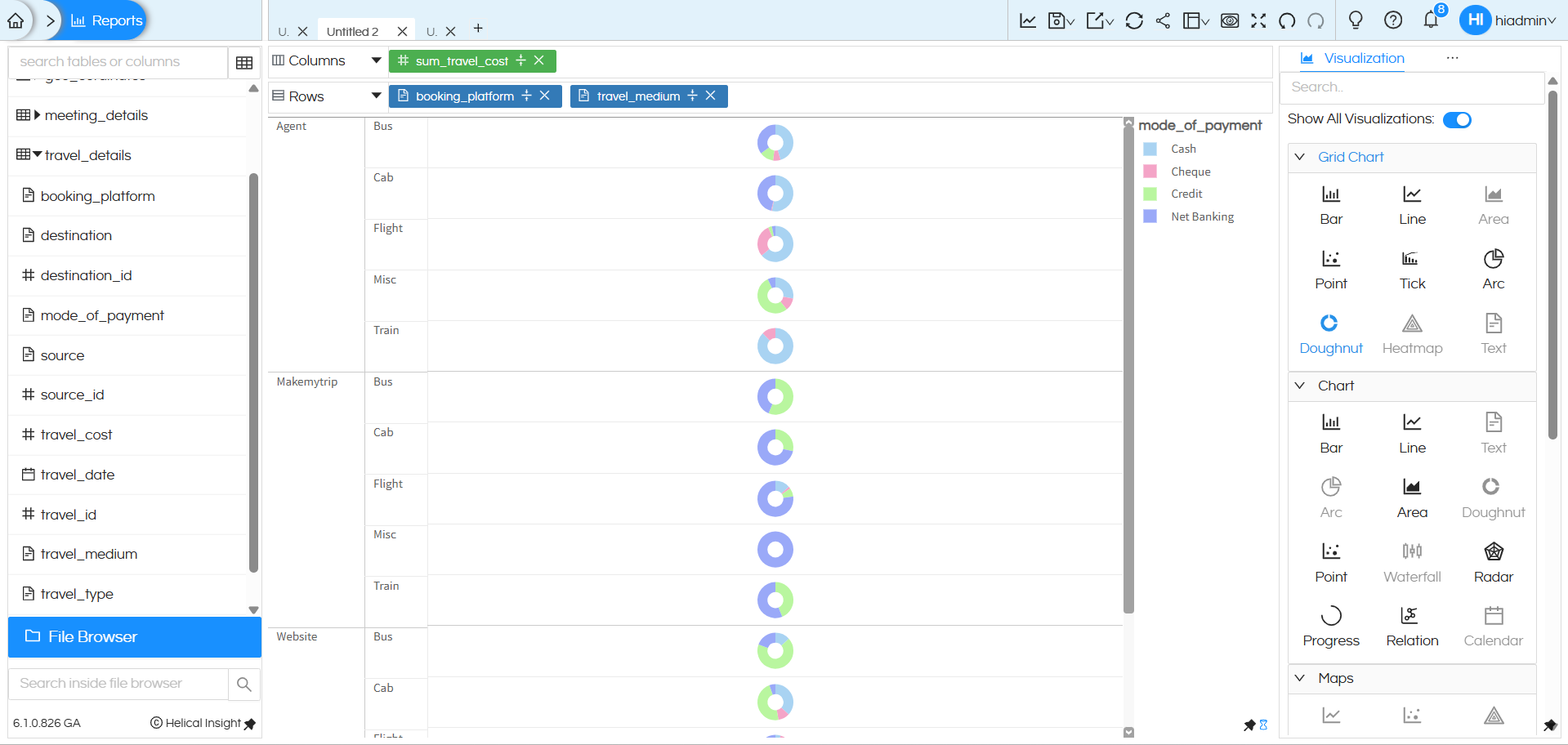
In the final view, multiple dimensions are added to further segregate the Doughnut chart into a detailed grid layout. Here, booking_platform and travel_medium are placed in the Rows section, while sum_travel_cost remains as the measure. As a result, the chart is broken down platform-wise and then medium-wise (Bus, Cab, Flight, Train, etc.). For each combination, a separate Doughnut chart is displayed, with colors representing the mode of payment.comparisons easier and more intuitive.
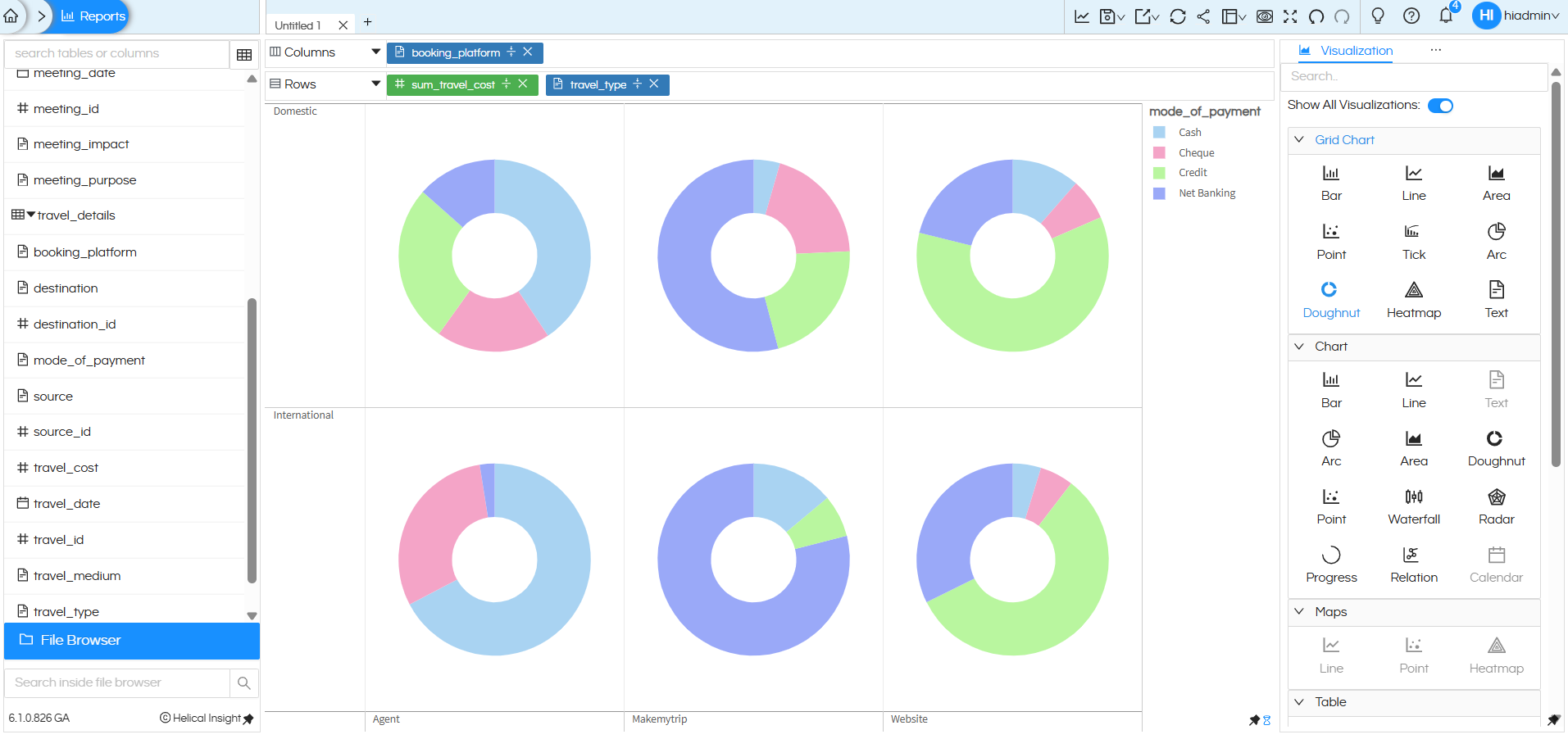
The above image represents a Grid-style Doughnut chart in Helical Insight where multiple dimensions and one measure are combined to create a matrix view of Doughnut charts. Here, booking_platform is placed in Columns, while sum_travel_cost and travel_type are placed in Rows, forming a structured layout. The visualization is categorized into Domestic and International travel types (shown row-wise), and each booking platform (Agent, Makemytrip, Website) is displayed column-wise. Additionally, mode_of_payment is added to the Color section under Marks, which divides each Doughnut into colored slices such as Cash, Cheque, Credit, and Net Banking. As a result, every cell in the grid represents the travel cost distribution for a specific travel type and booking platform combination, allowing users to compare payment patterns clearly across different categories in a single consolidated view.
You can further enhance your DoughNut chart by applying additional properties such as displaying percentage values, labels, and formatting options. Helical Insight supports these customizations on DoughNut charts, making it easier for users to interpret data at a glance. For detailed steps on how to show percentages directly on pie slices, refer to this official Helical Insight guide: https://www.helicalinsight.com/percentage-on-arc-pie-or-donut-chart/
Reach out on support@helicalinsight.com in case of any more questions.
