
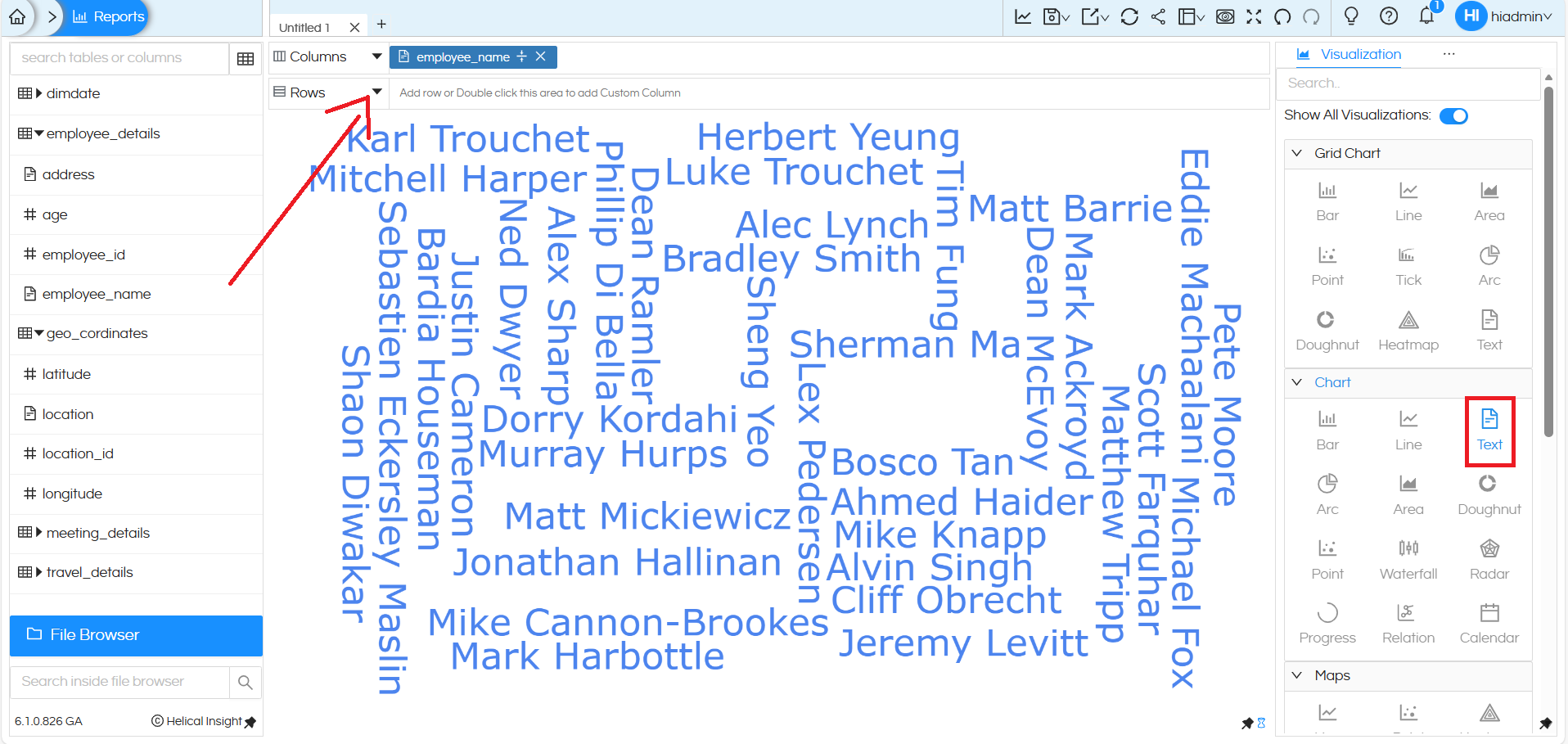
A Word Cloud in Helical Insight can be created by simply dragging a dimension (which appears in blue when added) into the Columns shelf. As shown in the image above, the employee_name dimension is placed in the Columns section. From the Visualization panel on the right, the Text option under the Chart category is selected.
Once the Text chart is applied, all values of the selected dimension—such as employee names
(e.g., Karl Trouchet, Herbert Yeung, Luke Trouchet, etc.)—are displayed as a word cloud in the report area.
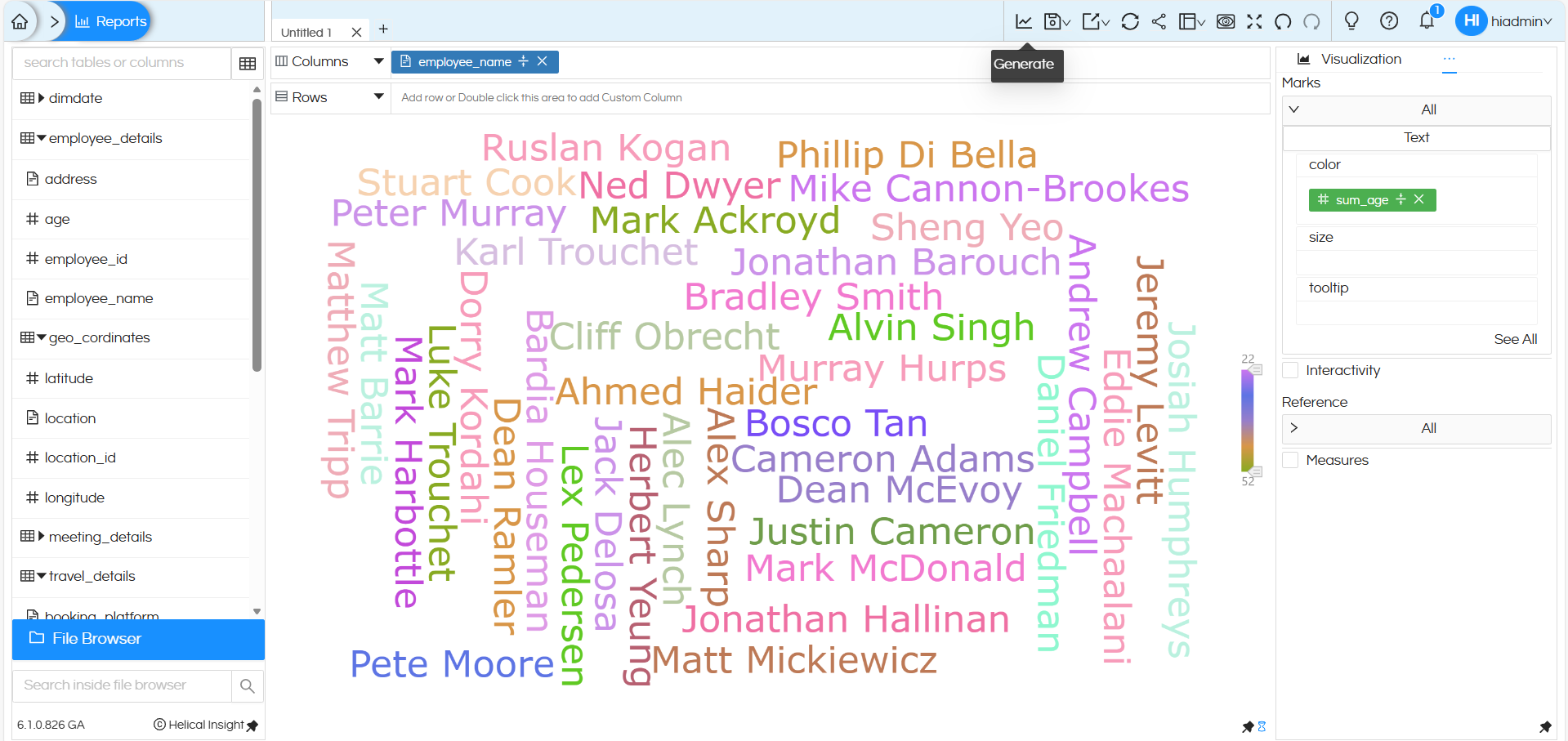
We can apply Marks properties to further change the size, color and other properties of the created word cloud. As shown in the below image navigate to Marks → Color section on the right side, the Age field is placed in the Color shelf.
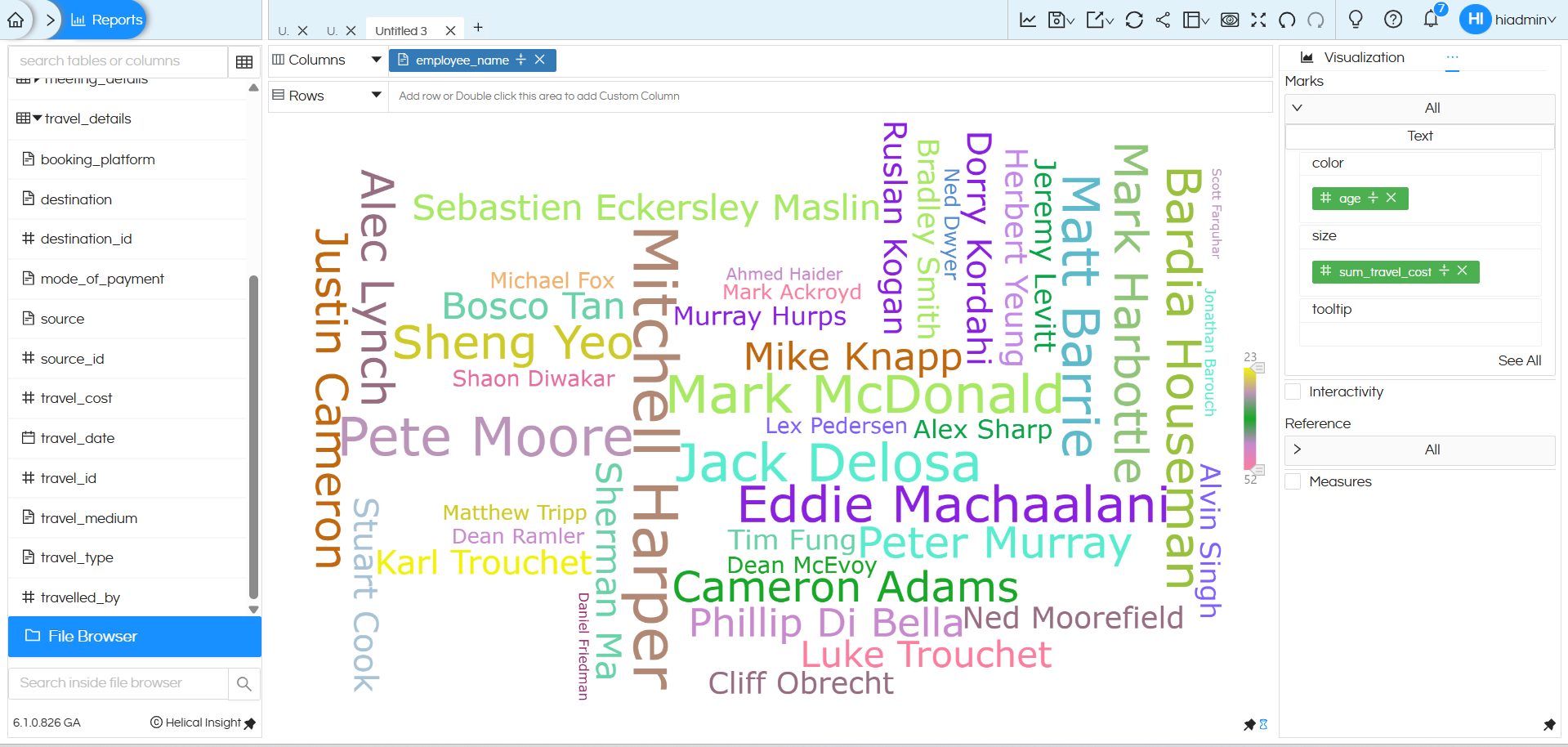
In this Below Word Cloud visualization, the size of each word is driven by a measure, while the color continues to represent Age of Employee.
As shown in the Marks → Size section, the measure sum_travel_cost is placed in the Size shelf.
Because of this configuration, the size of each word varies based on the total travel cost value associated with it. Categories with higher travelled-by values appear larger, making them more prominent in the word cloud, while categories with lower values appear smaller.
Reach out on support@helicalinsight.com in case of any more questions.
