
Opne Source BI Helical Insight’s v 7.0 was released in July 2026 wherein AI analytics was introduced and entire product (including all the enterprise edition features) was made free and open source. We are happy to inform about our version 7.1 release.
We continue to bet on AI and adding a lot of AI analytical capabilities in our AI powered chat based AI analytics (from simple to advanced statistical forecasting and decision making questions) as well as semantic model layer for reducing hallucination and giving a unified view all across.
We also continue to add more capabilities in our drag drop based report designer, paginated canned reporting components as well as admin functionalities like import export, recycle bin etc. Important to go through v7.0 walkthrough blog before you read this blog further.
1. Instant BI AI Analytics
1.1 : Introduction of AI Usage Modes: Fast, Think & Auto Mode
In version 7.0, we had introduced AI analytics module in Helical Insight allowing conversational chat basd data analysis. With 7.1, the AI analytics module has been further enhanced, allowing introduction of Think Mode, Fast Mode and Auto Mode.
Think mode
Think mode can be used for more deep research analytical kind of questions. Things like prediction, forecasting, cohort analysis, decision making, what-if analysis etc are some examples where Think mode can be useful. AI will understand the question, break it down to list of sub analysis, get those responses, corelate and give a final response.
Some Think Mode kind of questions are
- What areas should be considered to reduce client attrition and per client revenues?
- What factors contribute to higher travel expenses across different travel mediums and booking platforms?
- How have meeting cancellations varied by client and cancellation reason over the years?
- Based on historical trends, what are the expected revenues and associated expenses for the next year?
Fast Mode
Fast mode is useful for standard simpler normal questions like
- Which all employees did not meet their sales target?
- Show me month on month sales and percentage change?
Auto Mode
When used in Auto mode, the application will automatically switch between Fast Mode and Think mode, based on the kind of question being asked. It is recommended mode.
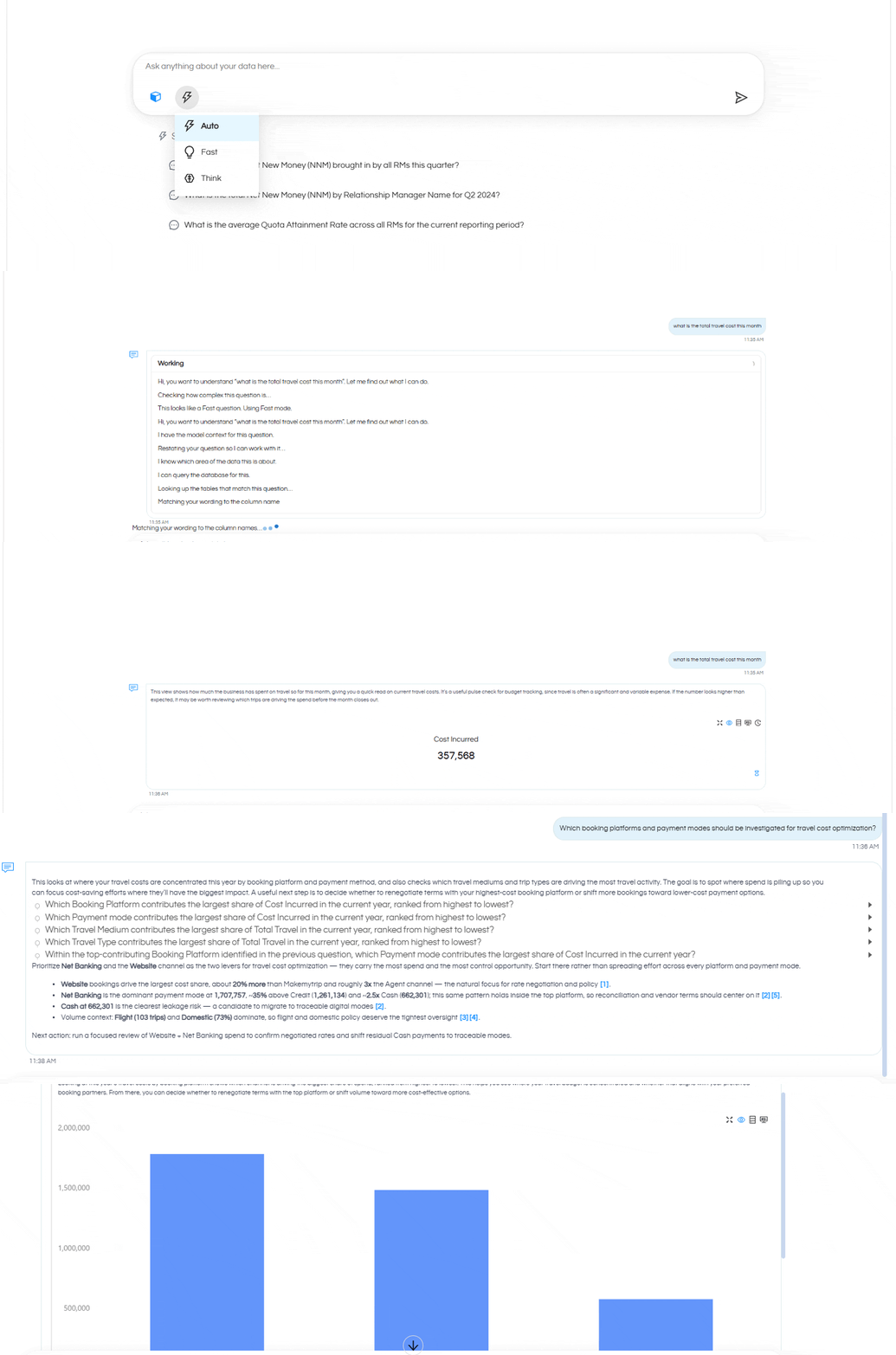
PRO TIP: You can switch modes at any time during an Instant BI conversation. The mode selector is available in the prompt area. Start with Auto Mode and switch to Think Mode when you need deeper analysis on a specific question.
🔗 Read more about these modes here : Instant BI Modes – Auto, Fast, and Think Modes – Helical Insight
1.2 Semantic Model Enhancements: To answer Think Mode Analytical questions
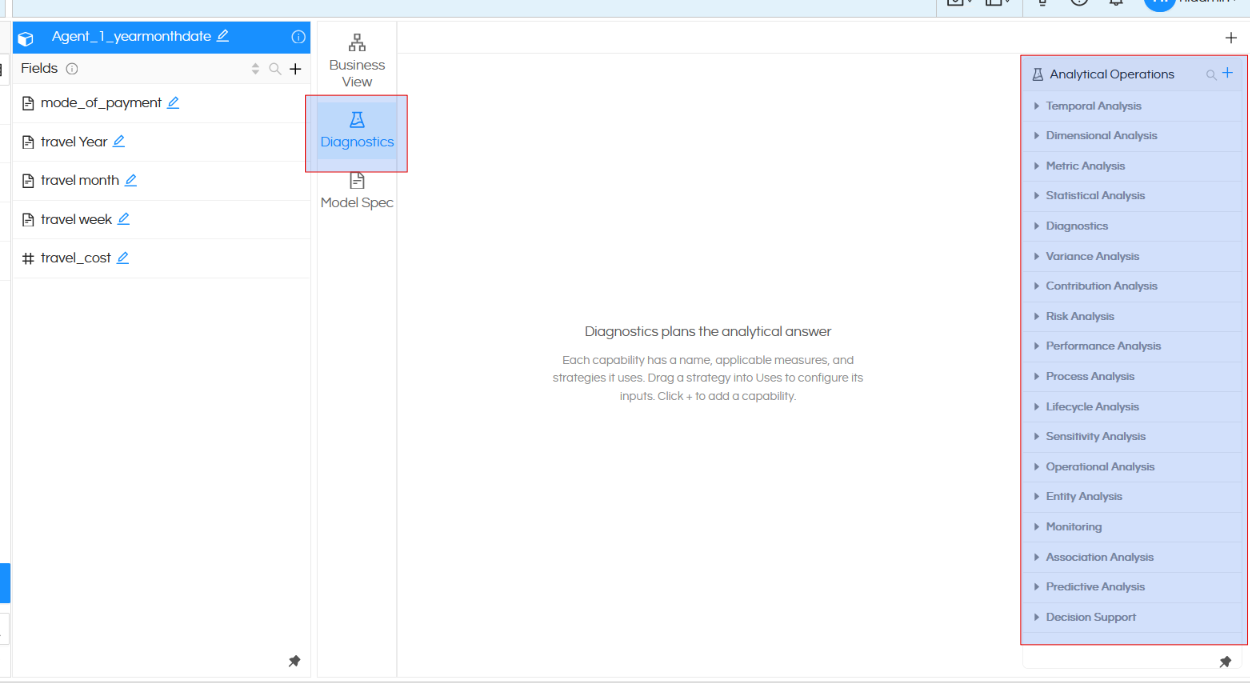
As explained above, from version 7.1 a Think mode is introduced allowing advanced questions requiring research like prediction, forecasting, variance analysis etc. In order for those kinds of analytical functions to work smoothly, the semantic model layer has been enhanced.
Now semantic model layer has introduced a “Diagnostics” section allowing to configure a lot of these analytical operations.
Read more about the same here: Instant BI: AI Powered Analytics : Semantic Creation – Helical Insight
2. AdhocReport Designer Module
2.1 Data Type in Custom Column
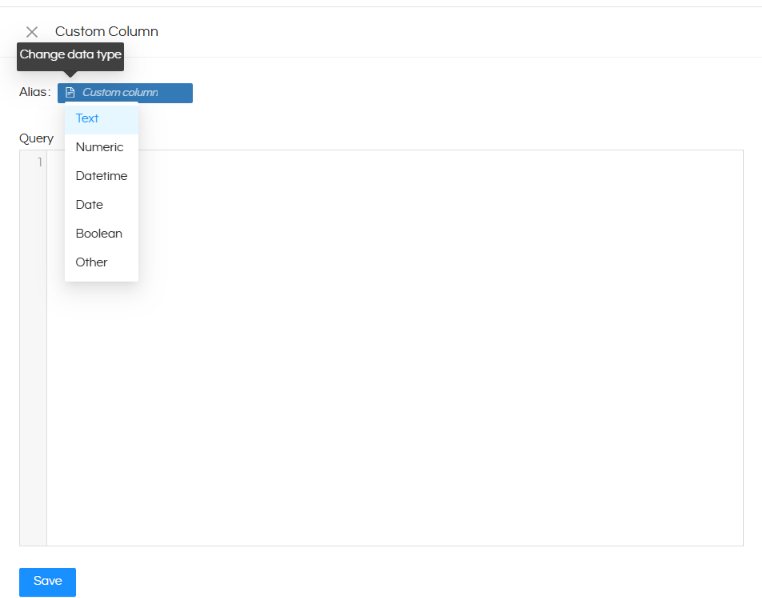
From version 7.1, whenever a custom column is added there is an option to specify the data type of this added custom column (previously those columns used to be by default a dimension). Ability to define the data type thus enables relevant visualizations and other aggregate / db functions also.
Read more about this custom column and data type here: Custom Column – Helical Insight
2.2 Custom Column: To be used As Filter
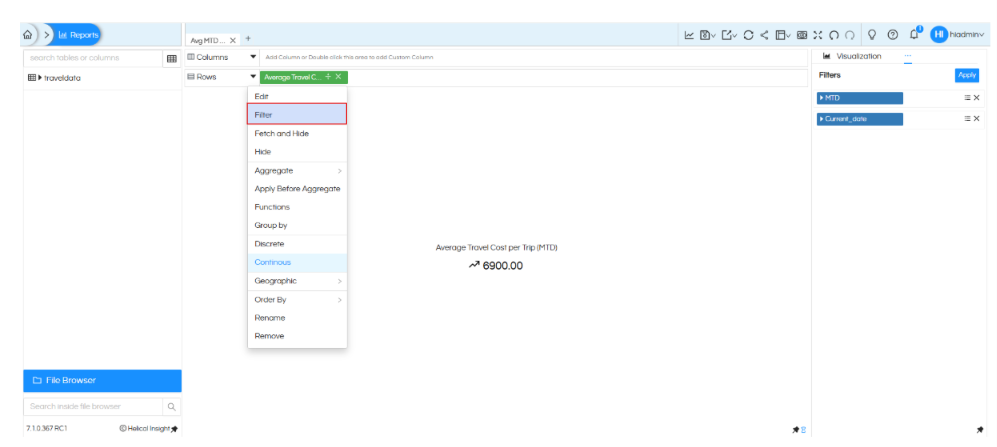
Custom column allows to define any sort of calculations, custom fields, SQL logic etc. From version 7.1 a new option is introduced which can allow a custom column to be directly used as a filter.
In order to add a custom column as a filter, you can directly drag that custom column to filter section or click on the custom column and add that as Filter.
PRO TIP: Custom column filters support all filter types including drop-down lists, text search, range sliders, and multi-select checkboxes. The filter control type is automatically determined based on the data type returned by the custom expression.
🔗 Read more about Creating Custom Columns and using that as a filter here in Helical Insight: https://www.helicalinsight.com/custom-column-2/
2.3 RAW Function Support
On any dragged column, there are options to apply UI driven functions (these UI driven functions are predefined at the backend XML files).
In the UI where functions are applied, using RAW, any SQL syntax functions and expressions can be used (especially useful when you want to use a function which is not preconfigured in our backend functions XML file). Inside RAW we can also refer to any column of any table as well. The RAW function passes its contents directly to the SQL engine without any transformation or escaping by the Helical Insight query builder. This means you can use database-specific functions, window functions, complex CASE expressions, and any SQL syntax supported by your underlying database.
The RAW function uses a simple wrapper syntax in the custom column editor:
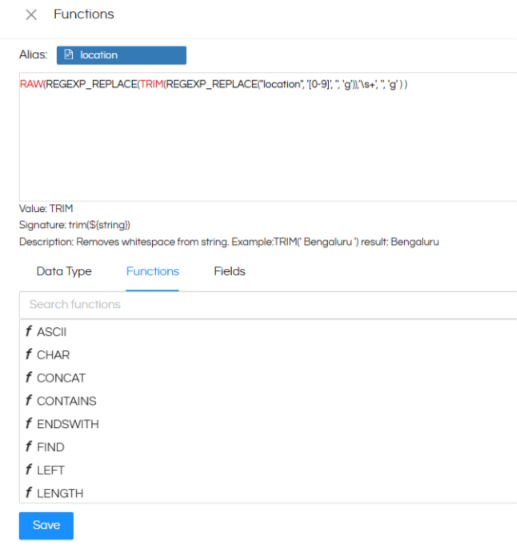
Examples:
RAW(ROW_NUMBER() OVER (PARTITION BY region ORDER BY revenue DESC))
RAW(COALESCE(primary_email, secondary_email, ‘N/A’))
RAW(ROUND(net_revenue / NULLIF(gross_revenue, 0) * 100, 2))
WARNING: Because RAW passes content directly to the SQL engine, ensure your expressions are syntactically correct for your target database. The Helical Insight query builder will not validate or transform RAW expressions. Test expressions in a SQL client first before embedding them in reports.
🔗 Read more about the Usage of RAW Function in Helical Insight: https://www.helicalinsight.com/usage-of-raw-function-in-helical-insight/
3. Canned Report Module Enhancements
3.1 Conditional Formatting
Version 7.1 introduces additional conditional formatting for Table and Crosstab components in Canned Reporting. Based on the values, the cell background color can be changed, thus making it much more easier to read the created reports. Not only background color, but any other style (like bold, italic, border etc) can be created and that style can be applied based on the condition.
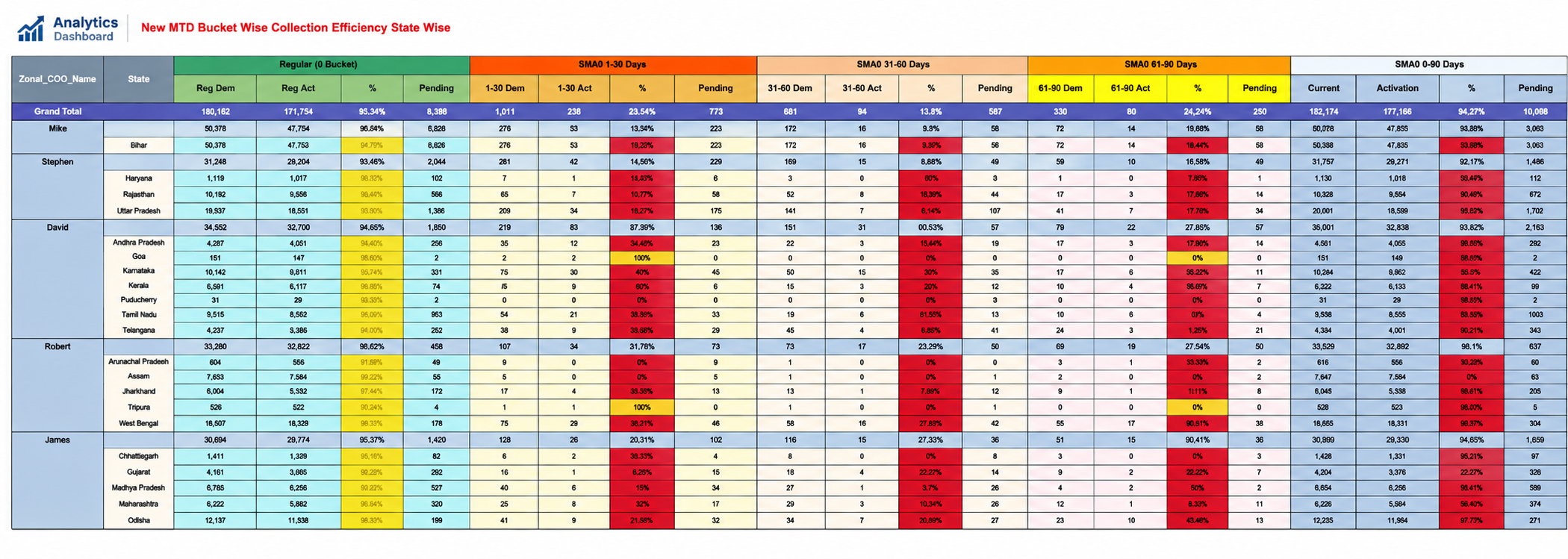
🔗 Read more about creating conditional formatting: https://forum.helicalinsight.com/t/applying-value-based-conditional-formatting-in-table-and-crosstab-components-in-helical-insight/2757/2
3.2. Canned Report: Crosstab Layout and Totals
Cross tab component of Canned Reports has undergone many new additional capabilities like.
- Custom Headers: Add descriptive headers above row groups and column groups to provide context and improve readability in complex multi-level pivot matrices.
- Layout Configuration: Choose between Tabular, Outline, and Compact layout modes to control how row group labels are displayed (inline, indented, or hierarchical).
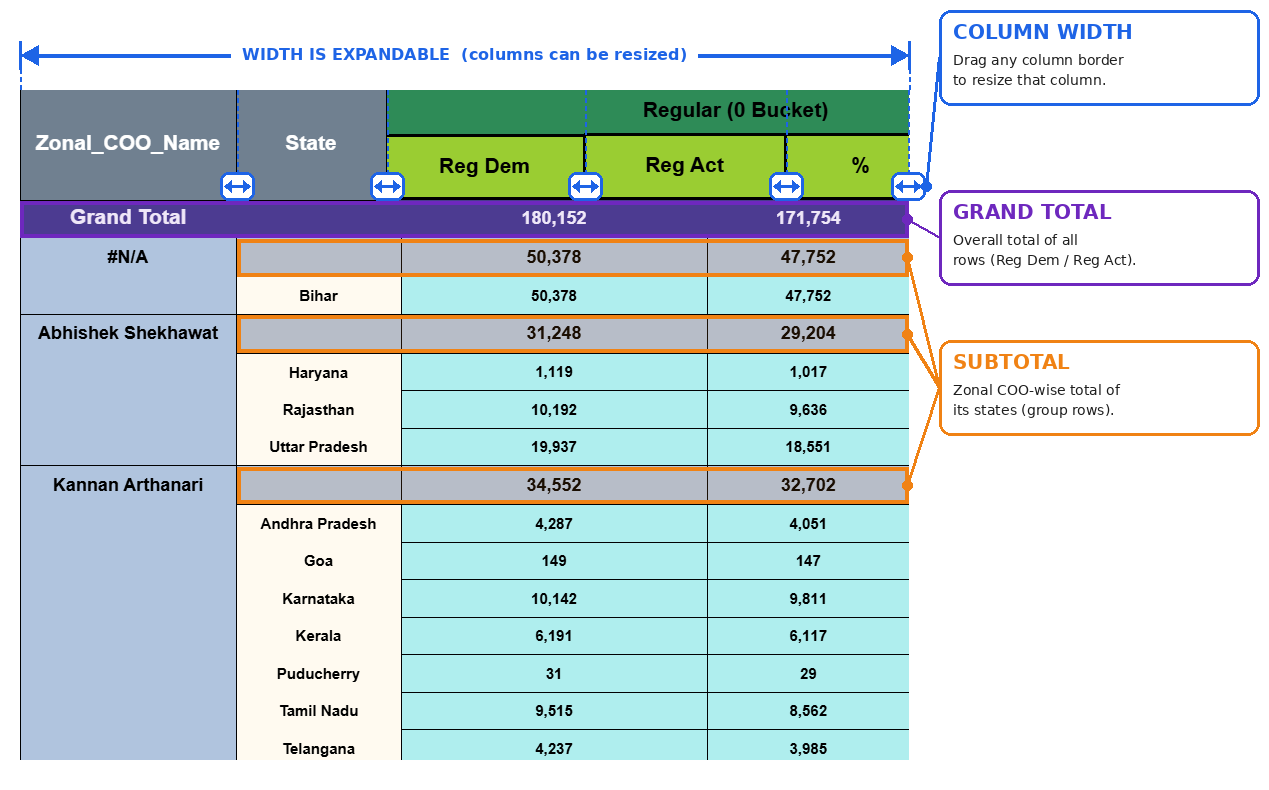
- Column Width Control: Manually set column widths or enable auto-fit to optimize space utilization across the Crosstab.
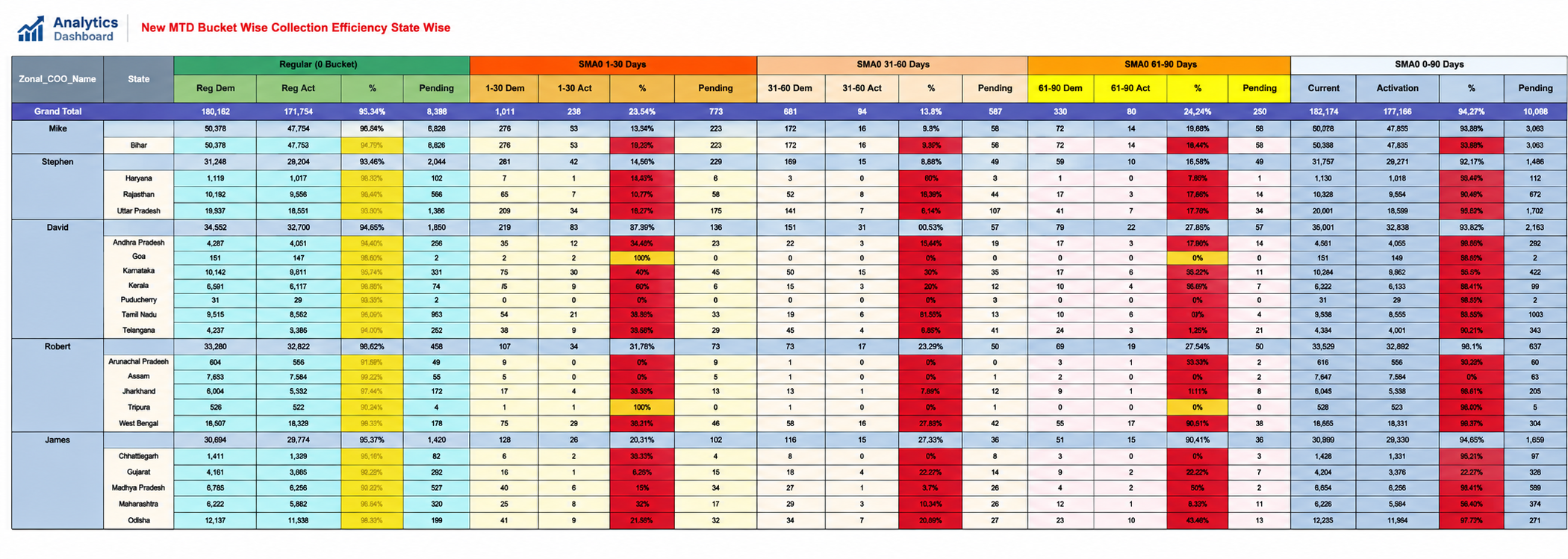
3.3 Subtotals and Grand Totals in CrossTab Component
- Subtotal Placement: Configure subtotals to appear at the top or bottom of each row group, or suppress them entirely for clean detail-level layouts.
- Grand Total Position: Place grand totals at the top, bottom, or both positions of the Crosstab matrix.
- Column Totals: Enable or disable column-wise grand totals independently of row-wise totals.
- Custom Aggregation: Specify different aggregation functions (SUM, AVG, COUNT, MIN, MAX) for subtotals vs. grand totals when needed.
🔗 Read more about the Usage of subtotals, grand totals and others functionalities present in Canned Reporting: https://www.helicalinsight.com/usage-of-crosstab-component-in-canned-reporting/
3.4 Support of Stored Procedure in Canned Reports
Version 7.1 adds the ability to call database stored procedures and CTE queries directly from Canned Report queries placeholder ((e.g., CALL sp_monthly_sales_report(@startDate, @endDate) for MySQL, or EXEC sp_monthly_sales_report @startDate, @endDate for SQL Server).
This feature is essential for enterprise environments where complex business logic, data transformations, and security controls are encapsulated in database stored procedures.
Why Stored Procedures?
- Business Logic: Organizations often maintain complex calculation routines, compliance checks, and data aggregation logic inside stored procedures. Direct access from Canned Reports eliminates the need to duplicate this logic.
- Performance Optimization: Stored procedures are pre-compiled and optimized by the database engine, delivering faster execution than equivalent inline SQL, especially for complex multi-step transformations.
- Security & Access Control: Database administrators can grant EXECUTE permissions on stored procedures without exposing underlying table structures, maintaining strict data governance.
- Parameterized Execution: Pass report parameters (date ranges, department codes, user IDs) directly to stored procedure input parameters for dynamic, context-sensitive reporting.
🔗 Read more about Helical Insight Canned Reporting: https://www.helicalinsight.com/data-sources-page-overview-in-canned-reporting/
4. Resumable Import / Export across entire Helical Insight application
There are various places in Helical Insight where some sort of import / export of files/resources/drivers etc happens like
- Import export from/to file repository of Helical Insight
- Importing of any image which can be used in canned reports/dashboards
- Importing of drivers on the datasources pages
- Importing of flat files (like Excel, CSV etc) on the datasources page
In certain cases, because of network problem or any other reason, this activity fails and then has to start from starting again.
From version 7.1, this is resumable. Hence as soon as the network is back, it will start again from where it had stopped earlier (rather than restarting the process once again).
In order to enable this, in settings.xml an option like below is introduced.

Read here to learn more (create this blog and hyperlink here)
5. File Repository Import and Export Enhancements
Version 7.1 delivers three significant enhancements to the Import/Export system, making repository management more comprehensive, resilient, and enterprise-ready.
5.1 Repository-Wide Export of all user resources
Super Administrators can now export the entire application repository in a single operation. This means not only their views gets exported as well as the reports/dashboards/resources of other users as well getx exported and imported. This can be then imported to the other server with all the sharing permissions, views, data security etc still applicable (i.e. even though superadmin did entire export import, on the other server also he will ONLY see list of files he had access to).
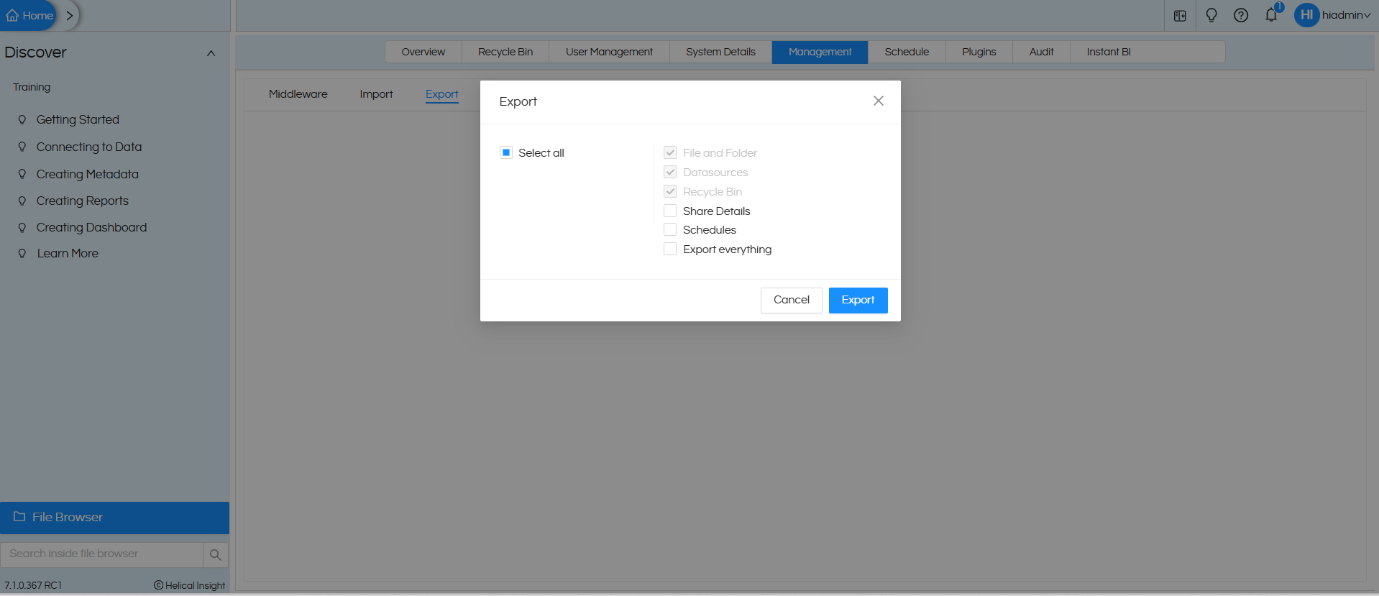
5.2 Recycle Bin Support in Import/Export
Now when exporting a resource, if that resource has any dependency on another resource (which might be deleted and present in recycle bin) you can decide whether that deleted recycle bin resource should also get included or not in the export.
- Export with Recycle Bin content: When exporting, optionally include Recycle Bin contents also.
- Import with Recycle Bin content: When importing, resources that were in the Recycle Bin at export time are restored to the target environment’s Recycle Bin.
- Selective Restoration: After import, administrators can selectively restore individual items from the Recycle Bin as needed.
5.3 Heavy file size export
For enterprise deployments with large repositories (hundreds of reports, dashboards, and data assets), the exported files often becomes quite heavy and importing might take time/even fail incase if the exported file size is more than 50-60 MBs.
With version 7.1 we have taken care of the same.
- Even with a big file size also, the import happens in multi parallel processes. Internally the same big zip file gets broken into small chunks which gets imorted. Hence it dosen’t fail irrespective of the file size.
- There is progress bar which is addes showing the progress
- There is a log section, to see more details of import/failure
- As explained in previous point, resumable import/export is also enabled allowing the import/export to pause and start in case of network fluctuation
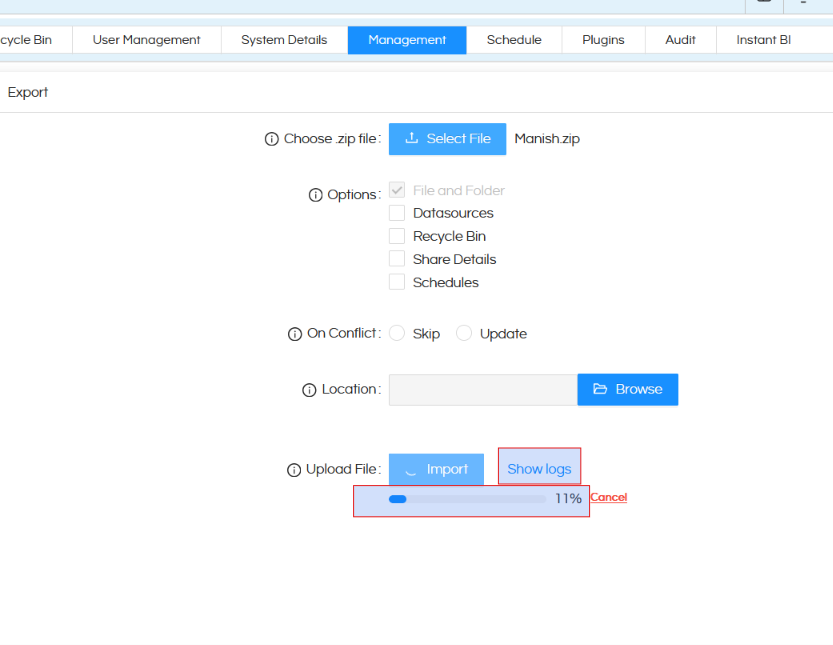
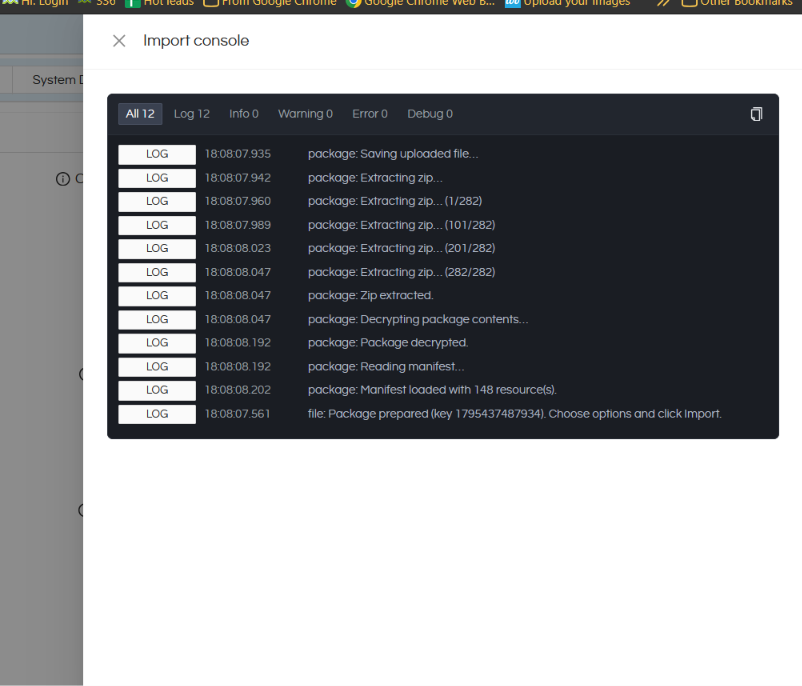
In order to enable this, in the settings.xml file, we have to enable this property.

🔗 Read more about Export and Import in Helical Insight: https://www.helicalinsight.com/export-and-import-in-helical-insight-5-0/
6. Administration: Automatic Temporary File Cleanup
Version 7.1 introduces automatic temporary file cleanup, a housekeeping feature that removes temporary files generated during report execution, export operations, and cache processing at administrator-defined scheduled intervals. Over a period of time the cache memory can become big affecting perfromance/become full and affecting entire application.
From version 7.1, there are “System Schedules” which we can see when we go to schedules tab. Some schedules are already present like
- Instant BI usage audit details
- Temporary directly clean
- Import export related temporary files
We can edit these schedules, create any customer further schedules as well.
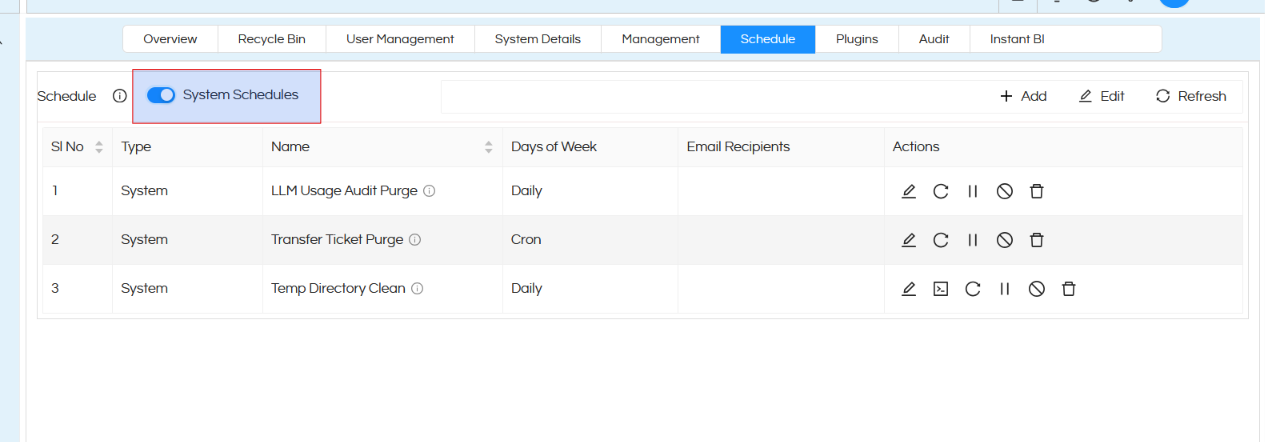
More details about the system schedules can be read here (RELEVANT blog to be created, LINK WILL GO HERE).
7. JSON Support across all modules
From version 7.1, most of the modules (i.e. dashboard designer, canned report, interactive reports, semantic model etc) of Helical Insight is having a highly configurable JSON support. Any sort of work done from the UI is directly affecting the JSON. This JSON can be copy pasted, reused, directly made changes in and other functions can also be done. This also helps with version control, repaid templating, migration etc.
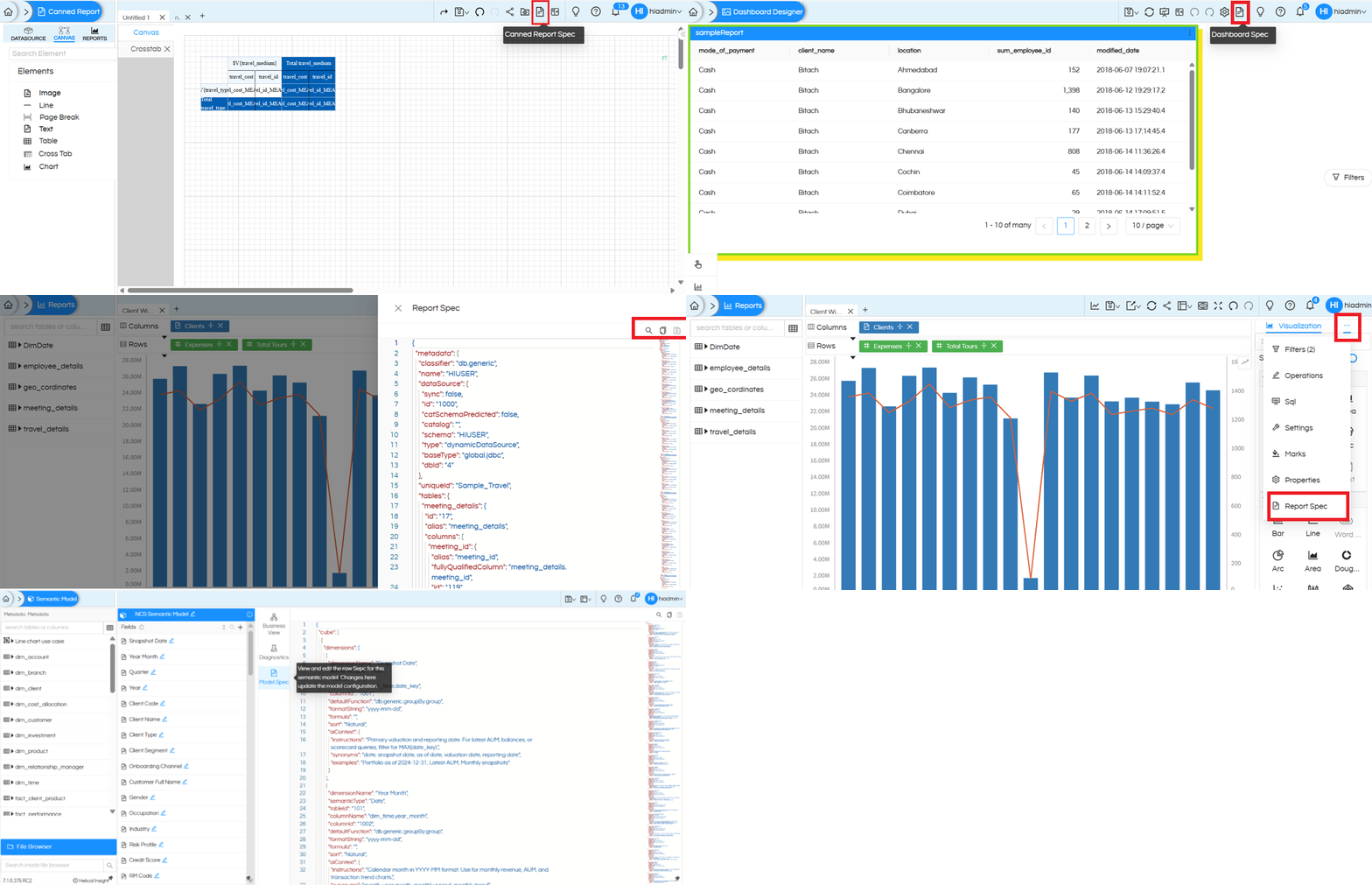
Read more here : https://www.helicalinsight.com/json-support-across-various-modules/
Important links
- In case of any questions you can reach out to us on support@helicalinsight.comm
- You can raise any questions on https://forum.helicalinsight.com/
- Our open source free Community edition can be downloaded from Github : https://github.com/helicalinsight/helicalinsight
- Our enterprise version can be downloaded from : Register – Helical Insight
- Learn difference between community and enterprise version : Community driven innovation via Helical Insight CE – Helical Insight
