Apply database functions to fields in an Adhoc report to transform, format, extract or manipulate text, numeric, date and date-time values.
For example, you can convert a date to its year, change text to uppercase, or round a number to a set number of decimal places. The functions available depend on the database you are connected to.
1. Apply a Database Function
This example applies YEAR() to the travel_date field.
Step 1: Add a field to the report
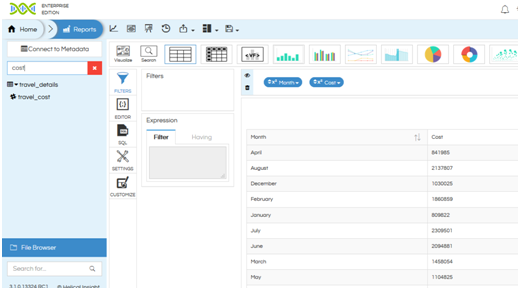
- Open the Reports module.
- Select the table and field from the field list on the left.
- Drag the field into the Rows or Columns section. Here, drag travel_date into Rows.

Step 2: Open the Functions window
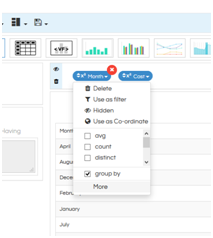
- Click the field you want to change.
- Click Functions.
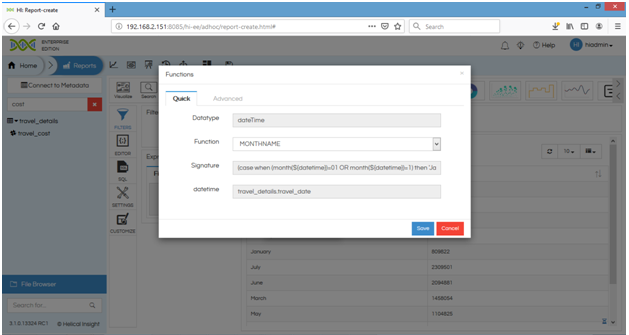
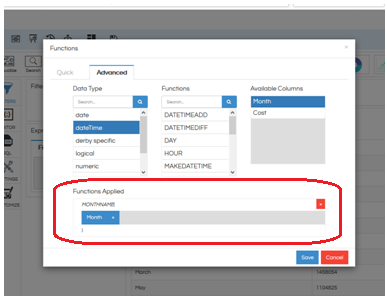
The window lets you search for a function or pick one from the list. Use the Data Type, Functions and Fields tabs to browse options.

Step 3: Select or enter the function
Search for the function in “Search for functions”, or select a function from the list. The list displays the functions available for the data type of the selected field.
- Specify the field the function applies to.
- Add any extra parameters the function needs.
- Click Save.
To extract the year from travel_date, enter:
YEAR(travel_date)
The panel shows the function’s value, signature and description, so you can confirm it does what you expect.

Step 4: Generate the report
Click Generate Report. The report now shows the transformed value.
Before:
2015-10-21 14:58:00.0
2015-07-22 08:31:00.0
2015-03-09 16:57:00.0
After:
2015
2015
2015

2. Function Examples
The functions available vary with the connected database.
| Data type | Function | Example | Purpose |
|---|---|---|---|
| Date / date-time | YEAR |
YEAR(travel_date) |
Extracts the year |
| Date / date-time | MONTH |
MONTH(travel_date) |
Extracts the month |
| Text | UPPER |
UPPER(travel_medium) |
Converts text to uppercase |
| Numeric | ROUND |
ROUND(travel_cost, 2) |
Rounds to a set number of decimals |
| Numeric | FLOOR |
FLOOR(travel_cost) |
Returns the largest integer not greater than the value |
| Numeric | MOD |
MOD(travel_cost, 10) |
Returns the remainder |
| Conversion | CAST |
CAST(travel_cost AS ...) |
Converts a value to another data type |
Note: Syntax and availability of functions vary with the database driver or dialect configured in Helical Insight. Helical Insight also supports nested functions, where one function works on the result of another.
3. Delete an Applied Function
Step 1: Select the field
Click the field that has the function, for example travel_date with YEAR(travel_date) applied.
Step 2: Open Functions
Click Functions. The window shows the function currently applied to the field.
Step 3: Remove the function
- Select the applied function.
- Clear the function configuration.
- Confirm it is no longer applied.
- Click Save.

Step 4: Generate the report
Click Generate Report. The original values return.
Figure 5. Original date-time values restored after removing the function.

Reference: Helical Insight – Database Functions