
In this blog we are going to learn how to use Print When Expression. In this specific use case, we are having a filter. The filter is having unique filter value, we are checking the filter values which are assigned and based on that we will display either first image or second image. In this blog we have covered how we have done that.
Process:
Drag and add two image components. To the first image add a Bus image and to the second one add a Train image.
To control which image is displayed, the Print When Expression property is used for each image based on the selected value of the travel_medium parameter. We are adding a filter called travel_medium and based on the selected value we will display that respective image.
For the Bus image, the Print When Expression is :
$P{travel_medium}.equals("Bus").For the Train image, the expression is :
$P{travel_medium}.equals("Train").These expressions evaluate the selected parameter value and determine which image should be shown.
Please refer the below link to know more about how to create the parameters:
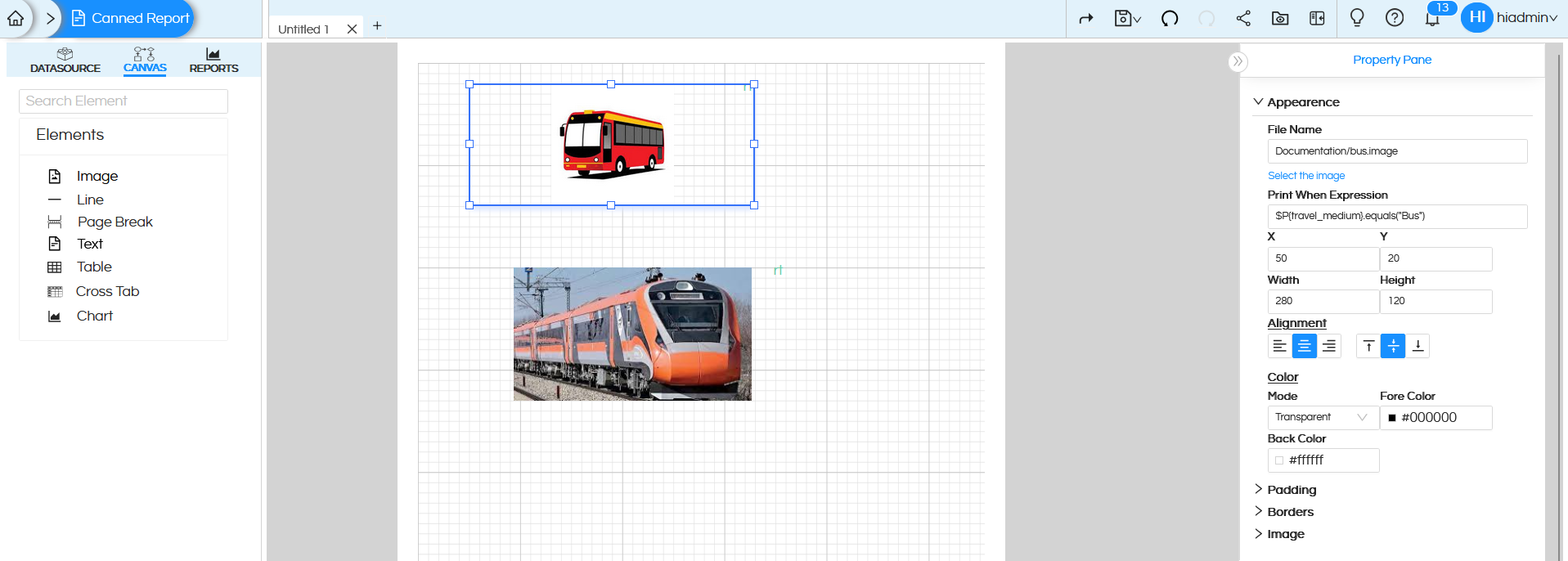
(OPTIONAL) Both of the image components described above can even overlap with each other, hence ensuring that the image appears at exactly the same place based on the value selected. This is a more ideal usage.
When a person selects a specific value, that respective travel medium is appearing. When the user selects “Bus” in the travel_medium parameter, the condition for the Bus image becomes true, so the Bus image is displayed. At the same time, the condition for the Train image becomes false, so the Train image is hidden.

Similarly, when the user selects “Train“, the Train image is displayed and the Bus image is hidden.
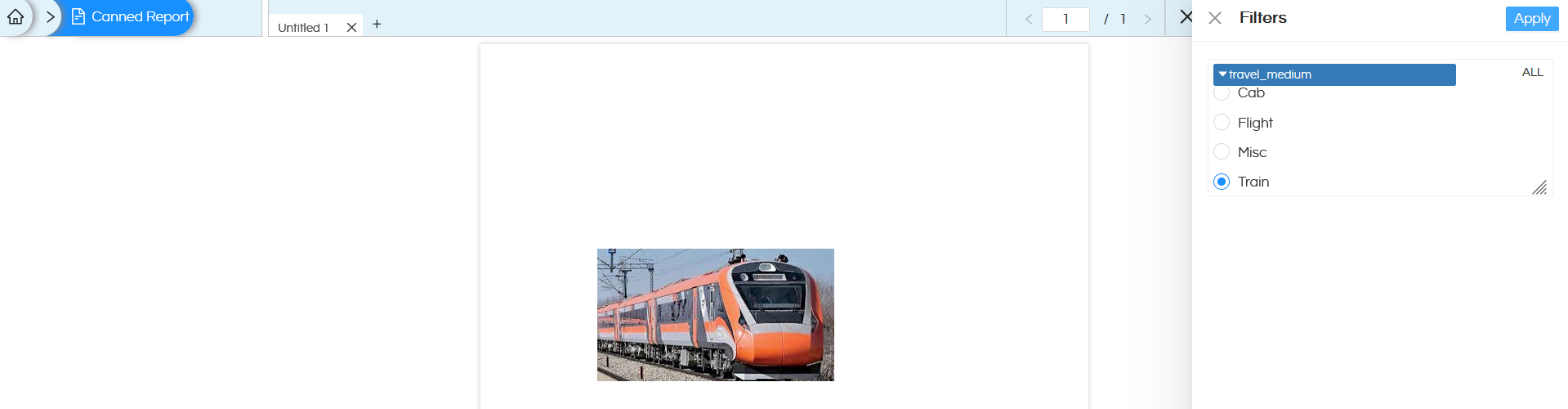
In simple terms, this approach allows you to show different images based on user selection. If the condition is true, the image is shown; if the condition is false, the image is hidden.
For example, selecting Bus will display the Bus image, and selecting Train will display the Train image.
So when we select Bus from the travel_medium parameter we get the bus image. If we select Train we get the train image.
Click here to read more about the usage of image component in canned report.
