
Generally in the tooltip, it shows the field values which are used to create the chart (like rows, columns, etc) as well as the field which has been dragged in the Marks section like Color, Tooltip etc.
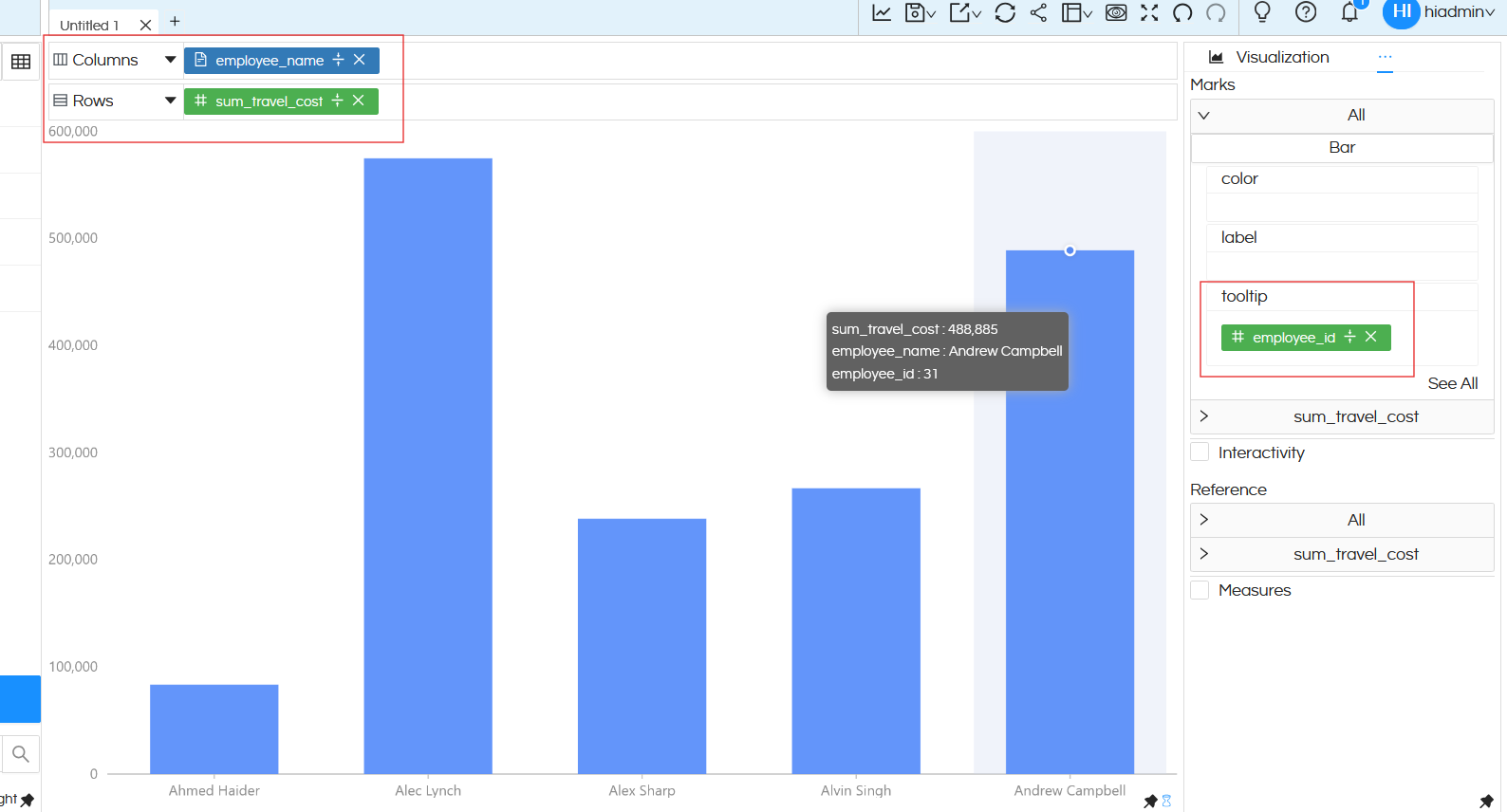
However in many cases we may want to display other fields also. For those use cases, this newly added property is useful which has been introduced from version 6.2
In this blog we are going to learn how to use this property.
Steps to use Tooltip Property:
a. Open Properties
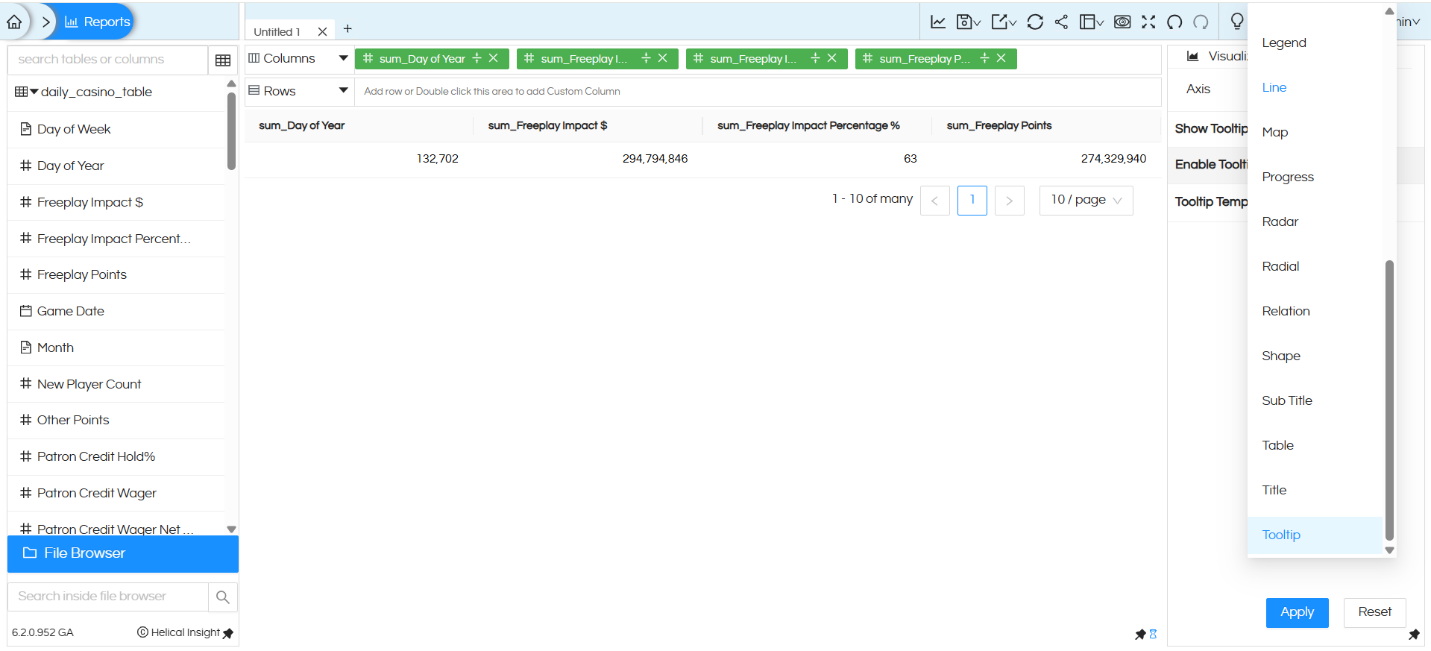
Hover over the meatball icon on top right and select Properties from the dropdown menu.
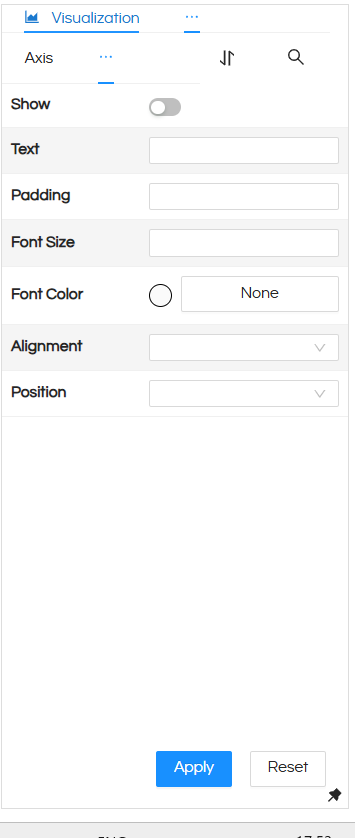
Hover on the meatball icon beside Axis and scroll down for ToolTip property.
b. Show Tooltip Option
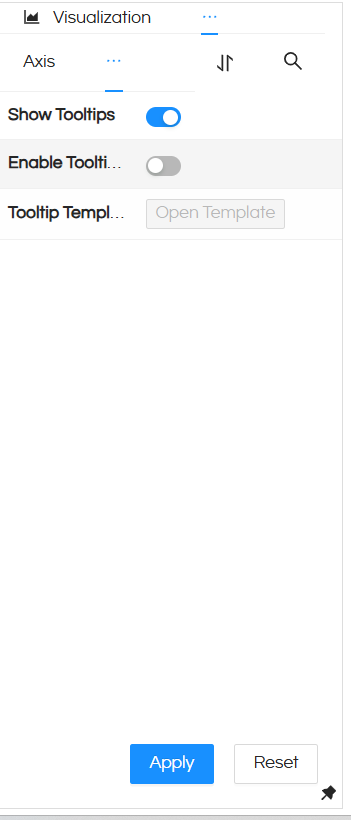
This is a new property added. This option allows you to enable or disable the tooltip display using a simple toggle.
c. Enable Tooltip
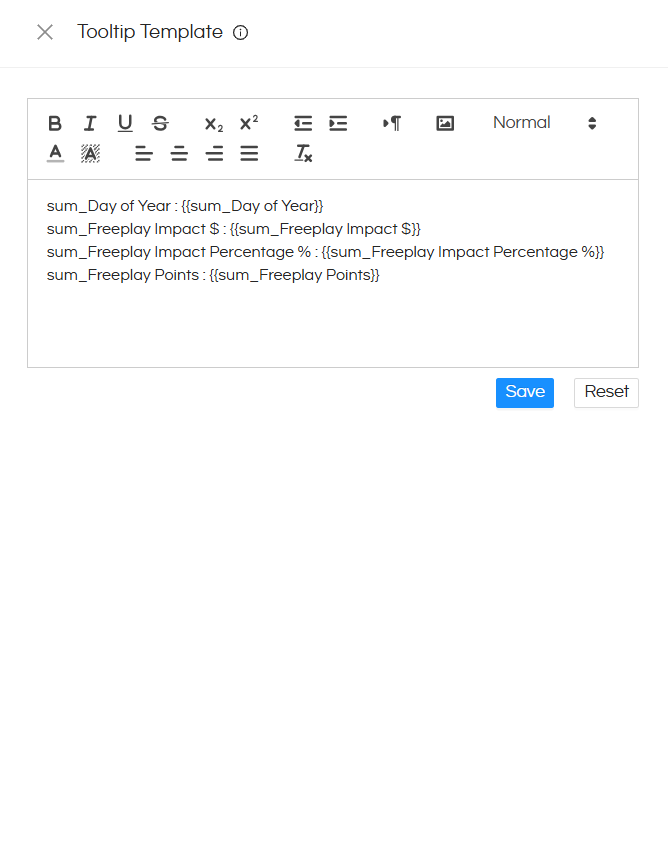
Once enabled, a tooltip template becomes available. You can open this template and customize it as per your requirements:
- Reorder the fields as needed
- Remove any fields you don’t want to display
- Add custom content to create personalized tooltips
Reach out to support@helicalinsight.comin case of any more questions
