
From version 6.2 of canned reports module of open source BI Helical Insight, we have property options which can allow to control export and other behavior. In this blog we will learn which property to set so that when the report is exported, each column will appear with their native format (like numbers as numbers, date as date etc) instead of everything appears as text.
For better understanding, we have created a sample report, as shown below.
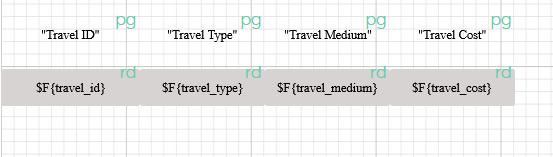
The output generated when the report is exported to xlsx format is shown below:
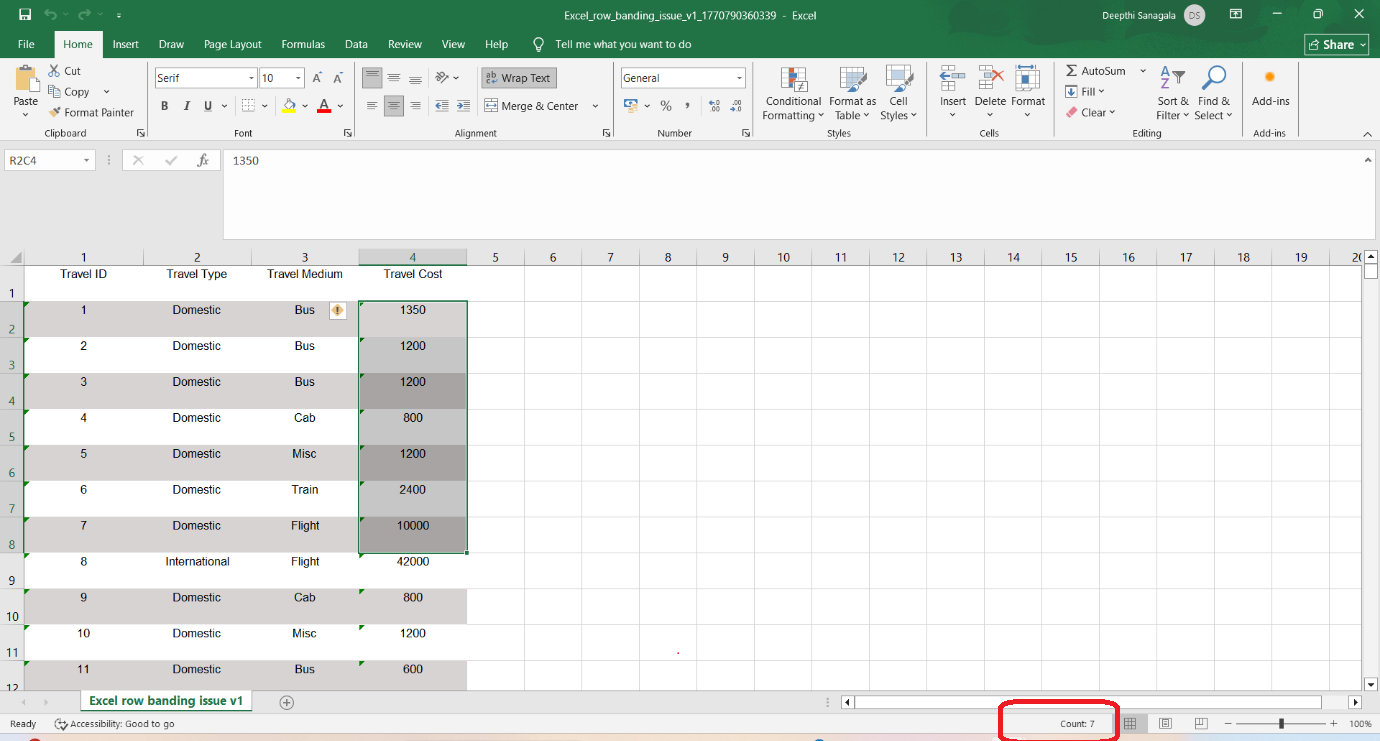
Here, we can see that Excel is not detecting the Travel Cost column as numeric, which is why it is showing Count and not other options like Sum. To resolve this issue, we can add a report property that helps Excel correctly identify the data type.
Property: export.xls.detect.cell.type
This property controls how data is handled when a report is exported.
When this property is set to true, the system automatically identifies the type of data in each cell, such as: Number, Text, Date
Adding the property in our example
- Enter export.xls.detect.cell.type in the Property field. (Read about where to put Property here)
- Set the Value to true
- Click Add
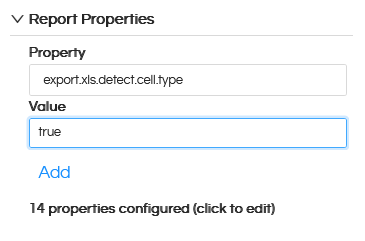
Once added, this property becomes part of the report and ensures that the Travel Cost column is correctly detected as numeric, resulting in accurate calculations in the exported file.
When we export the report to xlsx after adding this property, we get the result as shown below.
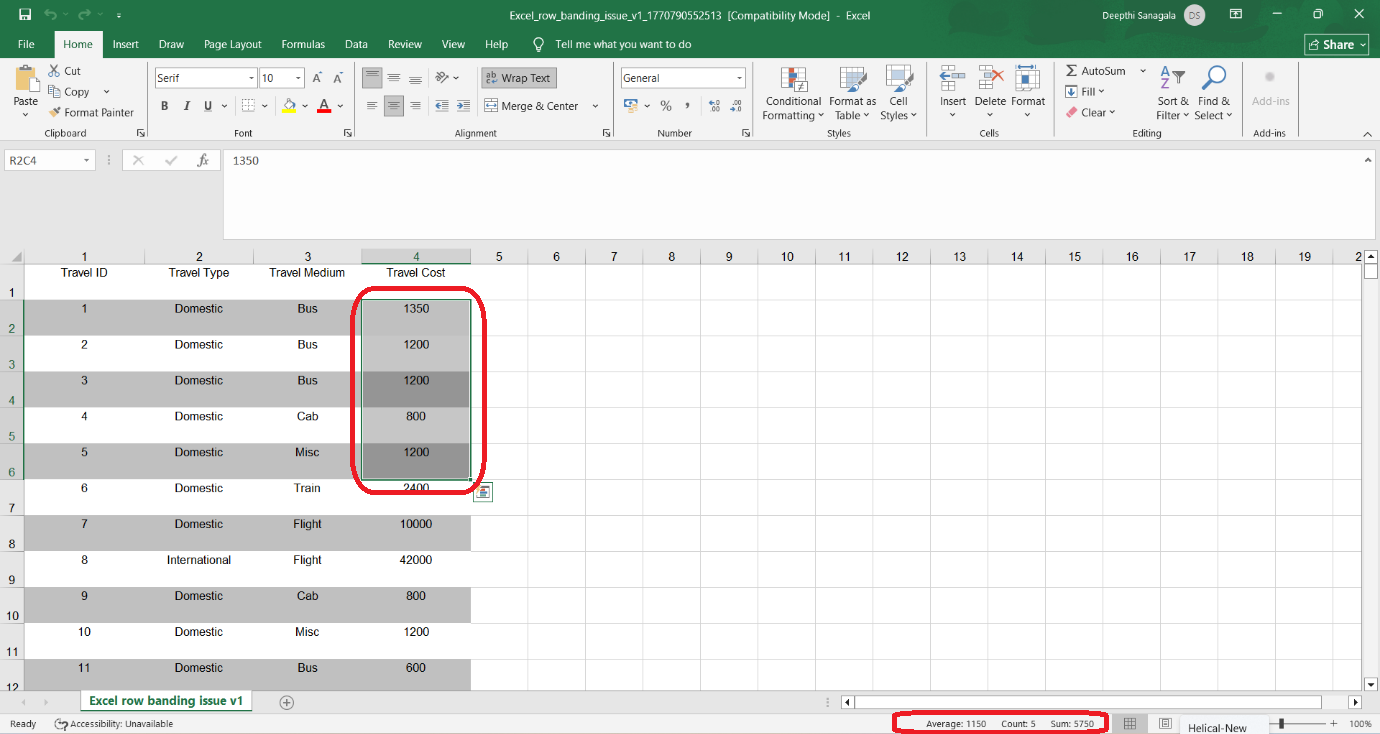
In the above image, when we select the Travel Cost column, it is correctly detected as a numeric value, which is why Excel now shows options such as Average, Count, and Sum.
This confirms that the property is working as expected and the data type is being identified correctly.
When we click an empty box under property we can see the list of properties which we can add to the report.
