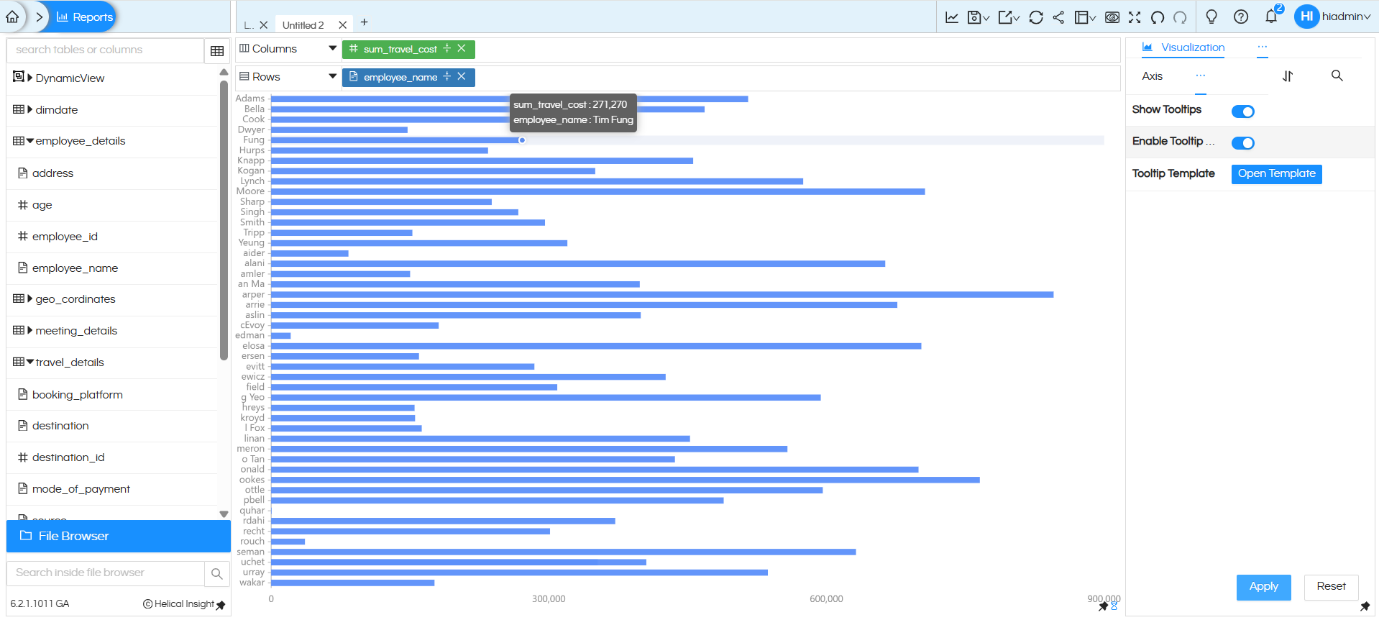
Use Case: When a horizontal bar chart is built using a dimension with long text values (such as employee names), the Y-axis labels overflow and become difficult to read. This guide walks through how to truncate those labels using the RIGHT DB function, and how to display the full name cleanly in the chart tooltip.
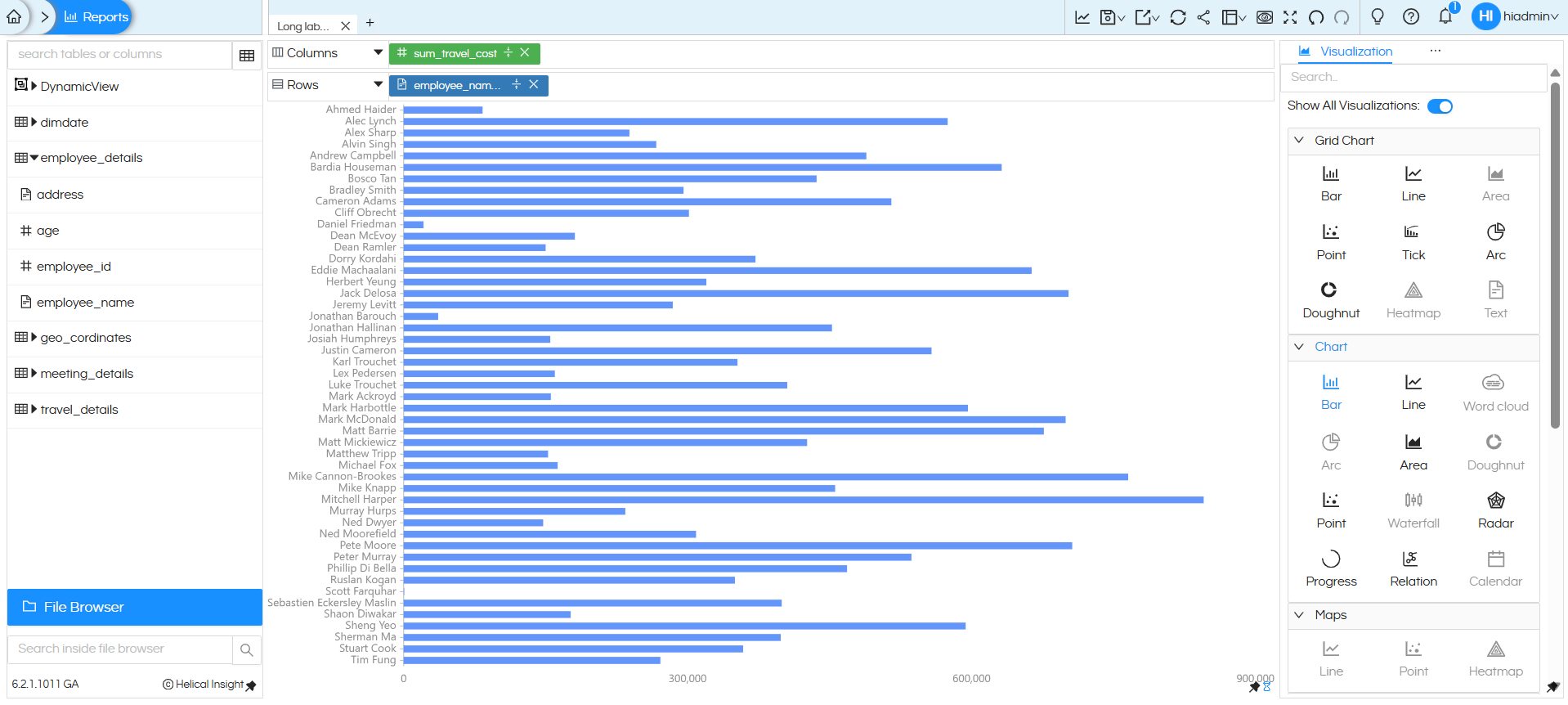
Step 1 — Build the Initial Horizontal Bar Chart
Create a horizontal bar chart using:
- Columns: sum_travel_cost (measure)
- Rows: employee_name (dimension)
The chart will render, but the Y-axis employee name labels will appear truncated or overlapping because the full names are too long to fit.
Step 2 — Apply the RIGHT DB Function to Truncate Labels
To shorten the Y-axis text, apply the RIGHT DB function to the employee_name field. This function extracts a specified number of characters from the right side of a string value.
What is the RIGHT DB Function?
The RIGHT function returns the rightmost N characters of a string. In this context, it is used to limit the number of characters displayed on the chart axis.
How to Apply It
- In the report builder, locate the employee_name field in the table panel on the left.
- Open the Functions panel and search for RIGHT.
- Enter the expression: RIGHT(employee_name, 5) and save.
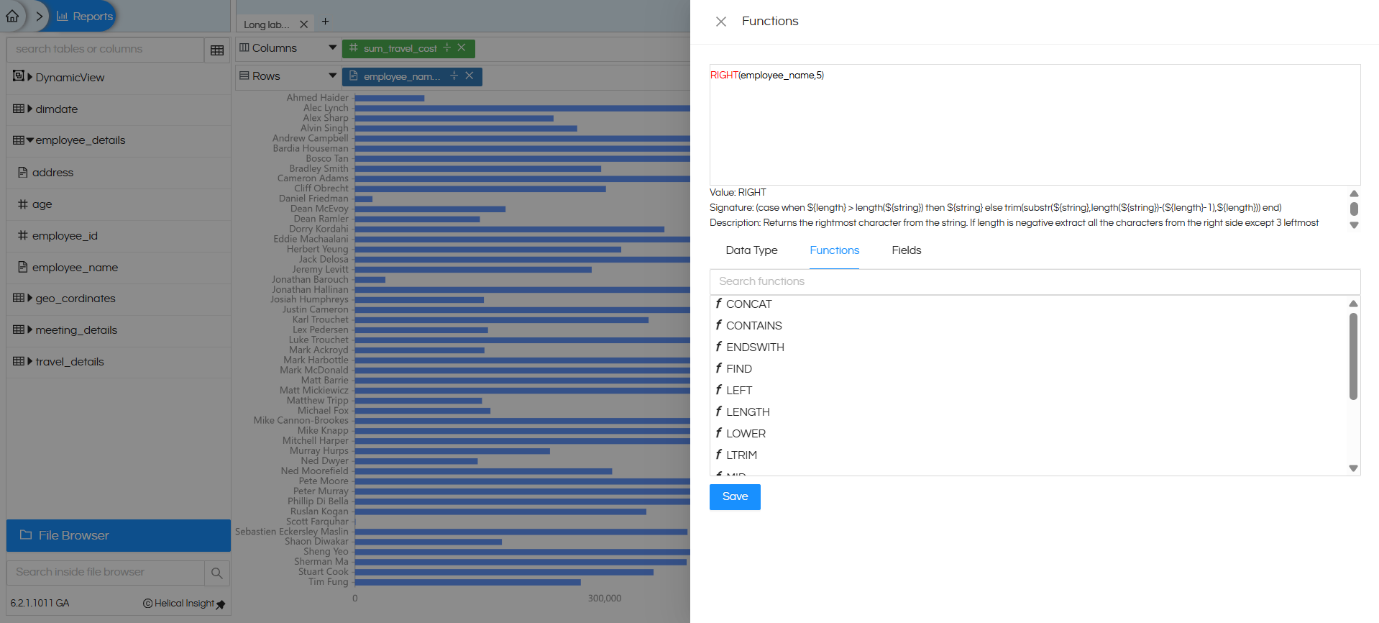
Result: The Y-axis now shows only the first 5 characters of each employee name, making the chart much more readable.
For more details on available DB functions, refer to: https://www.helicalinsight.com/database-functions/
In a similar way, there are other functions also which can be used depending on the db being used.
Aside, instead of using column and applying dbfunction on of it, you can also make use of custom column as well. https://www.helicalinsight.com/custom-column/
Step 3 — Add the Full Name Field to the Tooltip
While the truncated label solves the display problem, it creates another problem wherein the tooltip is also showing the truncated text. Ideally we would like to show full text on hover in tooltip.
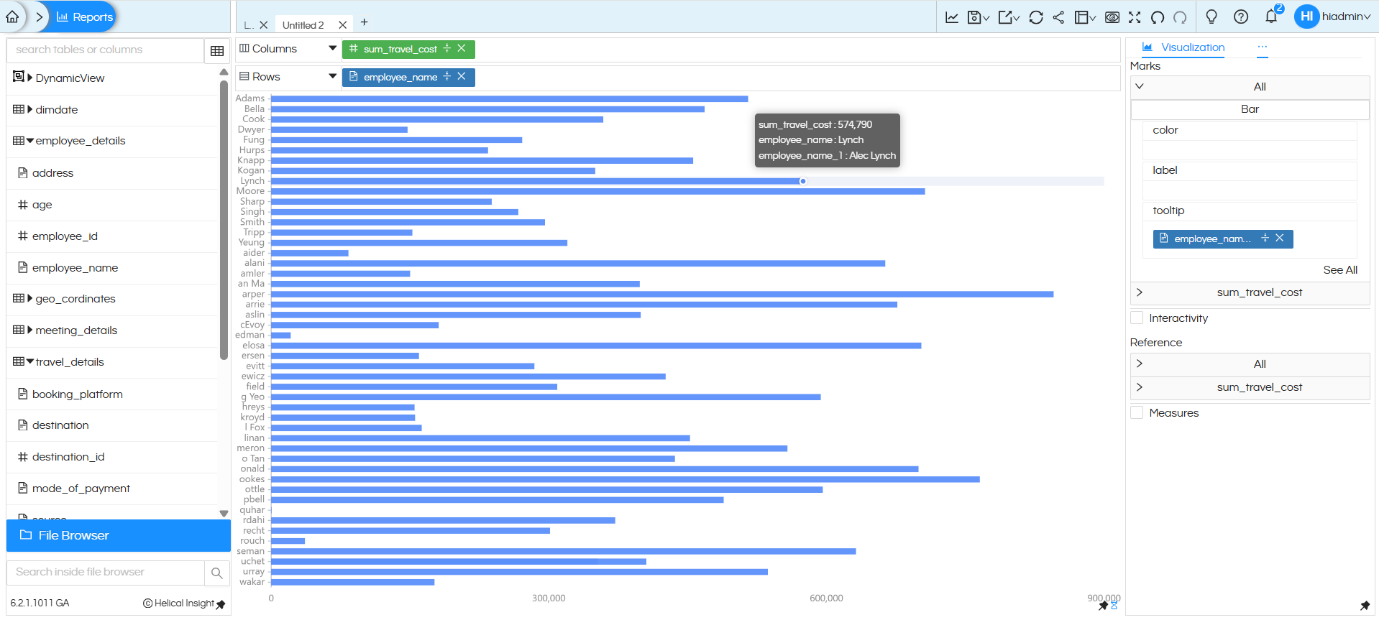
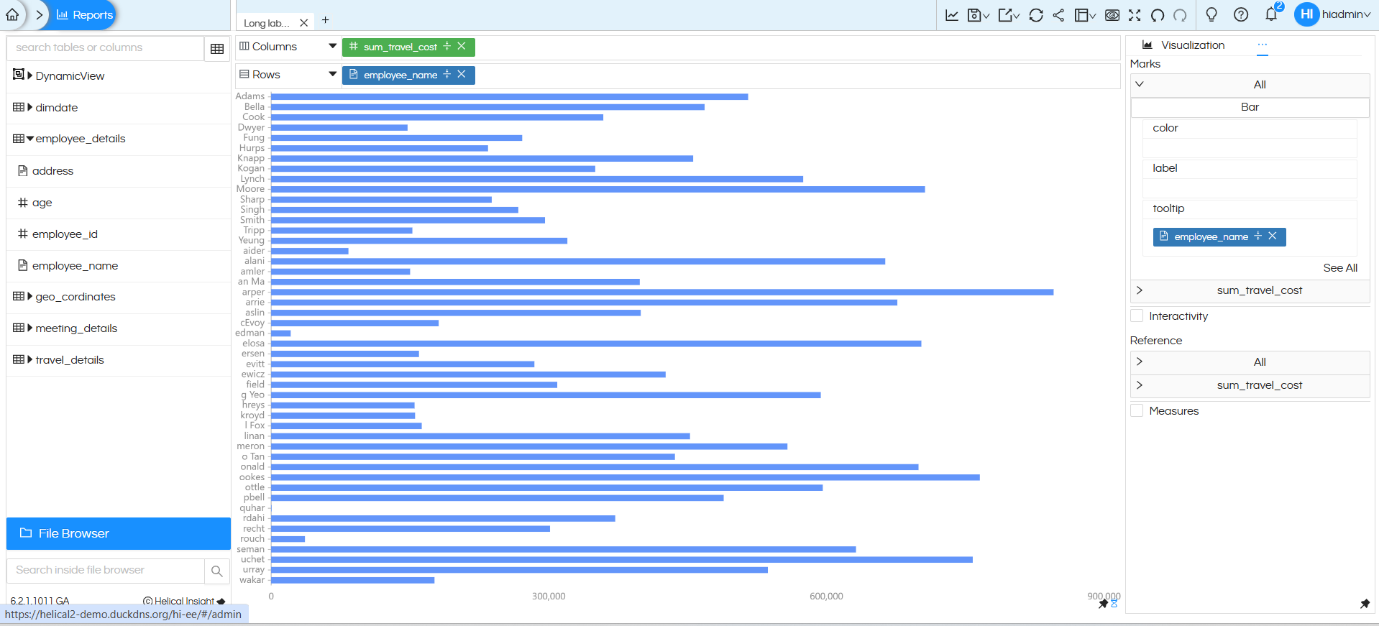
To achieve this, add the original employee_name field directly to the Tooltip section of Marks.
How to Add a Field to the Tooltip
- In the Marks panel, locate the drag-and-drop area for Tooltip.
- Drag the employee_name field from the left table panel (metadata) and drop it into the Tooltip section.
- This adds the full, untruncated name to the tooltip popup.
Step 4 — Rename the Tooltip Field Label
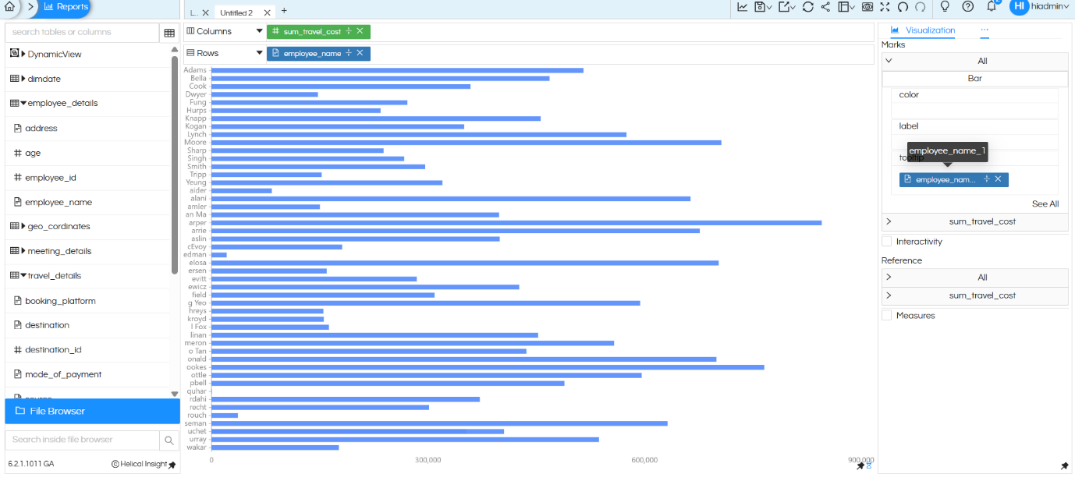
Right now the same field name (employee_name )is present both at “Rows” and in “Tooltip” of Marks. Rename it at anyone of the place. In this below we are renaming it at the Tooltip level.
How to Rename
- In the Marks panel, double-click on the employee_name field text.
- An editable text box will appear. Type the desired display label (e.g., Employee Name) and press Enter.
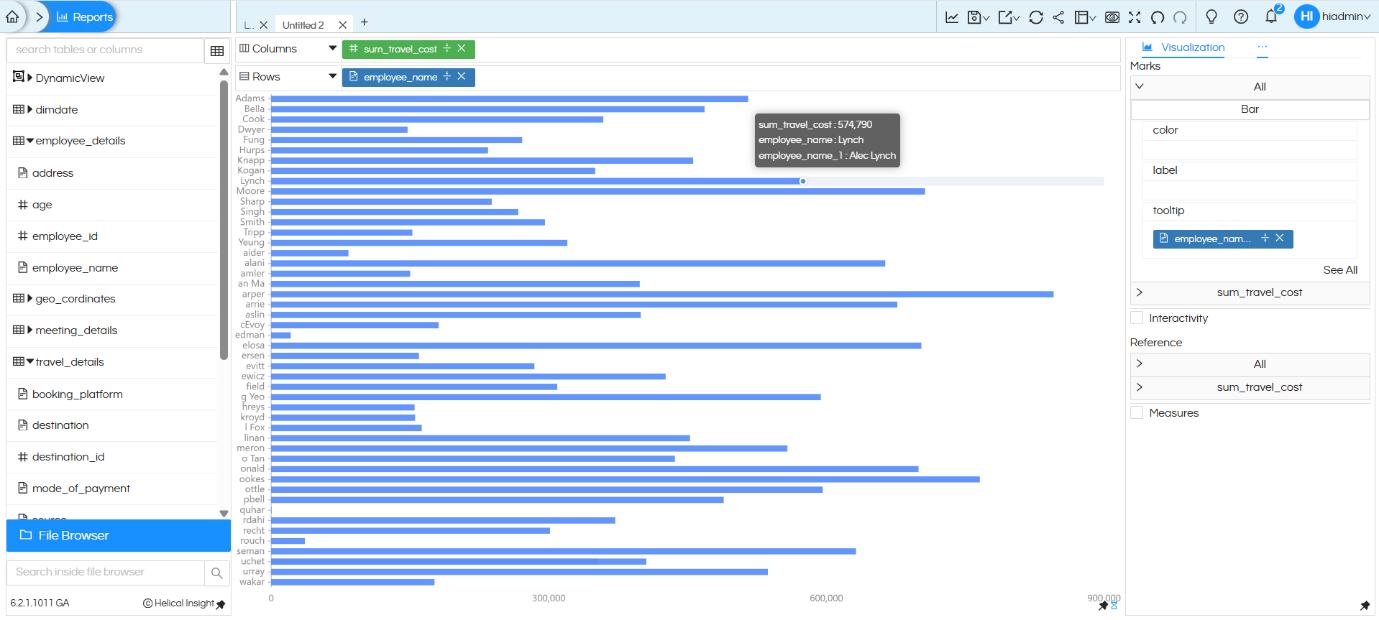
After renaming the field, when you hover over a chart bar, you may notice that the employee name appears twice in the tooltip:
- Once from the Rows
- Second time from the Tooltip
Step 6 — Configure the Tooltip Template (Helical 6.2+)
Now in the tooltip we can see it 2 times, which is ideally not required. Hence we will cover how to handle that.
From Helical Insight version 6.2 onwards, a Tooltip Template editor is available. This allows you to fully control what appears in the tooltip — removing the duplicate entry and showing only the full name.
Opening the Tooltip Template
Hover on hamburger icon beside visualization, Go to Properties panel, hover on hamburger icon beside Axis, click on Tooltip.
Click the Open Template button to launch the Tooltip Template editor.
You will see the template currently showing both the truncated name (from RIGHT function) and the full name.
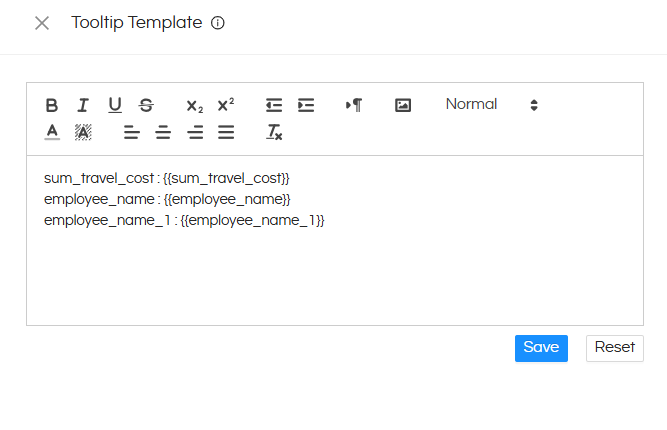
sum_travel_cost : {{sum_travel_cost}} — The Measure
employee_name : {{employee_name}} – From Rows (next step we remove this)
employee_name_1 : {{employee_name_1}} – ToolTip (here we will change employee_name_1 heading to emplyee name)
The left side names can be anything (instead of sum_travel_cost you can keep Travel Cost)
Editing the Template
Remove the duplicate line for the truncated label (the Row function output) from the tooltip template, keeping only:
- sum_travel_cost — the measure value
- employee_name — the full employee name from Tooltip of Marks
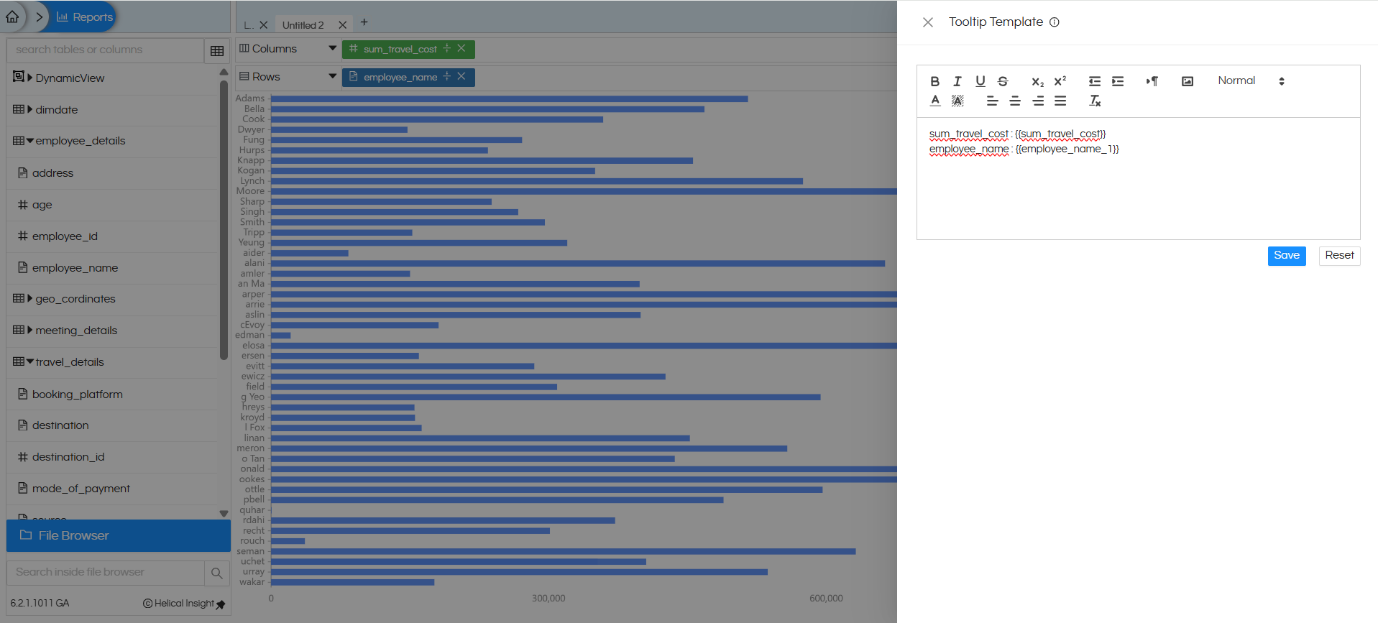
Click Save to apply the template.
For more about the Tooltip Template feature, refer to: https://www.helicalinsight.com/tooltip-property-with-configurable-fields/
Final Output
After completing all the steps, the chart now displays:
- Shortened Y-axis labels — using the RIGHT DB in Rows function for clean, readable axis text
- Full employee name in the tooltip — displayed cleanly on hover with no duplication, coming from Tooltip section of Marks.