
Overview
The user interface of Helical Insight was completely revamped from Helical Insight version 5.0 onwards. You can add custom CSS and JavaScript to an interactive drag drop based HReport to achieve requirements that may not be directly available through the standard UI options or report properties.
Helical Insight provides dedicated CSS and JavaScript placeholders within the HReport interface. These can be used to customize the behavior and appearance of a particular report.
In this blog, we explain how to access and use these CSS and JavaScript options in HReport.
What are CSS and JavaScript placeholders?
The CSS and JavaScript placeholders allow you to add custom code to an HReport.
They are useful when you have a custom requirement that cannot be achieved directly through the available UI options or visualization properties.
For example:
- Customizing the appearance of elements in a report.
- Applying specific styling to a particular report.
- Automating certain report-related actions using JavaScript.
- Implementing custom behavior during different stages of report execution.
How to Access CSS and JavaScript Options
Step 1: Open the Operations menu
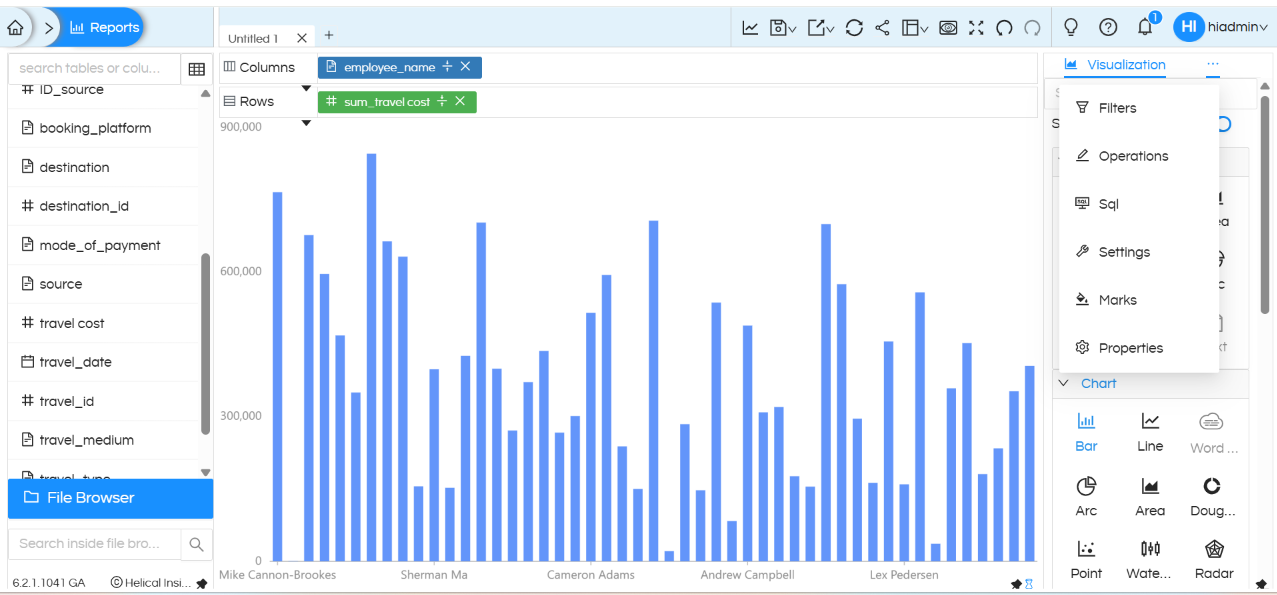
While creating or editing an HReport, click the three-dot menu (…) to open the available options.
From the list of options, click Operations.
Within the Operations section, you will find options for JS and CSS.
Adding Custom JavaScript
Step 2: Open the JS section
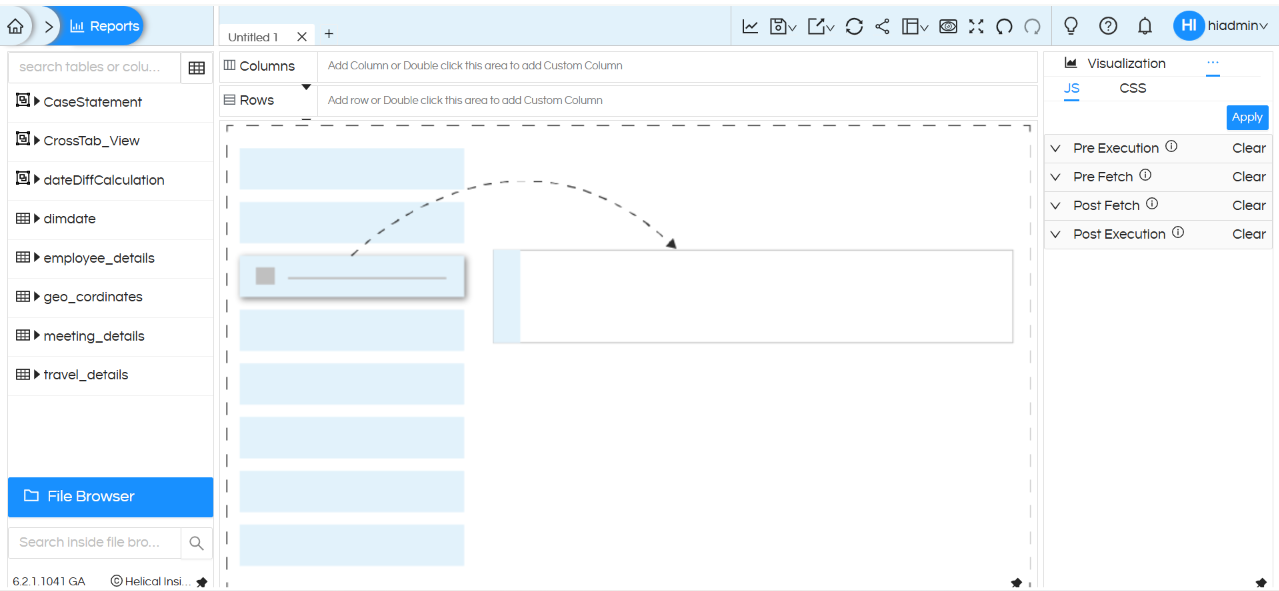
Within Operations, click JS.
You will find four separate JavaScript placeholders:
- PreExecution
- PreFetch
- Post Fetch
- Post Execution
These represent different stages in the HReport development/execution lifecycle where custom JavaScript can be executed.
Understanding the JavaScript placeholders
The four JavaScript sections can be used depending on the requirement.
PreExecution
The PreExecution JavaScript section can be used when custom JavaScript needs to be executed during the pre-execution stage of the report.
PreFetch
The PreFetch JavaScript section can be used when custom JavaScript needs to be executed during the pre-fetch stage, before the report data is fetched.
Post Fetch
The Post Fetch JavaScript section can be used when custom JavaScript needs to be executed after the report data has been fetched.
Post Execution
The Post Execution JavaScript section can be used when custom JavaScript needs to be executed during the post-execution stage of the report.
Using one or multiple JavaScript options
Depending on the requirement, you can use one or multiple JavaScript placeholders at the same time.
For example, a requirement may need JavaScript to execute before data is fetched, while another requirement may need JavaScript to execute after the data has been fetched.
The appropriate JavaScript section should therefore be selected based on when the custom code needs to execute.
These options are particularly useful when you want to automate certain activities within an HReport.
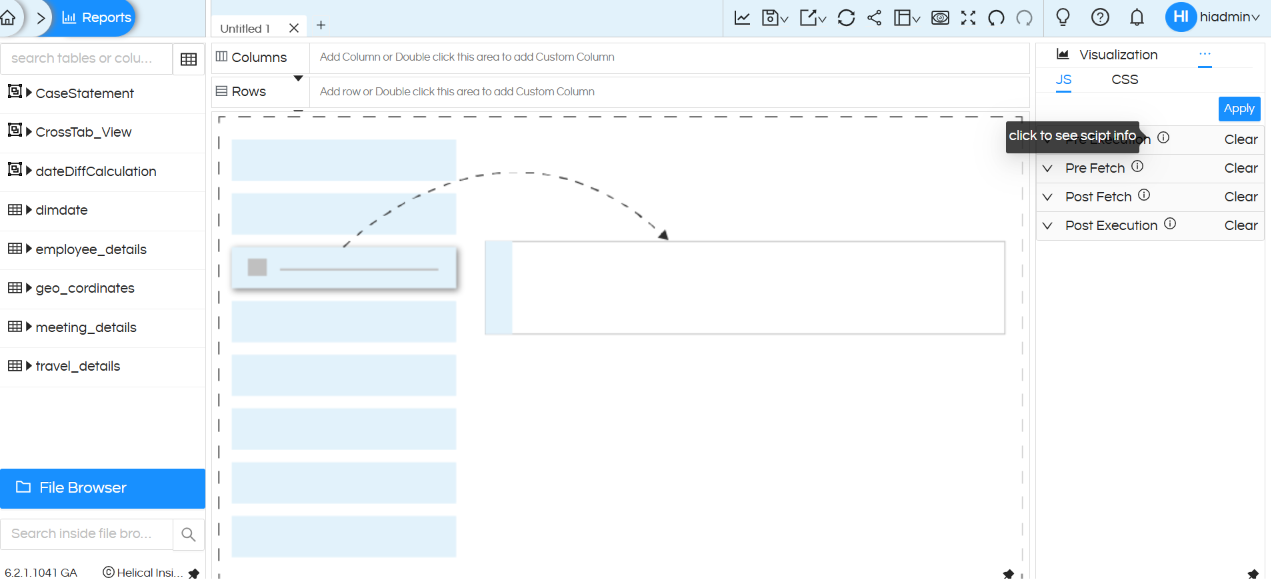
You can click the information (i) icon available in the interface to understand the functionality and details associated with each category.
Adding Custom CSS
Step 3: Open the CSS section
To apply custom styling to an HReport, go to:
Three-dot menu → Operations → CSS
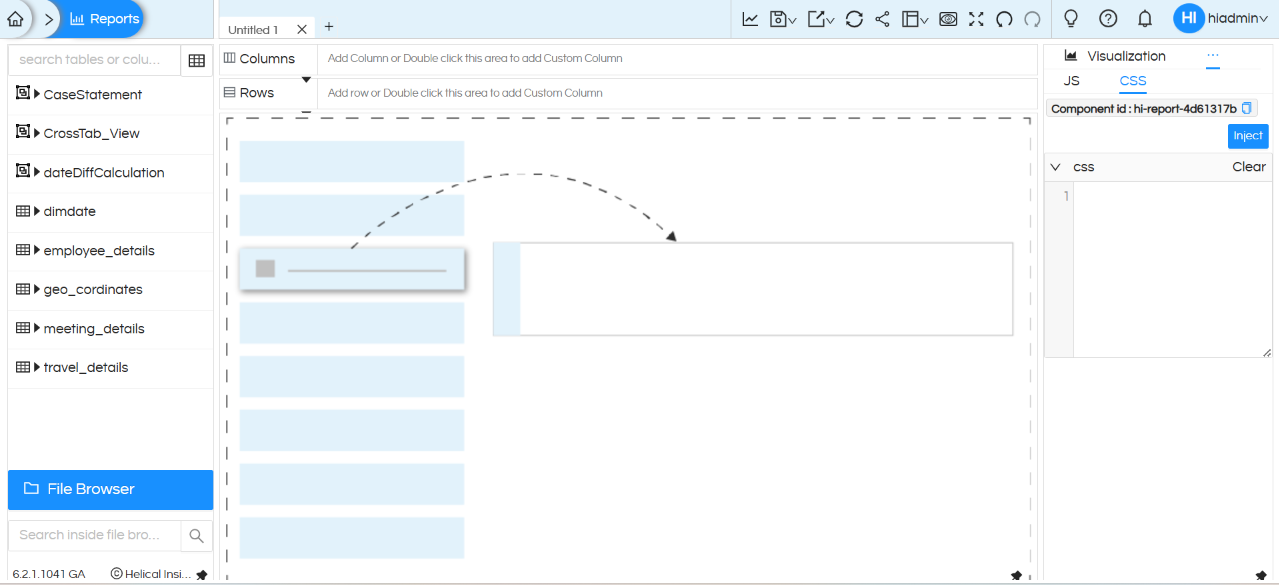
The CSS section allows you to enter custom CSS rules that can be used to modify the appearance of elements within the report.
Using the Component ID
Within the CSS section, you will find a field called:
Component id: #hi-report-******
The Component ID is the unique HTML ID associated with the particular HReport.
This ID can be used to apply CSS specifically to that report.
This is particularly useful when you want to ensure that your custom styling affects only the selected HReport rather than other reports or elements on the page.
Example of Custom CSS
Suppose the Component ID of your report is:
#hi-report-20dfea53
You can use this ID to apply styling specifically to the table within that report.
For example:
#hi-report-20dfea53 table td {

    color: red !important;

}
In this example, the CSS targets the table cells (td) within the HReport having the specified Component ID.
As a result, the text color of the table cells in that particular report will be changed to red.
https://forum.helicalinsight.com/
or write to us on
support@helicalinsight.com
