
Instant BI is an AI-powered conversational analytics feature in Open source BI Helical Insight that enables users to interact with their data using natural language. Instead of manually creating reports or dashboards, users can ask questions in plain English and receive instant insights along with visualizations. The generated analysis can also be saved for future use, shared with other users. The workflow below is based on the Instant BI usage guide.
Step 1: Open Instant BI

From the Helical Insight home page, click the Ribbon icon to expand the navigation panel. Select Instant to launch the Instant BI interface.
Step 2: Select an semantic model
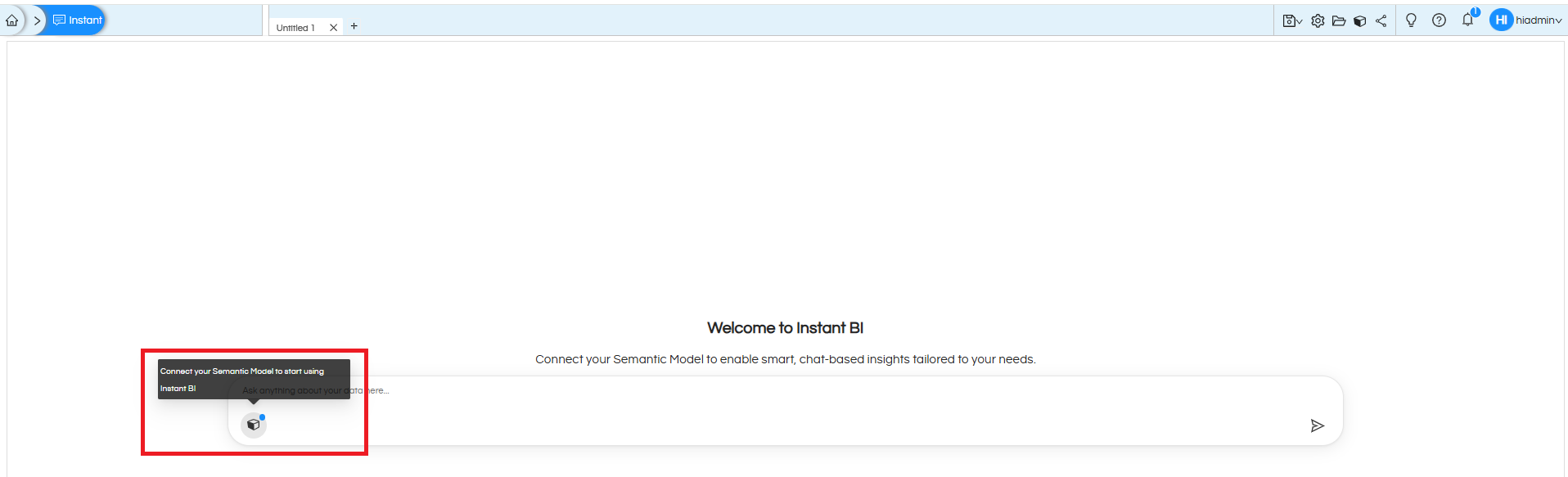
After the Instant BI page opens, click the semantic model icon (highlighted in the guide) and select the semantic model you want to use.
Reference
Click here (https://www.helicalinsight.com/instant-bi-ai-powered-analytics-agent-creation/) to learn how to create agents.
Step 3: Ask Questions in Natural Language
Once an semantic model is selected, Instant BI displays several suggested questions to help you get started. You can either:
- Click one of the suggested questions, or
- Type your own business question in the chat box.

For example:
- What is the total revenue for the current month?
- Show the top five customers by sales.
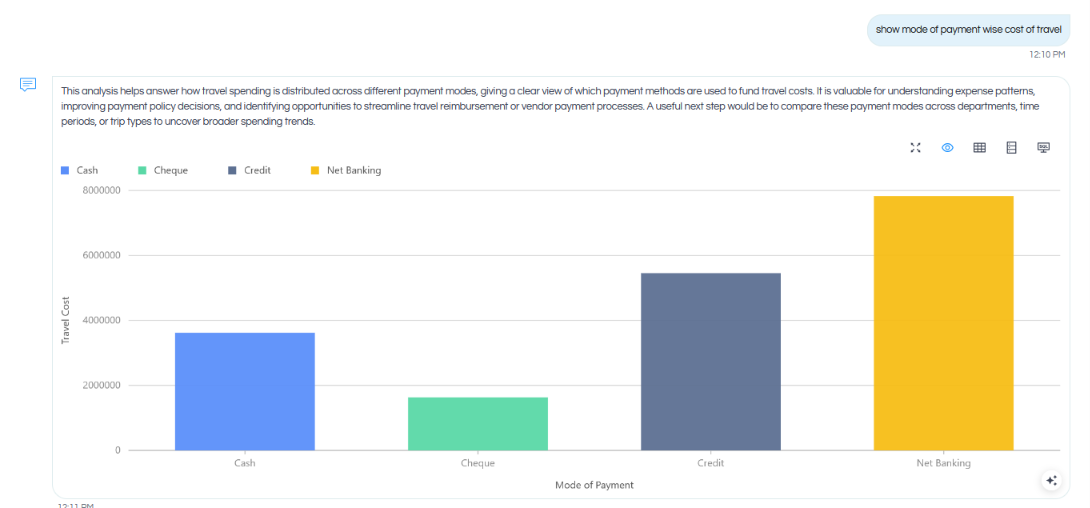
There are several other options which are appearing like

| Option | Description |
|---|---|
| Maximize | First option is maximize, allowing you to maximize this chat and see it in a full screen. Once maximized, at the top right you have the option to close the full screen mode. |
| Preview | By default the AI assisted analytics opens in preview mode. |
| Data | Third option is data. Here we can see the actual data basis which the visualization got created. |
| Semantic | Fourth option is semantic option. This option opens up information of various things like which all tables and columns, dimensions etc were used to create this analysis. We can also see the number of tokens (input and output token) were used to create this analysis, model used etc. |
| SQL | This option allows you to see the SQL which got generated and verify it. This option is more useful for technical users. |
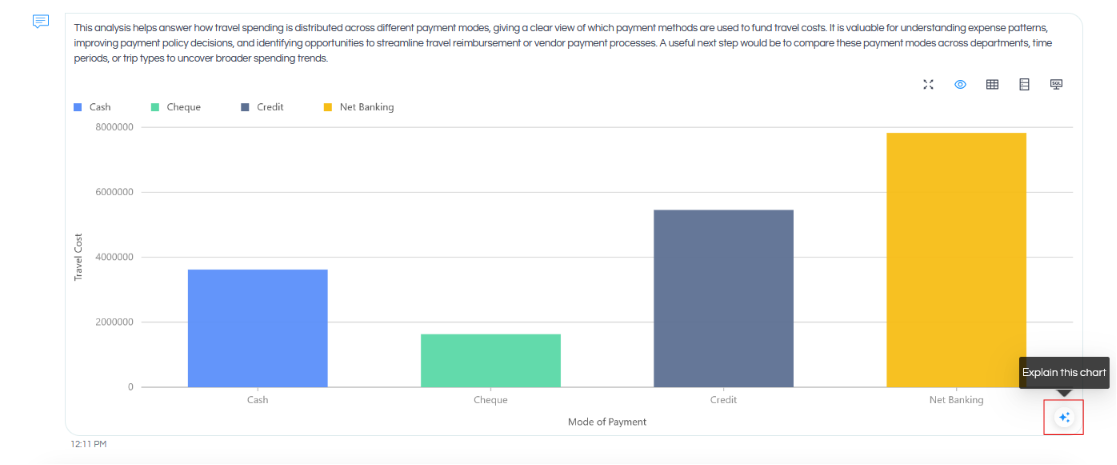
When you hover over the created analysis, at the bottom you can also see “Explain this chart”. When we click on this, the data of this SQLQuery response got to LLM and it explains the chart. By default we do not include such information in the response because it helps us to reduce the tokens usage.

NOTE: Some important points to remember while using Instant BI
Currently limited visualizations are added in the first version which includes card widget (for showing single value), pie chart, line chart, area chart, bar chart. We would be adding more visualization options in the upcoming releases. In the initial question or follow-up question, it’s possible to even ask for changing the look and feel of the chart as well.
We can ask more complex questions also. If the response is not correct then that means we have to fine tune our semantic model as well as perhaps switch to a better AI LLM model.
Our questions gets converted into SQL, the platform is capable of generating complex SQL also with nested clauses, windows functions, DB functions etc. In case if you are using a DB (like Derby, SQLite etc) which do not support complex SQL functions, then complex questions might not be able to answer. Whereas the same will get answered when in some cases
Step 4: Asking follow-up questions
There is memory also implemented, allowing you to ask follow-up questions (on upto 3 previously asked questions).
However when we ask a question, the follow-up question can be on the below lines
- On the question itself. Like original question is “Show me source wise travel cost” and follow-up question can be “convert above analysis into destination wise”
- On the visualization. Like “change this into a donut chart”
For now we are not storing the data response because of which follow-up questions asking about a specific data point can not be asked. Reason being, doing that can increase the token usage a lot as well as it can also increase the memory requirement at the server level. However if your follow-up question is having full context then you would get the response.
Step 5: Saving
If you want to keep the generated insights, use the Save or Save As option available in the top-right corner of the Instant BI interface. This allows you to store the analysis for future reference or continue working on it later.
Available Options
| Option | Description |
|---|---|
| Save | Updates the existing analysis. |
| Save As | Creates a new copy with a different name. |
You can also share the created analysis with other set of users. When you share it, make sure that all the respective resources are also shared like metadata, data sources, folders in which it is saved. You can refer to this blog to learn how sharing works. Note that in this case the semantic model and instant BI sharing (along with folders where it is saved) will also be required.
Step 6: Opening an already saved Instant BI analysis
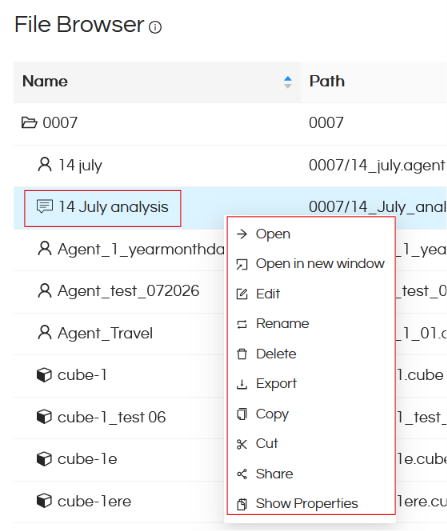
Once an Instant BI AI analysis is saved, it can again be opened by clicking on file browser, navigating to that specific file, select it right click on it and “Open”. There are a lot of other options also which appear which based on the permission level that you, might have like Open in new window, Edit, Rename, Delete, Export, Copy, Cut, Share, Show Properties.
When you use the option of open in new window, you can also get an embeddable URL as well which can be used for embedding. Aside, if you would like to create a custom bot/chat frontend, then you can make use of API as well.
Step 7: Token Audit Module
With the usage of AI, LLM tokens are being used. It is very important to monitor the tokens usage. With version 7.0, we have also introduced an audit module which allows to monito the same.
When you log in as a Super Admin, click the hamburger icon and navigate to the “Audit” section.
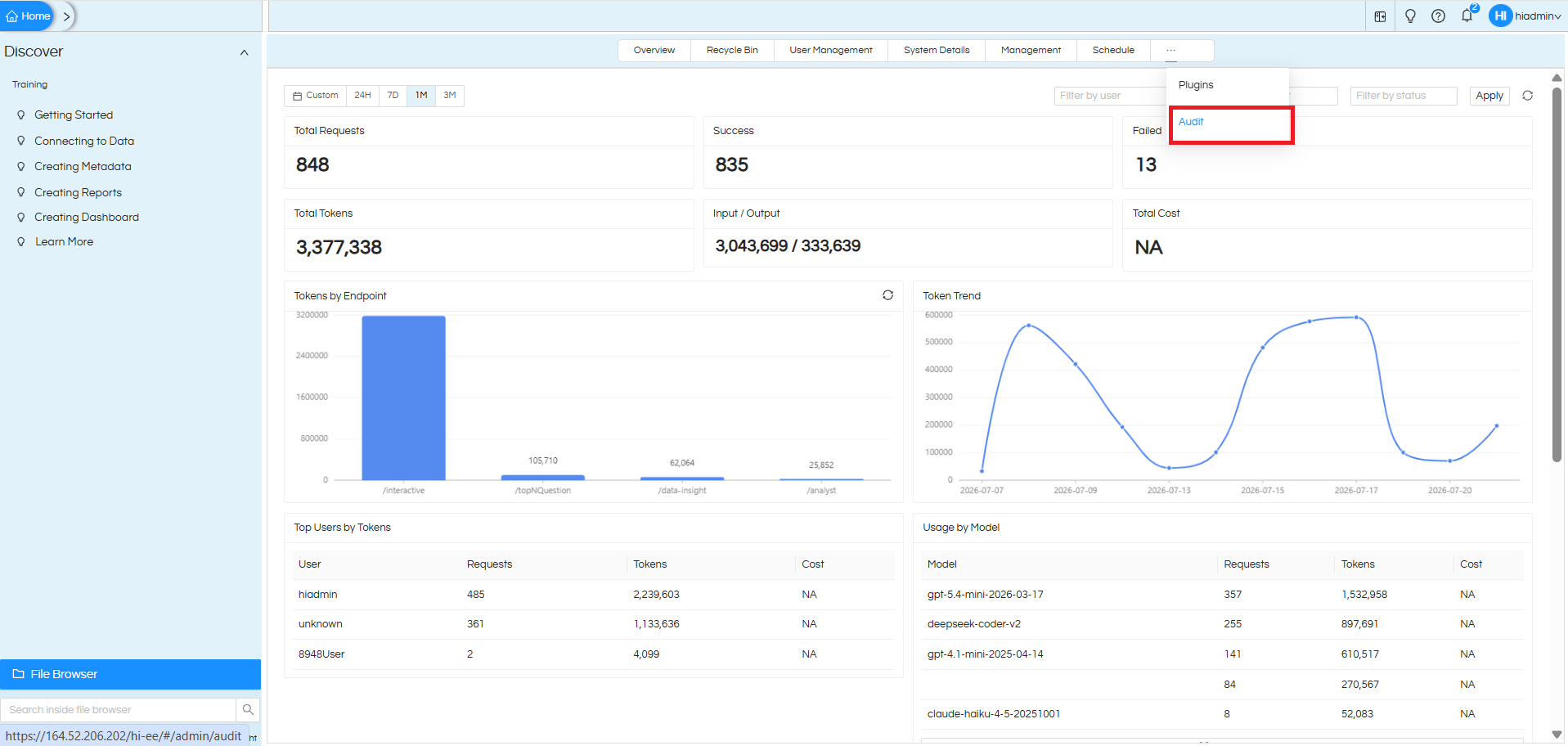
This module allows you to track various things like
- Token usage
- User wise token usage
- Model wise token usage
- Question wise token usage
You can also select various kind of filters present at the top, basis which the data can get changed.
Further Reading
a. Click here (https://www.helicalinsight.com/instant-bi-llm-api-configuration/) to learn how to configure the LLM API key.
Need Help?
Feel free to reach out on support@helicalinsight.com in case of any more questions.
