
In the earlier version of open source BI helical Insight (version 6.2), System/User Defined Properties were introduced at the report level — allowing users to configure behavior, export, bands, and other report-wide functionalities.
However in many cases we may want to apply this not for the entire report but rather for any specific component. Keeping that requirement in mind, from version 6.2.1 onwards, this powerful capability has been extended to the component/element level. You can now apply User Defined Properties directly to any of the individual canvas elements — such as a Text field, Table cell, Image, Chart, and so on — giving you fine-grained, per-component control over behaviour, overflow, print logic, and export handling.
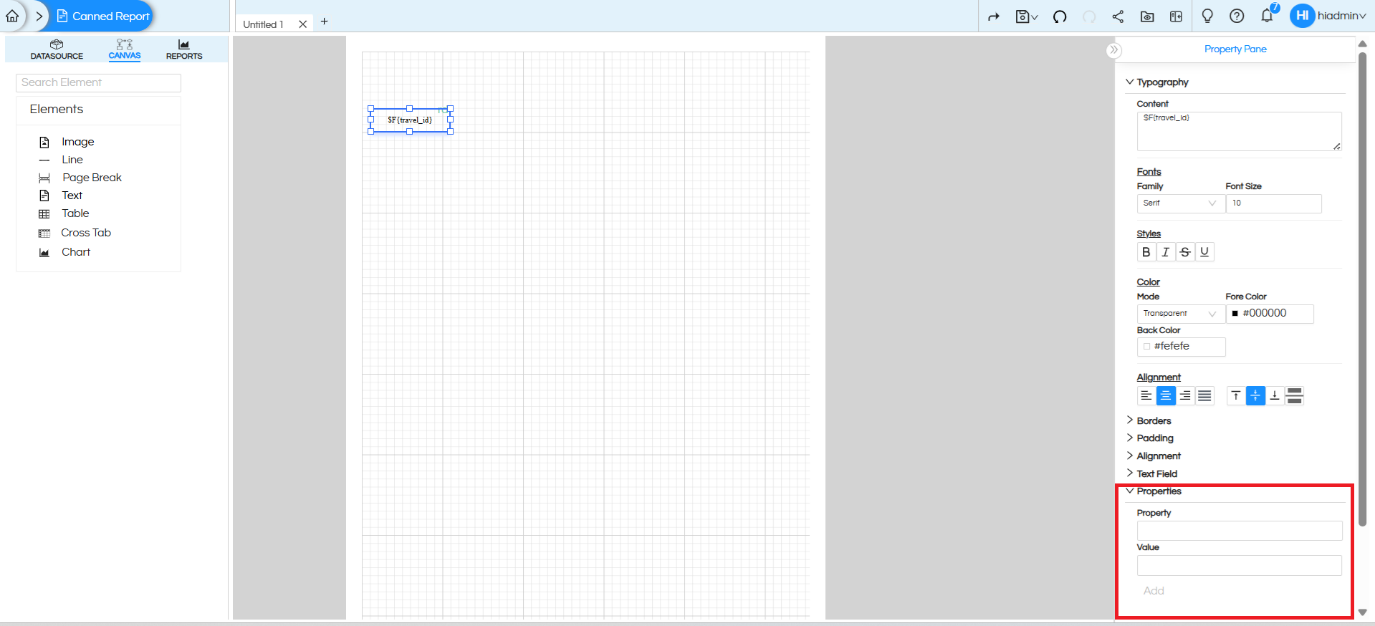
As seen in the Canvas editor, after placing any element (e.g., a Text element showing $F{travel_id}), the Property Pane on the right side has a new section called “Properties” at the bottom (highlighted in red). This section contains:
- Property — the name of the property (e.g., stretchWithOverflow)
- Value — the value to assign (e.g., true)
- Add — button to apply the property to the selected component
End-to-End Usage Example: Handling Variable-Length Text with Behavioural Properties
Let’s say you have a Text element on the canvas that displays $F{remarks} — a free-text column where users enter notes of varying lengths. You want to:
- Expand the element vertically when text overflows instead of truncating it
- Collapse the element completely when the value is null or blank
- Suppress repeated values when the same remark appears on consecutive rows
Here’s how to do it step by step:
Step 1 — Select the Component
Click on the Text element ($F{remarks}) on the canvas. The Property Pane appears on the right.
Step 2 — Scroll to the “Properties” Section
At the bottom of the Property Pane, you’ll see the Properties section with Property and Value input fields.
Step 3 — Apply stretchWithOverflow
- Property: stretchWithOverflow
- Value: true
- Click Add
This allows the text element to grow vertically when its content exceeds the defined height — instead of truncating the text. Essential for any free-text or comments field where content length is unpredictable.
Step 4 — Apply isRemoveLineWhenBlank
- Property: isRemoveLineWhenBlank
- Value: true
- Click Add
When the field value is null or blank, the element’s vertical space is collapsed entirely rather than leaving an empty white gap in the report. This keeps the report compact and professional.
Step 5 — Apply printRepeatedValues
- Property: printRepeatedValues
- Value: false
- Click Add
When set to false, a field value that is identical to the previous row is left blank — making grouped or sorted reports much cleaner and easier to read.
Result
The $F{remarks} text field will now:
- Expand to show full text regardless of length
- Leave no blank gaps when the value is null
- Print the remark only once when consecutive rows share the same value
Reference
For the full list of all supported User Defined Properties and their accepted values, refer to the official blog: User Defined Properties – Helical Insight Canned Reports
For questions, reach out to: support@helicalinsight.com
