
In the previous blog, we have learnt usage of image component where the image direct URL is provided or it is uploaded locally.
Starting with version 6.2.1 of open source BI Helical Insight, new methods for adding and displaying images have been introduced, enabling dynamic image rendering. That means you can have the images present in your database (as a path of the image or a BLOB file) which can then be dynamically rendered in the created canned report.
In this blog, we will explore both methods and demonstrate how to render images using each approach.
Method 1 (DB having Direct URL) :
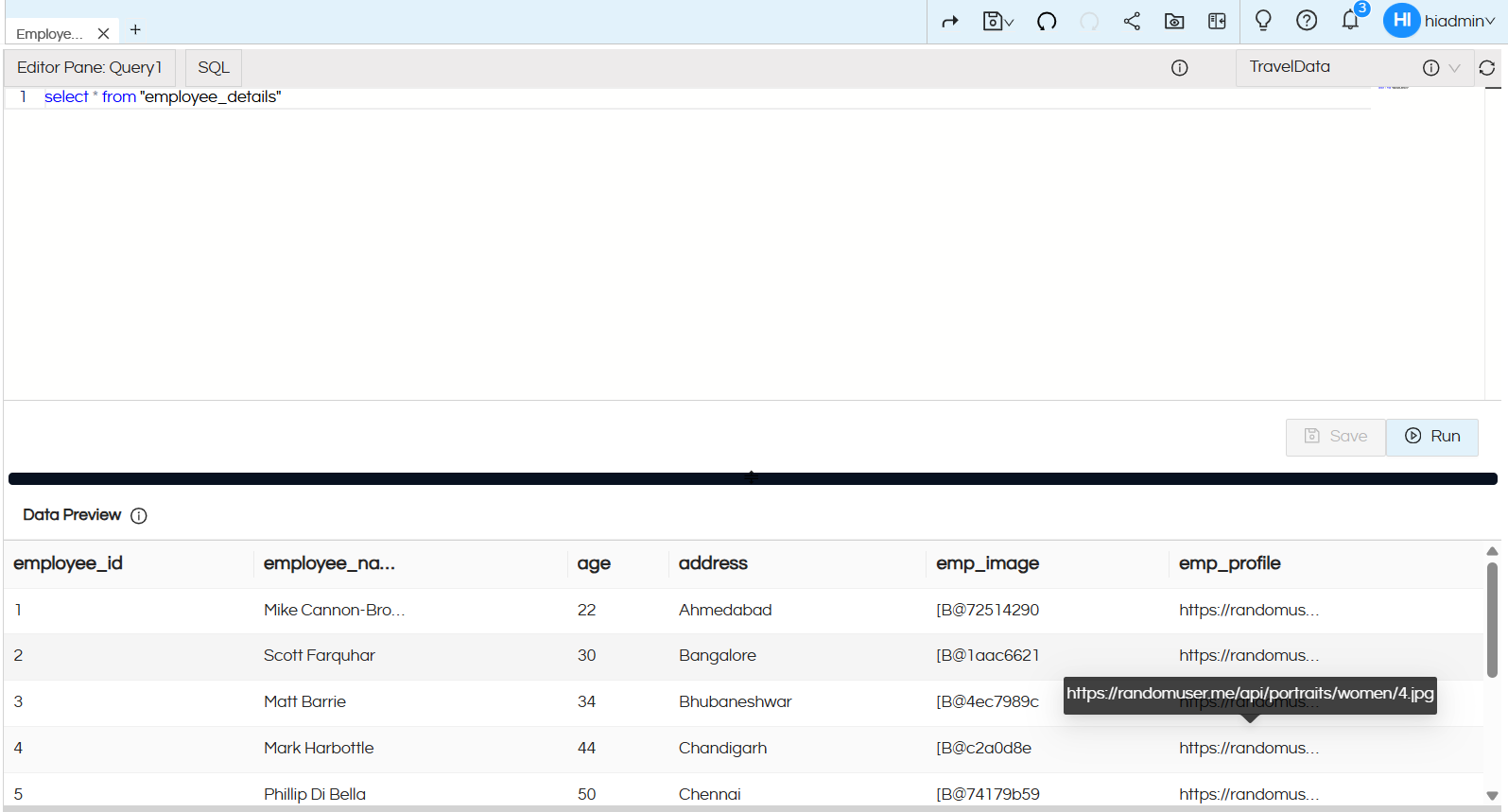
In this method, the column/field should contain the direct URL of the image you want to render
- In the above example, the emp_profile field contains direct image URLs that need to be rendered for each row. In the next step, we will use this field to create a basic card displaying employee details along with the corresponding image.
- Navigate to the Canvas section and add an Image component. You will see options similar to those shown in the image below.
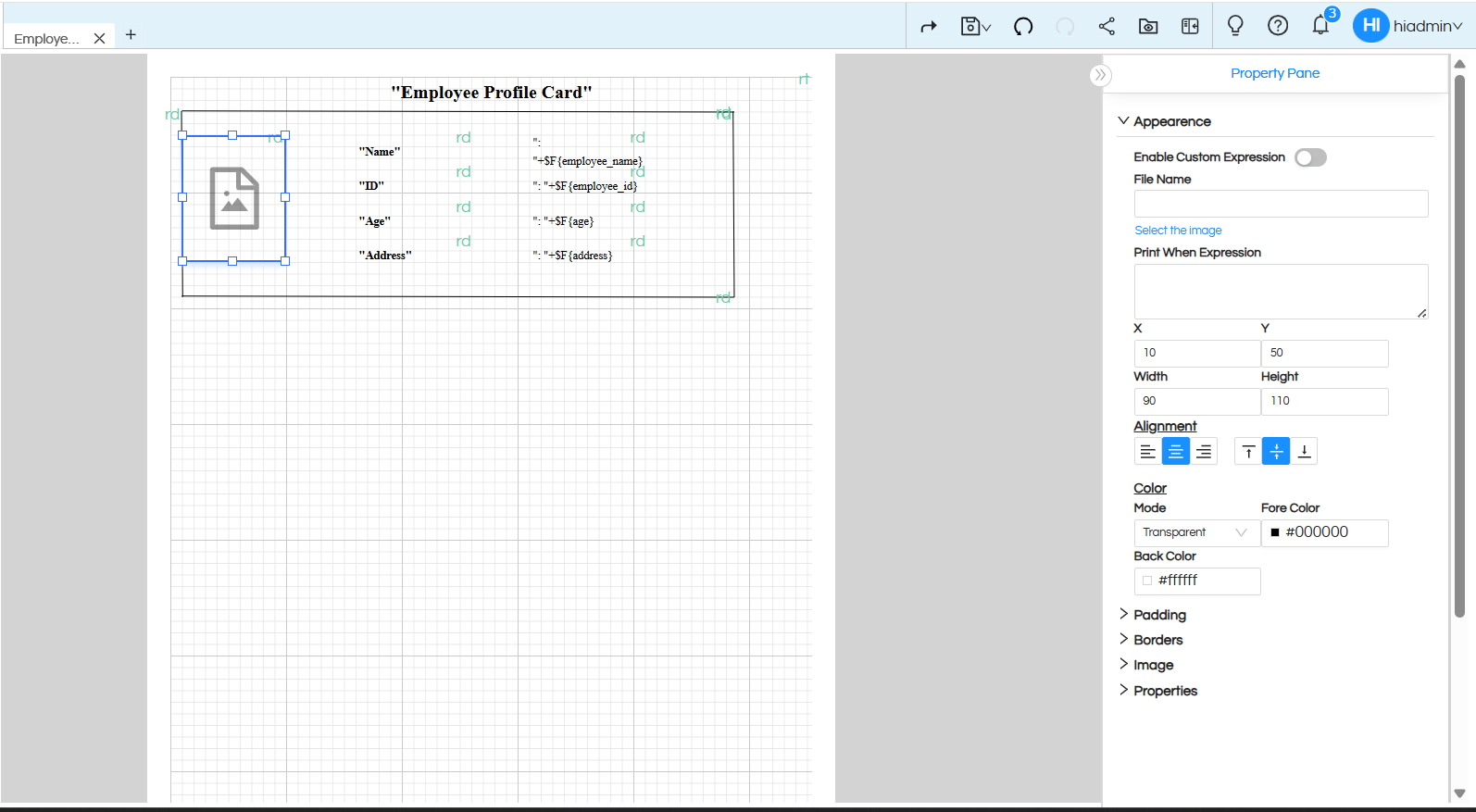
By default, the Enable Custom Expression option is disabled. Enable this option to proceed.
A text input field will now be available. Click on it and navigate to the Fields section, where all fields retrieved from the query will be displayed.
Select the field containing the direct image URL, for example, emp_profile
Once the field is selected, its reference will appear in the input field. This indicates that the Image component is now dynamically retrieving the image URL from the database column instead of using a hardcoded value.
Click Preview to view the report, where images will be rendered dynamically for each corresponding row or card.
This is one method for rendering images in the report directly from data stored in the database.
Method 2 (Blob) :
The method and steps are the same as the process described above; the only difference is that the field contains image data in BLOB format instead of a direct URL (refer to the image below for reference).
Here, the emp_image field contains image data in BLOB format.
Select the emp_image field in the input text field, as shown in the image below.
Once the field is selected, its reference will appear in the input field. This indicates that the Image component is now dynamically retrieving the image value from the database column instead of using a hardcoded value.
Click Preview to view the report, where images will be rendered dynamically for each corresponding row or card.
Using Custom Expression :
In this document, we have covered two methods for adding and rendering images where the direct dbfields are being used. However, there are additional approaches available, such as rendering images using custom expressions or through direct filter values provided by the end user. The method of usage and steps are the same.
This approach is useful when you want to display images based on specific conditions. For example, in scenarios where you need to show different images (such as a “Right” or “Wrong” indicator) depending on the value of another column, you can dynamically render the appropriate image. If a person has passed, one image can be displayed, whereas a different image can be shown if they have failed.
In such cases, the custom expression method allows you to easily switch between images based on conditional logic.
Filter :
This approach is useful when you want to provide end users with the flexibility to render any image dynamically at runtime.
Calculation:
We can also do some calculations variables which can also be displayed.
Further reading: Print When Expression Usage on Image – Helical Insight
Please reach out on support@helicalinsight.com in case of any more questions.
